
Share with your team
Share map designs, queries, skills, and data notes with colleagues through a common folder or an ArcGIS portal group. A shared map carries its design, dataset queries, source descriptions, and print layouts into each person’s local workspace database.
Set up a team folder
Section titled “Set up a team folder”- Open Settings > Team sharing, or choose Open team sharing in the command center.
- Under Team folder, choose Choose next to Shared folder and select the agreed network or synchronized folder.
- Check Shared as, which uses your ArcGIS user name when signed in or your computer account otherwise.
- Open a saved map’s actions and choose Share with the team. Shared content appears under Shared with the team and in the Team part of the Maps list.
- Ask a colleague to copy the map into their database and review its table dependencies before using it.
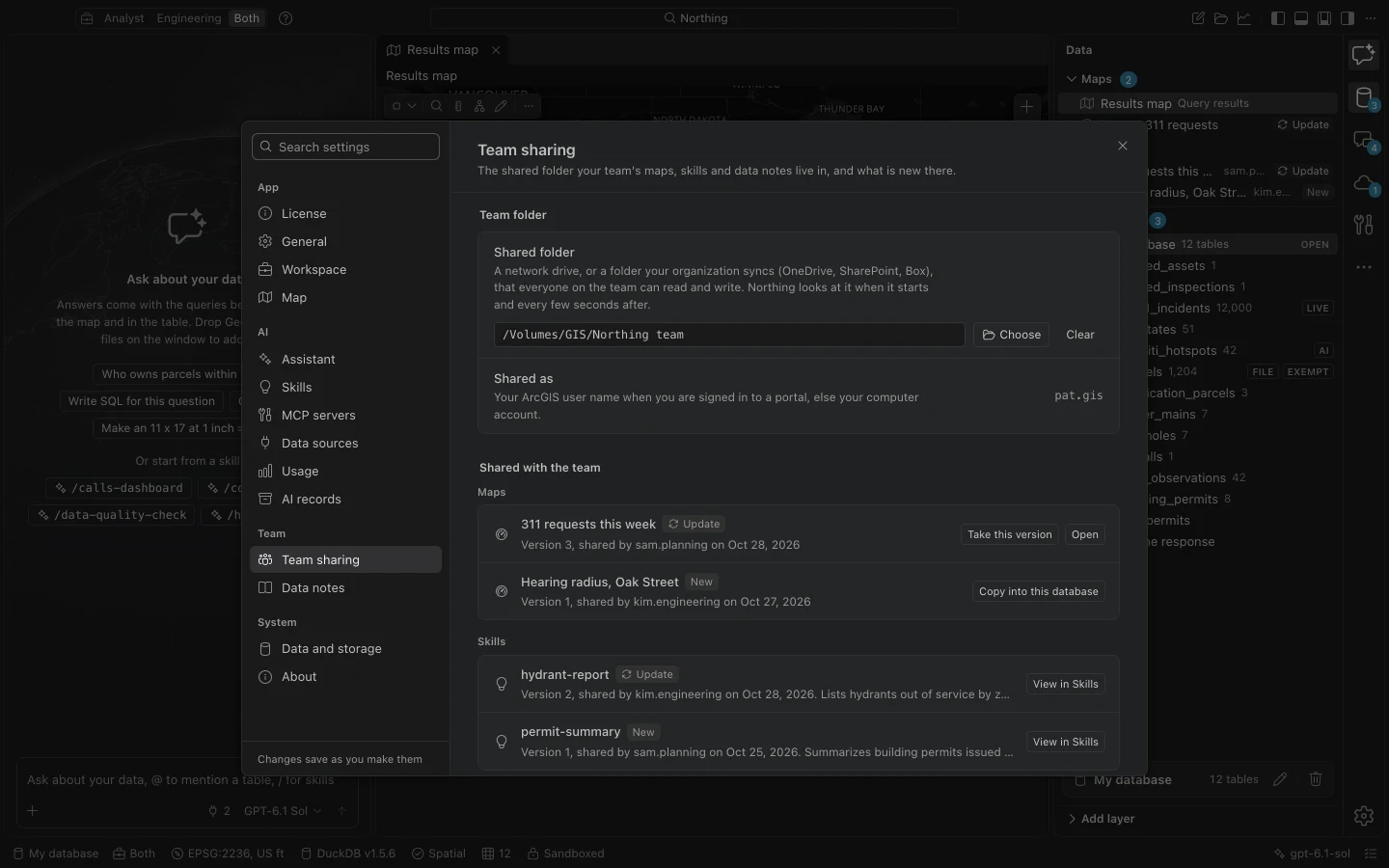
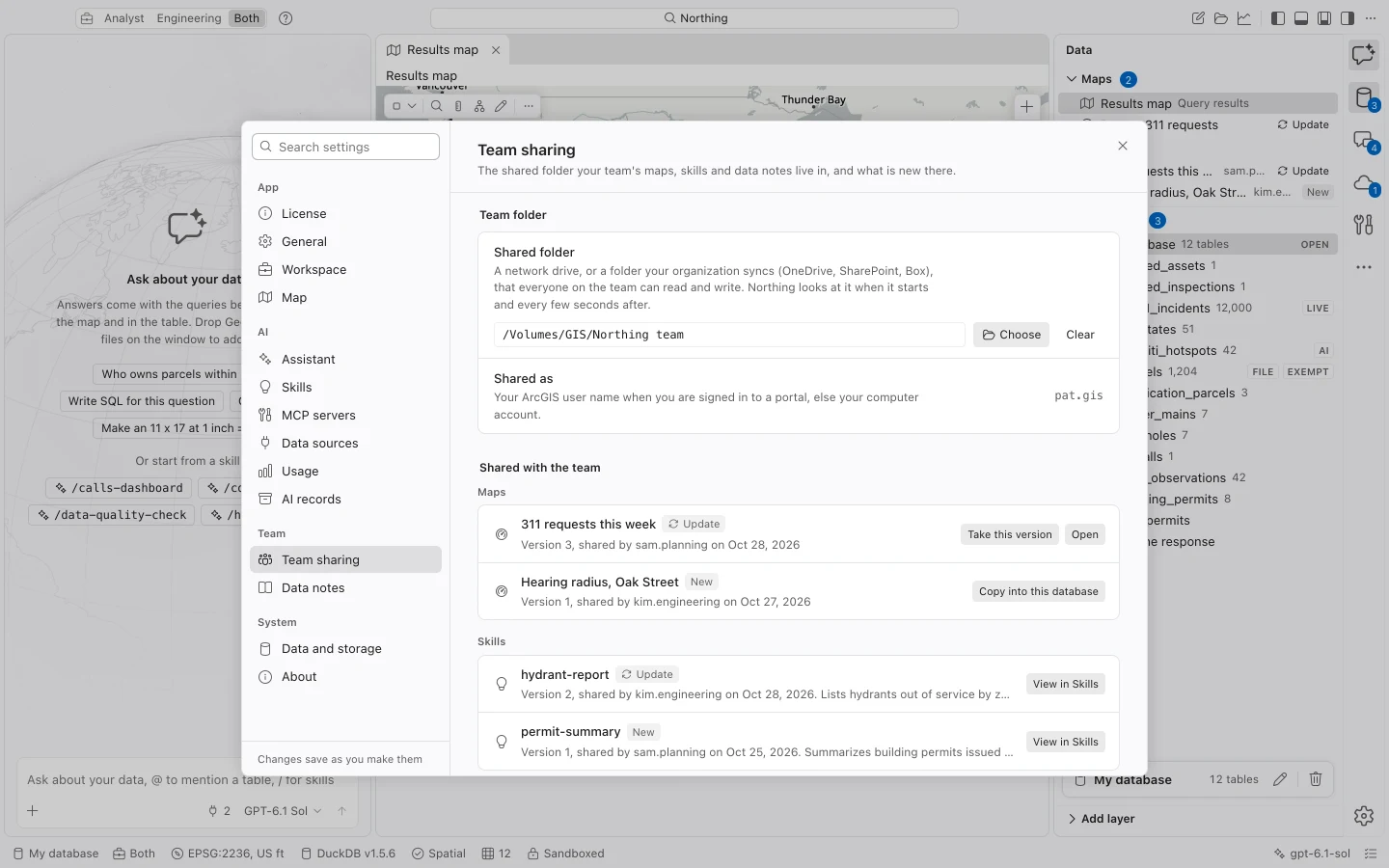
IT can set the folder through policy. If the setting is locked, use the organization’s folder or ask its administrator to change it. Northing reads the folder at startup and checks it every 20 seconds, so another person’s update may take a short time to appear.
Use a shared folder for the items Northing writes there, not for an open DuckDB database. Database files must remain on local storage; sync software can copy an actively written database inconsistently.
Bring in a team map
Section titled “Bring in a team map”Choose Copy into this database from the shared map’s actions. Review its source URLs or file identities, download scope, required fields, and coordinate system. A same-named table from another source is not assumed to be the correct data.
Use Import from recorded source for an available ArcGIS dependency, or choose a compatible local table and Use this table. For a file dependency, import the file first, then return to select it. Layers remain unavailable until you resolve their data requirements. See Reproducible analysis for the full review.
Keep local and shared versions clear
Section titled “Keep local and shared versions clear”| State or action | Meaning |
|---|---|
| Update | The team has a newer version than the copy you took. |
| Changed here | You changed the local copy. Those edits have not been sent to the team. |
| Share update with the team | Explicitly replace the shared version with your local version. |
| Take the team’s version | Replace your local design with the shared version after reviewing the prompt. |
If someone shared a newer version while you were editing, Northing asks whether to take theirs or share yours over it. Replaced shared versions remain in the folder’s history. Coordinate ownership when two people need to edit the same map design.
Your local edits never reach the team merely because you save the map. Likewise, sharing a design does not push local feature edits to ArcGIS.
Share through a portal group
Section titled “Share through a portal group”Use Share to a portal group from the map’s actions, choose the portal and Group, and complete the sharing dialog. Colleagues find these under Team items in the Portals panel. No group (only you) keeps the item private.
A Northing team item is a reusable Northing document. It is different from a published ArcGIS web map, which is designed for use in Map Viewer and other ArcGIS applications.
Skills, queries, and data notes
Section titled “Skills, queries, and data notes”Team sharing also lists skills, saved queries, and data notes. A skill is a reusable set of assistant instructions. A recipe records an executable workflow. Data notes are a database’s shared dictionary of authoritative sources, field meanings, coordinate systems, and rules.
Team skills are read directly from the shared folder. A personal skill with the same name takes precedence for you. Data notes are copied into the current database and can be edited through Settings > Data notes.
Restrict write access to people trusted to maintain the shared instructions. Skills and data notes influence the assistant’s behavior, though its fixed restrictions still apply. If the folder is unreachable, copied local work remains available; new sharing waits until the folder returns.