
Use outside data sources
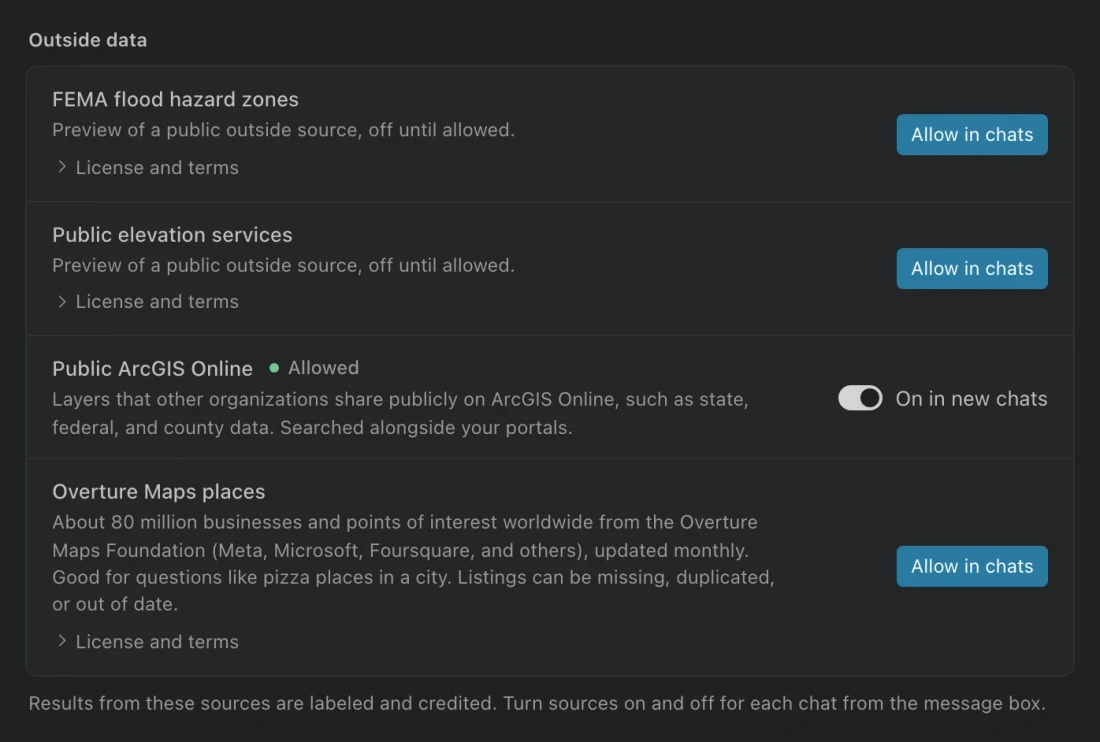
Outside sources let the assistant find public data beyond your connected ArcGIS portals. Allow a source in Settings, then choose which chats can use it.
Allow a source and use it in a chat
Section titled “Allow a source and use it in a chat”- Open Settings > Data sources and review the source’s description and License and terms, when present.
- For a source that requires acceptance, choose Allow in chats. Overture starts without this permission.
- Choose whether On in new chats should be enabled. This controls the default for future chats.
- Open a chat and use Data sources and tools beside the message controls. Turn on the source for this chat.
- Ask for a specific place, category, and area. Review the resulting table, location, and credit before using or exporting it.
Available sources
Section titled “Available sources”| Source | Use it for | Initial behavior |
|---|---|---|
| Public ArcGIS Online | Search layers that other organizations publish publicly, alongside your portals. | On in new chats by default, unless settings or policy change it. |
| Overture Maps places | Find businesses and points of interest within a named area or boundary. | Requires permission and is off in new chats by default. |
For example, you could ask for pizza places within a city and then inspect the resulting points. Be precise about the area. A business directory can contain missing, duplicated, or outdated listings; compare important results with a source you trust.
Tables from Overture carry an OVERTURE tag and a credit line. Keep the attribution when sharing results; chat exports include it.
Per-chat choices and organization rules
Section titled “Per-chat choices and organization rules”The new-chat default applies only to future chats. For an existing chat, check Data sources and tools. Your connected ArcGIS portals appear separately as Your ArcGIS portals.
If a source needs acceptance, choosing it in the chat takes you to its settings. Stop allowing withdraws acceptance for a source that offers that control. A source marked Off by policy has been disabled by your organization and cannot be enabled from the chat. Ask IT if you need access to a source disabled by policy.
The picker can also list organization-configured tools. Their access is separate from allowing a public data source. See AI records and policies for the controls your administrator applies.
What an Overture search reads
Section titled “What an Overture search reads”Northing reads public data files covering the requested area and brings the finished rows into your workspace database. The public file search does not upload workspace records to Overture’s bucket. A model request is a separate operation governed by your selected provider and table sensitivity rules.
If a request returns no useful places, check the chat’s enabled sources, the area, and the category words. If it fails before searching, check source permission, organization policy, and connectivity. A local model does not make an outside-source download work offline.