
Pop-ups
Configure pop-ups, the cards you see when you click map features, to put useful attributes such as identifiers and status first. Saved-map layers and kept layers use the same controls.
Configure a pop-up
Section titled “Configure a pop-up”- Open the layer properties from its gear in Contents, then choose Pop-ups. You can also search for Configure pop-ups in the command center.
- Set Title. Type fixed text and field placeholders, such as
Parcel {PIN}, using a field that exists in your layer. Add a field to the title inserts the selected field placeholder for you. - Under Fields, use Add a field to build the list in the order you want. Alternatively, choose List every field, then remove or hide fields you do not need.
- Use each field’s up and down buttons to reorder it. Set its Label, number formatting, or date formatting as appropriate.
- Leave Show all off to display only the visible listed fields, or turn it on to append unlisted fields.
- Wait for Saved, then click a feature to inspect the result.
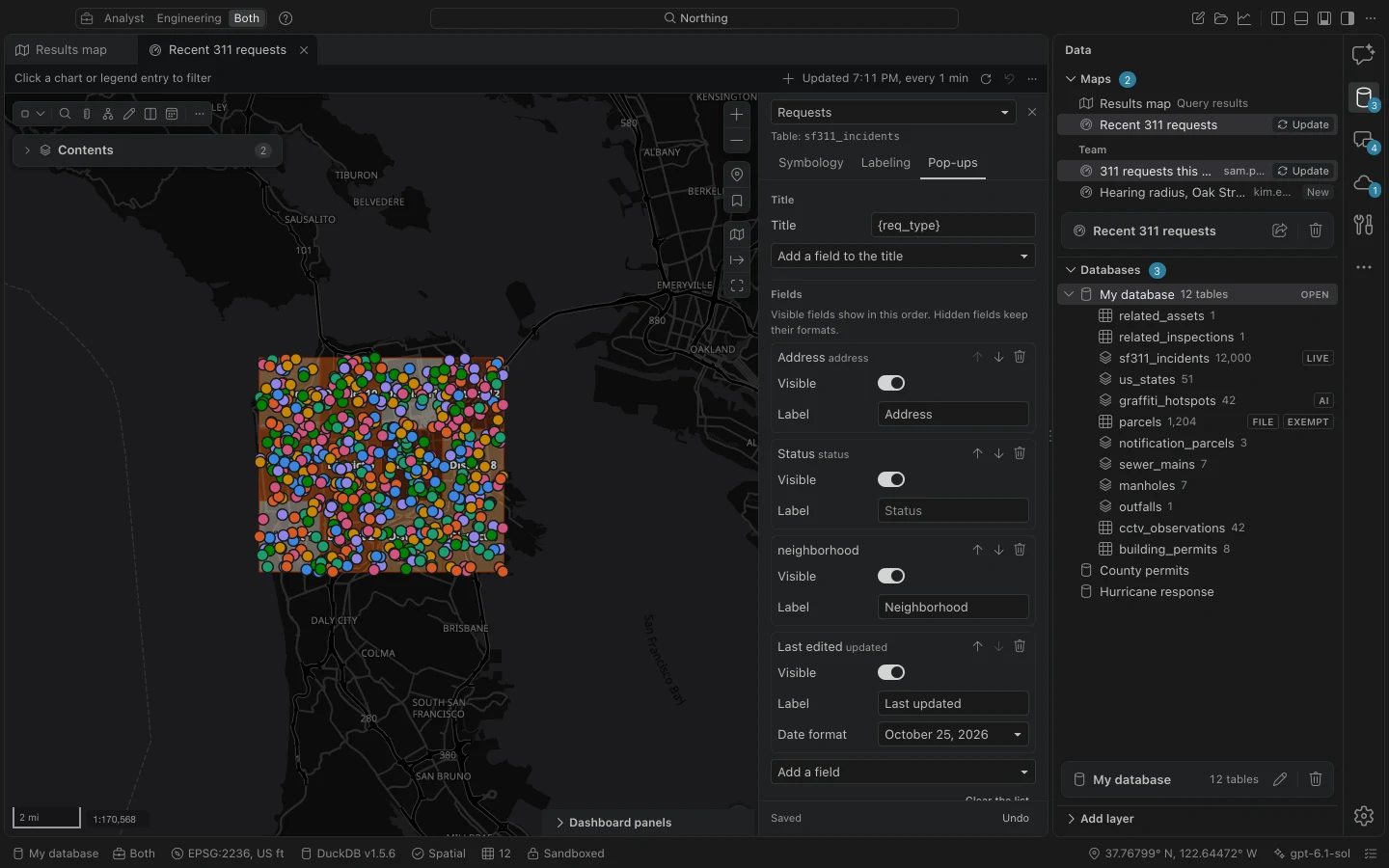
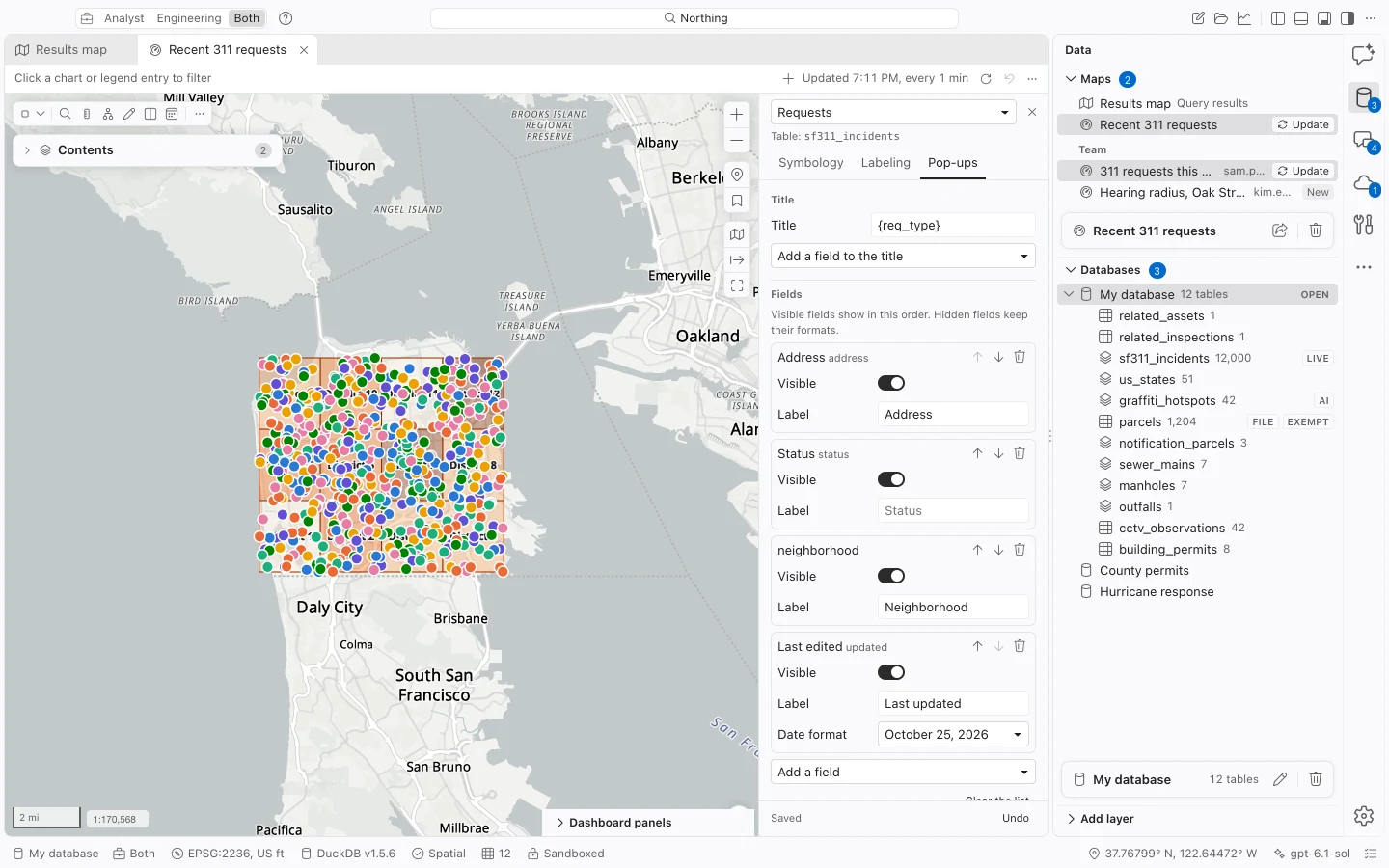
Choose field presentation
Section titled “Choose field presentation”| Control | Effect |
|---|---|
| Visible | Hide a listed field while retaining its formatting settings. |
| Label | Give the field a readable label for this pop-up. A blank label uses the field alias. |
| Decimals | Round a numeric display to 0 to 6 decimal places. Blank uses the stored value. |
| Separators | Show or hide thousands separators in numbers. |
| Date format | Use a short date, long date, date and time, ISO-style date, or the stored representation. |
| Show all | Append fields not explicitly listed. |
Date choices appear for date and timestamp fields. A text column containing a date does not receive the same formatting controls. Coded fields display their descriptions when the layer’s schema provides them.
With no configured field list, the pop-up displays every field by its alias. Clear the list returns to that behavior; it does not create an empty pop-up.
Identify overlapping features
Section titled “Identify overlapping features”A normal map click identifies features under the pointer. If a drawing, selection, or editing tool is active, finish or stop that tool first. The card starts with the top layer and provides next and previous controls when there are multiple hits. The layer name above the title tells you which feature you are reading.
Identify shows up to 25 feature cards and indicates when it has reached that cap. Open all in the table retrieves the full matching query around the click for the current card’s layer, respecting its definition query and saved-map filters. It does not combine every layer into one table. If Northing can match the query results to source feature IDs, it also selects those records in the source table.
| Card action | Result |
|---|---|
| Zoom to | Frame the identified feature. |
| Show in table | Open the attribute table at the feature’s record when its identity can be resolved. |
| Copy values | Copy the title and field values. |
| Ask about this feature | Add the feature as context for the assistant. |
| Show all fields | Reveal attributes beyond the configured list. |
Large tiled layers retrieve the complete stored feature for identification. The card can also follow local relationships and list attachments on demand. See Related records and attachments for that workflow.
Pop-up changes save with the layer. Supported titles, field order, labels, and formatting carry into published web maps. If a field placeholder is wrong, choose it again from Add a field to the title and verify the actual column name.