
Connect an ArcGIS portal
Connect your ArcGIS Online organization or ArcGIS Enterprise portal to browse its content and pull layers into your local workspace database. You use your existing portal permissions to read, edit, and publish data.
Add an OAuth connection
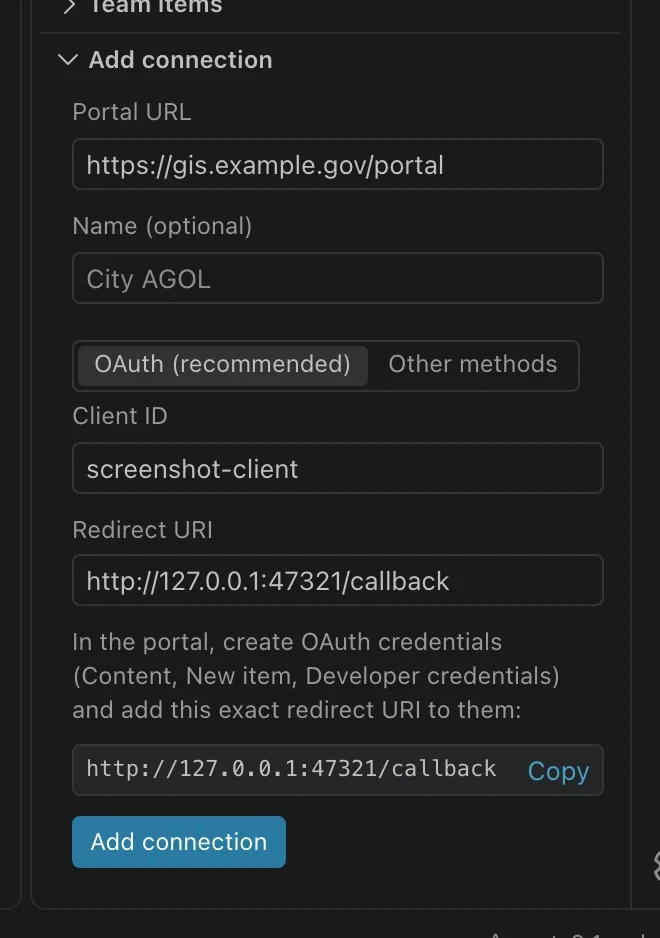
Section titled “Add an OAuth connection”Ask your GIS administrator for the portal’s HTTPS URL, a registered OAuth client ID, and its redirect URI. The usual redirect URI is http://127.0.0.1:47321/callback. It must match the URI registered with the portal exactly.
- Open Portals. If the sidebar is hidden, use Show the Portals view in the command center.
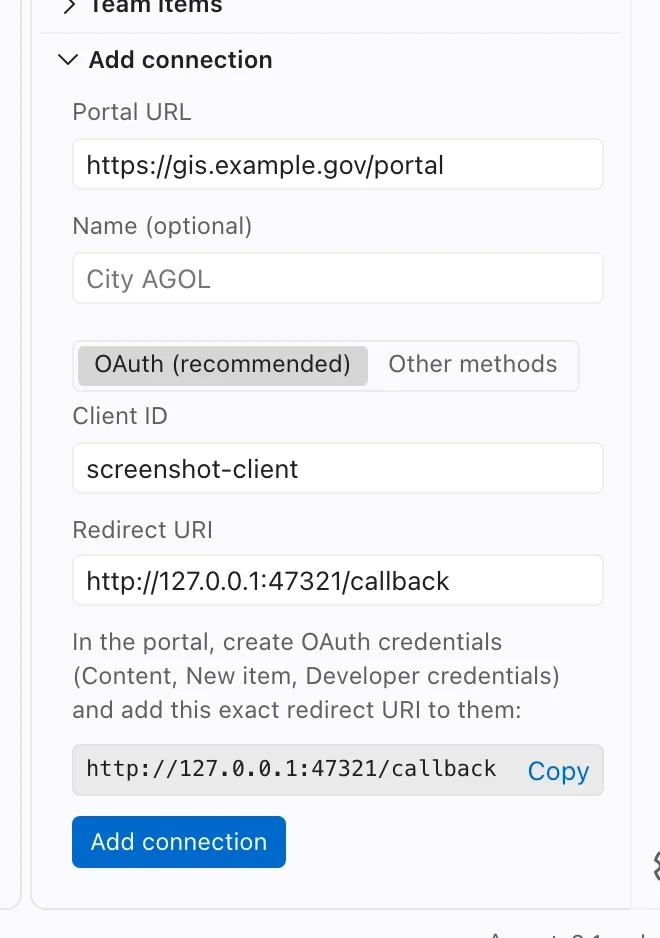
- Expand Add connection. Enter Portal URL, such as
https://yourorg.maps.arcgis.comorhttps://gis.example.gov/portal. Use your organization’s address. - Optionally enter Name (optional) to make the connection easy to recognize.
- Leave Connection type on OAuth (recommended). Enter Client ID and confirm Redirect URI against the registration supplied by IT.
- Choose Add connection. Select the connection and choose Sign in.
- Finish sign-in in your browser, including any organization authentication steps. Return to Northing and confirm that the connection shows the expected account and organization.
- Browse a small test service and import one layer. Check its records before using the connection for larger work.
What the administrator registers
Section titled “What the administrator registers”Your organization registers the application once, then supplies its client ID to the people using Northing. For ArcGIS Online, the portal’s item creation flow provides OAuth credentials. Enterprise registration screens vary by version; ask the administrator who manages application registrations.
The registration must include Northing’s exact local callback address. The callback returns the browser sign-in to the desktop app. Enter your ArcGIS organization address separately in Portal URL.
If port 47321 is already occupied, use another redirect URI with the same local callback pattern and have IT update the portal registration to match. Changing only the Northing field leaves the two sides inconsistent and sign-in will fail.
Use the final HTTPS portal address, including an Enterprise /portal path where required. Authenticated redirects are refused. A service layer URL ending in /FeatureServer/0 belongs in Data > Add layer, not in Portal URL.
Browse your content
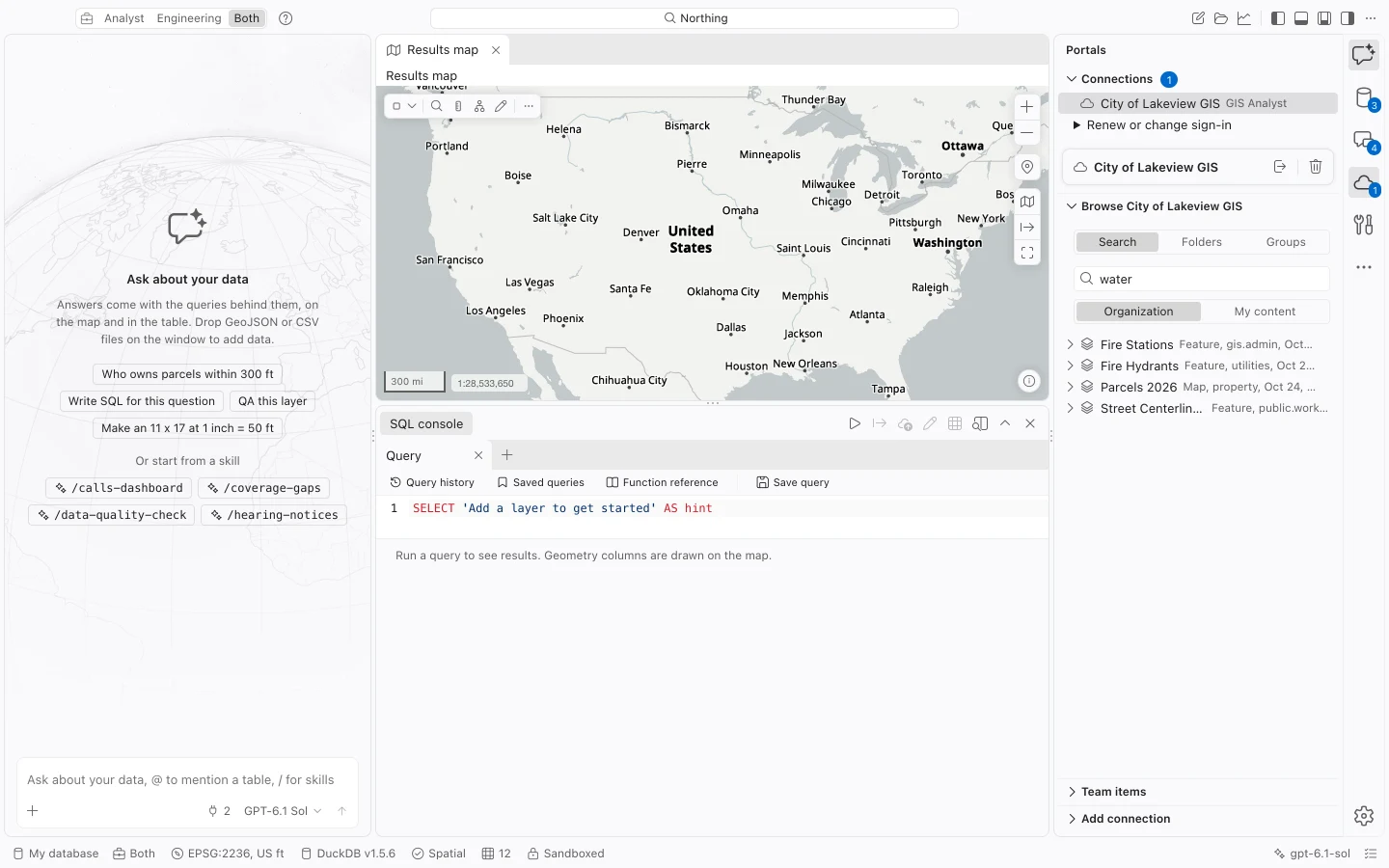
Section titled “Browse your content”Select the signed-in connection. Search, Folders, and Groups offer different routes to content you can access. In search, Organization limits results to the organization and My content to your own items. Enter search text and press Enter.
Open a service’s layer list to distinguish its feature layers and standalone tables. Choose the layer you need and Import. For a web map, choose Open in Northing… to review and translate the complete map. An imagery or tile item is a display source, not necessarily a set of features you can download into a table.
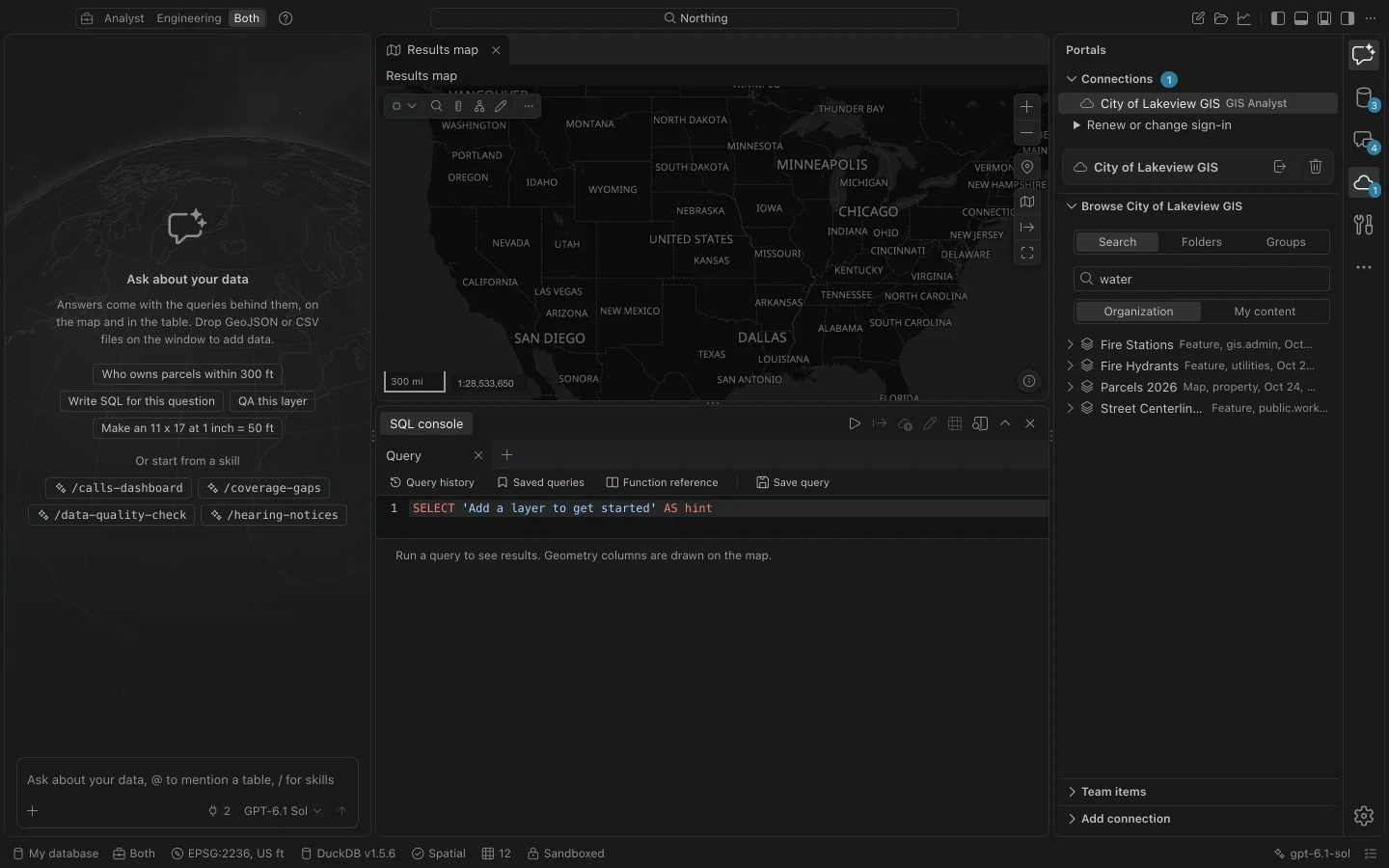
If you can sign in but cannot import a particular layer, confirm that your account can read that service and that its host is reachable from your computer.
Other Enterprise sign-in methods
Section titled “Other Enterprise sign-in methods”If your organization does not use an OAuth registration, choose Other methods when adding the connection. After adding it, select the connection and open Sign-in methods. Northing checks the portal’s advertised authentication methods; only compatible choices are offered.
| Method | What you need | Limits |
|---|---|---|
| Built-in username and password | A portal account, with token authentication enabled by the organization. | Passwords are submitted for sign-in and are not saved. The returned token expires and requires a new password sign-in. |
| Signed-in OS account | A matching Enterprise web adaptor and an existing OS sign-in context. | macOS uses an existing Kerberos ticket; it does not provide Windows NTLM single sign-on. |
| OS client certificate | An identity with a private key in the OS certificate store. | The private key stays in that store. The portal must be configured for the identity. |
For an existing connection, Renew or change sign-in offers its renewal and method controls. Integrated and certificate sign-ins must be selected again after restarting Northing. On macOS, duplicate certificate identity labels are omitted; ask IT to give them distinct labels in Keychain Access.
OAuth is the route for portal browser authentication, including organization MFA or SAML flows, and automatic token renewal. A built-in account token has no refresh token. Renew it when warned, especially before a long download; requests that need more remaining token lifetime stop rather than starting with an expiring token.
Credentials and sign-out
Section titled “Credentials and sign-out”Release builds store OAuth refresh tokens and saved sign-in secrets in the operating system keychain. Access tokens are held in memory. Connection settings are stored separately in portals.json without those secrets. Development builds use a separate local secret store, so use the distributed beta build for the intended installation workflow.
A portal token is restricted to approved hosts: the portal, its recognized federated servers, and the appropriate ArcGIS Online hosting servers. Choosing a connection explicitly under an import’s Sign in with field does not bypass those restrictions.
Choose Sign out on the connection to end its local session. OAuth sign-out revokes that session. For a built-in token, signing out removes Northing’s local token; the server-issued token still has its original expiration.
Resolve connection problems
Section titled “Resolve connection problems”| Symptom | Check next |
|---|---|
| Browser rejects the redirect | Compare the complete redirect URI with the registered one, including port and path. |
| Browser completes but Northing keeps waiting | Check whether the local callback port is occupied or blocked. |
| Certificate or proxy error | Ask IT to check OS trust, proxy configuration, and the final portal host. |
| Expected method is absent | Confirm what the portal advertises and permits for your account. |
| Service appears but import fails | Check service permissions, federation, and network access to the service host. |
Use Run self-test with network checks only when you choose to allow them. Its connectivity report can help IT investigate unreachable hosts; test sign-in separately. Share diagnostics without passwords or tokens.