
Geoprocessing
Use geoprocessing to create new feature tables with familiar GIS tools, without an AI model. Each form shows the SQL before you run it.
Create a buffer
Section titled “Create a buffer”- Check the current database’s analysis projection under Settings > Map. Use a projected system suitable for your area and distance measurements.
- Open Geoprocessing tools from the activity bar, or choose Open Geoprocessing tools in the command center.
- Open Buffer and choose Input features.
- Set Distance and Unit. For a field-based distance, choose a numeric field containing each feature’s buffer distance. Enable Dissolve the rings into one shape only when you want that combined result.
- Give Output table a new name. Inspect the SQL and choose Open in console if you want to examine it there.
- Choose Run. Follow the job, then inspect the new table in Data and its features on the Results map.
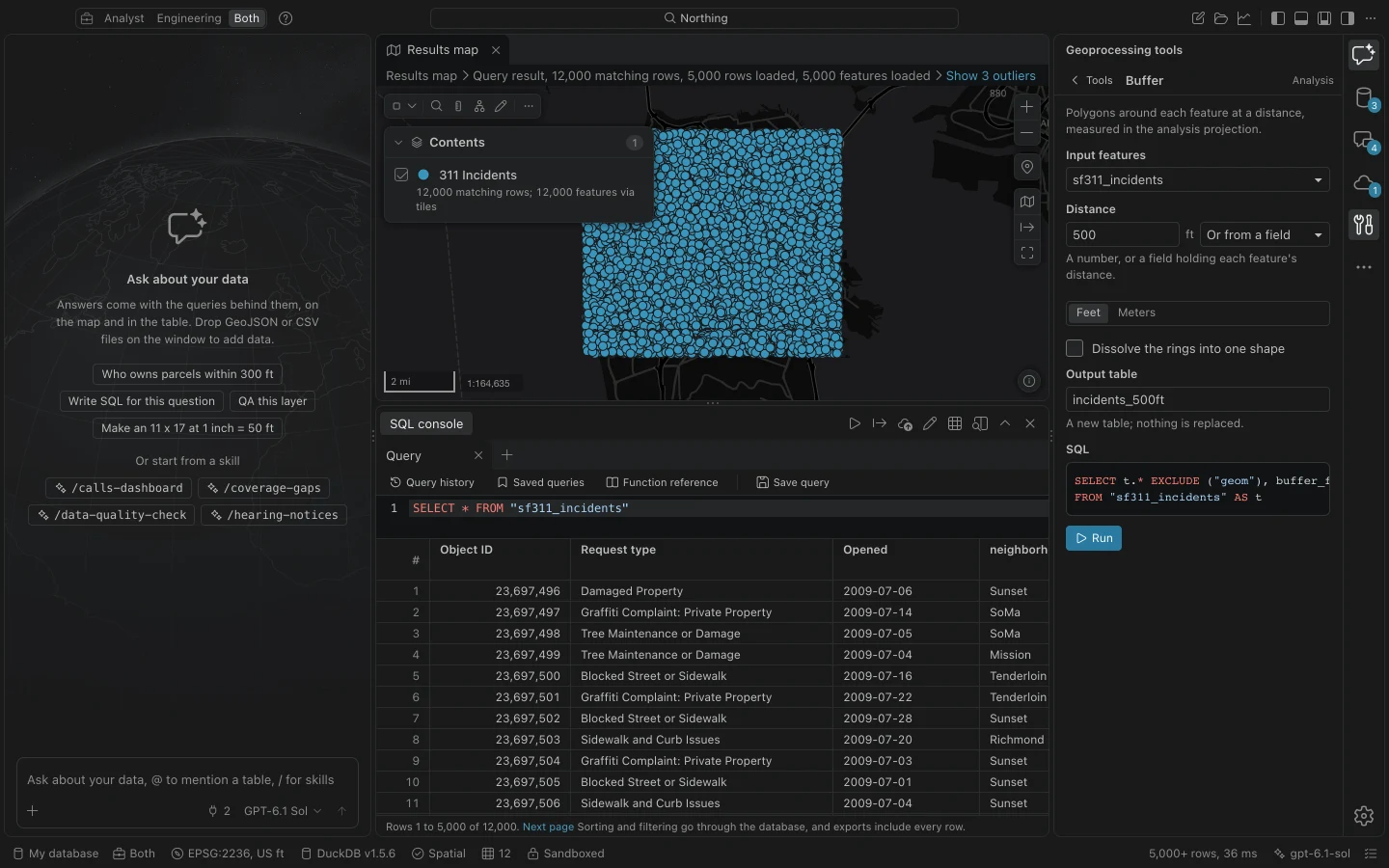
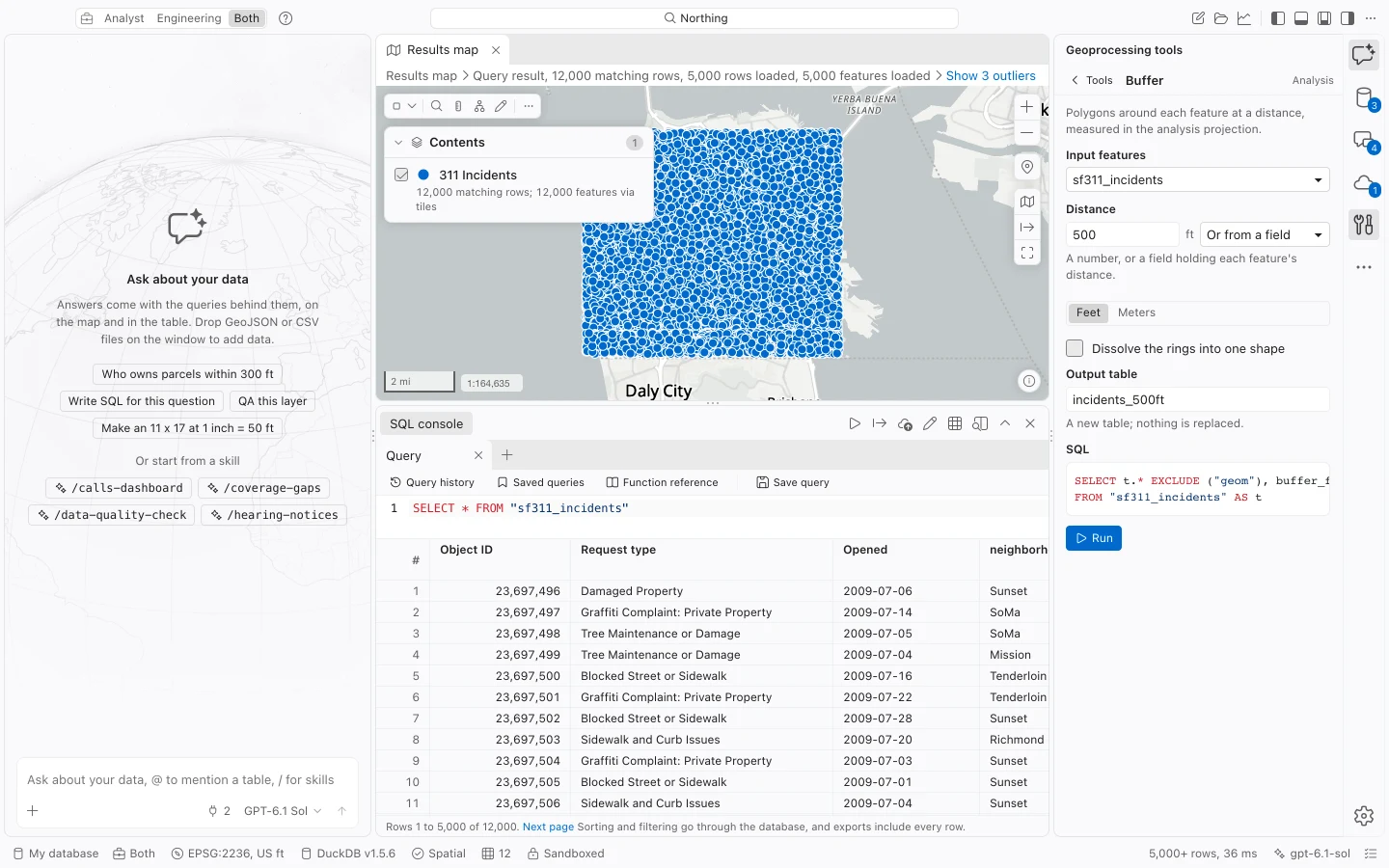
For a simple check, compare the output around one known feature with a measurement in the same analysis projection. Confirm that you buffered the intended table and used the intended units before sharing the result.
Choose a tool
Section titled “Choose a tool”Search by tool name in the Geoprocessing tools view or the command center. The available forms include:
| Task | Tools |
|---|---|
| Construct proximity areas | Buffer |
| Overlay features | Clip, Intersect, Union, Erase |
| Aggregate geometry or attributes | Dissolve, Summarize Within |
| Match spatially | Spatial Join, Near |
| Combine rows and align fields | Merge, Append |
| Derive representative shapes | Feature To Point, Minimum Bounding Geometry |
| Reduce geometry detail | Simplify |
| Separate records by a field | Split By Attributes |
| Create a projected geometry representation | Project |
| Work with routes and measures | The Linear Referencing tools |
Forms constrain choices to suitable tables and field types. A missing input in a picker often means its geometry or field type does not meet that parameter’s requirements. Inspect the source table before changing the tool.
Understand the inputs
Section titled “Understand the inputs”Read the form’s input scope. A map selection does not automatically mean every tool processes only those selected rows. For a selected subset, first create an input table from the selection query or use a workflow that explicitly asks for the selection.
Distance tools use the analysis projection, with feet or meter helpers. Simplify tolerances and bounding geometry also use that projection before returning geometry to the map. The screen basemap’s Web Mercator display does not define the measurement system.
Statistics include sum, mean, minimum, maximum, count, first, last, and concatenation. Sum and mean require numeric fields. Merge and Append provide a field map when corresponding columns use different names.
Spatial Join distinguishes one-to-one output from one-to-many output. Review that choice before treating its row count as a count of unique target features. Feature To Point offers a centroid or a point inside the shape; a centroid can fall outside a concave polygon.
Keep outputs separate
Section titled “Keep outputs separate”Each run creates new output tables in the workspace database. The output records the tool, parameters, SQL, and analysis projection, and inherits the strictest sensitivity tag of its inputs.
Append creates a new table containing the target’s rows and fields plus appended rows. It does not modify the target table in place. Split By Attributes can create up to 100 tables, using neutral output names such as result_part_1 rather than exposing protected field values in catalog names.
Use a new output name for a new run. In Jobs, choose Snapshot and replace to replace a completed output after preserving a snapshot. A failed replacement preserves the old table.
Cancel or retry a job
Section titled “Cancel or retry a job”A geoprocessing run appears in Jobs with progress and cancellation. Cancellation interrupts the active database statement and rolls back its partial output. In a multi-output operation, already completed outputs have recorded checkpoints.
Retry checks completed outputs against the original request and recorded table contents, skips unchanged outputs, and continues the remaining work. Read the error and job state before changing output names or rerunning the whole operation.
For a very broad Near search, use an explicit Search radius if the tool asks for one. Unrestricted search can refuse a costly exhaustive comparison for distant or empty geometry. A bounded radius states the actual analytical requirement and avoids treating an arbitrary distant match as useful.
Project data explicitly
Section titled “Project data explicitly”Open Project, choose Input features, then Output coordinate system. Inspect the available Datum transformation choices, including reported accuracy, area of use, and required grid availability. Choose the operation explicitly. An unavailable operation fails rather than silently using another one.
The output retains WGS84 geometry for existing maps and tools and adds a projected companion representation:
| Field | Contents |
|---|---|
projected_wkb |
Geometry encoded in the output CRS. |
projected_crs |
The output coordinate system as WKT2. |
projected_operation |
The chosen operation’s name, accuracy, and pipeline. |
Use ST_GeomFromWKB(projected_wkb) in SQL when you need those native projected coordinates. Whole-table exports default to the projected CRS and use that companion geometry when the CRS matches. Editing either geometry requires running Project again before that export, so stale projected coordinates are not silently reused.
The assistant can run the same geoprocessing tools, with the same parameter rules and SQL. A recipe can chain them into a repeatable workflow.