
Related records and attachments
Use a Relate to inspect records linked by a key, such as a hydrant and its inspections, without copying fields into a new table. Attachments are files associated with an ArcGIS feature; downloading its attributes does not automatically download those files.
Follow a relationship
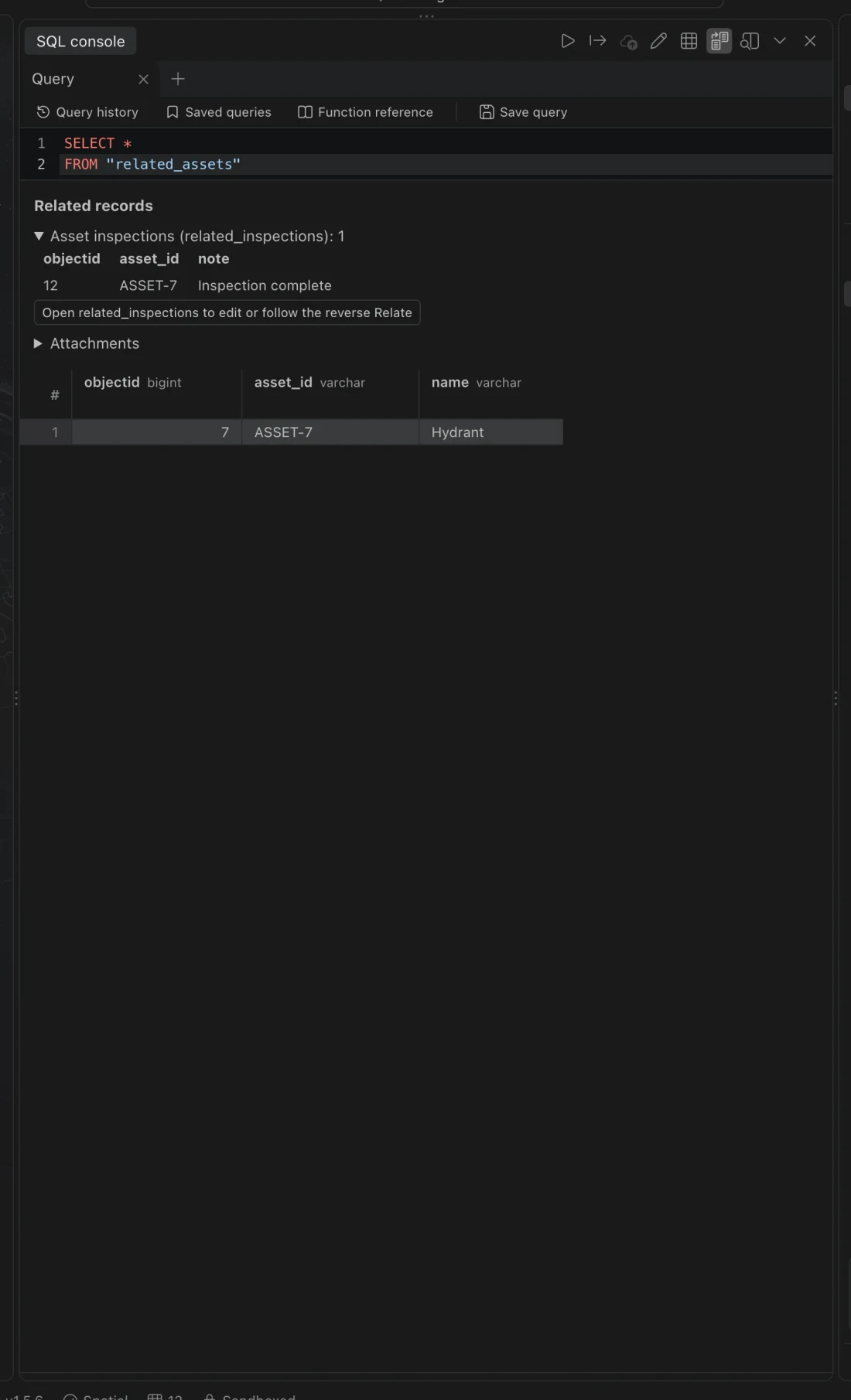
Section titled “Follow a relationship”- Open the parent table’s Attribute table and select a row with a relationship key.
- Choose Related records, or use Related records and attachments in the command center.
- Expand the named relationship to inspect its matching records. Check the linked table and key value if the list is empty.
- Choose Load more related records if more matches are available. The view starts with 100 records and loads up to 5,000 on demand.
- Use the action to open the related table when you need to edit it, inspect more records, or follow the reverse Relate. Save changes in that table through its ordinary editing workflow.
Import or create a relationship
Section titled “Import or create a relationship”An ArcGIS layer import offers related tables when available. Selected tables retain their relationship keys, source, and connection; imported relationships become local Relates. Existing tables from the same source keep their local edits.
Direct one-to-one and one-to-many ArcGIS relationships are supported. An attributed relationship using an intermediate relationship table needs explicit imports and relationships for its keys; it is not automatically reduced to a direct relationship.
To create a local relationship, choose Relate for a table, or Relate with the table’s name in the command center. Select each table’s key field, Related table, and Cardinality, and optionally give it a recognizable name. Choose the cardinality that describes the actual data. Matching key values, not row order, determine the connection.
Use a join instead if you need a new output table with fields or summaries from both inputs. A Relate leaves both source tables separate.
Inspect attachments
Section titled “Inspect attachments”Expand Attachments for a feature to see file names, content types, and sizes. Opening a file downloads it and keeps a local cached copy. Supported raster images display inline; documents open in their associated application, and other types offer a save dialog.
Importing a layer does not download its attachment files. Only cached files remain available offline. If the service is unavailable, the interface marks a cached list so you can distinguish it from a fresh inventory. Refreshing the inventory invalidates cached files that changed or disappeared.
Add or remove attachments
Section titled “Add or remove attachments”Use Add attachment (up to 20 MB) for a file within the limit. Adding a file or staging a deletion changes the local workspace until you use Review and push. For a newly created feature, push its record first so it has an ArcGIS object ID before attaching files to it.
The push review includes attachment changes alongside row edits. Check the destination and each pending attachment. A stale review or a feature deletion with pending attachment edits is refused. For an attachment conflict, discard the pending edit, load the current list, and stage the intended change again.
Northing saves a copy of each attachment before deleting it so you can reverse the deletion from push history. Reversal restores a deleted file with a new attachment ID; original IDs, GlobalIDs, and timestamps are not restored. Deleting a whole feature has broader limits: its attachments and composite related records cannot be restored by that reversal.