
Licensing for administrators
Use Settings > License to check activation, expiry, and offline time before deploying Northing or taking it into the field. Personal users activate an invitation key; IT-managed users receive a signed license through a protected machine policy.
Check a machine’s license
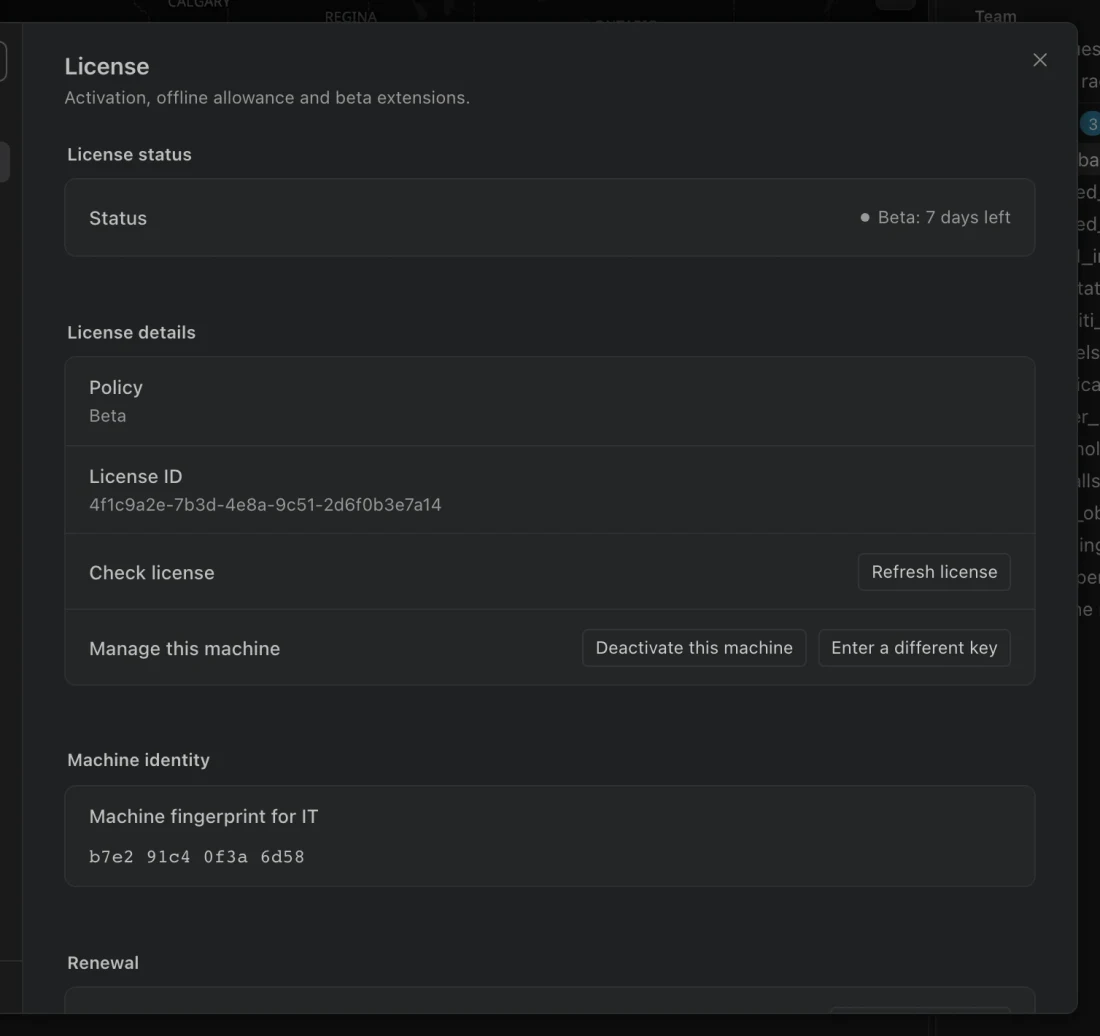
Section titled “Check a machine’s license”- Open Settings > License, or choose Manage license in the command center.
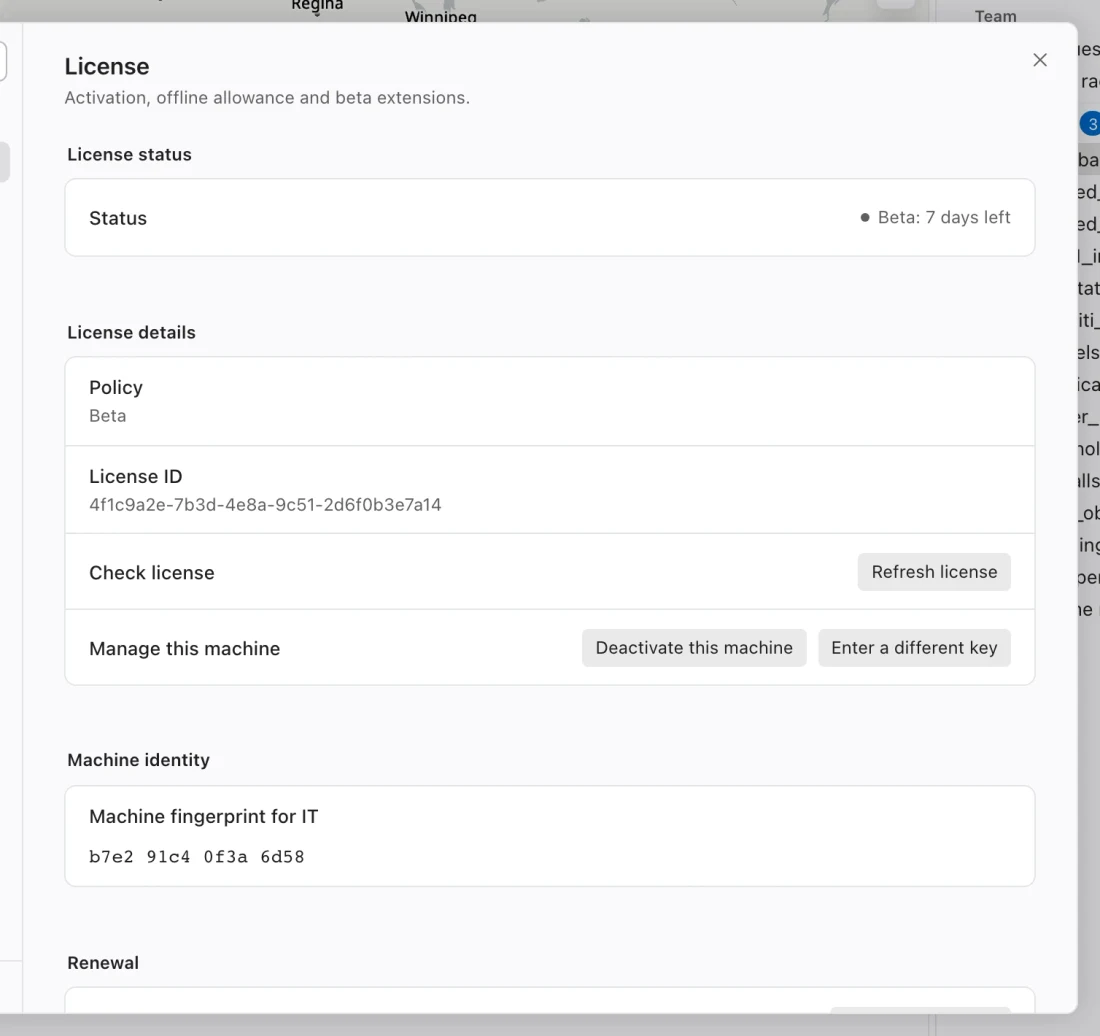
- Inspect Status, Policy, and License ID. An organization-managed installation identifies the organization and directs renewal to IT.
- Choose Refresh license while connected to update the license status or receive an approved extension.
- If activation is required, follow Beta activation or deploy the organization file described below.
- Before field work, verify that the displayed time left covers the trip. Offline allowance never extends a license past its term or signed file expiry.
Terms and offline behavior
Section titled “Terms and offline behavior”| Type | Machines and ordinary offline allowance |
|---|---|
| Beta | Up to two machines, 30 days from first activation, capped by the fixed beta deadline; seven days offline by default. |
| Trial | Up to two machines, the invitation’s finite term, and seven days offline by default. |
| Named | One person on up to two machines, the agreed term, and 30 days offline by default. |
| Connected organization | Machines covered by the organization’s agreement; automatic enrollment and ordinarily 30 days offline. |
| Approved air-gapped organization | IT supplies a signed license file with an end date; no online machine enrollment is performed. |
The earliest applicable limit wins: license term, beta end date where applicable, signed checkout expiry, or offline allowance. The Northing team can configure organization allowances in the signed license policy. A second personal activation does not start a fresh beta term.
Startup and hourly checks refresh connected licenses. During an outage, you can keep working until the last verified license check expires. Initial activation or organization enrollment needs connectivity.
Deploy an organization license
Section titled “Deploy an organization license”- Obtain the signed organization license file for the organization’s agreement. Confirm whether it is for connected enrollment or an approved air gap.
- Install it in an administrator-controlled local folder, such as
/Library/Application Support/Northing/on macOS orC:\ProgramData\Northing\on Windows. - Set
license.filein the machine’spolicy.jsonto its absolute path. Install the license file before the policy that references it. - Launch as an ordinary user and inspect Settings > License. Verify the organization name, license dates, and network behavior.
- Distribute renewals through the same managed mechanism. Test replacement on a pilot machine before broad deployment.
Example Mac policy fragment:
{ "license": { "file": "/Library/Application Support/Northing/organization.lic" }}The file and every parent directory must be protected against user modification. On macOS they must be root-owned without group or other write permission, including ACL write grants. Windows requires SYSTEM or Administrators ownership with protected ACLs. Paths cannot traverse symlinks, junctions, or parent-directory references.
license.content can embed signed content in the protected policy and takes precedence over license.file. Either managed source takes precedence over a personal key. If the managed license is unreadable or invalid, licensed actions are blocked until IT repairs it. The app does not fall back to a personal license.
An organization license file can be distributed to covered organization machines. A machine-bound file belongs only on its matching machine. Connected organization files enroll each machine automatically; approved air-gapped files work only until the earlier of their term and signed file expiry. Disconnected machines cannot learn a revocation or entitlement change until the license expires or IT replaces the file.
Expiry, recovery, and credentials
Section titled “Expiry, recovery, and credentials”When the license expires, you can still read existing workspaces, maps, and tables and export existing data. New analysis, editing, importing, printing, recipes, pushes, and publishing are blocked. Licensing does not delete data or uninstall the app.
For personal licenses, Deactivate this machine frees a slot before uninstalling or moving computers. If the old machine is unavailable, manage it through the license portal or ask the Northing team. Uninstalling alone does not release the slot. Managed users ask IT; personal activation, deactivation, and extension controls are hidden for managed licenses.
Correct a wrong system clock and choose Refresh license while connected. The app detects significant clock rollback; altering cached files does not renew the license. A damaged credential store also needs repair before licensed work can resume.
Treat licensing/license.json and licensing/managed.json as credential-bearing data. Do not attach them or license files to support reports. Diagnostics includes license state without the key.