
Print maps and map books
Make a map page for a hearing packet, a field crew, or a plan review. Export the current map or keep reusable print layouts, called sheets in Engineering, with a saved map.
Export a map page
Section titled “Export a map page”- Open your map and set its extent, visible layers, labels, and filters. If you are using the Results map, the map of your current query results, check the query before printing.
- Open the command center with Cmd+P on Mac or Ctrl+P on Windows. Choose Export map as a page or image in Analyst or Both. Engineering calls this Print a sheet or export the map.
- In Export map, choose Page under What to make. Set the paper, orientation, and resolution.
- Set the scale. Use Fit what the map shows for a general overview, a feet-per-inch choice for a plan, or 1:N for a ratio scale.
- Add a title, subtitle, and Author or department. Check the legend, scale bar, north arrow, notes, and credits in the preview.
- Choose Save PDF or Save PNG and select a destination. Open the finished file and check it before distributing it.
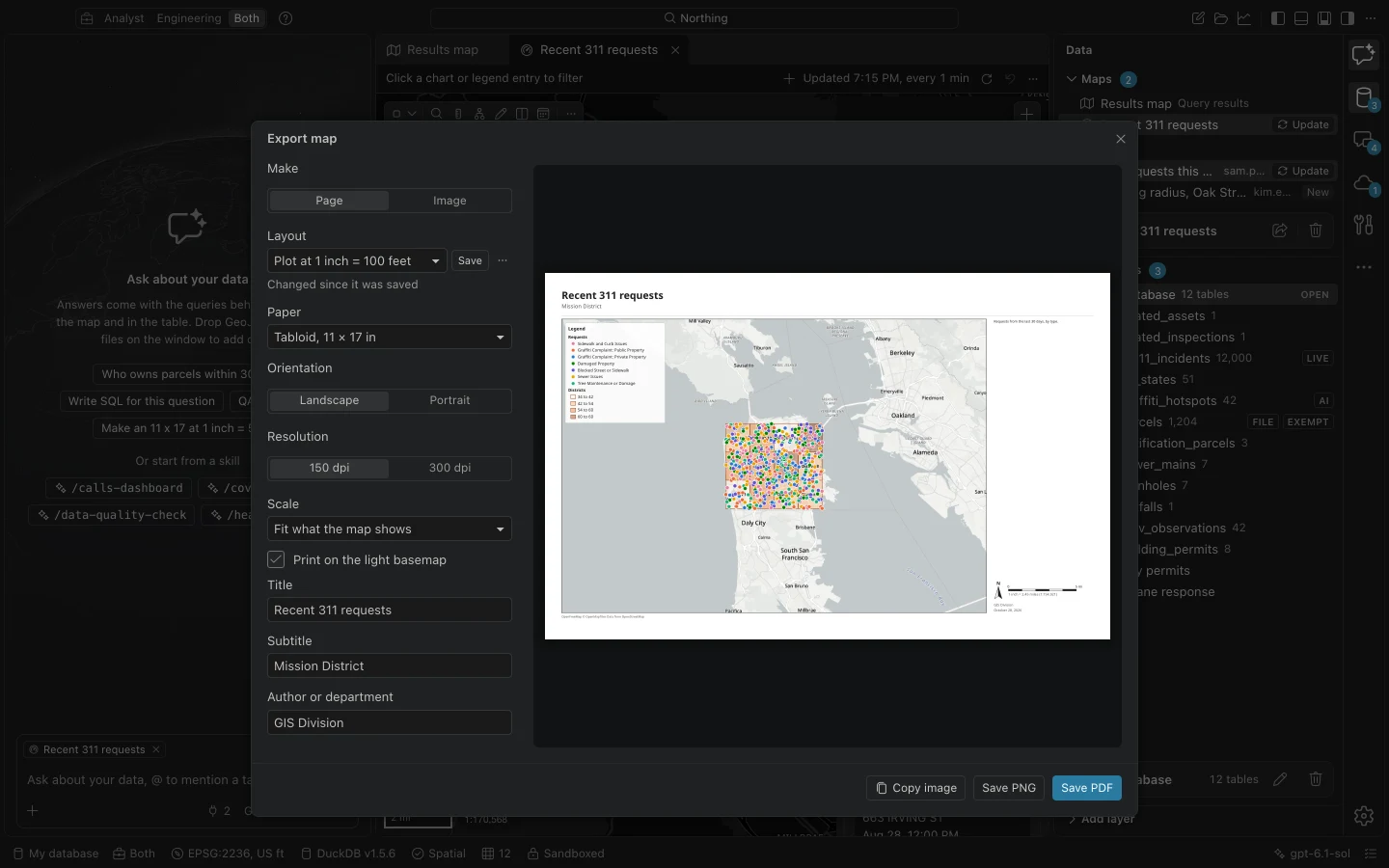
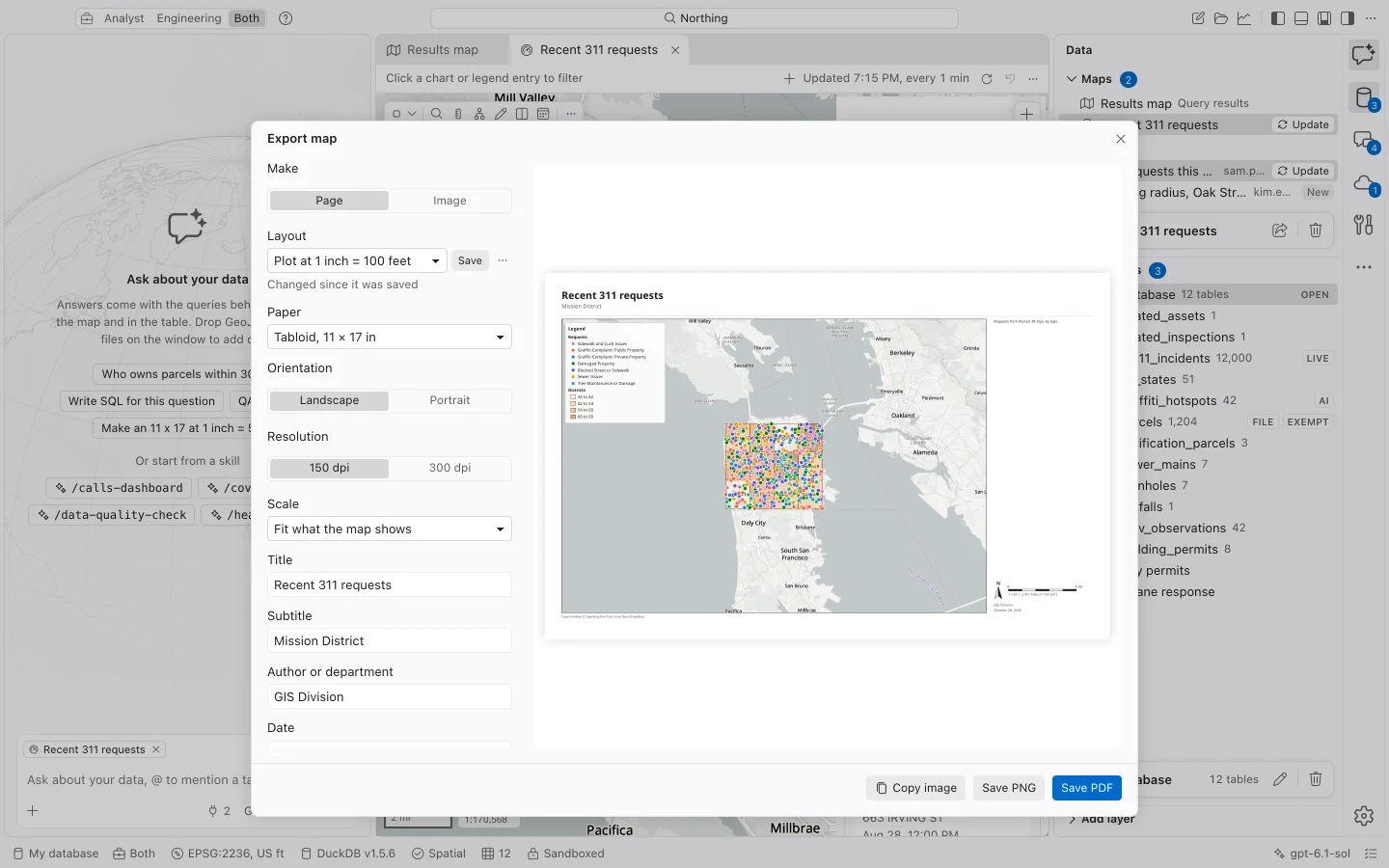
The export uses the map’s current visible content and filters. A feature layer hidden in the map does not become visible simply because you export it. Review Contents and Labeling first if a layer or label is missing.
Choose the output
Section titled “Choose the output”| Output | Use it for | What to expect |
|---|---|---|
| Page PDF | Printing and document packets | Page elements and text remain searchable and selectable. Ordinary map imagery is rendered at the chosen print resolution. |
| Page PNG | A page image for another document | The file records the selected resolution. |
| Image PNG | A map illustration at an explicit pixel size | The map includes its legend, scale bar, and credits. |
| Clipboard image | Pasting into a slide or message | Copy map image copies the current map without first designing a paper page. |
Available paper sizes are Letter, Tabloid, ARCH C (18 × 24 inches), ANSI D (22 × 34 inches), and ARCH D (24 × 36 inches). Choose portrait or landscape and 150 or 300 dpi. Large pages take longer because Northing redraws the map at print resolution and waits for its tiles.
For an image, choose Image and enter Image width in pixels and Image height in pixels. Pixel dimensions describe the image itself; paper dimensions and feet-per-inch scale belong to a page layout.
Print at a stated scale
Section titled “Print at a stated scale”The preset feet-per-inch scales are 20, 30, 40, 50, 60, 100, and 200 feet per inch. Choose 1 inch = other feet to enter another value in Feet per inch, or choose 1:N and enter the denominator in Scale ratio.
An ordinary map page makes the stated scale exact at the center of the map on screen. Changing the paper size, orientation, or scale changes how much ground fits on the page. Inspect the preview again after each change, especially for a narrow site or a long utility corridor.
When printing the exported PDF, use actual size in your PDF viewer. A printer option that fits or shrinks the page changes its physical scale. Check a known distance on a test print before relying on measurements taken from paper.
The scale bar uses the units chosen in Settings. Engineering sheets use the database’s analysis coordinate system, described below; an ordinary page remains a rendered map view.
Arrange the page
Section titled “Arrange the page”Place the legend, north arrow, and scale bar in the side or lower panel, in a corner of the map, or leave an element off. The author and date lines can also be omitted. A Locator map shows a wider area with the page extent outlined. It starts enabled on ARCH C, ANSI D, and ARCH D pages.
Print on the light basemap substitutes the light counterpart of a dark basemap and uses the layers’ light colors. Turn it off when the dark presentation is intentional. Check both the map and legend after changing this option.
Northing remembers your recent paper, orientation, resolution, author, logo, and image-size choices. Those preferences save setup time, but always check them for the next deliverable.
Keep a layout with a saved map
Section titled “Keep a layout with a saved map”A saved map can hold named layouts, including paper, scale, title block, notes, logo, and element placement. Open Export map, select the layout, and choose Save to keep changes as a new version. The layout actions menu also lets you save a new layout, duplicate or rename one, undo its last saved change, or delete it.
Layouts travel with a map shared through team sharing or included in a field project package.
Make a map book
Section titled “Make a map book”- Open a saved map. In the command center, choose Export a map book, a page per feature in Analyst or Both, or Print a map book, a sheet per feature in Engineering.
- In Map series, choose an index table or one of the map’s datasets. Each index feature supplies one page.
- Set Page name and Page order. Choose whether Each page shows a fitted feature with a margin or an extent centered on the feature at the layout’s scale.
- If your index contains rotation values, select the field in Turn each page by. Review pages with the preview’s previous and next controls.
- Choose Save book PDF for one document, or Save PDFs to a folder for separate pages.
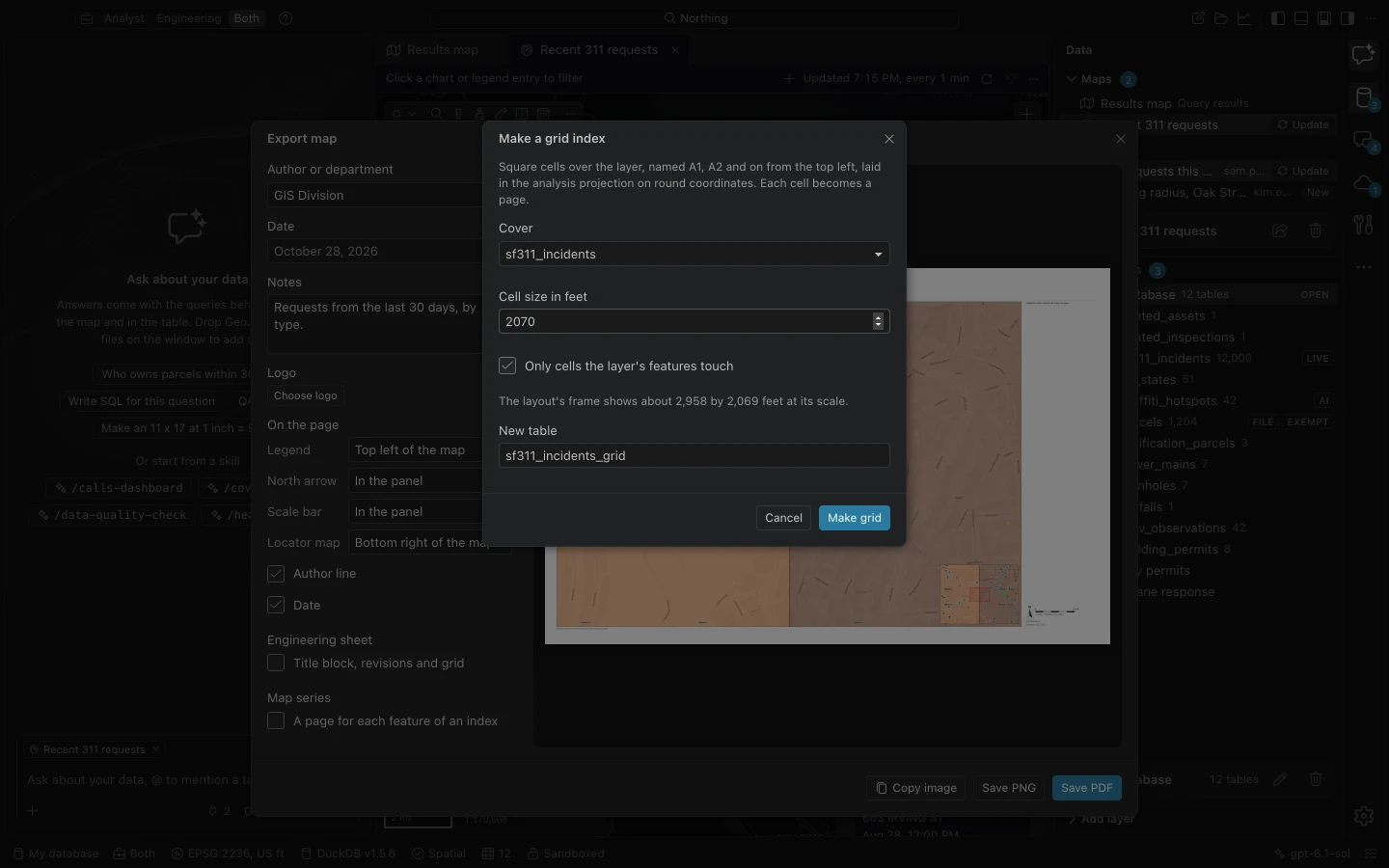
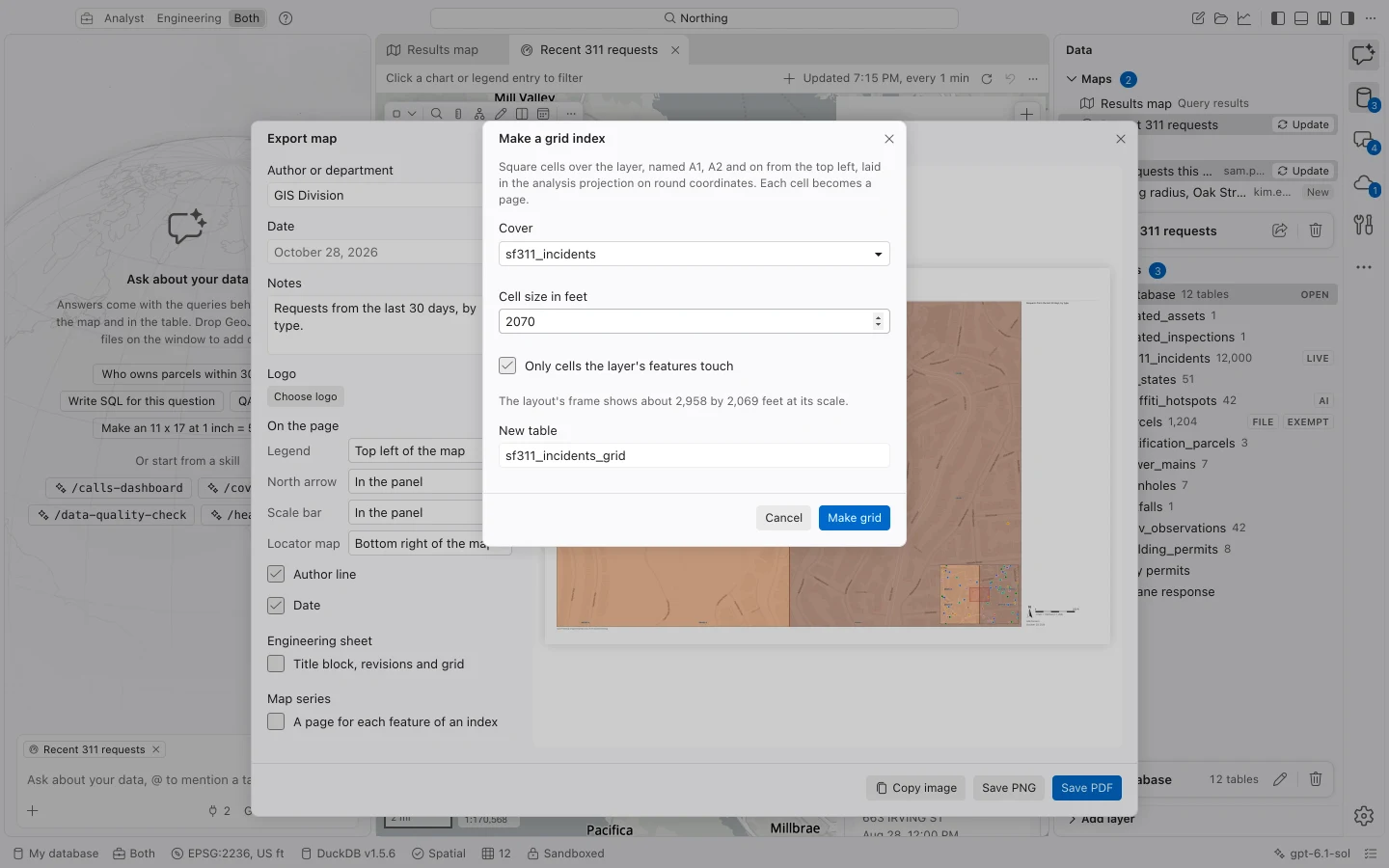
Use Make a grid index for square cells over an area or Make a strip index for pages along a road or pipe. Both create a local table you can reuse. Page text can include {name}, {page}, {count}, and index fields such as {ZONE}. An optional index page shows the page outlines and list.
A map book runs as a job. Retry can continue from pages already drawn while the same app session remains open. After quitting, an incomplete drawing stage needs a new export; a book whose pages were all drawn can retry the joining stage after restart. Separate-page export creates a new book folder, adding a number when needed, rather than replacing existing files.
Engineering sheets and limits
Section titled “Engineering sheets and limits”An engineering sheet adds a border, title block, revisions, agency, project, and sheet numbering. Its map frame draws local vector geometry in the database’s analysis coordinate system. The scale uses that system’s unit conversion, with scale feet defined as international feet. Grid north is up and the title block reports convergence for true north.
These sheets omit basemaps, imagery, and external display services and state that omission on the page. Heatmaps need a vector style or an ordinary map page. Engineering frames currently remain north-up even if the screen or series page is rotated. Frame limits are 100 layers, two million vertices, and 64 MB of feature data per layer; reduce the extent if the export exceeds them.
If the preview fails, check network access for remote map tiles, confirm the map is open, and try a smaller extent. For repeatable measurement output, confirm the analysis projection before creating the sheet.