
Use the command center
Use the command center to find commands, chats, and tables when you do not know where to look. It includes commands tucked away in your current workspace.
Find and run a command
Section titled “Find and run a command”- Click Search commands, chats, and tables in the title bar, or press Cmd+P on Mac, Ctrl+P on Windows.
- Type a task, such as
attribute table,import, orfield calculator. Include a table name to narrow commands that apply to a particular table. - Use ↓ and ↑ to highlight a result, then press Enter. You can also click the result.
- Complete the dialog or form that opens and review any changes before applying them.
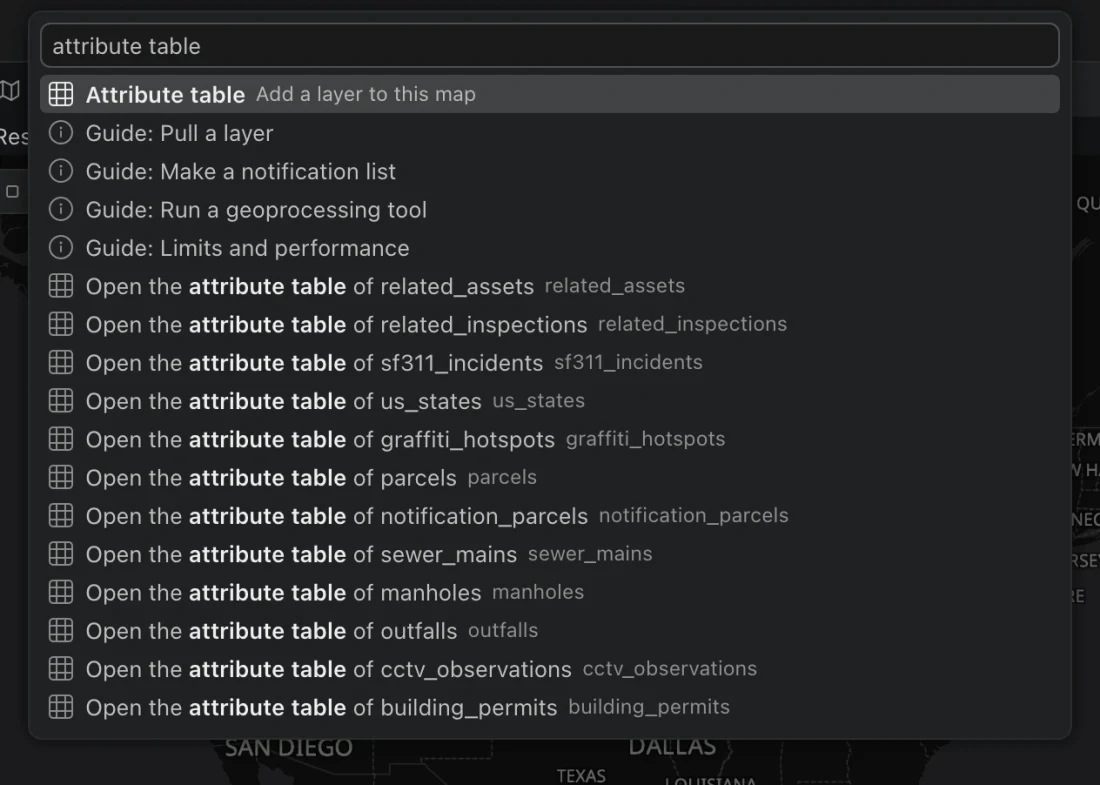
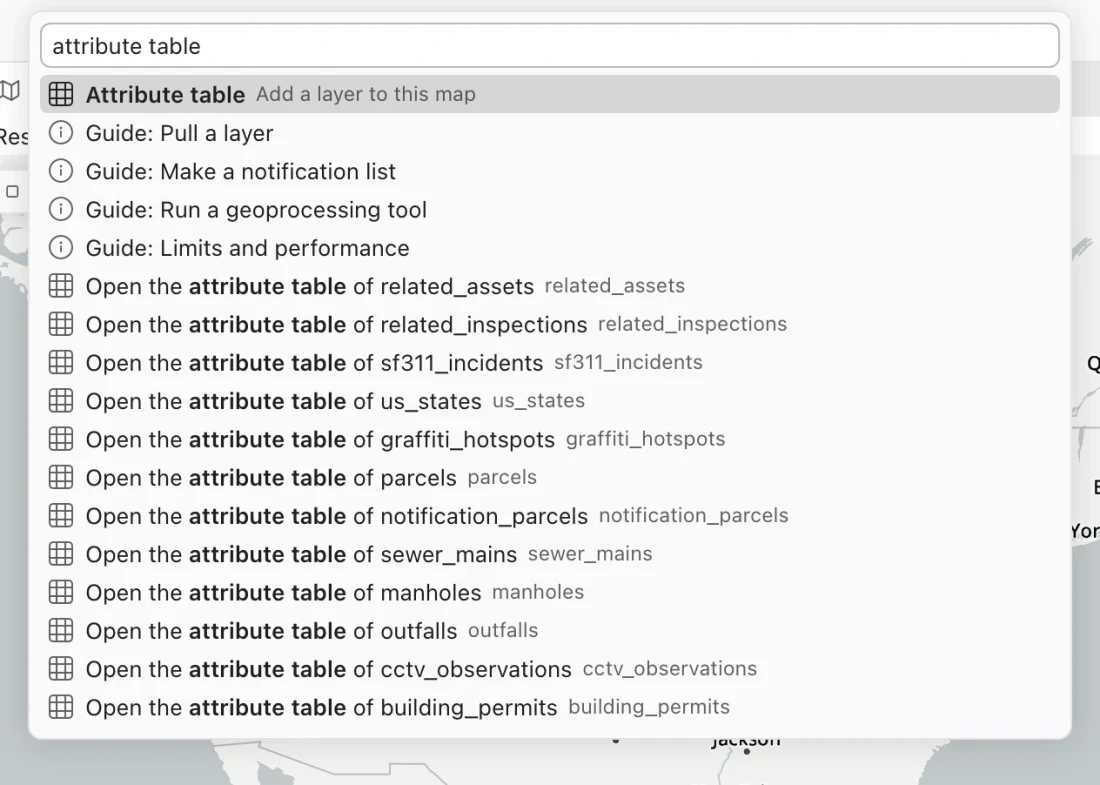
Search in the words you know
Section titled “Search in the words you know”Exact command titles rank first, followed by words and GIS synonyms. For example, searching for familiar GIS terms can help you reach table, symbology, and selection commands without learning every Northing label first.
These are useful starting searches:
| Type | Look for |
|---|---|
getting started |
Show the getting started guide |
settings |
Open Settings |
SQL |
Show the SQL console or New SQL tab |
properties and a table name |
Properties of that table |
database |
Switch database or New database |
Some titles change with context. For example, a panel command says Show the SQL console when it is closed and Hide the SQL console when it is open. Table commands include the table’s name so you can confirm their target.
When a command is unavailable
Section titled “When a command is unavailable”Unavailable results stay in the list. Highlight one and press Enter, or click it, to read its reason below the search box. The command center stays open. A missing table, map, selection, connection, or license capability can explain why a command cannot run yet.
Read that reason before changing settings. Switching to Engineering or Analyst changes which tools appear first. A command that needs a spatial table will still need one in either workspace.
Pin a frequent command
Section titled “Pin a frequent command”Use a result’s pin control to keep it within reach in the current workspace. You can remove the pin later or manage the same choices through Choose what the workspace shows first. Pinning does not run the command.
For all keyboard combinations, see Keyboard shortcuts. The command center also offers Show keyboard shortcuts inside the app.