
Import files
Import a file to create local tables you can inspect, map, query, and export. Northing reads the chosen data into your workspace database; subsequent local edits do not modify the original file.
Import your first file
Section titled “Import your first file”- Choose Import a file in the command center, use From a file under Data > Add layer, or drop the file on the window.
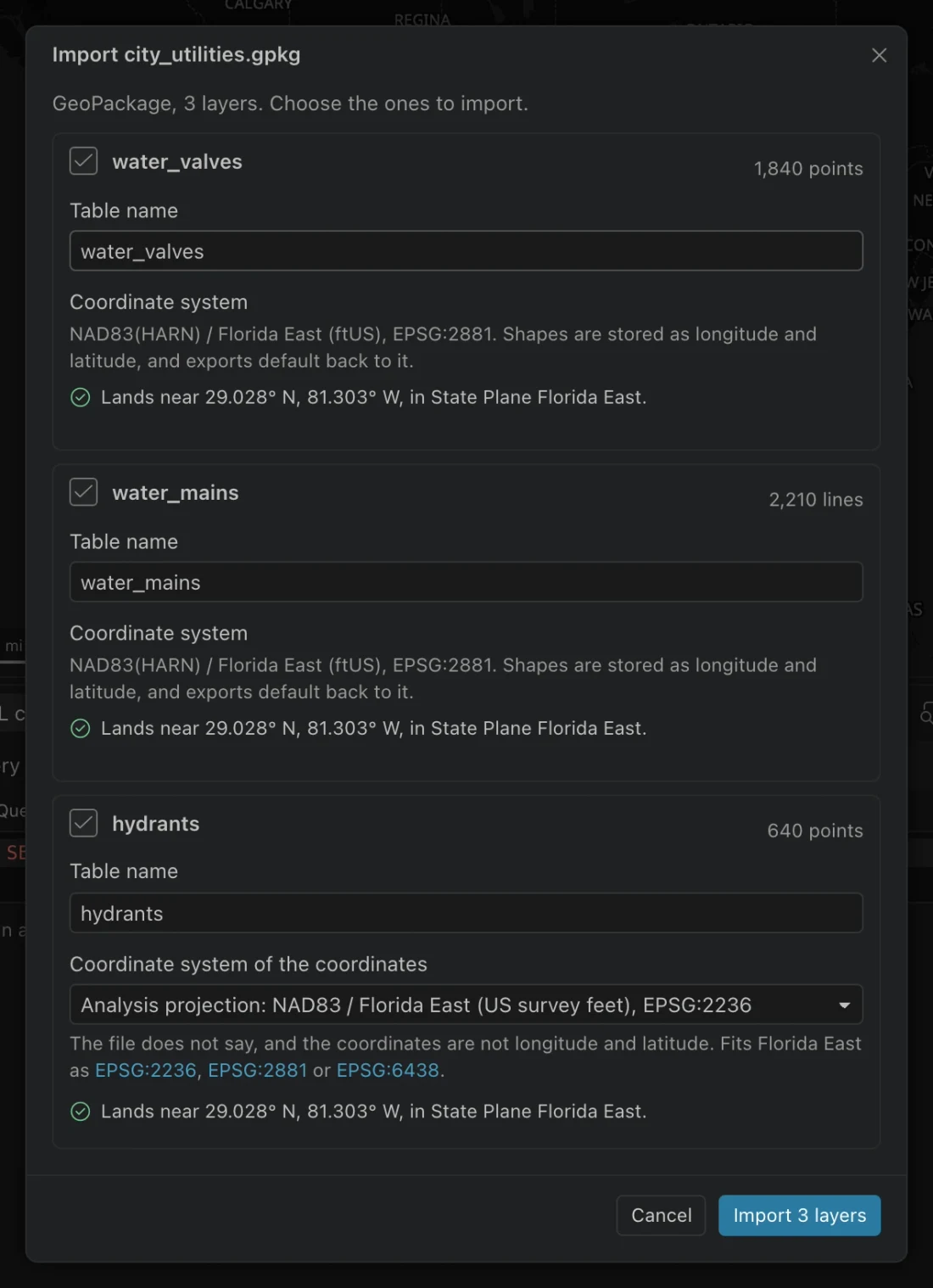
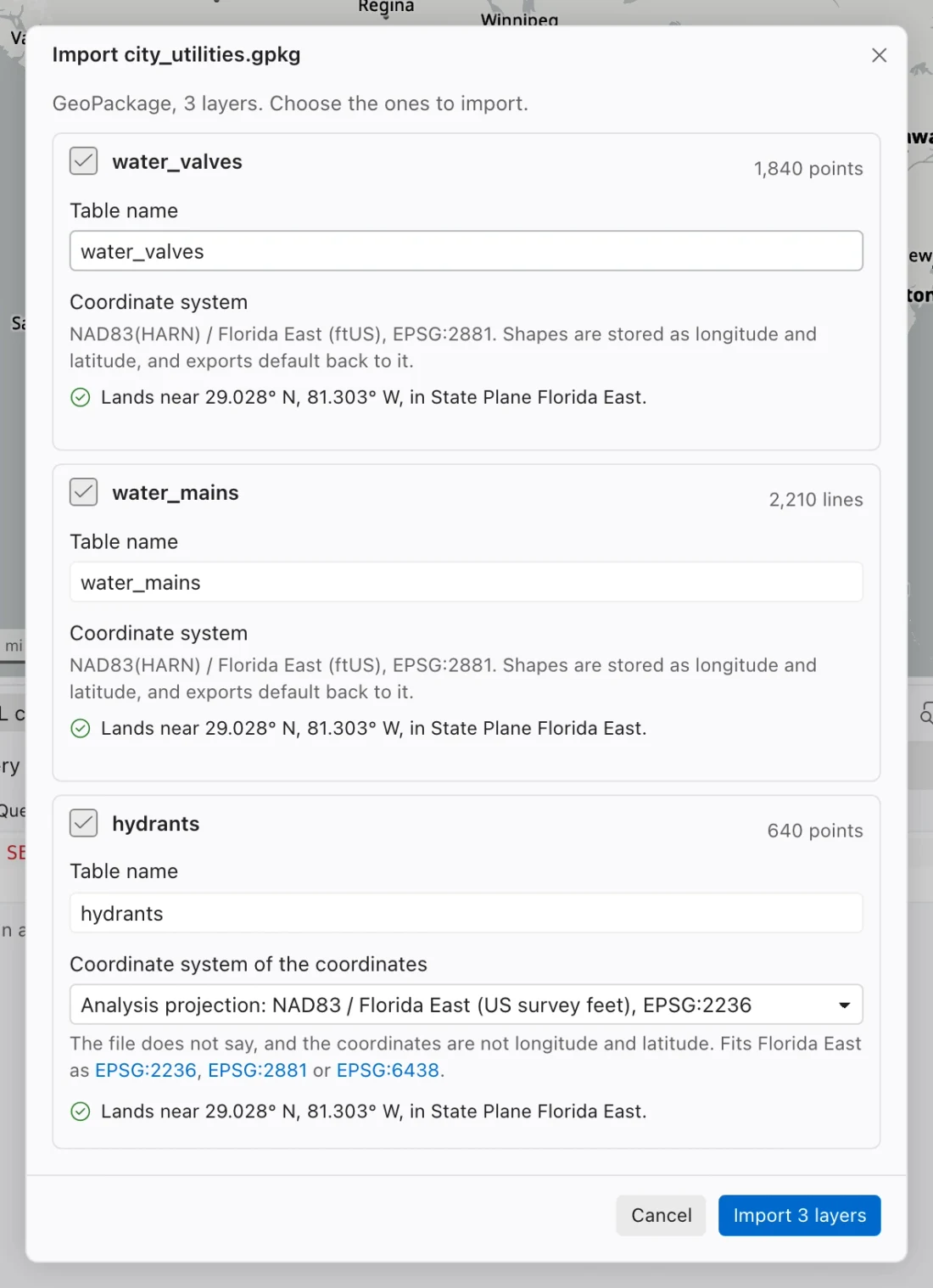
- In the import dialog, review the detected format and available layers or sheets. Select only those you need.
- Set Table name for each selected layer. If the name is already used, choose a new name unless you intend to replace the existing local table.
- Check the coordinate information. For a coordinate table, set X or longitude and Y or latitude, or choose No coordinates (a plain table).
- If the file has no reliable coordinate reference, specify the system its numbers actually use. Review the placement message before importing.
- Choose Import, or Import with the displayed layer count when importing several layers. Follow the job’s progress and read its warnings.
- Open each new table. Compare its count, fields, sample values, and feature locations with the original file before using it for analysis.
Supported inputs
Section titled “Supported inputs”| Input | Preparation or choice |
|---|---|
| Zipped shapefile | Keep the shapefile components together, including projection information when available. |
| GeoPackage | Choose the layers to import. |
| File geodatabase | Choose a .gdb folder or a zip containing it, then choose feature classes. |
| GeoJSON, GeoParquet, FlatGeobuf | Check the geometry and coordinate metadata. |
| KML or KMZ | Review imported layers and locations. |
| GML, GPX, MapInfo | Review the detected layers and import report. |
Excel .xlsx |
Choose sheets and decide whether coordinate columns represent points. |
| CSV | Import plain records or map two coordinate columns. |
| DXF | Use the CAD drawing import to set units and placement. |
For a file geodatabase folder, choose Import a file geodatabase folder (.gdb) in the command center. That command selects a folder instead of an ordinary file. DWG is not a direct input; save or convert it to DXF first.
Choose a format based on the data you need to preserve. A spreadsheet with addresses alone is a plain table until you supply coordinates or run a separate geocoding workflow. Selecting an address column as longitude will not geocode it.
Import a CSV or spreadsheet with coordinates
Section titled “Import a CSV or spreadsheet with coordinates”Longitude or projected easting belongs in X or longitude. Latitude or projected northing belongs in Y or latitude. Confirm that the two columns use the same coordinate system and units.
For geographic coordinates, inspect a few known rows to check axis order and signs. For projected coordinates, use Coordinate system of the coordinates to identify the actual projection. Northing suggests the analysis projection initially; confirm that it matches the file.
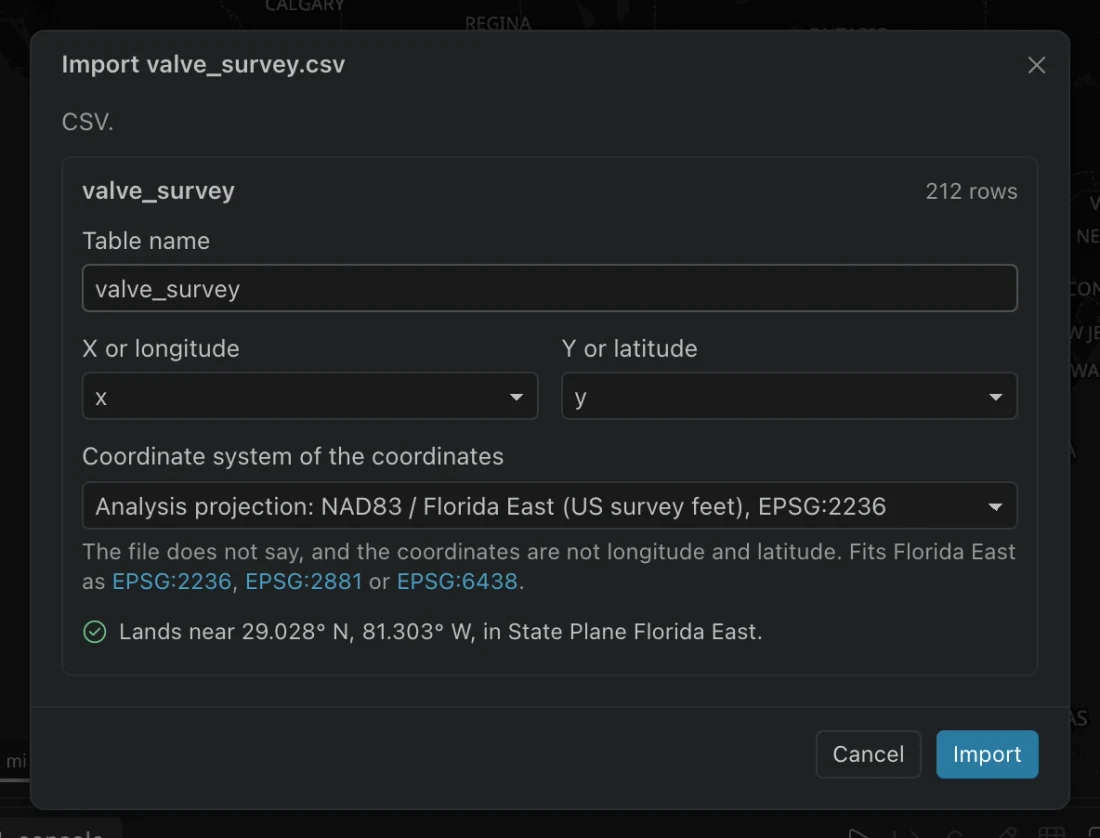
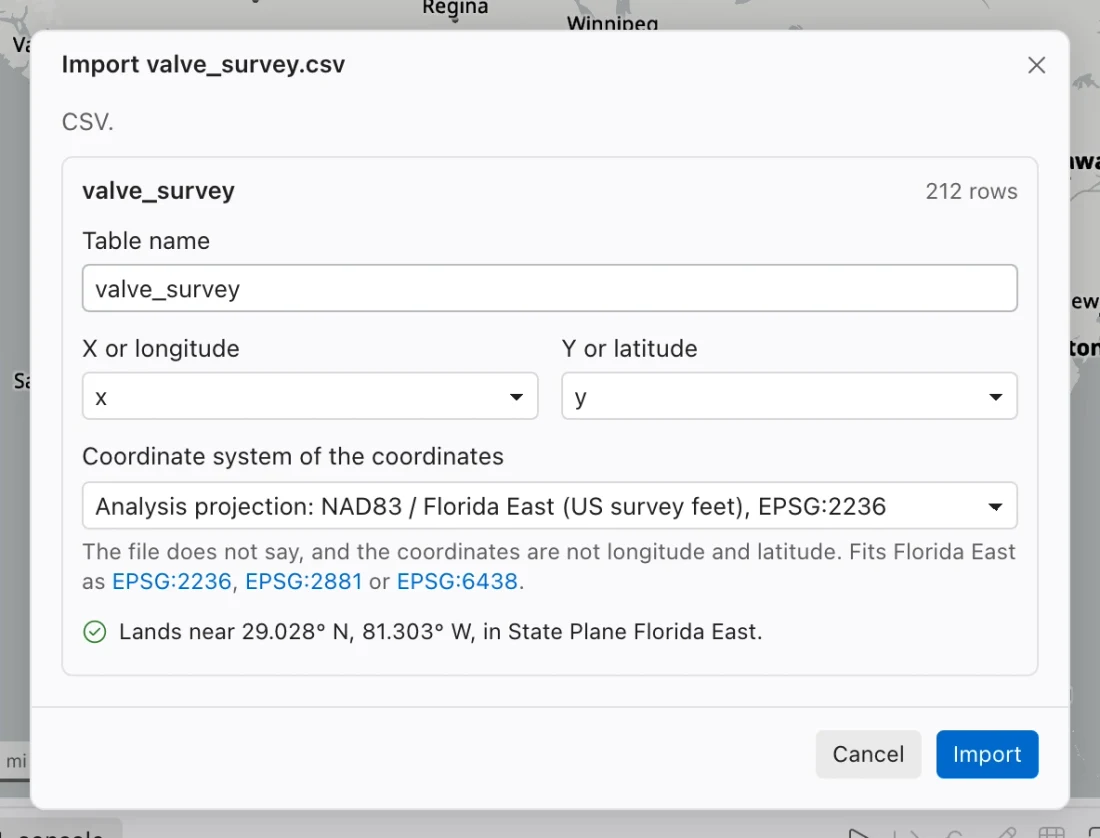
If you only need records, choose No coordinates (a plain table). You can still filter, join, relate, calculate, and export the table. A table without shapes does not draw features on a map.
The imported field types are based on the file’s values and metadata. A CSV column becomes a numeric or other typed column only when every value converts; numbers with leading zeros stay text. Inspect identifiers such as codes to confirm that their text values survived the import.
Resolve coordinate uncertainty
Section titled “Resolve coordinate uncertainty”Northing reads a shapefile’s projection file and the coordinate metadata in formats such as GeoPackage, file geodatabase, and GeoParquet. It asks for help when metadata is missing or the numbers do not fit the declared system.
For example, a file labeled as GeoJSON may contain State Plane coordinates in feet. Calling those numbers longitude and latitude puts them in the wrong place or outside valid bounds. Choose the actual source projection rather than choosing WGS84 merely because the extension is .geojson.
The placement check describes where the coordinates land and can suggest common systems that fit. Compare the reported area with a known feature, jurisdiction, or survey control.
Imported map geometry is stored in WGS84. Northing records the source coordinate system so suitable export formats can default back to it. The analysis projection is a separate choice for measurements and spatial operations.
Handle names and replacement
Section titled “Handle names and replacement”Each imported layer needs a local table name. When a name is already taken, review the replacement choice carefully. Replacing a table can affect maps and queries that read that name. For a comparison, update check, or uncertain source, a distinct new name lets you inspect the new data alongside the existing table.
An import is not a file-backed live connection. Editing the original file later does not automatically update the imported table. Keep enough source context to identify which file and version supplied the records, especially when handing the database to someone else.
Check the import report
Section titled “Check the import report”Review the report for values and geometries that could not be converted. Check affected columns, missing shapes, the total imported rows, and any download-limit warning before reporting a successful transfer.
Use a known record to compare text identifiers, dates, numbers, and geometry. If you will share the result with another GIS, export a small representative sample and reopen it there to confirm the format and coordinate choices.
Jobs show progress and offer Cancel. If a file import is interrupted or partly fails, Retry in Jobs continues the remaining import work without repeating completed parts. Read the job details first so you know which layers already arrived.
Dropping a file also offers it to the assistant’s next message. Importing the file into a table and asking a model about an attachment are different actions; review what is attached before sending a chat message.