
Pull ArcGIS layers
Pull an ArcGIS feature layer or standalone table, such as inspections or permits, to work with its records locally. A pull reads the service into your workspace database without changing the source.
Import a layer by URL
Section titled “Import a layer by URL”- Connect a portal if the source is secured. Confirm that you are signed in with an account that can read the service.
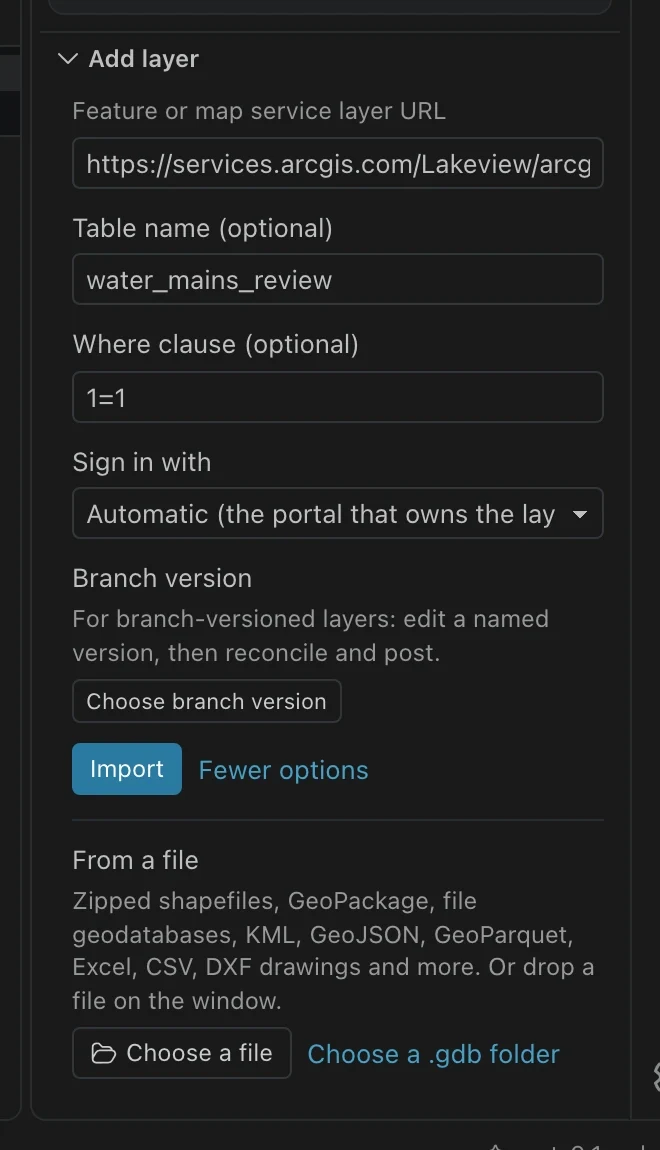
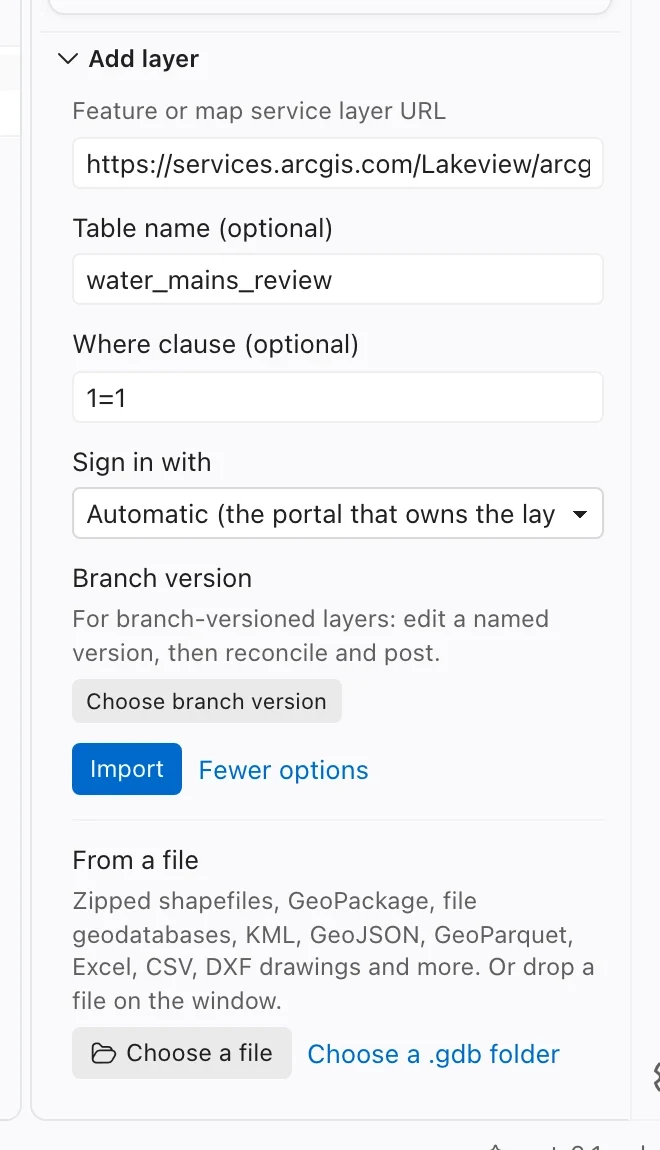
- Open Data and expand Add layer.
- Paste the layer endpoint into Feature or map service layer URL. Use a specific layer, such as
https://gis.example.gov/arcgis/rest/services/Utilities/FeatureServer/0, not a portal item page or the service’s top-level URL. - Open More options. Set Table name (optional) if you want a recognizable local name. Add a Where clause (optional) if you need only part of the source.
- Check Sign in with. The default is Automatic (the portal that owns the layer). Use No sign-in (public layer) for an appropriate public source, or select a signed-in connection explicitly.
- Choose Import and follow the job’s progress. If the source offers related tables, select the ones needed for your workflow.
- Open the resulting table. Check the record count, source, filter, coordinate system, and import warnings before using it in an analysis.
Pick a layer in Portals
Section titled “Pick a layer in Portals”You can avoid copying a service URL by opening Portals, browsing a service, and selecting one of its layers. Use Import for the selected layer. A service can contain several feature layers and standalone tables, so confirm the individual layer name before starting.
A web map is a different kind of item. Use Open web maps if you want to bring across its layer organization and supported presentation settings. Opening the list of layers in a web map and importing one layer does not reproduce the complete map.
Choose a useful filter
Section titled “Choose a useful filter”The where clause limits records at the source. It uses the service’s field names and supported SQL syntax. For example, a source with a text field named STATUS might accept STATUS = 'Active'. Check that field and value in your own layer before using the example.
A filter is useful for a first test, a jurisdiction boundary represented by an attribute, or a defined work area. It also changes what the local table represents. Only records matching the filter enter your local table.
The source and its where clause remain available in table properties. Record them with any analysis you share. Local attribute-table filters are a later view of the records already downloaded; they cannot recover source records excluded by the original pull.
Check what arrived
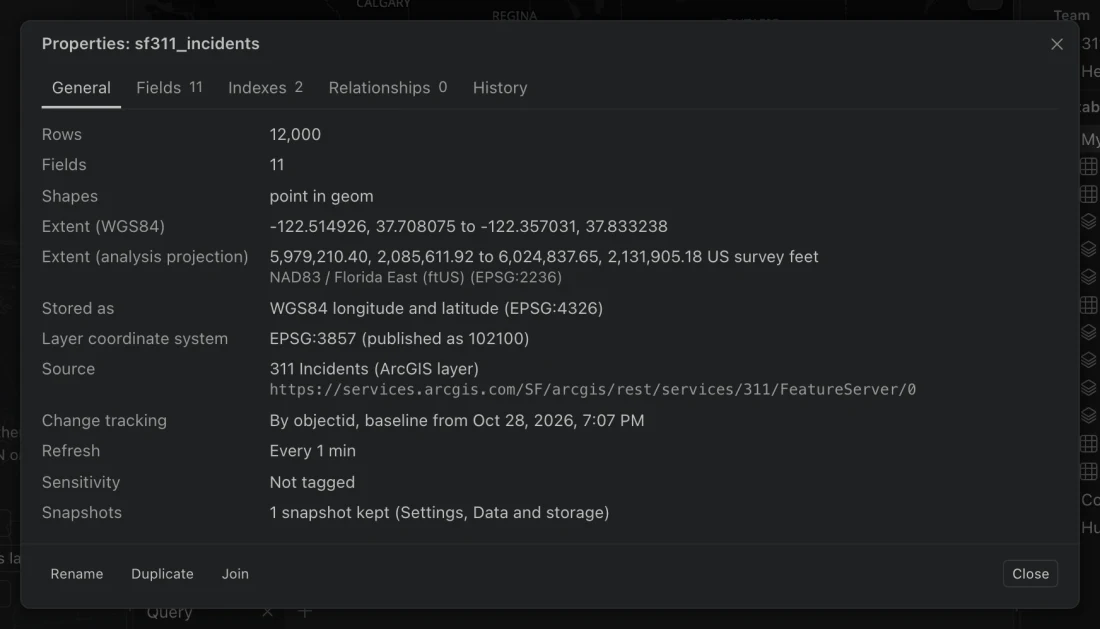
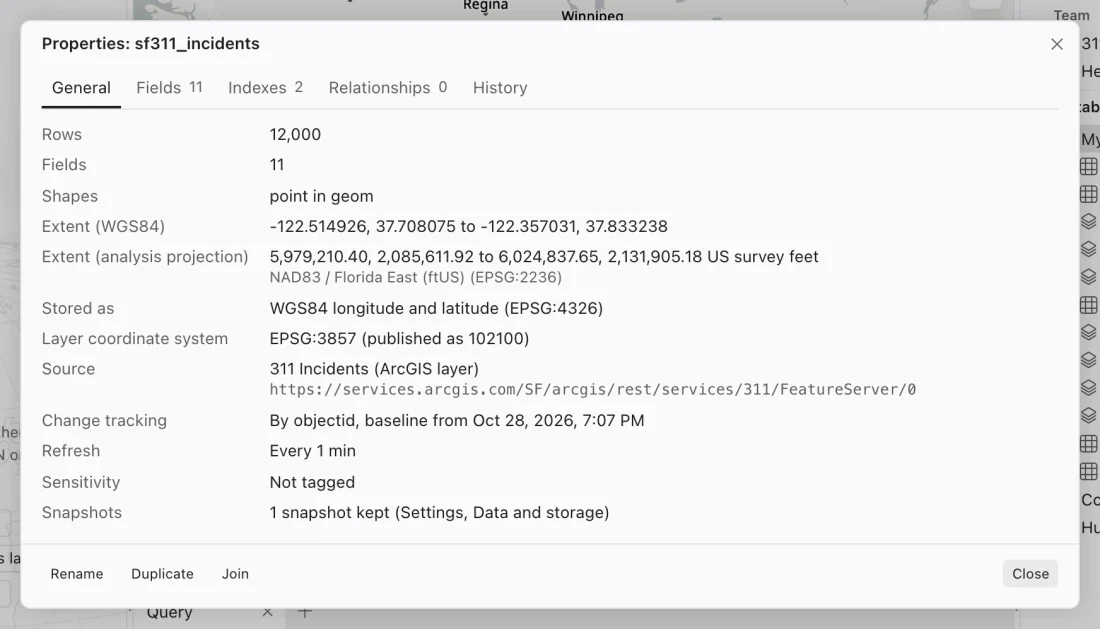
Section titled “Check what arrived”Choose Properties of the imported table from the command center, or Properties in its actions. Use General to check the source and counts, and Fields to inspect the imported schema. Open the attribute table to compare known records and map a few features in familiar locations.
| Import detail | What to check |
|---|---|
| Row count | Compare with the source count for the same filter, not the entire service if you filtered it. |
| Download cap | A table cut off at the limit is incomplete even if the job ended normally. |
| Shapes | Review reported conversions, missing geometry, and familiar feature locations. |
| Fields | Review omitted fields and any renamed fields. |
| Coordinate system | Confirm the source system and choose a suitable analysis projection. |
Northing preserves source schema information, including aliases and supported field rules. BLOB and raster fields are omitted and named in the report. If field names differ only by case, such as Name and NAME, a suffixed name distinguishes them locally and the report records the change.
True curves are requested as straightened geometry. If the service still returns curves, Northing approximates them with short segments and counts that conversion. Multipatch features become ground footprints. These representations can be useful for mapping, but they are not an unchanged copy of the original 3D or curved geometry.
Understand tracking and refresh
Section titled “Understand tracking and refresh”A tracked table remembers the server records from its pull as a baseline. Edits in Northing are compared with that baseline. The layer’s object ID and GlobalID support record matching and are protected from ordinary attribute edits.
Use Show changes to the table in the command center to review local changes. To send them to the source, use the separate review and push workflow. Saving a local row does not perform that push.
A refresh reads the source again. Unchanged local rows receive server changes. If local and server edits affect different fields, they can merge. If both changed the same field, Northing retains the local value and reports a conflict for later review. Review reported conflicts before pushing changes.
The table’s Refresh on a schedule actions control scheduled reading. A scheduled table shows LIVE, PAUSED, or ERROR; its tooltip provides timing and failure details. Retry table refresh schedules another attempt after an error. Your existing local table remains available while you resolve the problem.
Large pulls and interruptions
Section titled “Large pulls and interruptions”The default download ceiling is 2,000,000 features per layer or refresh. Settings > Data and storage > Download limit can raise it up to 20,000,000. Choose a narrower source filter or an appropriate higher limit, then pull again if the current table is capped.
Northing downloads pages and stages records as they arrive. Services without ordinary pagination use object ID batches where possible. Requests can wait and retry when a server is busy, so a pause in progress is not necessarily a failed job. See Large layers for concurrency and display limits.
If a secured request fails, check the current portal session before restarting. Built-in account tokens require manual renewal. If the source is accessible but import warnings remain, preserve the warning details and compare the affected fields or shapes with the service. Use the table count to check completeness; the map may display fewer features.