
Export data
Export a table or query result to share data outside Northing. Choose the scope first: a whole-table export and a filtered-result export can contain different records even when the same table is on screen.
Export the current result
Section titled “Export the current result”- Open the table or run the SQL that defines the output. Apply the required grid filters and sorts, then check the result count and any SQL
LIMIT. - Save or discard pending edits. If you need selected features only, first show the selected rows as the current result and verify the count.
- Choose the appropriate Export results as command, such as Export results as GeoPackage, from the command center or result export menu.
- For formats that offer it, review Coordinate system. Use the source system, the analysis projection, or a specified output system as required by the recipient.
- Choose Export, select the destination file, and wait for completion.
- Reopen the exported file in Northing or the receiving GIS. Compare record count, fields, identifiers, geometry, and coordinate system with the intended result.
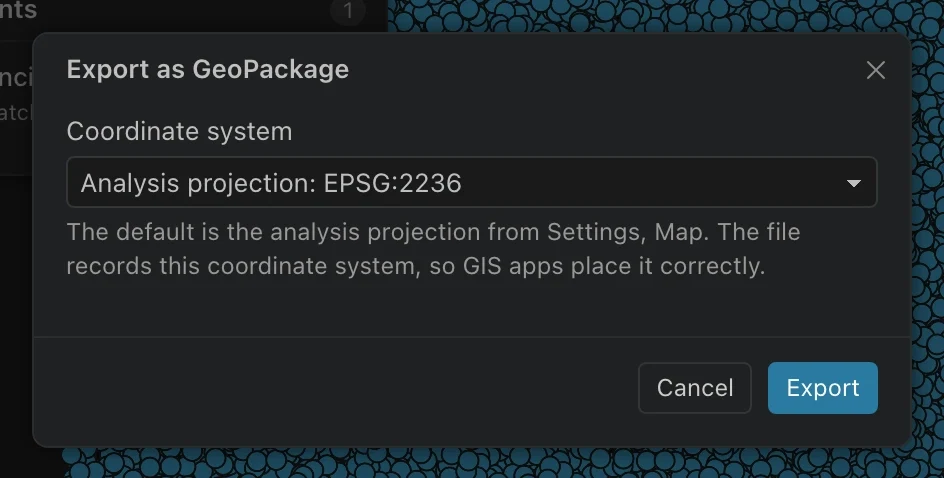
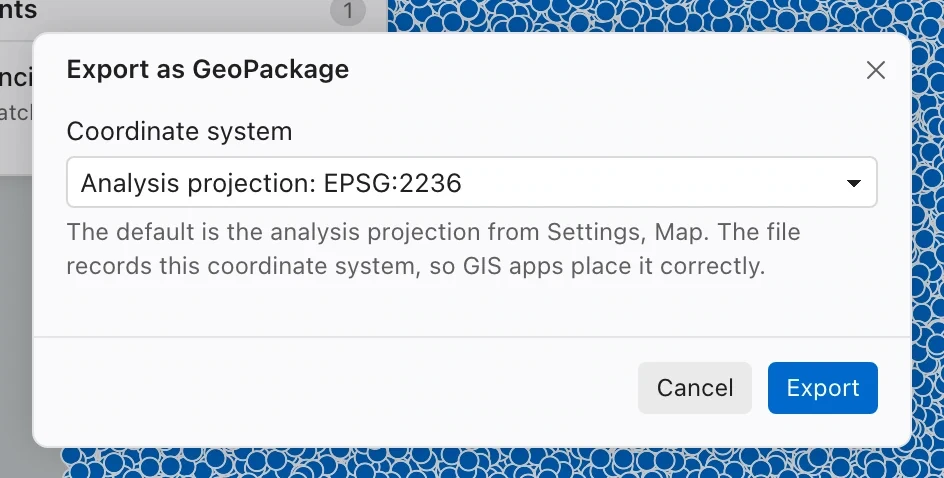
To export the complete table, use its Export all rows actions in Data. The result workflow exports all rows matching the current query, filters, and sorts, including rows beyond the loaded grid window. Selecting cells or scrolling to a page does not by itself restrict the export.
Choose a format
Section titled “Choose a format”| Format | Typical use | Geometry and coordinate behavior |
|---|---|---|
| CSV (geometry as WKT) | Plain records for analysis or exchange. | Geometry is text in WKT form when included. |
| Excel workbook | Records for spreadsheet review. | Available for tables without geometry as well as spatial results. |
| GeoJSON | Feature exchange in geographic coordinates. | Always WGS84. |
| GeoPackage | GIS feature exchange with a chosen coordinate system. | Coordinate system is selectable. |
| Shapefile (zipped) | Workflows requiring shapefile delivery. | Coordinate system is selectable; inspect the receiving format’s field representation. |
| File geodatabase (zipped) | Feature delivery in a file geodatabase. | Coordinate system is selectable. |
| GeoParquet | Columnar spatial data. | Defaults to WGS84 and records coordinate metadata; the dialog allows another system. |
| KML or KMZ | Geographic visualization and exchange. | Always WGS84. |
| DXF drawing (CAD) | Geometry for a CAD workflow. | Requires a projected coordinate system; attributes are not carried. |
Spatial formats require a geometry column. A summary query that returns only categories and counts can use CSV or Excel, but it is not a feature dataset until the result includes suitable geometry.
Confirm the output coordinate system
Section titled “Confirm the output coordinate system”GeoPackage, shapefile, file geodatabase, and DXF default to the source coordinate system when available, otherwise the analysis projection. GeoParquet defaults to WGS84. The export dialog reports its current choice; review it each time because a previously chosen setting can be retained.
Custom coordinate system accepts an EPSG or ESRI code, supported WKT, or a PROJ CRS definition. Use the receiving workflow’s required definition. Selecting a projected output is different from changing the source data’s declared coordinate system during import.
GeoJSON, KML, and KMZ always use WGS84. If a recipient requires State Plane coordinates, use a format with an explicit output projection choice instead of relabeling a geographic file.
Export a CAD drawing
Section titled “Export a CAD drawing”Choose DXF drawing (CAD) and a projected coordinate system. You can put geometry on CAD layers using a selected column, or place everything on layer 0. Northing writes drawing units to match the selected coordinate system.
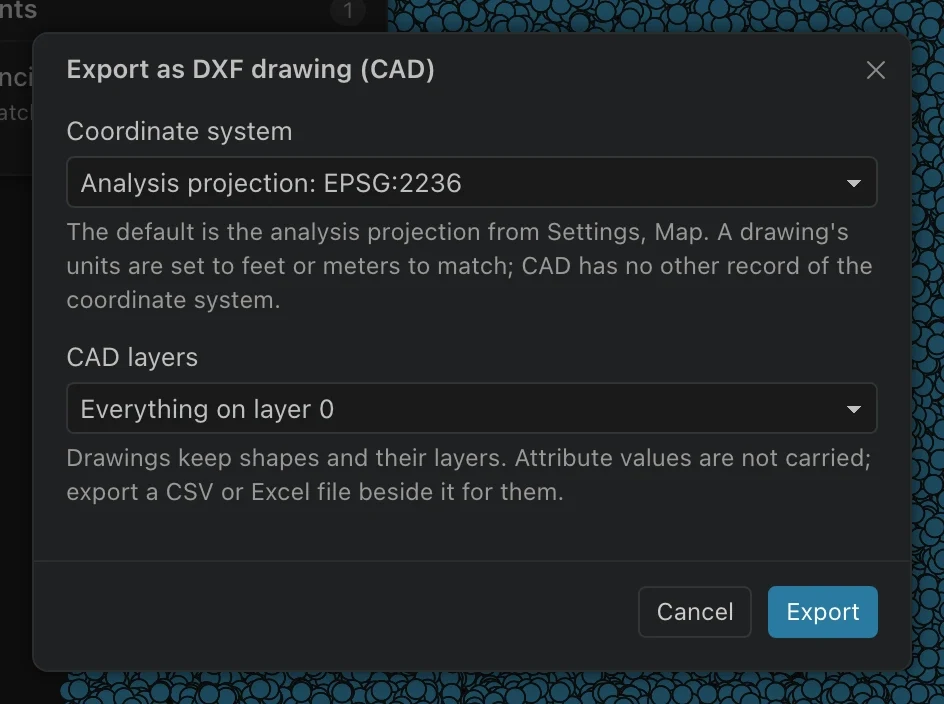
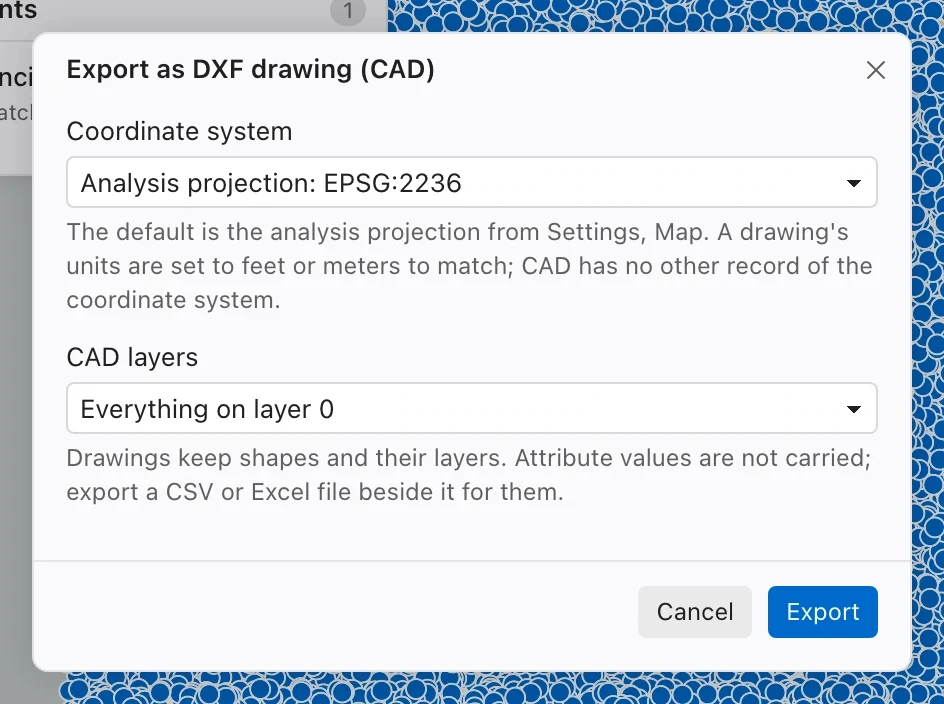
DXF export carries shapes, not attribute values. Export a companion CSV or Excel workbook when the recipient needs identifiers or other fields, and agree how they will match records. Verify a known distance and feature location in the receiving CAD application.
Check delivery and completeness
Section titled “Check delivery and completeness”Check the input before exporting. If an ArcGIS pull was capped, its export will also be incomplete. If a query contains a filter or LIMIT, that restriction belongs to the output. Record the scope when sharing the file.
For a large export, allow time and enough destination space for the full result. Reopen a representative file before making the same format and coordinate choices for a larger delivery.
An export is a new file, not a live connection to your database. Later edits require another export. For a portal result that others can use as a hosted layer, see Publishing.