
Push changes to ArcGIS
Push sends edits from a locally imported table back to its ArcGIS source while keeping the service and layer IDs used by other maps. Your local table is a working copy in the workspace database; editing it does not change the service until you complete the push review.
Use Publish when you want a new hosted result. For an existing layer, start with a small test edit and verify the result in ArcGIS before sending a larger set.
Review and send edits
Section titled “Review and send edits”- Save your local table or map edits. Confirm the table came from the intended ArcGIS layer and that you are signed in with an account allowed to edit it.
- From the table’s send menu, choose Review and push changes. In the command center, the command includes the table name, such as Review and push changes in sf311_incidents to ArcGIS.
- Check the destination layer and, for a branch-versioned source, its named version. Review the added, updated, and deleted rows, changed fields, and map of changed geometry.
- Resolve each conflict. Correct invalid data or explicitly leave out the affected row. Review warnings about attachments, related records, and partial downloads.
- If Northing did not publish the destination layer, type the layer name exactly as requested. The confirmation field refers to the layer name, which may differ from the local table name.
- Choose the Push button showing the edit count. Keep the app open and follow progress in the review or Jobs.
- Read the completion results, including any failed rows. Check the destination in ArcGIS and inspect Show the push history before making further edits.
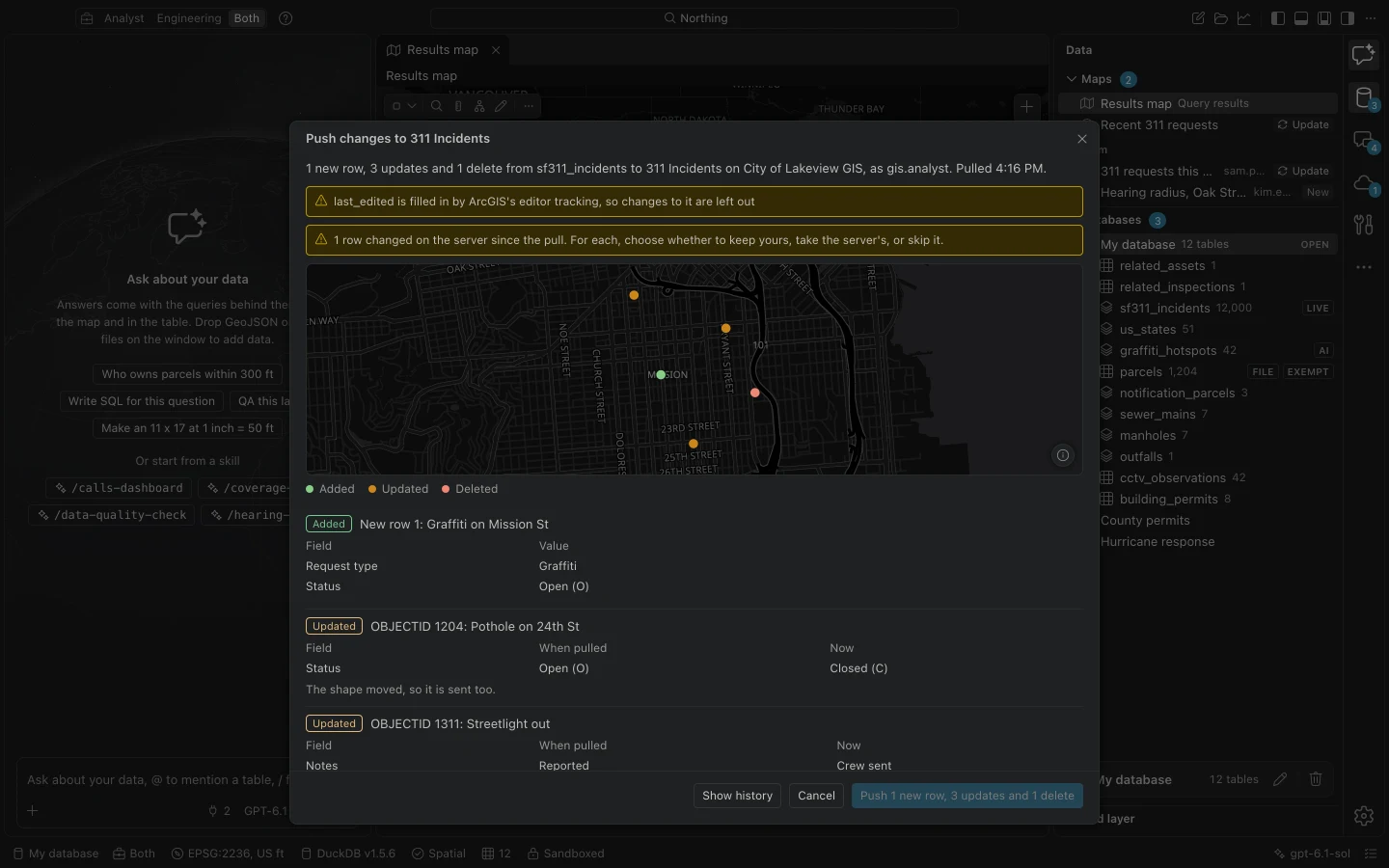
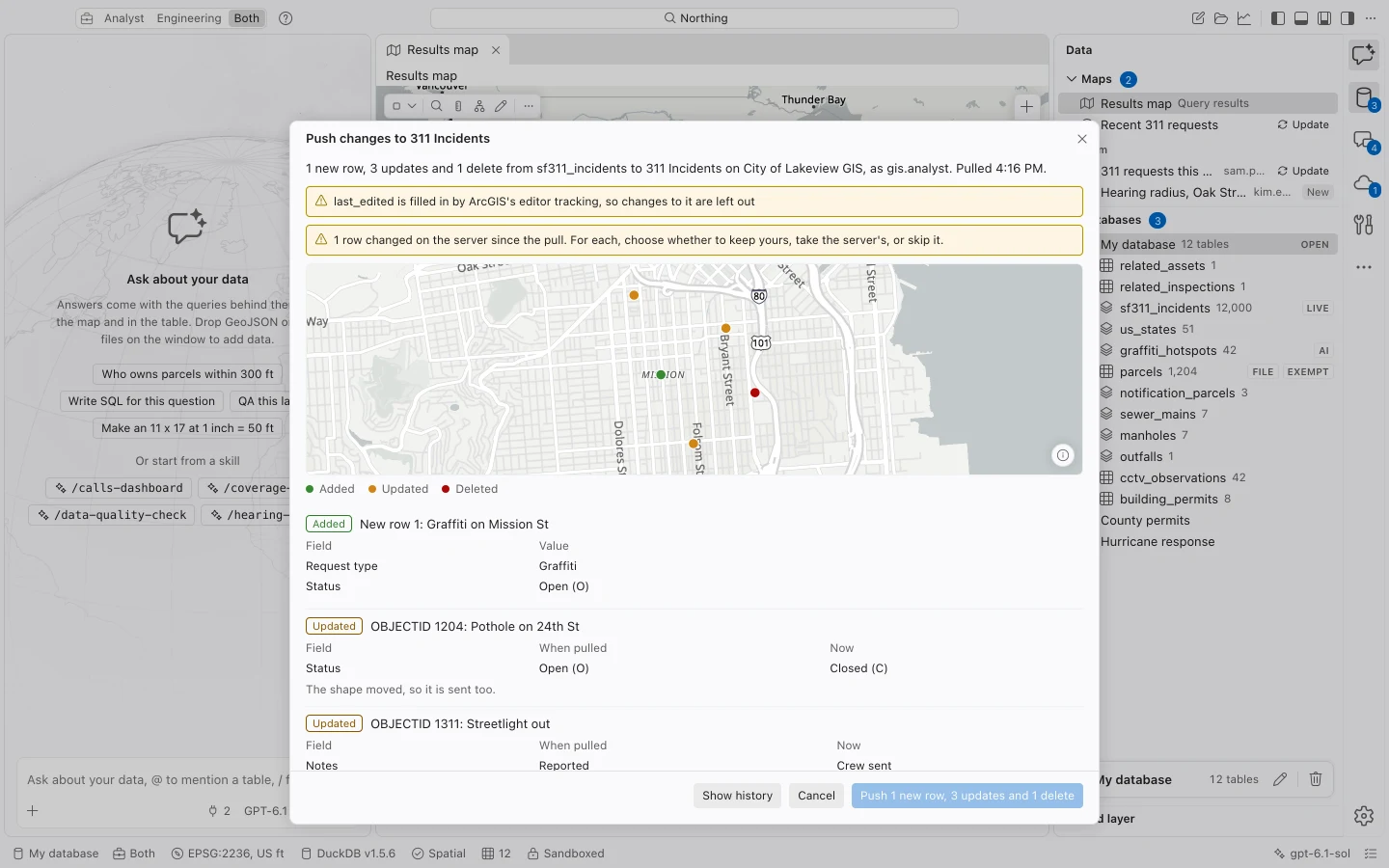
The assistant can prepare this review for you. It cannot confirm or send the push. The same checks apply whether you opened the dialog yourself or arrived from an assistant answer.
Understand the comparison
Section titled “Understand the comparison”Northing keeps a baseline of what ArcGIS last supplied. The review compares your current local rows with that baseline, then checks affected rows against the server. Editor tracking dates are used when available; otherwise values are compared. A refresh that found both local and server changes also contributes conflicts.
Field values are shown with aliases and coded-value labels where available. Look at both attributes and geometry: a feature can move without a descriptive field changing. A standalone ArcGIS table uses the same push workflow without a geometry map.
The review checks create, update, delete, and geometry-edit capabilities; your edit privilege; domains and subtype ranges; text lengths; and required values. ArcGIS fills its own editor tracking fields. Columns absent from the service remain local unless its owner explicitly adds them as fields through the offered workflow.
Resolve conflicts deliberately
Section titled “Resolve conflicts deliberately”| Choice | Result |
|---|---|
| Keep mine | Send your reviewed local value instead of the conflicting server version. |
| Take the server’s | Bring the server version into the local table rather than sending your conflicting edit. |
| Skip | Leave that conflicting row out of this push. |
| Delete it | Confirm a local deletion when the conflicting row still exists on the server. |
| Remove it here | Accept that a feature has already been deleted on the server. |
The available choices depend on the conflict. A row with a blocking validation problem can offer Leave it out. That excludes it from this push; it does not repair the invalid value. Return to the local table to correct the data if the edit still needs to be sent.
Duplicate additions are checked against object IDs or GlobalIDs already present on the destination. This matters after a restore, a filtered pull, or an interrupted operation. Do not work around a duplicate warning by inventing a new identity for the same real feature.
Deletes and incomplete pulls
Section titled “Deletes and incomplete pulls”Northing refuses deletes when the local table represents only a capped or filtered part of the source layer. A partial download omits source records that may still be needed in ArcGIS. Revisit the import scope rather than treating an incomplete table as a full replacement.
Sensitivity tags also apply. Rows tagged anything other than Public cannot be pushed to a layer shared with Everyone. Ask the data owner to review the destination sharing or classification.
What happens during a push
Section titled “What happens during a push”Before updating or deleting a feature, Northing saves its current server state. It reads pending rows again immediately before each batch, retry, or resume. If they changed after review, the batch stops with its evidence retained in history.
Edits are sent in batches of 500, with rollback requested for a failed batch. Geometry is projected to the source layer’s coordinate system, including Z and M values; unchanged shapes are not resent. The table is protected against concurrent local edits, refreshes, and restores while the push runs.
Another editor can still change a server record between Northing’s final check and the write. Coordinate with other editors for sensitive operations. A job cancelled between batches can already have sent earlier batches; cancellation is not an undo of the whole push.
Recover an interrupted push
Section titled “Recover an interrupted push”Use Retry in Jobs for the interrupted operation. Northing checks which edits reached the server and whether remaining local and server rows still match the reviewed state before continuing. This protects against adding the same feature twice when a network response was lost.
Read row-level failures, including any ArcGIS attribute-rule message. Fix a data problem before preparing another push. For an uncertain branch save, follow Branch versions and inspect the retained session instead of starting a replacement operation.
Inspect or reverse history
Section titled “Inspect or reverse history”Show the push history records the destination, time, person, and result for each row. Reverse this push prepares a new push to undo the recorded edits using the saved server features: it deletes additions, restores changed values and shapes, and recreates deleted features.
Recreated features retain their GlobalIDs where supported but receive new object IDs. Attachments and dependent records deleted with them are not restored. If a feature has changed again on the server, reversal stops rather than discarding that later edit. Review the reversal as another real change to the service.
Update a layer Northing published
Section titled “Update a layer Northing published”For a hosted layer created by Northing, use Update the published layer. Send what changed compares rows by GlobalID or the column chosen in Match rows to features by, preserving the item and layer IDs.
Replace every row is available only for eligible Northing-created layers without views, sync, or relationships. It removes all rows before adding the current data, gives features new object IDs, and requires typed layer-name confirmation. Use the difference-based update when those identities matter.
Traditional versioning and archive-only services are unsupported. Sync-enabled layers warn that offline copies receive edits when they next synchronize. Branch-versioned services require the explicit named-version workflow.