
Import CAD drawings
Import a DXF drawing to use its model-space entities with your GIS data, choosing its units and placement before importing. Save or convert DWG drawings to DXF first.
Place and import a drawing
Section titled “Place and import a drawing”- Choose Import a CAD drawing (DXF) in the command center and select the drawing.
- Choose its units: International feet, US survey feet, or Meters. Northing shows the units recorded in the header, but you must confirm the drawing’s actual units.
- Set Map coordinate system to the projected system that should receive the drawing. The analysis projection is the initial choice.
- Choose How the drawing is placed: Already in place, World file, or Control points. Supply the placement information described below.
- Review where the drawing lands. For control points, inspect each residual and the fit before proceeding.
- In CAD layers, review each entity group and its destination. Create new tables for a first inspection, or map fields carefully when appending to an existing table.
- Import the drawing, then compare known points and measured distances with trusted GIS data before accepting the result.
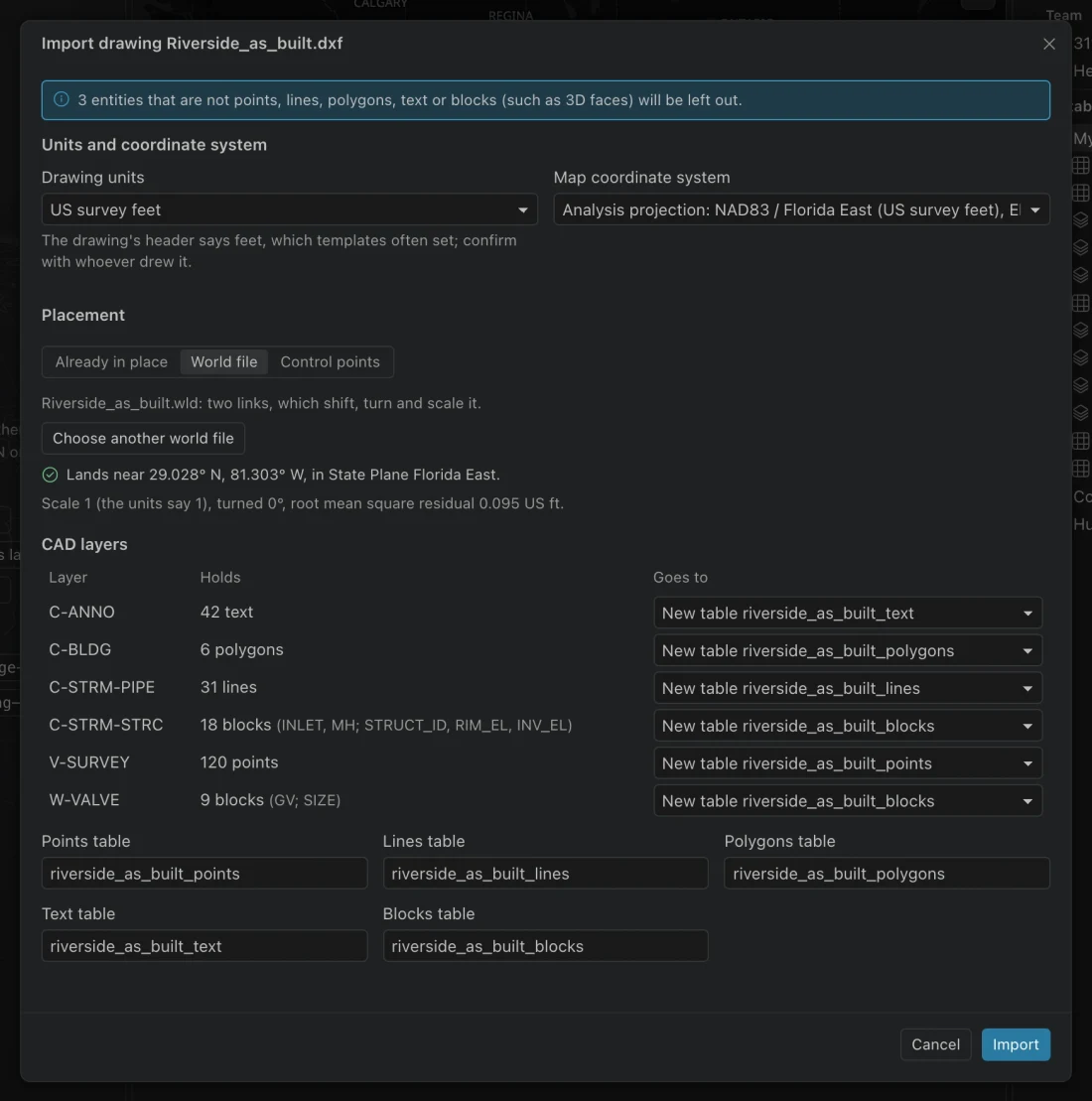
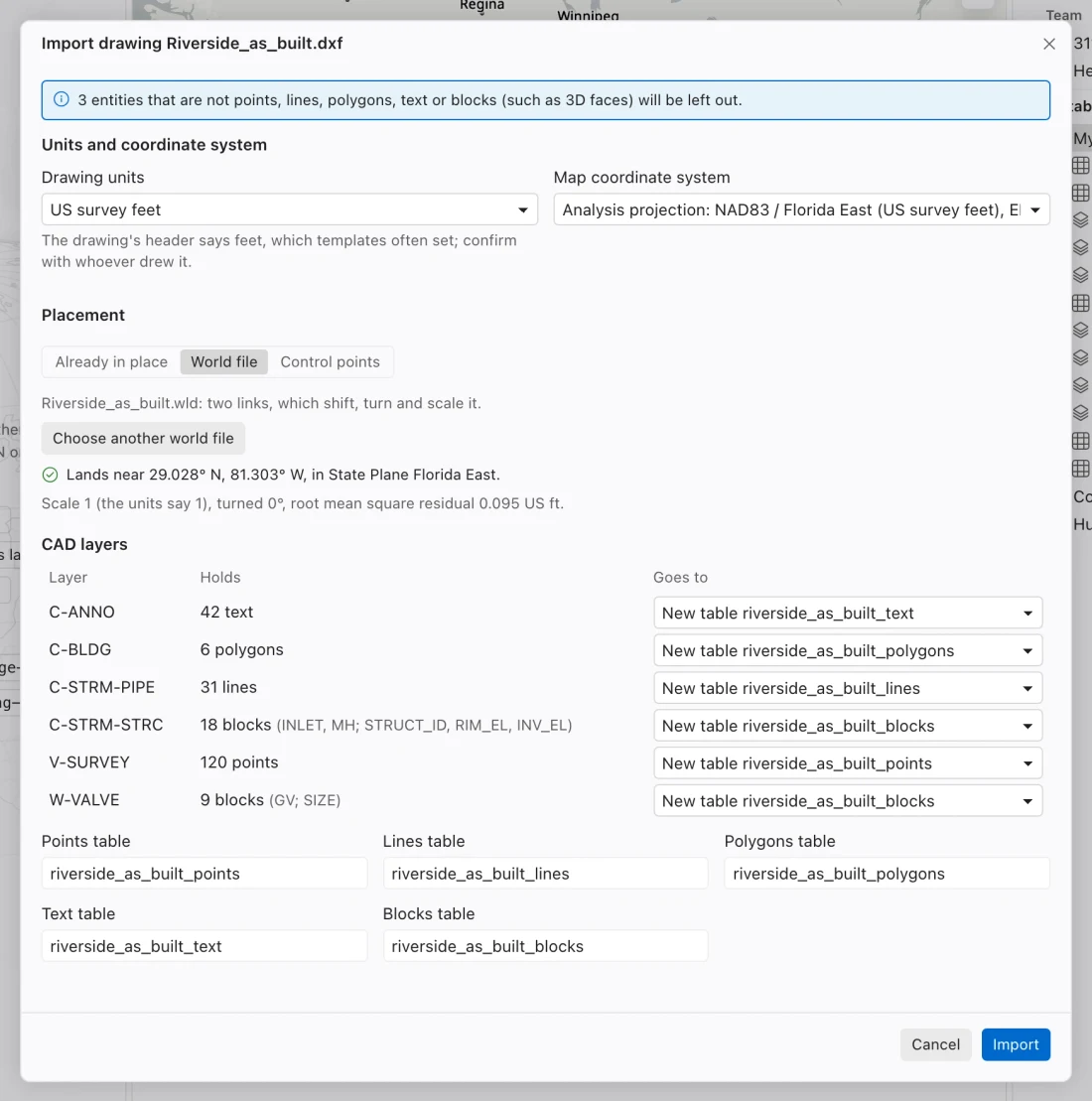
Choose the placement method
Section titled “Choose the placement method”| Method | Use when | Check |
|---|---|---|
| Already in place | The drawing already uses the target map coordinates. | Extent, coordinate system, and units agree with known locations. |
| World file | A matching .wld supplies drawing-to-map links. |
The file belongs to this drawing; two links define a similarity transformation. |
| Control points | You know matching drawing and map coordinates. | Point distribution, residuals, and whether scale fitting is appropriate. |
Control points pair drawing x and y with map x and y. The fit uses rotation and shift at the scale implied by the units, or can fit scale as well for ground coordinates. Check control coverage and known locations beyond the fitted points, even when residuals are small.
What becomes data
Section titled “What becomes data”Points, lines, closed polylines, text, and block references become separate tables by CAD layer and entity kind. Closed polylines become polygons. Text becomes points carrying the text. A block reference becomes one point carrying the block name and attributes as fields named from their tags.
Paper space is excluded. Unsupported entities are reported. Do not expect the imported tables to reproduce a plotted drawing’s complete page composition.
Append to an existing table
Section titled “Append to an existing table”Appending requires a field mapping and suitable destination schema. For a table tracked against ArcGIS, new records receive local identifiers and GlobalIDs where appropriate, and appear as local changes. Complete field-work acceptance before pushing these additions.
Use a separate new table when you need to inspect placement or schema first. When the additions are ready, use Review and push to send them to the service.