
Symbology
Use symbology to make categories, quantities, and patterns readable on a map. The same layer properties pane styles saved-map layers and kept layers, which are queries you retain on the Results map.
Style a layer by a numeric field
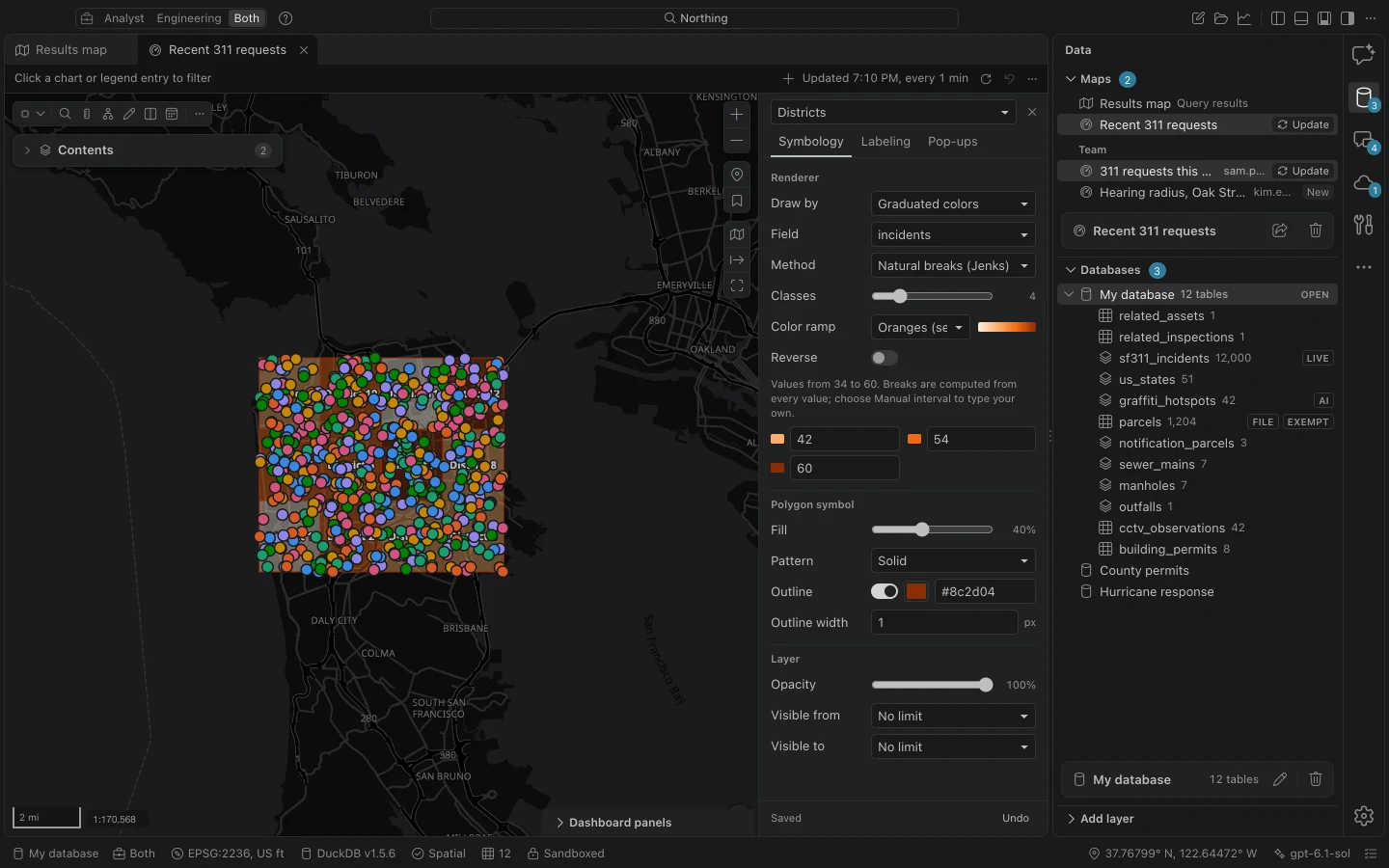
Section titled “Style a layer by a numeric field”- Open the map, then choose the gear beside the layer in Contents. You can also search for Symbology in the command center.
- If needed, choose the correct layer in Layer to edit. Open the Symbology tab.
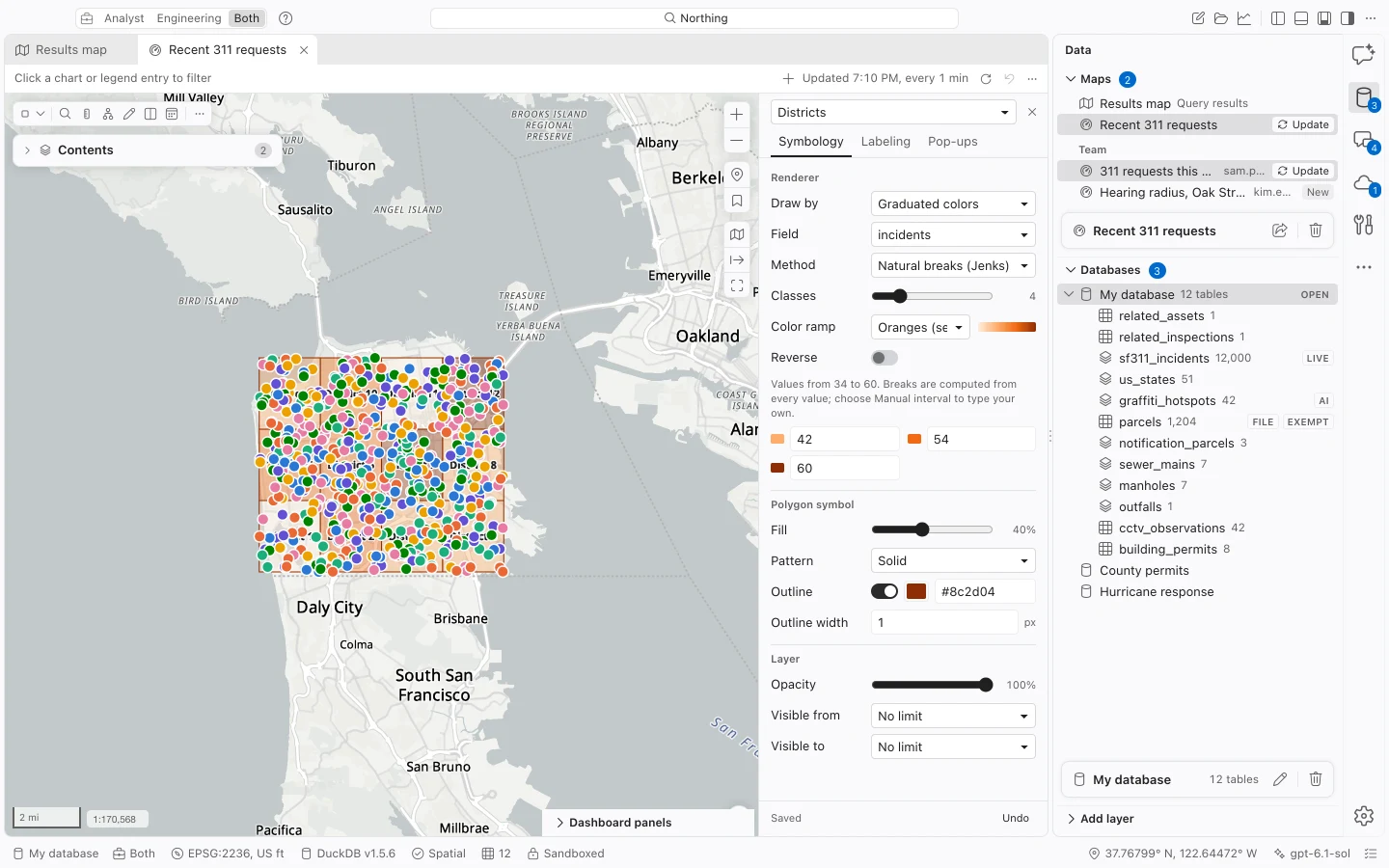
- Set Draw by to Graduated colors and select the numeric Field you want to map.
- Choose a Method and set Classes. Start with a small number of classes so the legend remains easy to read.
- Choose a Color ramp. Use Reverse if the high values should use the other end of the ramp.
- Inspect the breaks, legend, and geographic pattern. Changes preview immediately and save automatically. Wait for Saved before closing the pane.
Choose a renderer
Section titled “Choose a renderer”| Draw by | Best for | Main controls |
|---|---|---|
| Single symbol | One class of features, such as all hydrants. | Color and geometry-specific symbol. |
| Unique values | Categories, such as request type, pipe material, or zoning. | Field, category colors, grouping, and other values. |
| Graduated colors | Numeric ranges, such as counts or assessed values. | Numeric field, classification method, classes, and ramp. |
| Proportional symbols | Comparing numeric amounts with symbol size. | Numeric field, color, Smallest, and Largest. |
| Heat map | Showing concentrations of points. | Radius, in pixels. |
Graduated colors and proportional symbols require a numeric field. If those choices are unavailable, inspect the field’s type in table properties. A text field containing digits is still text until you deliberately convert or calculate it.
Choose a field whose meaning supports the comparison. For example, raw request counts describe totals, while requests per household describe a rate. The renderer does not calculate that rate for you. Calculate the value in SQL or a new field first, then style that field.
Set class breaks
Section titled “Set class breaks”Graduated colors supports 2 to 12 classes. The pane shows the value range and the break values used to form the classes.
| Method | How to use it |
|---|---|
| Natural breaks (Jenks) | Group values around breaks in their distribution. Useful when values cluster. |
| Quantile | Compare groups based on their ranked values. Inspect the breaks when many values repeat. |
| Equal interval | Divide the numeric range into equal-width intervals. |
| Standard deviation | Compare values relative to the distribution’s mean. |
| Manual interval | Enter meaningful thresholds, such as a reporting standard or policy category. |
For manual classification, choose Manual interval, then edit the break boxes. Each break is the start of the next class. Values must increase from one break to the next. Changing the class count adds or removes break boxes, so review the whole sequence afterward.
Statistics come from the full layer query, including its definition query, for both saved-map and kept layers. Features outside a loaded preview still contribute. Natural breaks uses a sample of up to 4,000 values spread through the sorted values. This is a classification sample, not a limit on the features in the map.
The legend displays class counts. If your map includes an interactive filter, check its state before interpreting the pattern. Changing a definition query changes the population used for the layer’s classification.
Style categories and group values
Section titled “Style categories and group values”Set Draw by to Unique values, then select the category field. Use Add a value to include an available category, or Add all to include the remaining values offered by the pane. Each entry has a color and count. Point categories can also have individual icons.
To present several values under one legend entry, select their grouping checkboxes, enter a Group name, and choose the button showing how many values will be grouped. Ungroup separates a grouped entry again. This changes the legend and symbols without rewriting the stored attribute values.
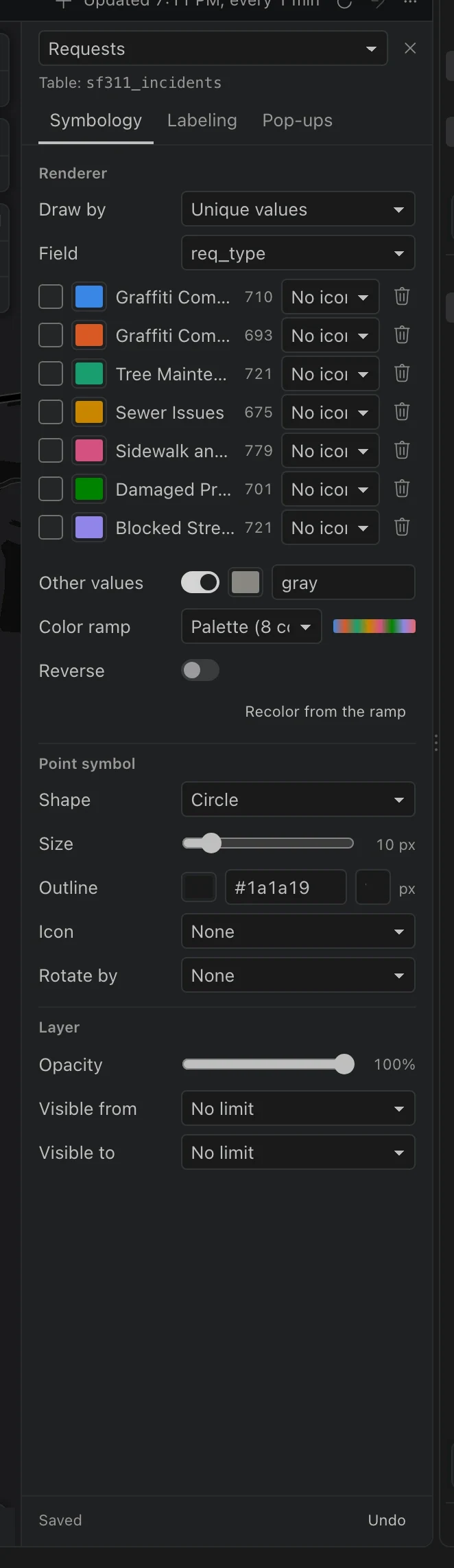
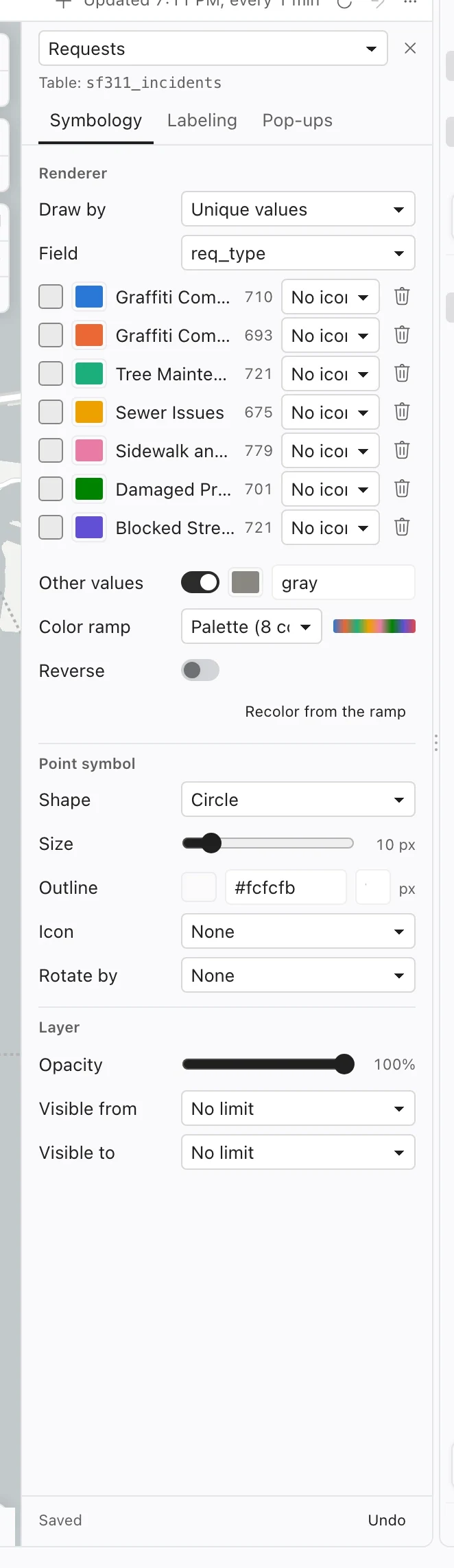
Other values controls whether categories without their own color draw. Leave it on when the map should show every feature, including unexpected values. Turning it off can make unassigned categories disappear even though their rows remain in the table.
Choosing a categorical Color ramp gives you a palette. Choose Recolor from the ramp to apply that palette to existing category entries. Review the result if specific colors carry an established meaning in your organization.
Refine the symbols
Section titled “Refine the symbols”The pane shows controls appropriate to the layer’s geometry.
For points, choose Circle, Square, Triangle, Diamond, or Pin under Shape. Set Size, Outline, and Outline width. Icon offers built-in icons or Custom SVG. A custom SVG must be a script-free document of at most 20,000 characters. Paste the SVG document into SVG; a file path is not an SVG document.
Rotate by uses a numeric field of degrees clockwise from north. Confirm that the source values are bearings in that convention before applying them. A field of radians or angles measured from east needs conversion first.
For lines, set Width, Dashes, and Arrows. Arrow choices place them along the line or at its end. Arrows show the line’s stored direction; they do not determine a utility network’s flow rules.
For polygons, Fill controls fill opacity. Pattern includes solid fill, hatches, cross hatches, horizontal or vertical lines, and dots. Enable Outline in its own color when the boundary should use a separate color; otherwise it follows the fill. Set Outline width independently.
Set opacity and visible scales
Section titled “Set opacity and visible scales”Opacity affects the whole layer. Polygon Fill affects only its interior, so reducing fill can preserve a clear boundary while revealing imagery underneath.
Visible from is the furthest zoomed-out scale at which the layer appears. Visible to is the closest zoomed-in scale. For example, a layer visible from 1:100,000 to 1:5,000 appears between those scales. No limit removes that end of the range. The scale choices use denominators; a larger denominator represents a more zoomed-out map.
Labels have their own visible scale settings on the Labeling tab. A layer can draw while its labels are hidden, or its scale range can prevent both from appearing.
Save, undo, and share the appearance
Section titled “Save, undo, and share the appearance”Edits preview immediately and save after you stop changing the controls. Wait for Saved before closing the pane. If Failed appears, choose Retry; Northing keeps your draft available to edit.
On a saved map, Undo steps through changes made in the pane and by the assistant. Kept layers have their own appearance undo history. Printed legends use the same shapes, outlines, dashes, and patterns. Supported symbols, class breaks, and scale ranges carry into published web maps.