
Manage tables and fields
Use table properties to understand a dataset before changing it. A table in the local workspace database can retain its ArcGIS schema and source even while you add fields or edit values locally.
Inspect a table and add a field
Section titled “Inspect a table and add a field”- Select a table in Data and choose Properties from its actions, or search for Properties of that table in the command center.
- Review General for the row count, source, coordinate information, tracking, and refresh settings.
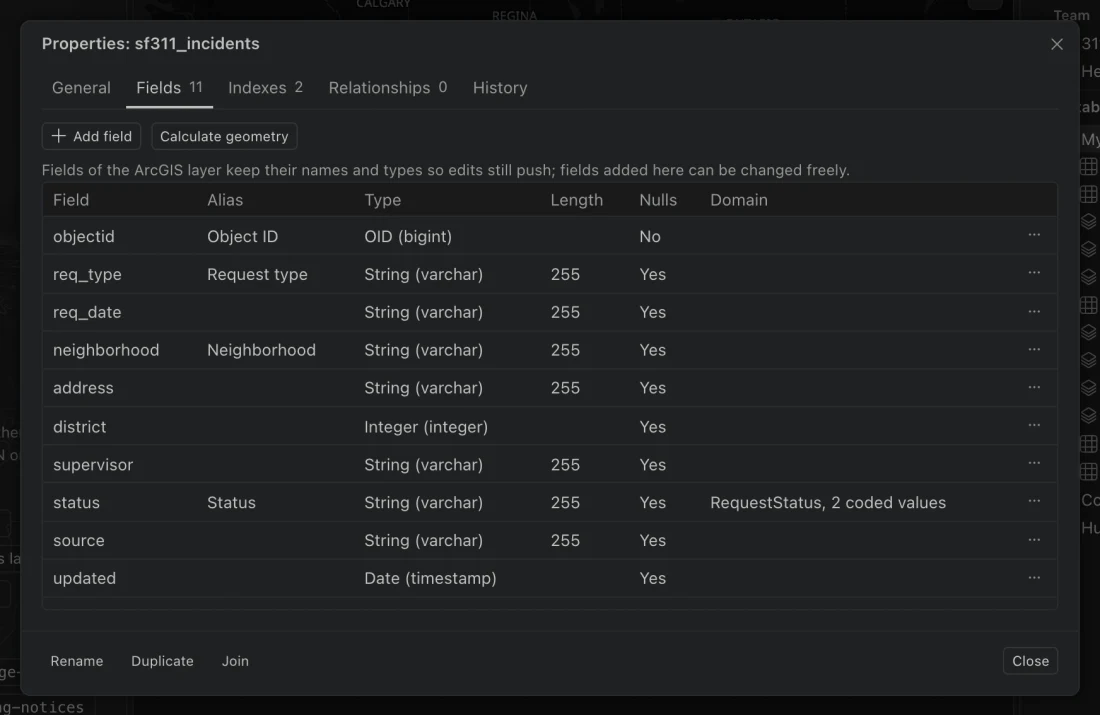
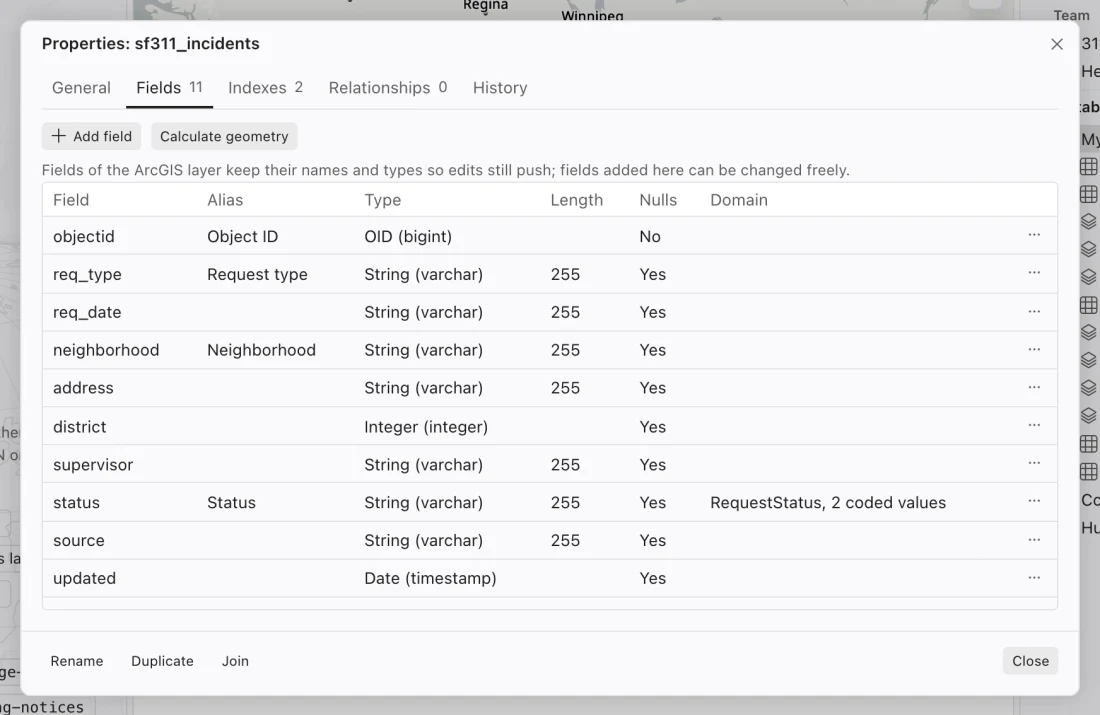
- Open Fields to inspect aliases, types, lengths, nullability, and domains. Use actual field names when writing SQL; an alias is a display label.
- Choose Add field. Enter Field name and select Type. For practice with sample data, use
pilot_noteand the text type,VARCHAR. - Review the SQL preview and any error message. Choose Add field to apply the change, then reopen the attribute table to check the new column.
Read the properties tabs
Section titled “Read the properties tabs”| Tab | What it tells you |
|---|---|
| General | Counts, shapes, extents, storage and measurement systems, source filter, tracking, sensitivity, and snapshots. |
| Fields | Local and ArcGIS field information, aliases, types, domains, and field actions. |
| Indexes | Attribute indexes and the fields they cover. |
| Relationships | Recorded relationships between tables. |
| History | Recorded imports, refreshes, pushes, and snapshots. |
A LOCAL tag identifies a field added here rather than a source-layer field. Field rules matter when you calculate or edit values: required fields, lengths, types, and domains can reject a change.
Change a field safely
Section titled “Change a field safely”A field’s actions let you rename it, change its type, create an index, or delete it where permitted. Review the proposed statements before applying. Northing takes a table snapshot before a schema change. A type change is refused if existing values cannot fit, with examples to inspect.
On an ArcGIS-tracked table, original source fields keep their names and types and cannot be deleted locally through these controls. Those restrictions preserve the match needed to push edits. Make a plain duplicate if you need a reshaped analysis table.
Fields added locally can be renamed, retyped, or removed. Their values stay local during a push unless the layer owner adds a matching field to the ArcGIS layer. Adding a field here does not alter the hosted service’s schema.
Duplicate, rename, or remove a table
Section titled “Duplicate, rename, or remove a table”Duplicate creates a table with copied rows, types, keys, indexes, field aliases, domains, and sensitivity. For tracked sources, choose between a plain local copy and a tracked copy connected to the same source and baseline. Push from only one tracked copy to avoid applying competing changes to the same service.
Rename updates the table and supported dependencies, including saved-map references. Review any references Northing says it could not rewrite safely. SQL history and saved queries keep their original text, so update those deliberately if they still name the old table.
Remove table asks for confirmation and identifies affected readers. Northing takes a snapshot before removal. Maps that depend on the removed table show missing data and offer recovery actions.
Join or relate
Section titled “Join or relate”A join creates a new table combining records and fields. Choose Join to a table from the command center and match by a key or location. Review match behavior, output name, and SQL. One-to-one joins can keep the first match or summaries; one-to-many joins can expand the result count. Keys of different types are compared as text and the dialog reports that conversion.
A Relate records key fields linking two existing tables without copying records. Use it when you want to inspect a feature’s inspections or permits separately. See Related records.
Calculate geometry and add indexes
Section titled “Calculate geometry and add indexes”Calculate geometry of a table writes area, perimeter, length, or centroid coordinates into a numeric field. Check the analysis projection and requested units before applying. As with the field calculator, you preview the result before Northing validates the values, takes a snapshot, and applies the calculation.
Create index on a table can help attribute lookups. A unique index is refused when values repeat. Fields in an index use the field calculator or SQL for value changes rather than ordinary cell editing. Do not remove a protected key just to make a cell editable.