
Linear referencing
Use linear referencing to place assets and observations along an alignment, road, or inspection route using a route ID and measure or station. The tools are in Linear Referencing under Geoprocessing tools and show their SQL before running.
Create routes from lines
Section titled “Create routes from lines”- Inspect the source lines. Each route needs a route ID and a numeric part-order field that is unique within that route. Confirm that line direction follows increasing measures.
- Check the database’s analysis projection under Settings > Map, then open Geoprocessing tools and Create Routes.
- Set Input lines, Route ID field, and Part order field.
- Choose Measure source: Length in feet, From and to fields, or Existing M values. For field measures, choose From measure field and To measure field.
- Enter a new Output table, inspect the SQL, and choose Run.
- Inspect the output’s
issuefield and geometry before using the routes to locate events.
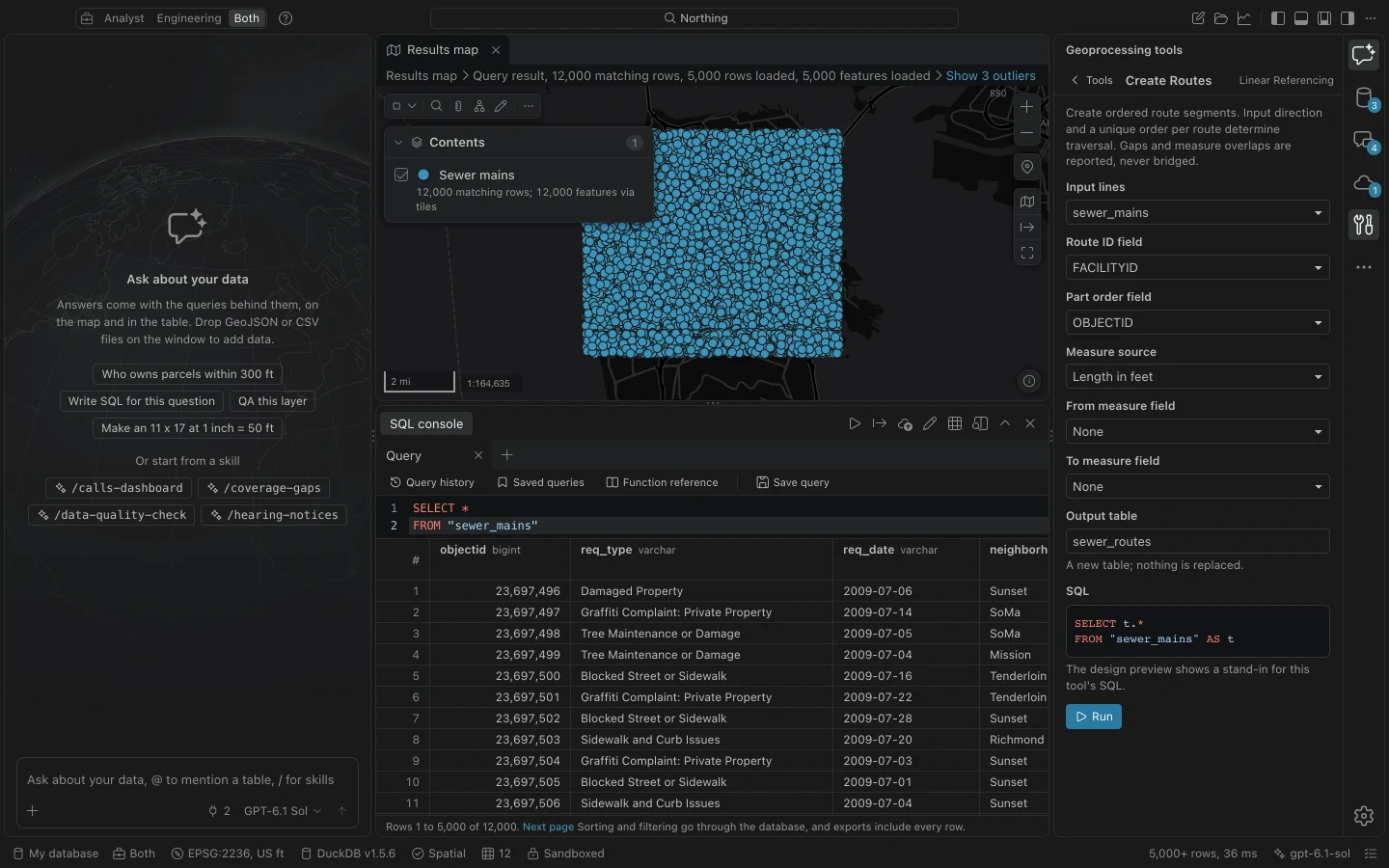
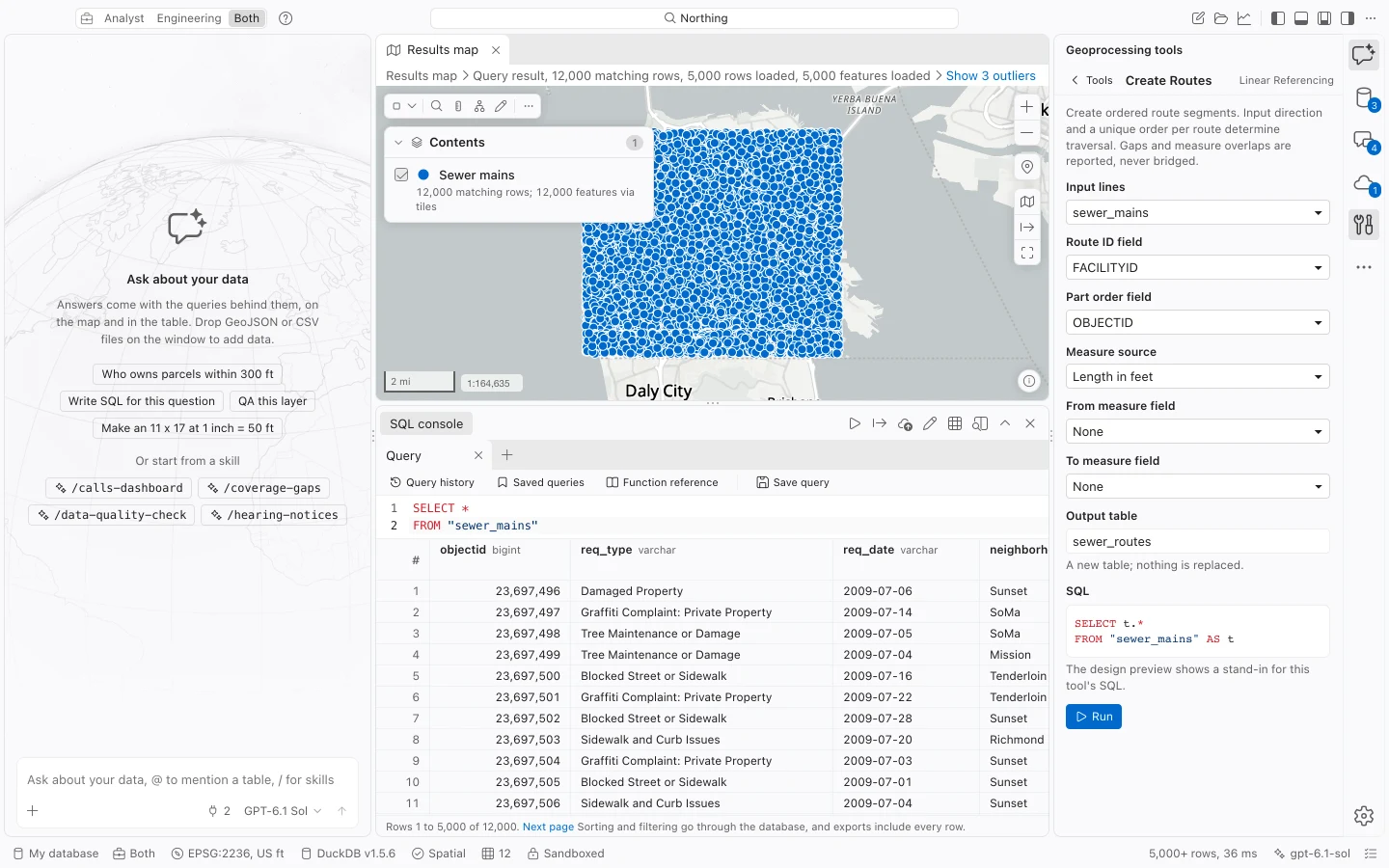
The result is an ordered segment table. d0 and d1 are physical chainage in feet; m0 and m1 are route measures. Review the reported geometry gaps, measure gaps, and overlaps. Northing does not draw a connecting line across a gap or infer the intended part direction. Missing M values, descending measures, zero-length segments, and duplicate part orders require repair.
Calibrate and apply station equations
Section titled “Calibrate and apply station equations”Calibrate Routes projects calibration points to their matching route IDs within Search radius (feet). Choose By distance or By existing measure under Interpolation. Every route requires at least two distinct, increasing anchors.
Choose Extrapolate beyond calibration points only when extending beyond the outer anchors is intended. Without extrapolation, the anchors must cover the route. Calibration splits route segments at the anchors.
Apply station equations after calibration. Apply Station Equations takes a route table and equation table with route ID, physical chainage in feet, back station, and ahead station. The tool checks the back station against preceding equations and splits segments at each equation. To revise equations, apply the revised table to the pre-equation route table.
Locate event records
Section titled “Locate event records”Open Locate Route Events and choose Route segments and Event table. Set the event’s Route ID field and From measure field. Leave To measure field unset for points, or supply it for line events. An optional Offset field (feet) moves events away from the route.
Positive offsets are left when looking in route traversal direction; negative offsets are right. Offsets are always in feet, regardless of the route’s measure units. Line offsets use bevel joins between shifted segments.
Choose Run for a new snapshot table. When offered, Add dynamic route layer keeps the query on the Results map so that source-table edits recompute the event geometry. Use a dynamic layer to follow current data or a snapshot table to keep the result from one run.
Failed events remain as records with locate_error and no geometry. Inspect that field for missing routes, invalid or out-of-range measures, geometry gaps, or ambiguous overlaps. Original event attributes are retained in attributes.
Choose another route tool
Section titled “Choose another route tool”| Tool | Result |
|---|---|
| Locate Features Along Routes | Project points, lines, or polygons within a search radius to a route measure range. Multipart features and polygon holes use an enclosing minimum-to-maximum range. |
| Generate Route Stations | Create points at a measure interval. A dynamic station layer enables labels using the station field, such as 10+50.00. |
| Locate Station and Offset | Locate a typed station and offset for a route. Station notation, ordinary numbers, and negative values are supported. |
| Report Assets Between Stations | Filter a located event table by route and station range, ready for export. |
| Overlay Route Events | Intersect or union normalized event ranges, splitting at interval boundaries and retaining contributing records. Union also retains unmatched intervals. |
Forms with a route selected offer Read station from map click. Set Click search radius (feet), activate the button, then click near the alignment. Each nearby route gets a station and offset readout. Finish map editing before using this click tool.
Units and interpretation
Section titled “Units and interpretation”Route measures from fields or M values retain their original units. Station notation groups 100 measure units: 10+50 represents 1,050 units, not necessarily 1,050 feet. Length-generated measures and physical chainage use international feet in the analysis CRS.
Routes retain their analysis CRS and coordinate conversion. Event placement continues using that recorded system if workspace settings later change. These operations are planar and do not infer network connectivity.