
GIS terms for ArcGIS Pro users
Use this reference to find Northing tools that match familiar ArcGIS Pro workflows. In Northing, you pull ArcGIS features into a local DuckDB workspace, analyze or edit them, then review and push edits or publish new results.
Data and projects
Section titled “Data and projects”| In ArcGIS Pro | In Northing | What to keep in mind |
|---|---|---|
| Project and project database | Workspace database | Stores local tables, maps, queries, and other work. It is a DuckDB database, not an ArcGIS project file or file geodatabase. |
| Application task layout | Analyst or Engineering workspace | These arrange tools and panels. Switching the interface workspace does not create another database. |
| Feature class | Local spatial table | Rows hold attributes and geometry. An imported ArcGIS table can also retain its source schema and change baseline. |
| Feature layer | Layer in a map | A display of data with its own style, labels, and filters. Multiple layers can use the same local table. |
| Catalog pane | Data and the command center | Find tables and maps; use their actions for properties, exports, and related tasks. |
| Attribute table | Attribute table | Inspect, sort, filter, select, and edit supported local data. |
| Fields view and Calculate Field | Tables and fields and Field calculator | Manage supported schema and calculate values in local tables. |
| Selection set | Map and table feature selection | Identifies records for inspection or tools. A grid cell range is a separate spreadsheet-style selection. |
A pull downloads a local copy. A refresh checks its source again while preserving local changes through change tracking. A push sends reviewed local edits back to the source.
Maps and appearance
Section titled “Maps and appearance”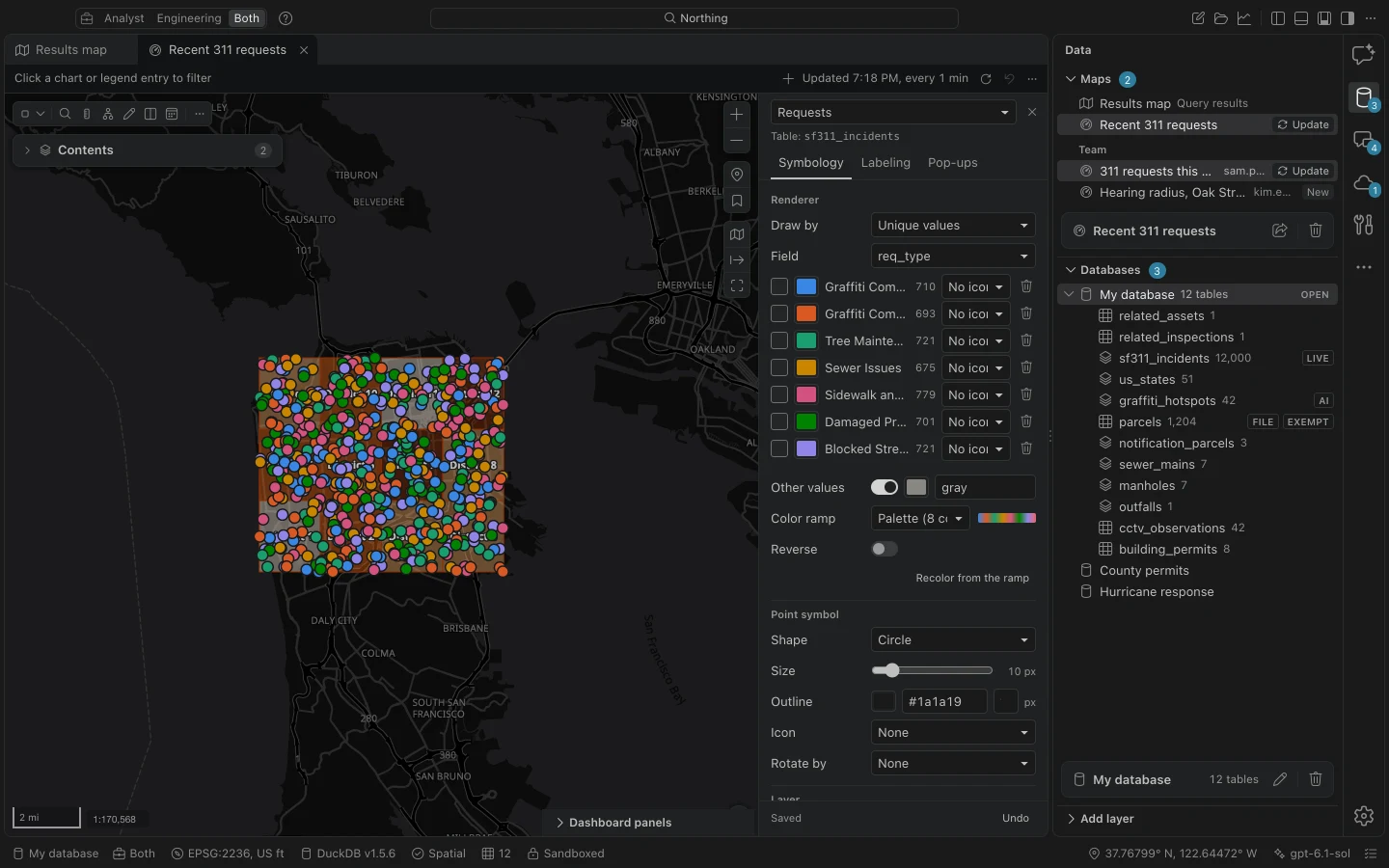
| Familiar term | Where to look | Difference to remember |
|---|---|---|
| Map | Saved map | A reusable document with layers, queries, styles, panels, and layouts. |
| Temporary result display | Results map | Shows current query or assistant results; save a map for a reusable document. |
| Keep a useful result layer | Kept layer | Retains a result in the Results map while later results arrive. It is not the same as publishing or saving a separate dataset. |
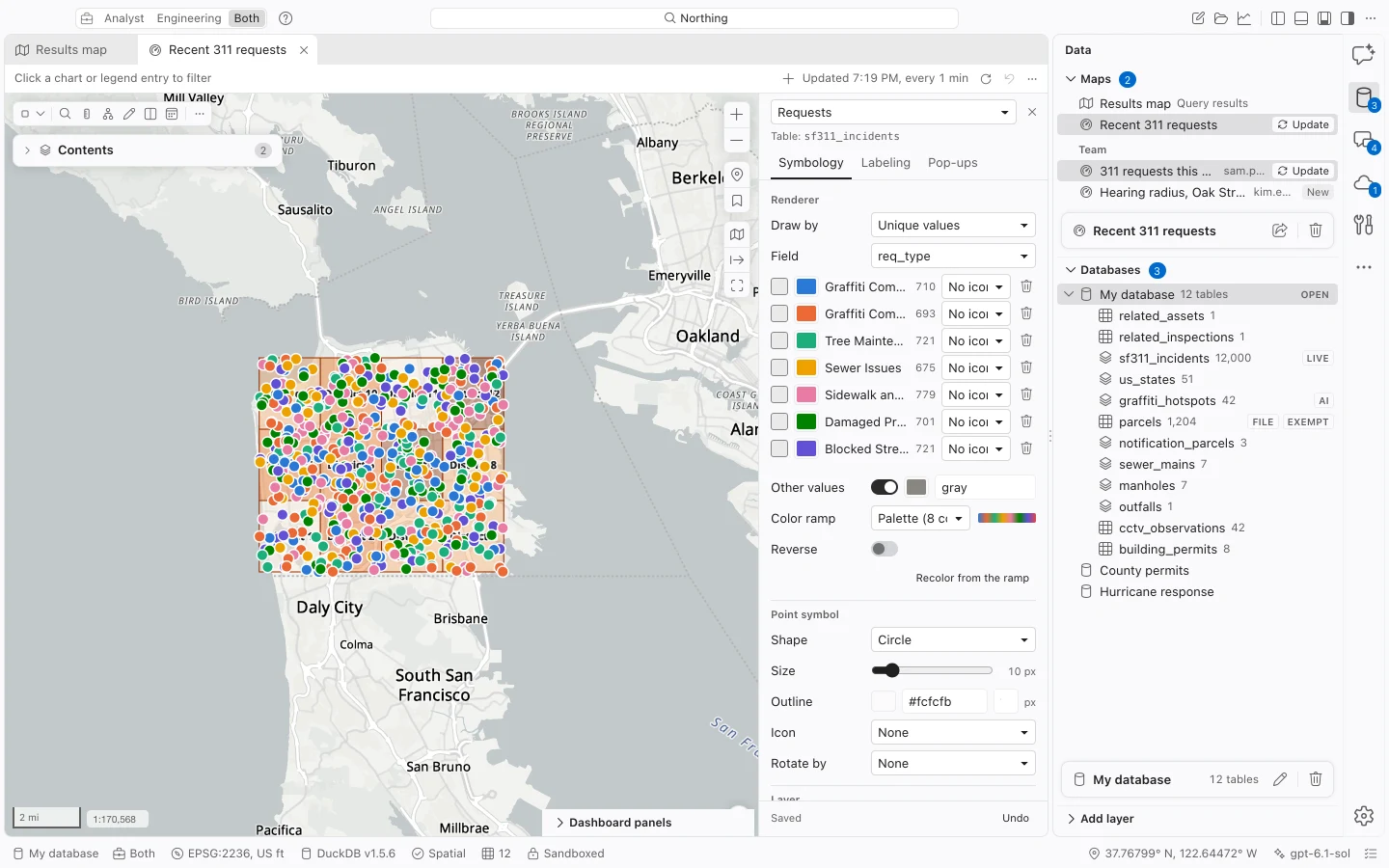
| Contents | Contents | Layer visibility, drawing order, groups, and context actions. |
| Group layer | Layer group; Discipline in Engineering | Organizes map layers. Engineering changes the wording, not the underlying feature. |
| Symbology | Symbology | Styles map features; it does not change stored attribute values. |
| Labeling | Labeling | Places field-based text on the map. |
| Definition query | Definition query | Limits the rows used by that layer. It is separate from deleting records. |
| Pop-up | Pop-ups | Controls the feature information shown when inspecting a map feature. |
| Layout | Print layout; Sheet in Engineering | Stored with a saved map, with page setup and map elements. |
| Map series | Map book | Produces one page per index feature. |
Analysis and sharing
Section titled “Analysis and sharing”| Familiar workflow | Northing equivalent | Scope |
|---|---|---|
| Geoprocessing pane | Geoprocessing tools | Forms prepare local spatial operations and show their SQL. |
| SQL query | SQL console | Uses DuckDB SQL and spatial support against local tables. Do not assume every ArcGIS SQL expression has identical syntax. |
| Reusable workflow | Recipe | Runs recorded processing steps with reviewable inputs and outputs. |
| Reusable assistant guidance | Skill | Instructions for how the assistant approaches a task; it is not an ArcGIS toolbox. |
| Share as web layer | Publish to ArcGIS | Creates a new hosted result. |
| Apply edits to a service | Push changes | Sends reviewed differences while preserving service identity. |
| Enterprise version editing | Named branch version | Uses explicit selection, push, reconcile, and post steps with beta limitations. |
| Project handoff | Field project package | A .northing package of selected data, maps, and supporting metadata. It is not an ArcGIS project package. |
| Share a map design | Team sharing | Shares a Northing document and dependency descriptions; recipients still need compatible data. |
Search the command center by a familiar GIS term when you cannot find a toolbar action. Commands such as Attribute table, Field calculator, Symbology, Labeling, Definition query, and Join and Relate also appear in context menus where applicable. An unavailable command keeps its explanation visible.