
Install Northing
Install the beta build supplied by the Northing team or your IT contact. macOS is the beta platform; Windows builds are still being validated, so these instructions cover the Mac installation.
Install on your Mac
Section titled “Install on your Mac”- Get the DMG for your Mac from the Northing team or your IT department. Use the Apple silicon or Intel build that matches your machine, or the universal build if one is supplied.
- Open the DMG and drag Northing into Applications. Eject the disk image after the copy finishes.
- Open Northing from Applications. For an unsigned pilot build, right-click the app and choose Open. Confirm Open if macOS offers it.
- If macOS blocks the launch, check System Settings > Privacy & Security > Open Anyway after the first attempt. If your managed Mac does not offer an approval route, ask IT to approve the app.
- Complete the license activation requested by the app using the key emailed to you after beta approval. See the beta program for joining and activation details.
- Continue to First run to choose your workspace and load sample data.
Do not disable Gatekeeper across your computer to install a pilot build. IT can help with app approval, certificate trust, and network access without changing that protection for every application.
Check the installation
Section titled “Check the installation”Open Settings > About > Run self-test. Leave Allow network checks for this run unchecked for the initial local check. The test checks the workspace, available resources, spatial support, a known projection, and temporary backup and export operations.
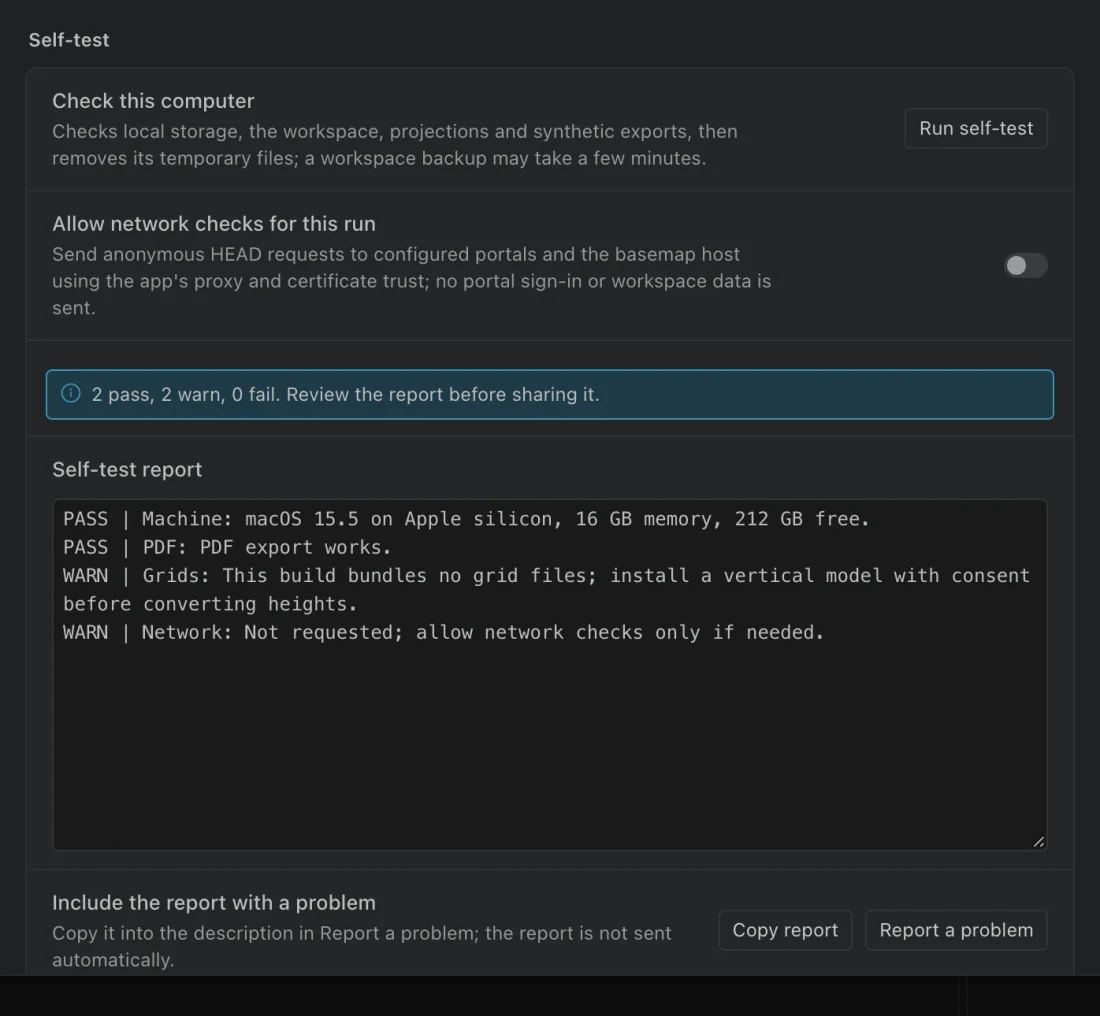
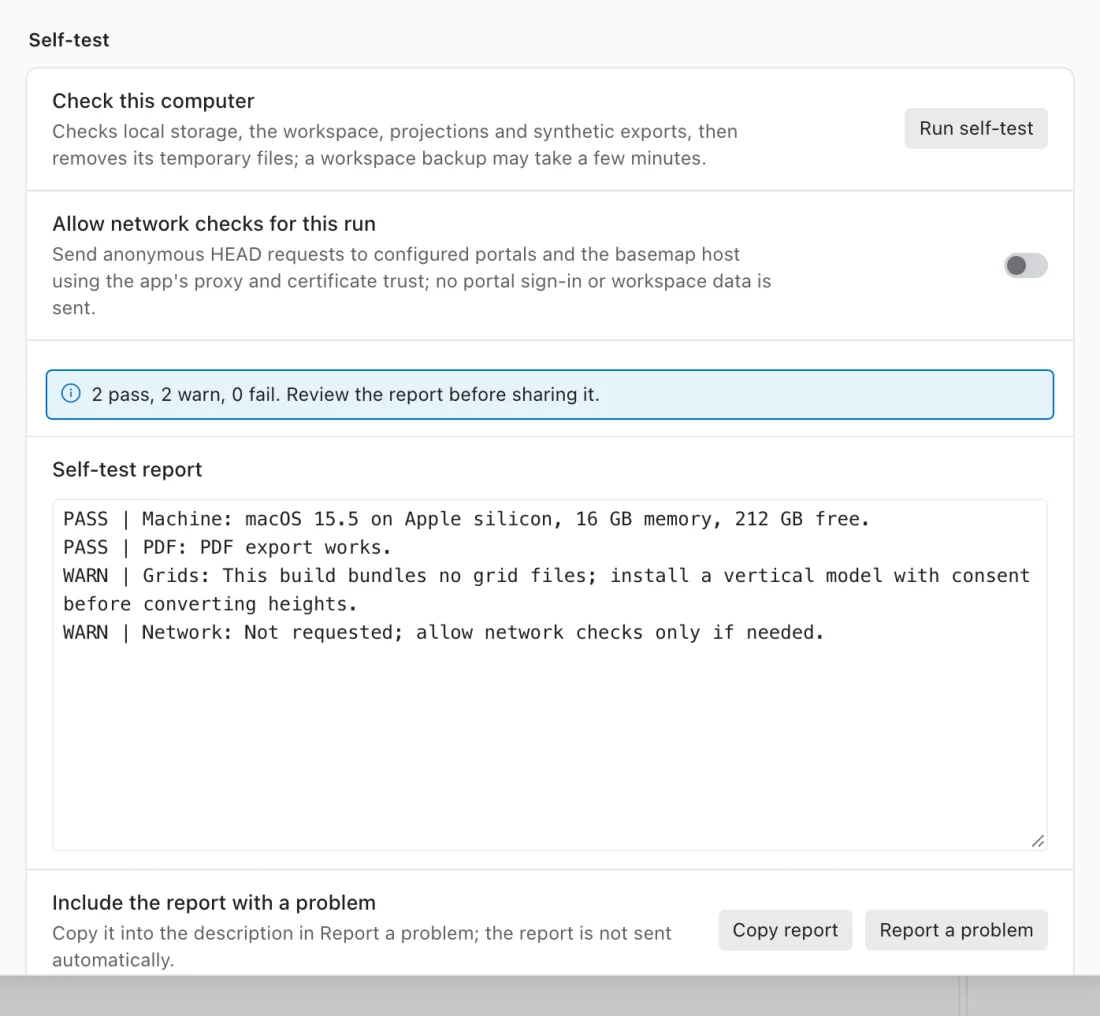
Read the PASS, WARN, and FAIL results individually. A warning that networking was skipped is expected for a local test. A failure includes a next step; resolve it with the Northing team before relying on the affected feature.
Optional network checks contact configured portal and basemap hosts without signing in or sending workspace records. Choose whether to allow network checks each time you run the test. Then test portal sign-in and basemap loading in the app.
Before connecting real data
Section titled “Before connecting real data”No AI account is needed to inspect tables, run SQL, or try the sample workflow. For portal work, IT may need to supply OAuth registration details and allow the portal, basemap hosts, and local browser callback. Share Network access with them if sign-in or downloads fail.
The beta installer and update channel come from the Northing team or your IT department. Save your work and create a backup before replacing an existing build. Do not install an older build over a database upgraded by a newer one without checking compatibility with the Northing team.