
Deploy Northing for a pilot
Use this guide to prepare a small macOS pilot of Northing with test data and a support contact. Northing is proprietary software in private beta; Windows builds and managed Windows workflows are still being validated.
Prepare a pilot installation
Section titled “Prepare a pilot installation”- Obtain the approved installer and license invitation or organization license from the Northing team. Confirm the version, processor architecture, and signing status of that specific package.
- Install Northing.app in
/Applications. The configured minimum is macOS 11; Apple silicon is the standard pilot target. Use an explicitly supplied compatible build for Intel Macs. - Deploy any policy file and protected organization license before users launch the app. Confirm the organization’s network requirements.
- Launch as a pilot user. Activate the personal license or confirm the IT-managed organization identity under Settings > License.
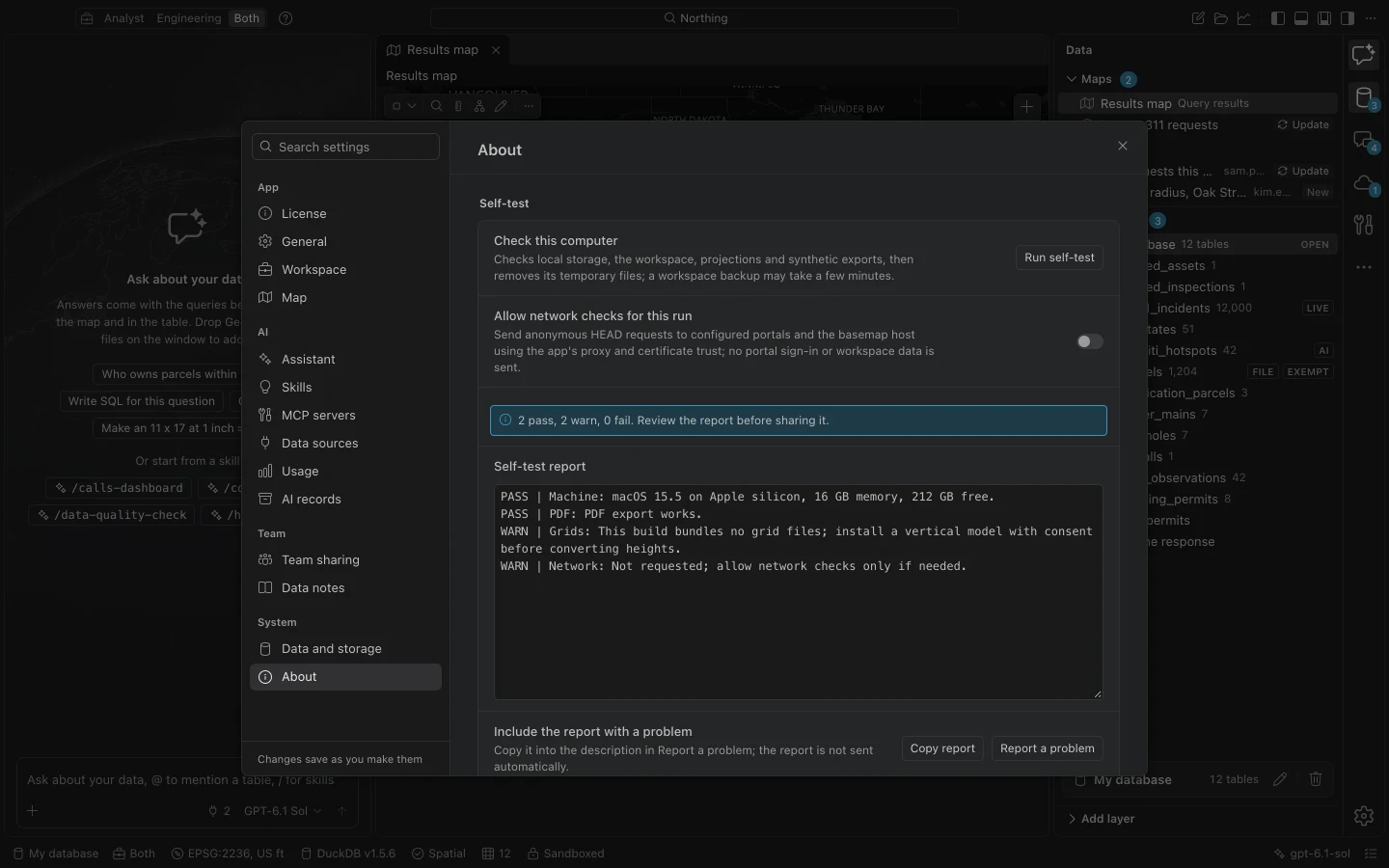
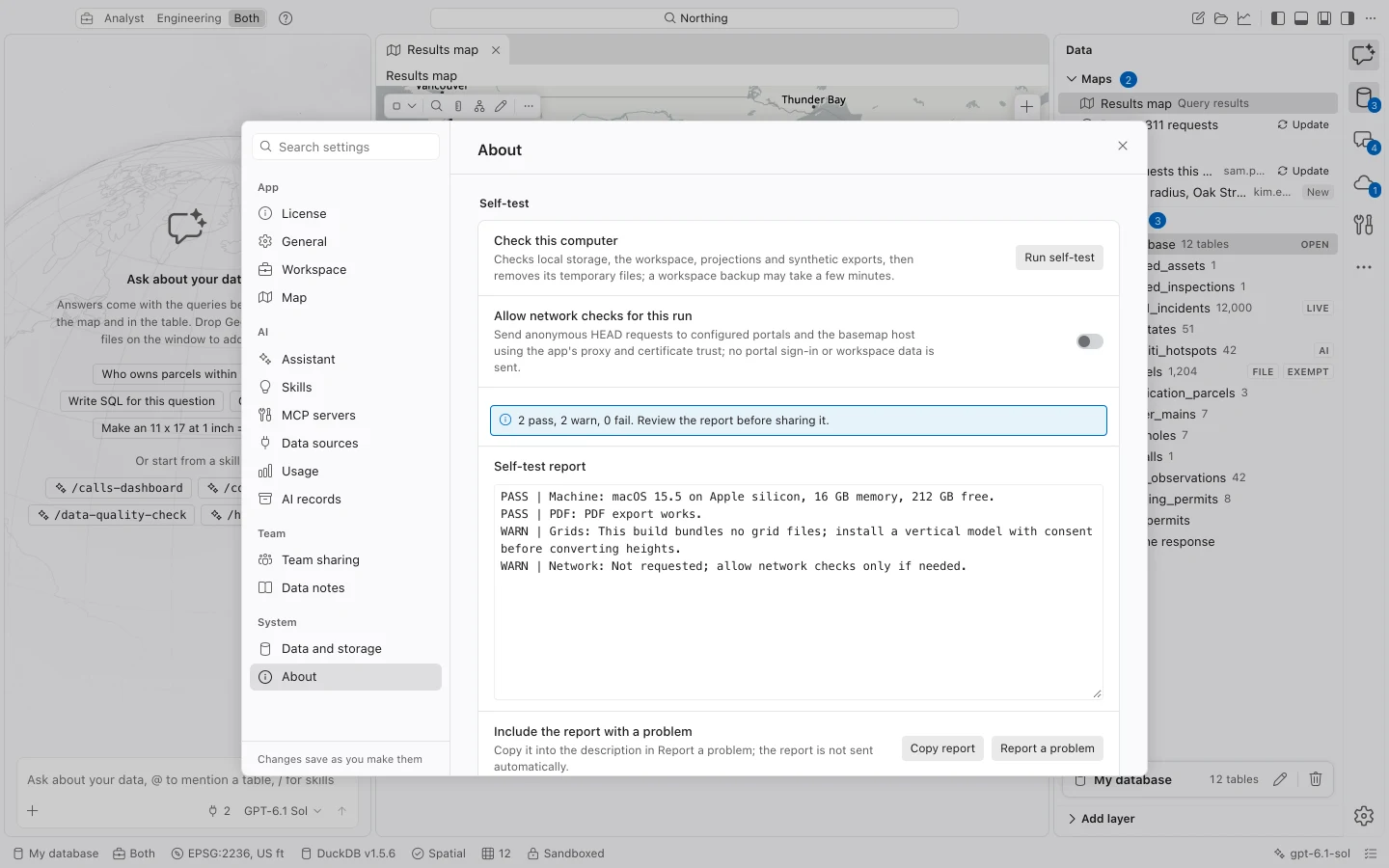
- Open Settings > About and choose Run self-test. Review failures and warnings, then try offline sample data.
- Verify one authorized portal sign-in, a small test import, local analysis, export, and backup restore. Record the app version and any platform-specific failures before expanding the pilot.
Packaging and trust
Section titled “Packaging and trust”A DMG is suitable for a manual Mac installation. For MDM, use a signed PKG supplied or prepared through your approved packaging process from the reviewed app. Jamf, Intune for Mac, and Kandji can deploy that package to /Applications.
Confirm Developer ID signing and notarization on the actual artifact. An unsigned pilot can trigger Gatekeeper and may be prohibited on managed Macs. Arrange an approved exception with IT if required; check installer notarization separately from update signatures.
The installer bundles the DuckDB extensions needed for local work. Activation and secured portal access still need connectivity unless an approved air-gapped license is deployed. Offline sample data does not require a portal or model provider.
User data and access
Section titled “User data and access”The workspace database is a local DuckDB file. Release builds store Mac data under ~/Library/Application Support/tech.northing.desktop/. Release credentials use the operating system’s credential store.
Keep active databases on local storage. A team folder is for shared maps, queries, notes, and skills, not a shared live database. Provide adequate free space for downloads, output files, and a temporary backup approximately the size of the workspace.
Set a backup schedule and test restoration before working with data you need to keep. A newer release may upgrade the workspace schema, so preserve the pre-upgrade backup and coordinate rollback with the Northing team.
Windows validation scope
Section titled “Windows validation scope”The intended Windows packages are a per-machine x64 MSI for managed deployment and an NSIS installer for manual installation. The configured destination is C:\Program Files\Northing\. WebView2 is required; the planned installer includes its bootstrapper when the runtime is missing.
Validate the supplied Windows build on a representative managed machine. Check installation, signing, updates, proxy and portal authentication, extension loading, endpoint controls, printing, backups, and removal.
Windows data belongs in %LOCALAPPDATA%\tech.northing.desktop\; settings and non-secret connections use %APPDATA%\tech.northing.desktop\. A non-persistent VDI deployment must preserve local workspace data in its profile container. Windows backup requests complete during close or start, not while DuckDB is open.
Operate and remove the pilot
Section titled “Operate and remove the pilot”Set managed in the update policy when IT distributes replacement packages. Users can see available updates, but the app does not download or install them. Establish where they obtain approved packages and where they send reviewed problem reports.
Before removal, retain required exports, records, and backups. A personal user should deactivate the machine to free its slot; managed users ask IT. Uninstalling the application does not remove workspace data or automatically release a personal activation.