
Measure and find
Measure distances and areas directly on a map, or find an address, parcel, or asset already in your local data. Measurement uses the database’s analysis projection; Find searches the workspace database without sending the search to a geocoder.
Measure a line or area
Section titled “Measure a line or area”- Check the database’s analysis projection under Settings > Map. Use an appropriate local projected coordinate system for planar work.
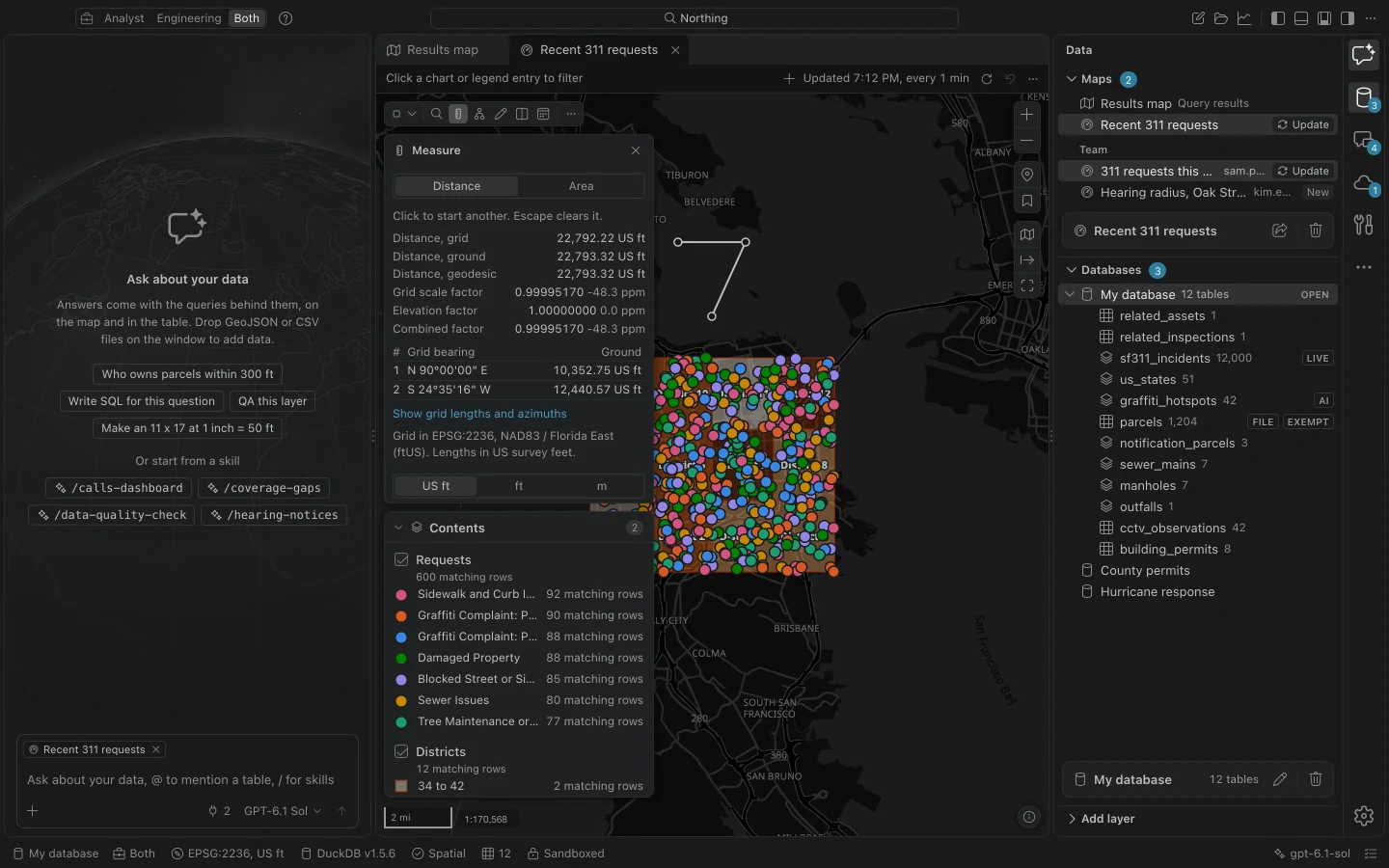
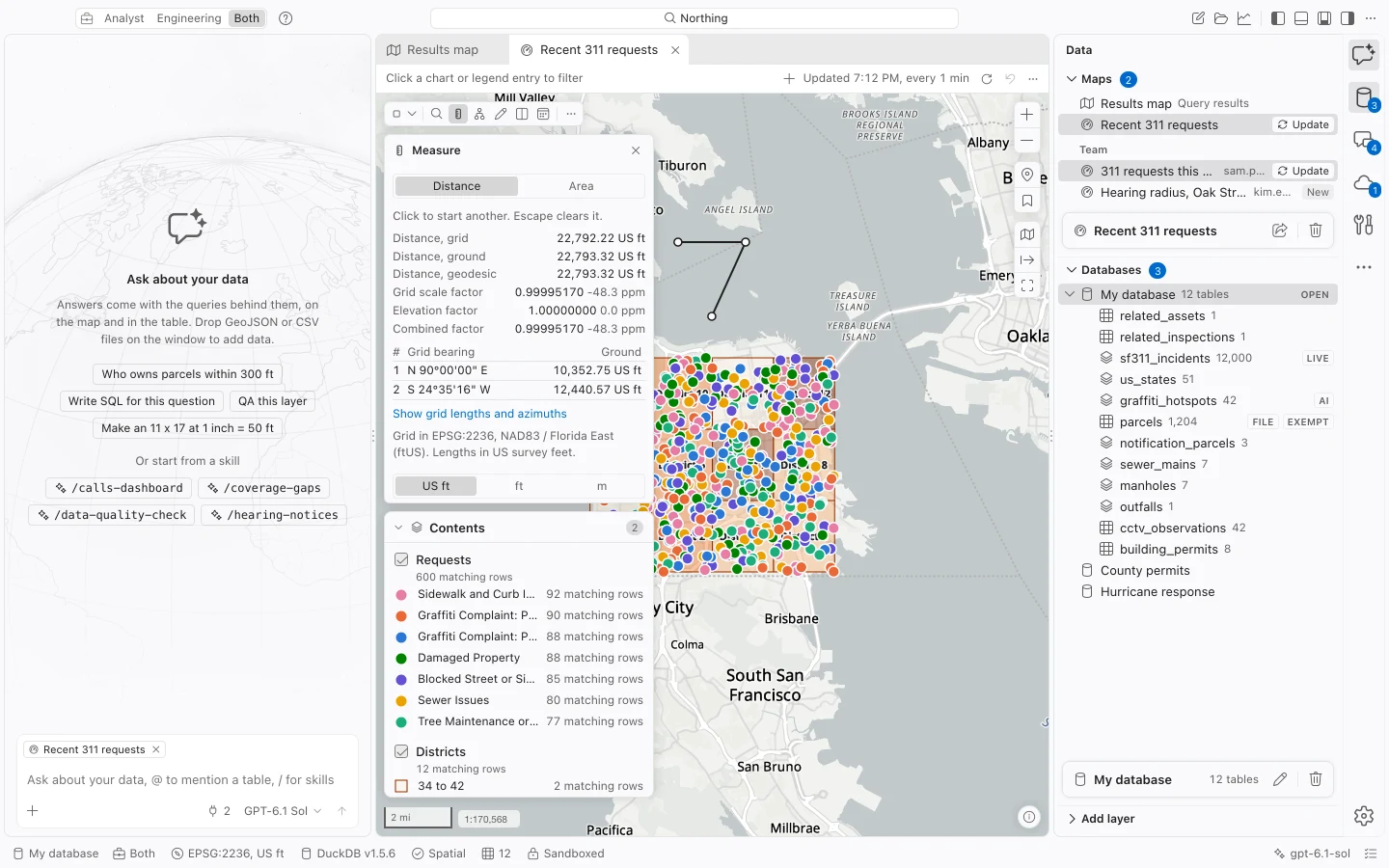
- On the map, choose Measure, or search for Measure distance and bearing in the command center.
- Click the points of the line. Double-click or press Enter to finish. Backspace removes the last point; Escape clears the drawing.
- Read the distance and segment bearings. Use Show grid lengths and azimuths for additional detail.
- For an area, choose Area in the Measure panel or Measure area in the command center and draw its boundary.
- Set Units and choose Copy measurement to copy the values and their measurement context as text.
Understand the three measurements
Section titled “Understand the three measurements”| Reading | Meaning |
|---|---|
| Grid | Planar distance or area in the database’s analysis projection. |
| Ground | Grid measurements corrected using the combined projection scale and elevation factor. |
| Geodesic | Distance or area on the WGS84 ellipsoid. |
For distance, ground equals grid divided by the combined factor. The projection scale factor describes local distortion in the projected coordinate system. The elevation factor accounts for height above the ellipsoid. The panel shows the factors so you can review the assumptions behind the correction.
Bearings are relative to grid north, expressed as quadrant bearings. Hover over a segment bearing to see grid and geodetic azimuths. Units distinguish US survey feet, international feet, and meters; area readings also include acres or hectares. The projection’s unit is the starting choice.
Supply height context
Section titled “Supply height context”Without an elevation source, enter elevation and Geoid height manually in the units shown. Geoid height is the separation used to relate the stated ground elevation to height above the ellipsoid. An empty geoid value uses the elevation as entered.
With an elevation source, Northing samples the measurement’s vertices and uses their mean height. Every vertex must have data. If a sample fails, Northing reports the problem instead of using zero elevation. The panel names the source datum; geoid separation remains a manual input, even when vertical conversion is configured elsewhere.
These distinctions matter when comparing a map measurement with a survey record. Check the projection, foot definition, elevation, and whether the record reports grid or ground distance before comparing numbers.
Find an address, parcel, or asset
Section titled “Find an address, parcel, or asset”- Choose Find on a map or search for Find an address, parcel or asset in the command center.
- Type a known address, parcel ID, asset ID, project number, or name.
- Inspect matches grouped by table. Exact matches appear before prefixes, word starts, and other text matches.
- Choose a match to zoom to and select it. If the active map does not draw its table, the Results map can show that table.
Find searches local fields and uses no geocoding credits. The main command-center search also includes local place matches. It cannot locate an address absent from the database; use Geocoding to create coordinates for address records.
Configure searched fields per database under Settings > Workspace > Find. Until configured, Northing detects likely address and identifier fields while excluding mailing addresses and row IDs. If a known asset is missing from results, check that its table is loaded and that the desired field is included.
Use Go to XY when you already know coordinates. Specify whether the values are geographic coordinates or projected X and Y values before navigating.