
Data folders and diagnostics
Northing stores workspace data locally. Use the application’s backup and diagnostics tools to protect work and investigate problems without copying an active database or exposing credential files.
Save a diagnostics bundle
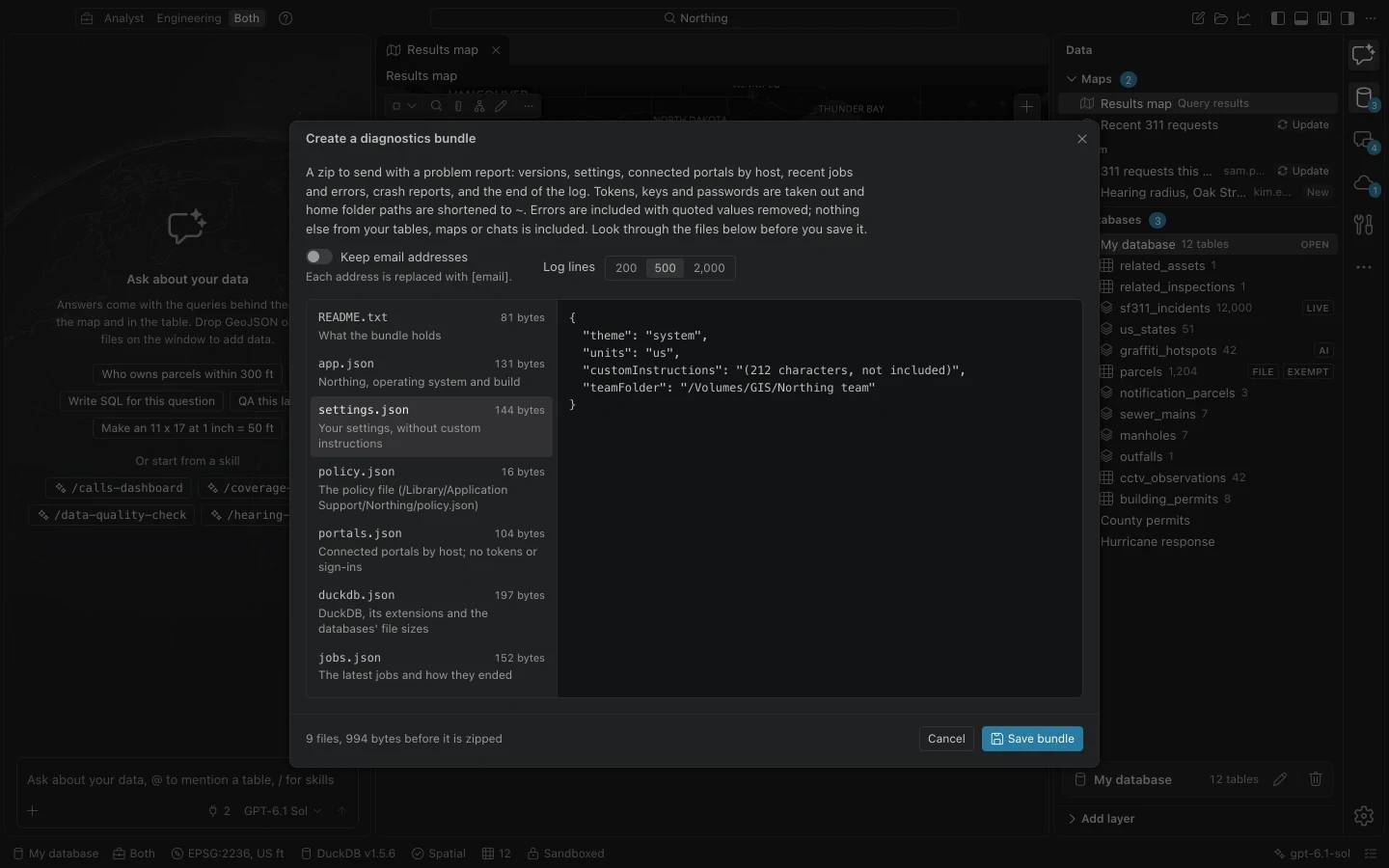
Section titled “Save a diagnostics bundle”- Choose Create a diagnostics bundle from the command center or Settings > About.
- Choose how many Log lines to include. Leave Keep email addresses off unless those addresses are necessary for the investigation.
- Inspect each file in the preview. Check the settings, portal hosts, jobs, errors, and crash information for details you do not intend to share.
- Choose Save bundle and a destination.
- Send the reviewed bundle through your agreed support channel. Saving does not send it to Northing or anyone else.
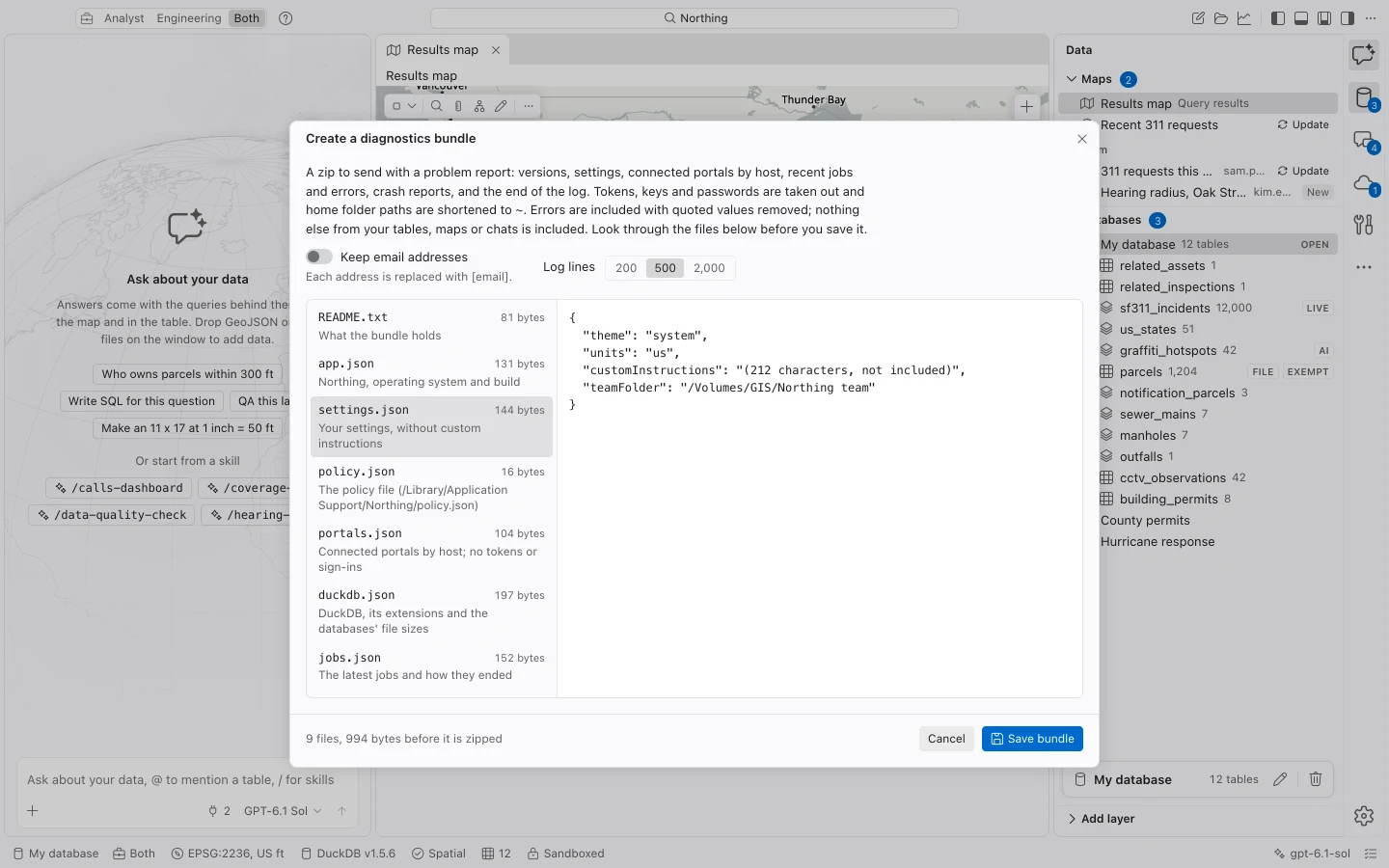
For a report with a task description and optional window image, use Report a problem instead. See Troubleshooting for the reporting procedure.
Data locations
Section titled “Data locations”| Content | Release-build location or handling |
|---|---|
| Mac application data | ~/Library/Application Support/tech.northing.desktop/ |
| Windows databases, backups, jobs, skills, and logs | %LOCALAPPDATA%\tech.northing.desktop\ |
| Windows settings and non-secret connections | %APPDATA%\tech.northing.desktop\ |
| Workspace | A local DuckDB database; the initial workspace uses workspace.duckdb. |
| Backups | backups/<database id>/ under application data. |
| AI records | ai-records/records.jsonl under application data, separate from individual databases. |
| Release sign-ins and API keys | OS credential storage, including macOS Keychain and Windows Credential Manager. |
Development builds use a separate identifier, commonly tech.northing.desktop.dev, and may store development credentials in a private dev-secrets.json file. Do not mix a development profile with the release profile or include that file in a report.
Keep live database files on local storage. Use completed backups for recovery and field packages for a portable handoff. A synchronized team folder should contain shared documents and instructions, not the open workspace database.
What diagnostics contains
Section titled “What diagnostics contains”A bundle includes app, OS, and DuckDB versions; extension information; settings; policy information; portal hosts; database file sizes; recent jobs; errors and warnings; crash reports; and selected recent log lines. Custom instructions are represented by length rather than their text.
The preview redacts recognized tokens, keys, passwords, long opaque strings, and quoted error values. Home-directory paths are shortened, and email addresses are replaced unless you opt to retain them. Table rows, map contents, and chat conversations are not otherwise bundled.
Redaction does not remove the need to review what you share. Policy names, service hosts, job descriptions, and any optional image can reveal organizational context. Never manually add .env files, credential stores, signed license files, or licensing/license.json and licensing/managed.json caches.
Crash recovery and self-test
Section titled “Crash recovery and self-test”Northing keeps the newest 20 private crash reports for supported application failures. Free-form panic messages are withheld because they can contain data. On restart, a notification offers the diagnostics preview. If the workbench cannot render, the recovery screen offers Reload and Save diagnostics.
A forced operating-system termination may not produce an application crash report. Include the approximate time and what you were doing when reporting such a failure.
Run self-test in Settings > About checks storage, schema access, bundled extensions, coordinate transformations, and PDF and GeoPackage operations with sample data. Network checks are off unless requested. Review failures and warnings separately, then test portal sign-in if you plan to use secured data.
Uninstalling leaves user data behind. Retain or remove that data separately under your organization’s records policy after exporting anything needed. Do not remove the data folder merely to resolve an activation or startup problem.