
Use the attribute table
Use the attribute table to compare records, inspect features on the map, and edit local values. Sort and filter the full query result, then review changes before saving them.
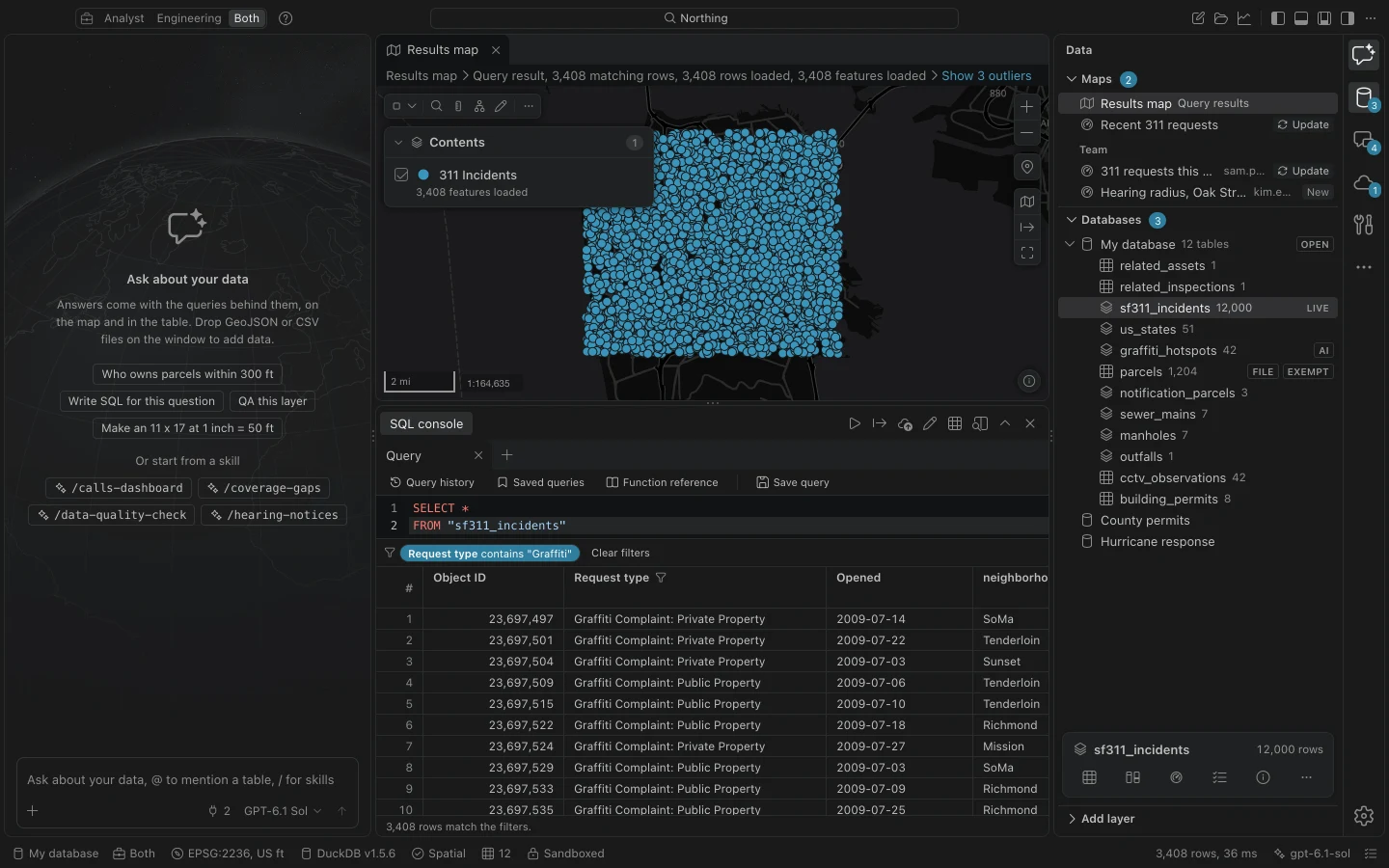
Open and filter a table
Section titled “Open and filter a table”- Select a table in Data and choose Attribute table, or use Open the attribute table of that table in the command center.
- Click a column header to sort. Hold Shift while clicking another header to add a secondary sort; the headers show the order.
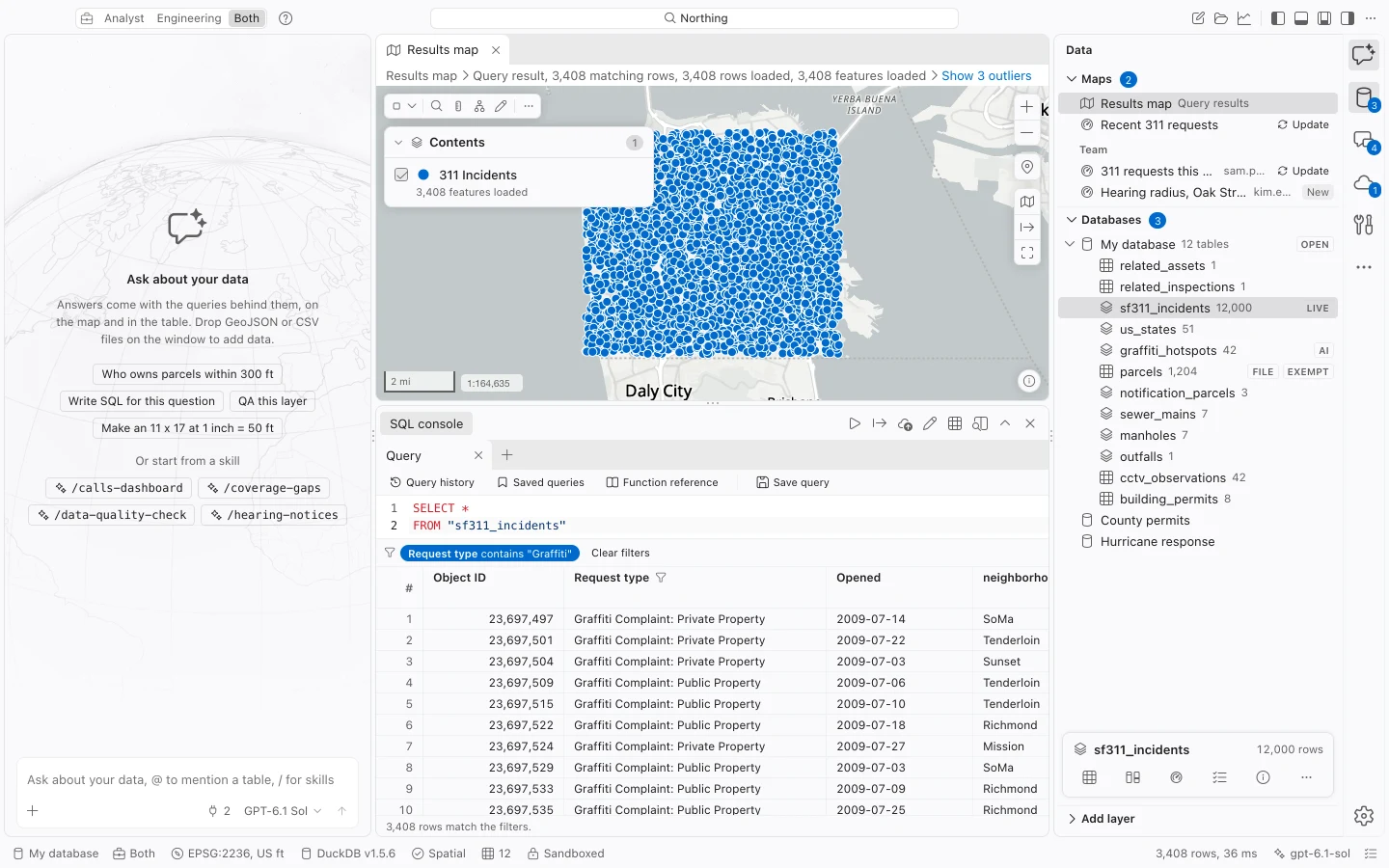
- Open the column header’s actions and choose its Filter command. Select values, enter a range, or use the text search option appropriate to that field, then choose Apply.
- Review the filter chips and displayed count above the grid. Scroll or use Next page to inspect more matching records.
- Select a row and open its row actions. Use Zoom to the feature or Flash the feature to compare it with the map. Remove the filter when you want the full table again.
Inspect values and arrange columns
Section titled “Inspect values and arrange columns”Text and coded-value filters offer values with counts. Those counts consider the records retained by the other filters, not just visible cells. Coded fields display descriptions so you can read the domain meaning; the underlying value remains the code.
A column’s Statistics command reports rows, nulls, distinct values, minimum, maximum, mean, and sum where appropriate. Use it to check whether a field has missing values or a suspicious range before calculating with it.
Drag column headers to rearrange them, or use their movement actions. Hide a column from its menu and bring it back with Fields in the table actions. The fields control also sets frozen columns. Whole-table arrangements persist per table and database; an arbitrary query’s arrangement is kept for the session.
Edit a local value
Section titled “Edit a local value”- Open the whole table, rather than an aggregate or parameterized query result. Choose Edit table values.
- Edit a cell. Coded fields offer permitted descriptions and date fields offer date entry controls. Check the field’s rule if the value is refused.
- Review the unsaved changes. Choose Save to apply them together, or Discard to leave the table unchanged.
- For an ArcGIS-tracked table, use Show changes to the table to inspect the local differences. Review and push is a separate operation when you intend to send them back.
Validation checks complete resulting rows, including field types, required values, text lengths, coded domains, range domains, and subtype rules. A subtype change can therefore invalidate another field you did not edit. If validation fails, Northing names the problem and rolls back the edit.
Indexed fields may need the field calculator or SQL instead of cell editing. Source identity fields are protected. Use the field and schema tools for changes that cell editing cannot make.
Calculate a field
Section titled “Calculate a field”The field calculator applies an SQL expression across a chosen scope and previews the result before changing the table. To practice, add a text field named pilot_note to sample_parcels using Tables and fields.
- Choose Field calculator for sample_parcels in the command center, or open the calculator from a column’s actions.
- Select
pilot_notein Field to set. - Check Rows and explicitly choose all rows or the selected rows. A grid filter is not a substitute for choosing the calculator’s scope.
- In the expression field, enter
'Pilot check'. Text literals use single quotes; field references use their names. - Compare Now and After in the preview. Check the row count and any type or domain violations.
- Review the SQL, using Open SQL in console if helpful. Choose Calculate with the displayed row count when the scope and values are correct.
- Reopen the table and verify the calculated field on known rows.
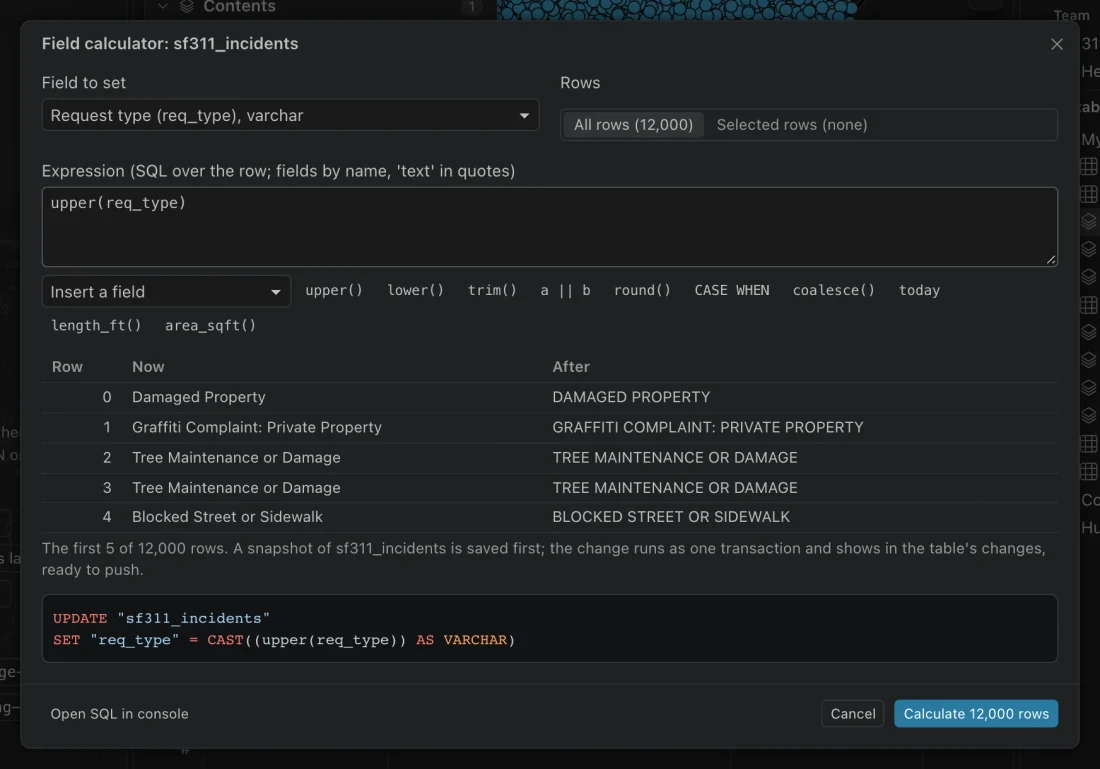
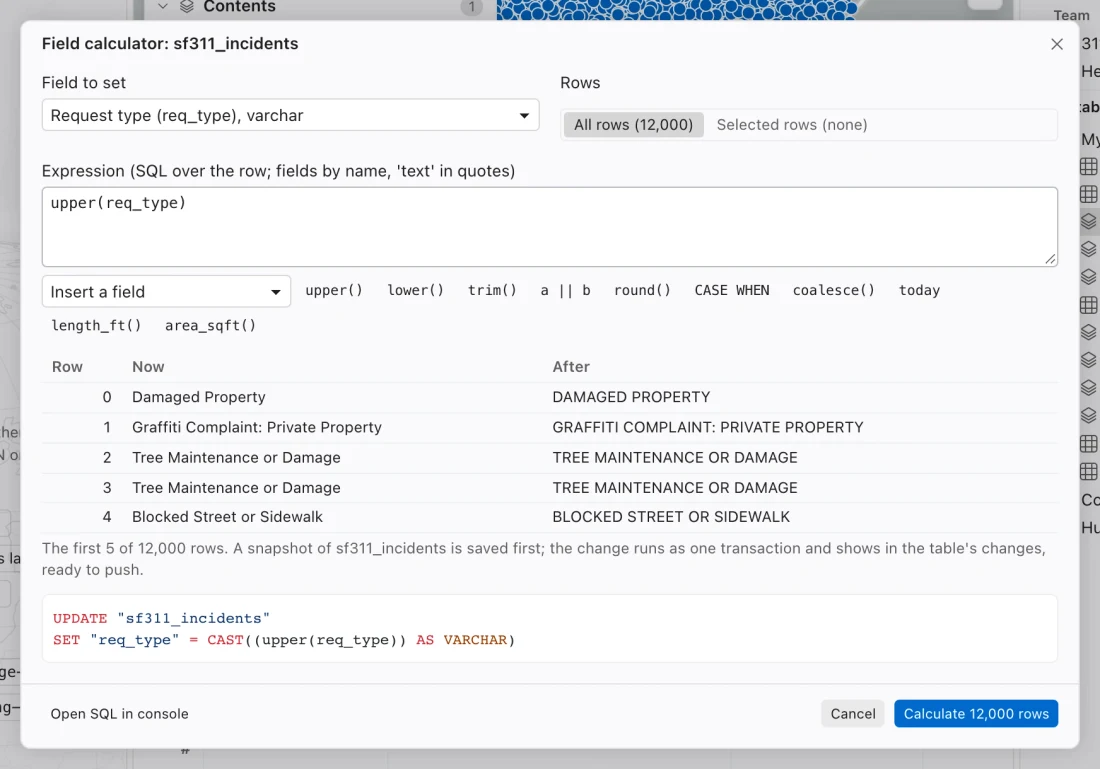
Expressions can use arithmetic, text functions, CASE WHEN, and other fields. For example, upper(req_type) changes text to uppercase. Spatial helpers such as length_ft(geom) and area_sqft(geom) require appropriate geometry and an analysis projection suitable for the data.
The calculator takes a snapshot first and applies the calculation as one transaction. It refuses the whole change when values do not fit. An Undo action can restore prior values for up to 10,000 rows; larger calculations use snapshot recovery. Check the result before moving on to another calculation.
Find, replace, and selections
Section titled “Find, replace, and selections”Find and replace searches the loaded rows, in one column, selected cells, or all loaded columns. It can match case and whole or partial cell values. Replacements are unsaved edits and require edit mode; save or discard them like typed edits. Replacement work is limited to 10,000 cells.
The grid retains up to 5,000 rows and 16 MiB of serialized row data at a time, with an oversized-row exception so one large record remains readable. It can scroll through a much larger result. Selecting all cells selects that loaded window, not every record in the database.
Row actions connect table records with map selection. Use Invert the selection when you intend to reverse a feature selection, and check the resulting count. A cell range, a map feature selection, and a SQL filter are different scopes; verify which one the next operation uses.
Export the intended records
Section titled “Export the intended records”Exports from the current result use its complete query with the current filters and sorts, rather than only the loaded grid window. Table actions labeled Export all rows use the whole table. To export selected features, first show those selected rows as the result, then check its count and export that result.
Save or discard pending edits before paging or changing results. After source data changes, rerun the query to refresh the result. See Export data for formats and coordinate choices.