
Ask the assistant
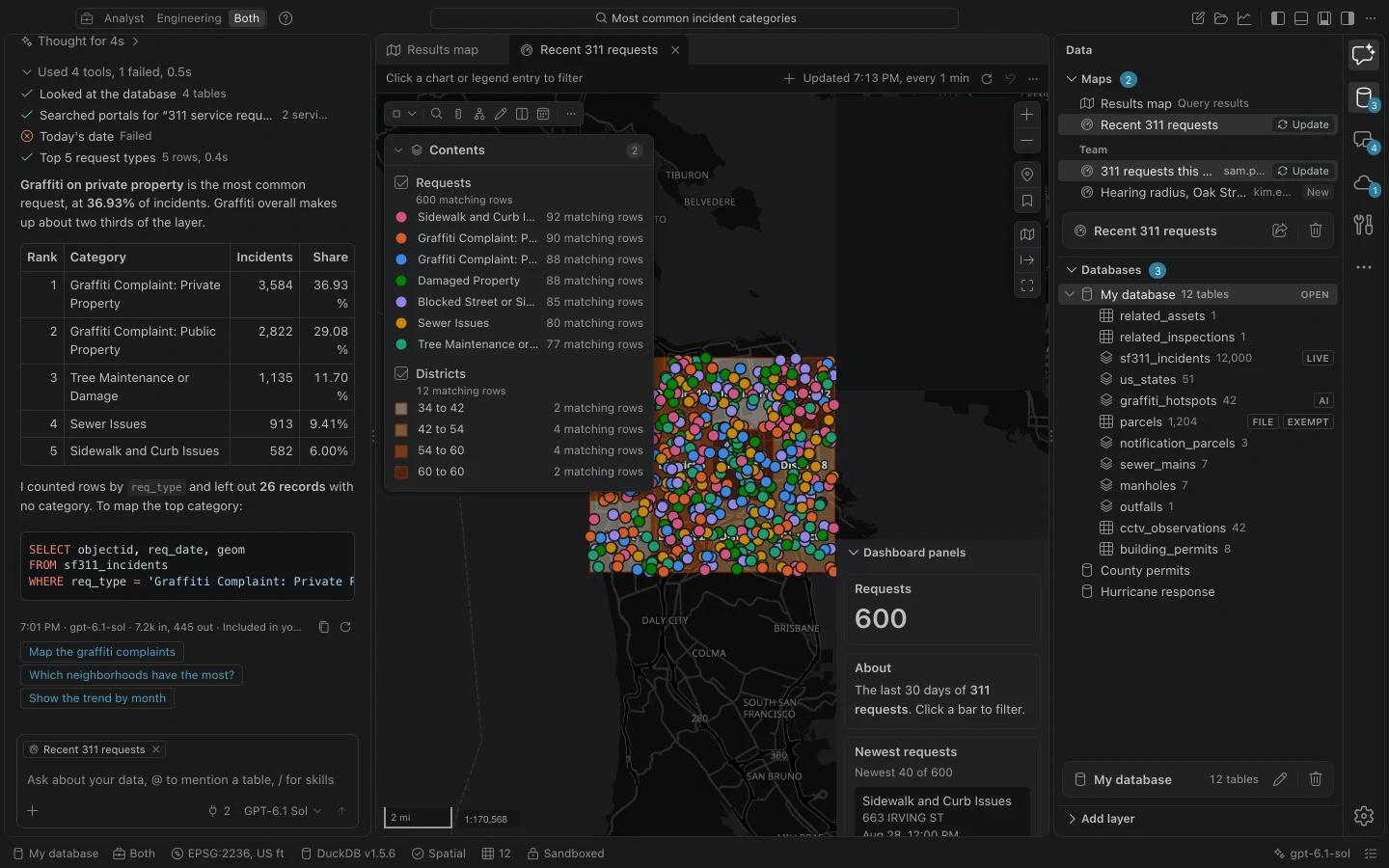
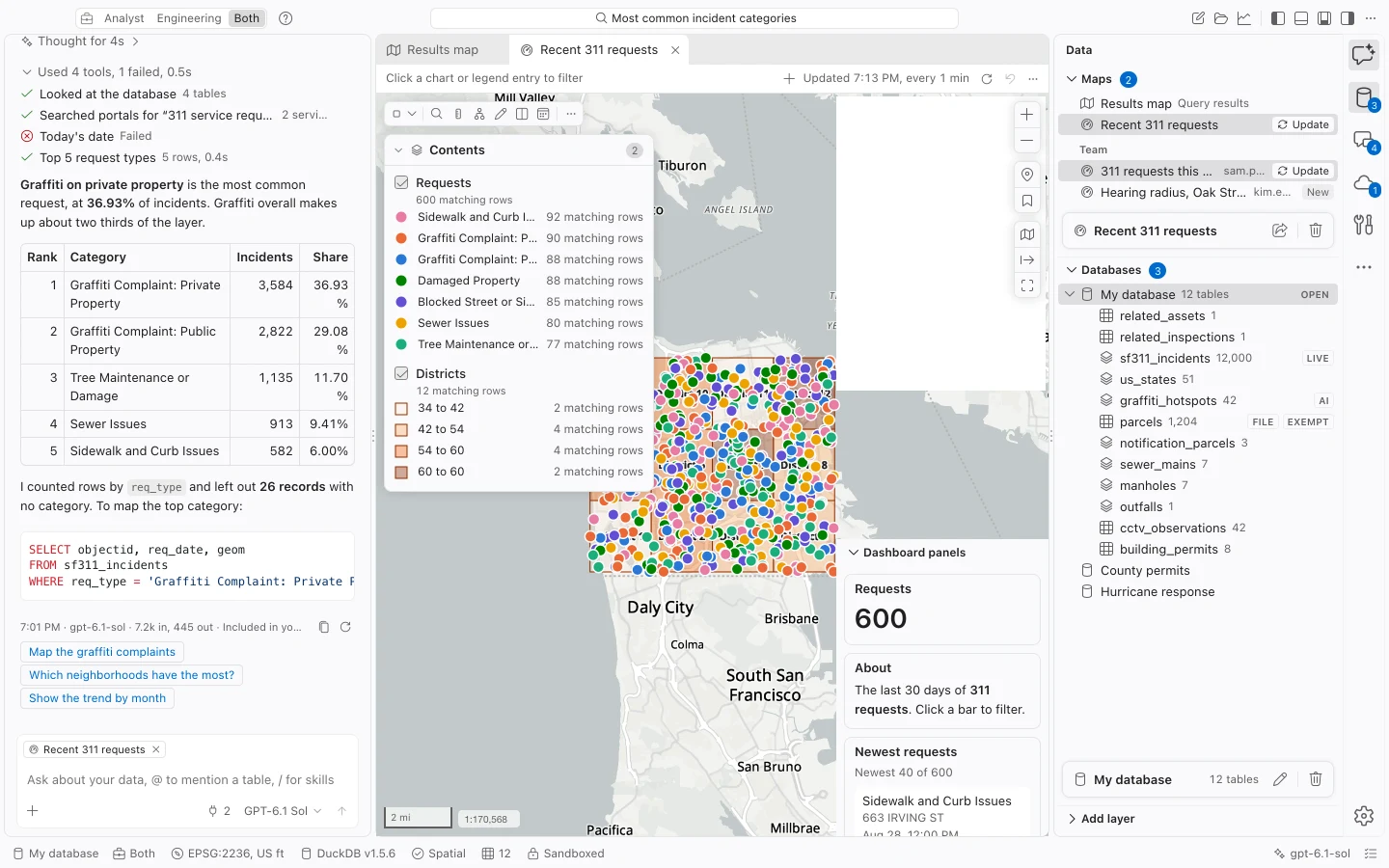
Ask the assistant to summarize records, find nearby features, run analysis, or build a map. It works with tables in your local workspace database and shows its tool steps and queries so you can inspect how it reached an answer.
Ask your first question
Section titled “Ask your first question”- Connect a model if you have not already. A portal connection is needed only for tasks that use portal services; a question about existing local data does not need one.
- Open the assistant. Use Show the assistant in the command center if its pane is closed, then choose New chat for a new task.
- Type
@in the message box and choose the table you want to use. State the question, field definitions, units, and desired output. - Choose Send or press Enter. Use Shift+Enter for a new line.
- Read the answer and expand the tool steps. Check the query, result count, and any stated limits before using the result.
- For a spatial query, choose Show on map in its expanded step. Use Keep as layer or Save as table when the result should remain available.
Give the question enough context
Section titled “Give the question enough context”State what you want to decide and what should count. For example: Using @sf311_incidents, count requests by req_type, sort largest first, and show the top five. Report any missing request types separately. This identifies a table, grouping field, ordering, limit, and missing-value rule.
For a spatial task, name both inputs and the distance units: Using the selected parcel as the subject, find parcels within 300 feet of its boundary. Exclude the subject parcel and keep duplicate owners for now. If a legal or organizational notification rule governs the result, state that rule yourself. The assistant should not have to infer whether you mean centroids, boundaries, or unique mailing addresses.
When you want a reusable table, ask for one and give it a new name. When you want a one-time count or explanation, say so. This helps distinguish a query result from saved data.
Use selections, features, and the map
Section titled “Use selections, features, and the map”You can provide context without typing identifiers manually:
| Context | How to add it |
|---|---|
| Table | Type @ and choose a table. |
| Selected records | Use the selection menu’s assistant action, or mention a table that has a selection. |
| One feature | Open its pop-up and choose Ask about this feature. |
| Visible map | Open Add context and choose Attach the map view. |
| Image | Open Add context and choose Attach images. |
Review the context chips above the message box before sending. Remove a chip if it belongs to a previous task. An active saved map can be included as editable map context; its chip explains that the assistant sees and edits that map.
A selection message carries a frozen filter for the records selected at that moment. Selecting different features afterward does not change the earlier message’s meaning. The filter fixes which rows are referenced; it is not a permanent snapshot of every attribute value in those rows.
A map image communicates visual context, while table and feature context supply structured information. For questions about exact distances, counts, or attributes, include the relevant tables rather than relying on the image alone.
Inspect the evidence behind an answer
Section titled “Inspect the evidence behind an answer”The assistant displays a timeline of tool steps. A completed sequence may collapse under a summary beginning with Used. Expand it, then expand an individual step to inspect its SQL, preview, findings, or failure details.
Show raw reveals what was sent to the tool and what was returned to the assistant. These can differ from the full result visible locally because model row-sharing limits and sensitivity rules can withhold values. A preview is not automatically the entire table.
For a query, check the source tables, joins, filters, units, and grouping. Compare the result count with a familiar case. For a buffer or distance query, check the database’s analysis projection under Settings > Map. For a notification list, inspect the subject feature and a few boundary cases before exporting.
Show on map reuses the live result when available. Reopening an older step may rerun its query against the current database. If you need to preserve the rows as they were, save a table or export the result at the time of review.
Keep the result you need
Section titled “Keep the result you need”| Action | What remains available |
|---|---|
| Show on map | The query result in the Results map and attribute table. A later result can replace it. |
| Keep as layer | A saved query layer on the Results map that remains when you open another result. Its rows follow its source data. |
| Save as table | A new local table containing the query result. |
For an ongoing presentation, ask for a saved map with specific layers, symbology, and panels. Saved maps are local documents that you can also edit through the ordinary map controls. Assistant changes and manual changes share the saved map’s undo history. An assistant step offers Undo for its map change only while that change is still the latest version.
See Map basics for Results and saved maps, and Geoprocessing for analysis tools that write new output tables.
Review proposed changes
Section titled “Review proposed changes”Ask before saving under Settings > Assistant controls confirmation for supported database-writing assistant steps. When the assistant pauses, read what it proposes, including the output table name and query, then choose Allow or Don’t allow.
The assistant’s ordinary SQL tool is read-only. Saving a query result or running geoprocessing creates new tables; those tools cannot overwrite or delete existing tables. Other workflows, such as reviewed push, publication, or an authorized recipe, have their own permissions and review requirements.
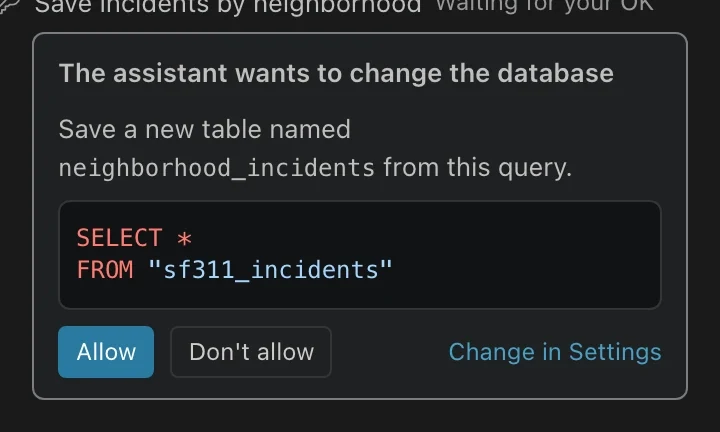
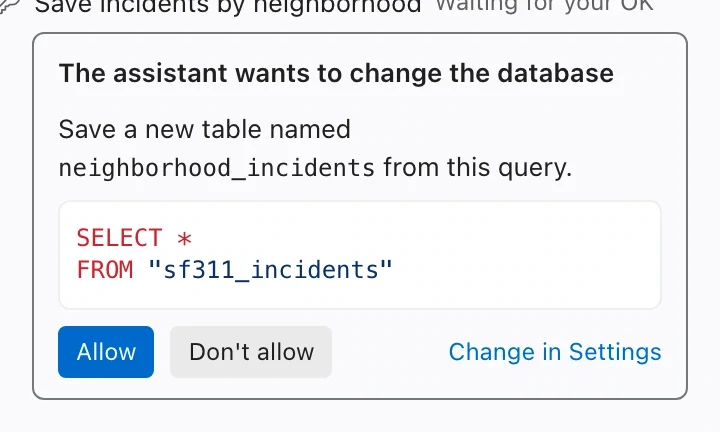
Outside tools have a separate card naming the server and exact input. Allow once authorizes that call. Always allow this tool retains permission for that tool until its definition changes. Only enable outside sources appropriate to the task and your organization’s rules.
Control what reaches the model
Section titled “Control what reaches the model”Your selected model provider processes prompts and permitted context. Under Settings > Assistant, Data the model sees limits shared row results, while Schema only withholds row values. Organization policy can enforce these settings.
Sensitivity tags also apply. Exempt and CJI row values are withheld. CJI tables are hidden entirely unless the endpoint is approved by IT for that use. Generated outputs inherit the strictest sensitivity of their inputs. These rules can explain an answer that reports a schema or count but cannot describe individual records.
For provider setup and organization-specific controls, see AI model connections and AI records.
Continue or recover a task
Section titled “Continue or recover a task”Use Stop to interrupt an active answer. Read any completed steps before retrying: a completed save can already have created an output. If a step failed, expand it and use the reported cause to correct the question, input, or connection.
Ask a focused follow-up when an assumption is wrong, such as Use parcel boundaries rather than centroids, and keep the subject parcel out. Verify the corrected query instead of relying only on a rewritten explanation.
Use Rename chat to give an investigation a useful title. Export chat as a report preserves a shareable account of the conversation. For a task you want to repeat, save the method as a skill or recipe.