
Monitor and recover jobs
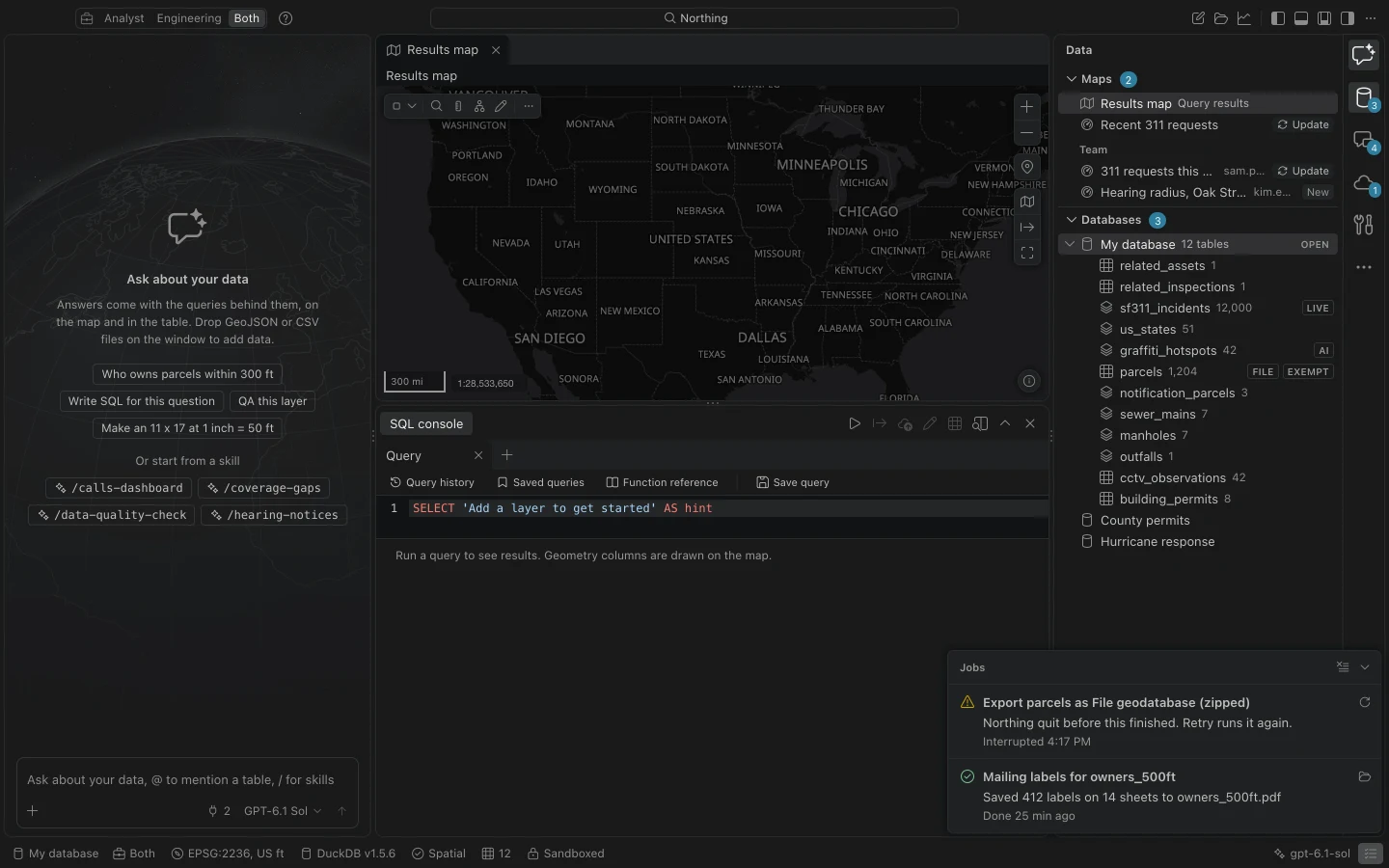
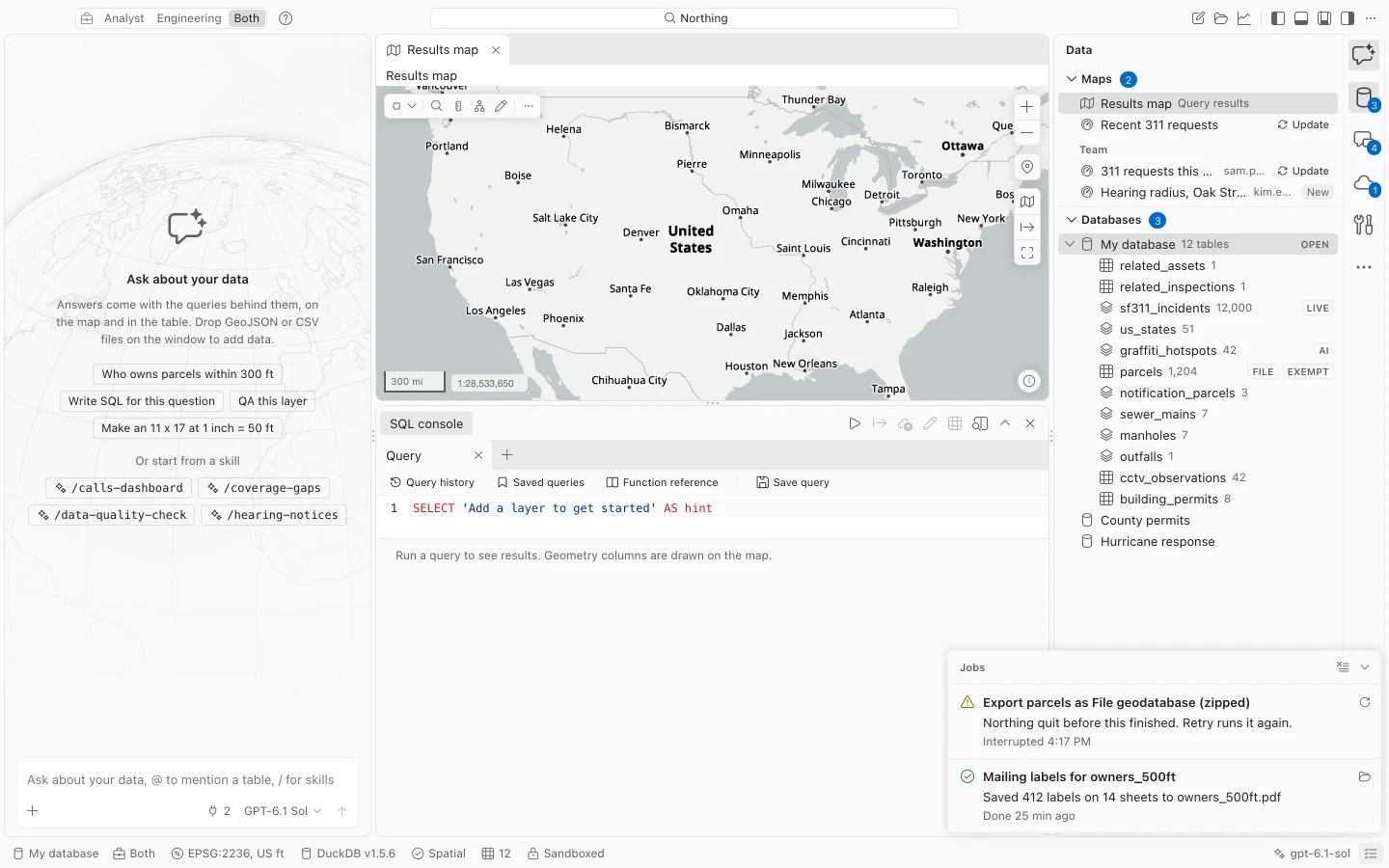
Jobs lets you monitor imports, exports, printing, publishing, and pushes while you continue working. Closing an operation’s dialog usually hides its progress without cancelling the job.
Inspect a job
Section titled “Inspect a job”- Click Show jobs in the status bar. The status area indicates how many jobs are running.
- Find the operation by its title and read its current step, result, or error.
- For a completed file, choose Show in Finder on Mac or Show in File Explorer on Windows. A publication may offer a link to its ArcGIS item instead.
- For failed or interrupted work, read the error before choosing Retry. Use Cancel to stop an operation that is still running.
- Choose Clear finished when you no longer need completed entries in the panel.
| Status | What it means |
|---|---|
| Waiting | The job is queued. |
| Running | Work is in progress; the step and progress indicator describe what is happening. |
| Done | The job completed. Check its result or output link. |
| Failed | The operation stopped with an error. Resolve that cause before retrying. |
| Cancelled | Cancellation was requested and the job stopped. Earlier effects may still matter for operations such as pushes. |
| Interrupted | The app stopped while work was active. Review recovery before retrying. |
The latest 100 jobs are retained across restarts. A job running when Northing quits returns as interrupted. This history is useful for finding what happened, but is not a substitute for retaining exported files or an organization’s audit records.
What retry does
Section titled “What retry does”Retry uses the original operation’s inputs. It does not automatically adopt a changed query, destination, or table selection from a newly opened dialog.
For a failed or cancelled publication, cleanup removes newly created items so a retry can begin cleanly. An import that replaces a table can rerun only while that table remains unchanged. If it has changed, review the current data rather than forcing an old import over it.
Push retries check what reached ArcGIS and compare unsent rows again before sending. Use the existing push job instead of starting a duplicate operation. For branch-version recovery, an Enterprise administrator may also need to inspect the retained session.
A map page retains its drawn output until saving finishes. A map book can resume drawing from kept pages within the same app session. After quitting, incomplete page drawing requires a new book export; completed drawing with interrupted joining can still retry after restart.
If a job keeps failing
Section titled “If a job keeps failing”Read the actual error and distinguish a connection problem from a data or permission problem. Repeatedly choosing Retry will not fix an invalid coded value, expired sign-in, changed replacement table, or unavailable output folder.
Keep the job title, time, error, and app version for a problem report. Avoid clearing the evidence until you understand the result. A cancelled push may already have committed some batches; use its history to inspect or reverse those edits deliberately.