
Join the private beta
The private beta gives GIS professionals the full Northing app to try on real work, in exchange for honest feedback. Join on macOS to evaluate the app and share your findings; Windows builds are still being validated.
Request an invitation
Section titled “Request an invitation”- Open the beta page and choose Request access.
- Enter Name, Email, Organization, Role, and Why would you like to try Northing?
- Read the Beta agreement shown with the request, accept it if appropriate, and choose Request beta access.
- Wait for the Northing team to review your request.
- After approval, use the emailed key and the Northing team’s installer instructions. Keep the invitation and key private.
Once approved, you can sign in to the license portal with your email at any time to see your license, its machines and its end date.
Activate the app
Section titled “Activate the app”- Install the approved macOS build and launch Northing.
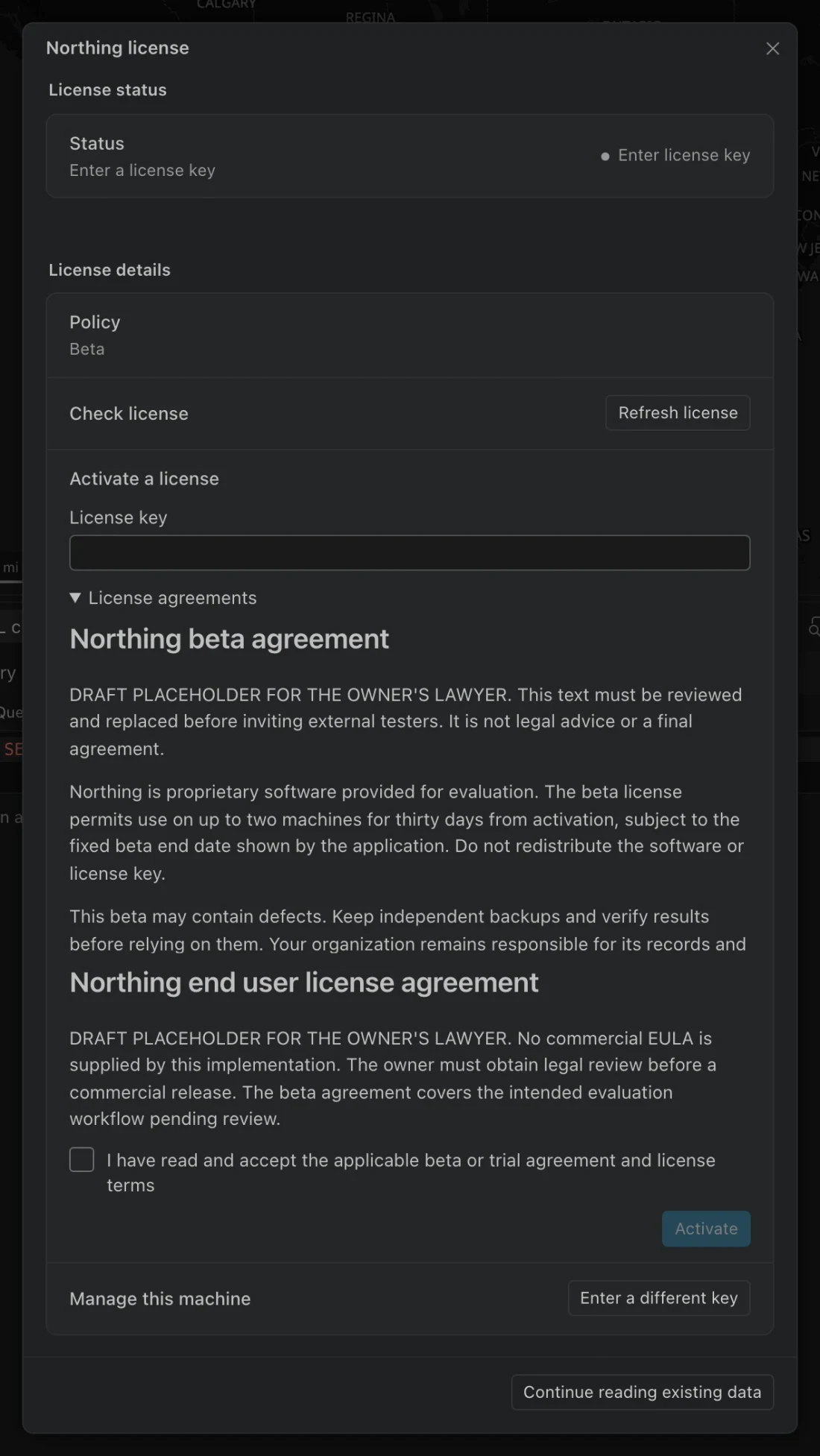
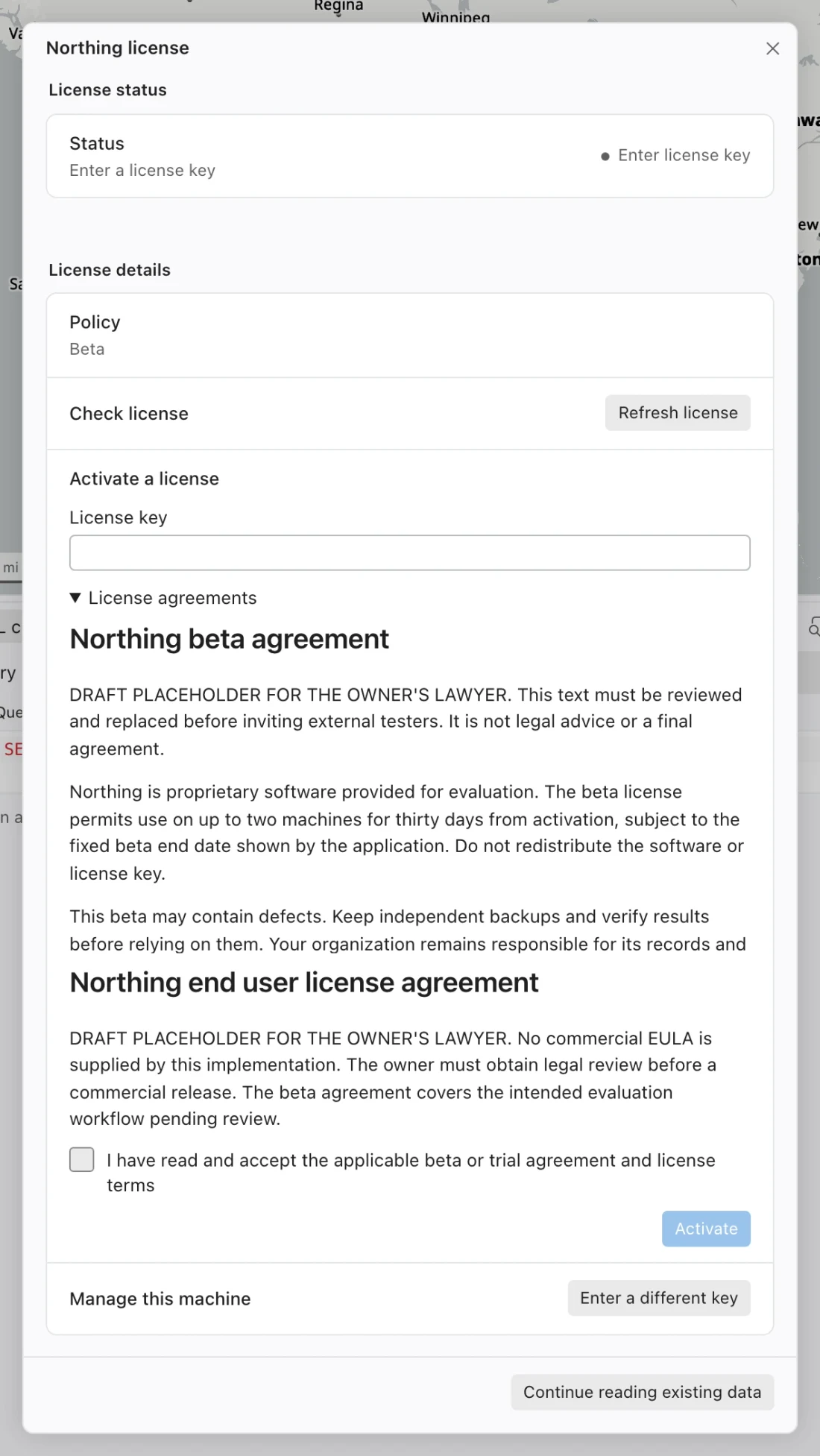
- In the activation screen, or Settings > License, enter your License key.
- Read License agreements and select the acceptance checkbox for the applicable agreement and terms.
- Choose Activate while connected. If the service is still assigning the first expiry, wait a few minutes and retry with the same key.
- Check the license status and remaining days, then try offline sample data and the first-run tasks.
Time, machines, and offline work
Section titled “Time, machines, and offline work”| Beta rule | What it means for you |
|---|---|
| 30 days from first activation | The term starts when the first machine activates, not when you submit the form. |
| Up to two machines | Activating a second machine uses the same license and does not restart its term. |
| Fixed beta end date | The Northing team’s program deadline caps every beta license, even if 30 days would otherwise remain. Confirm that deadline with the Northing team or license portal. |
| Seven-day offline allowance by default | Starts with the last verified license check and ends no later than the license, beta, or signed license file expires. |
| Periodic checks | The app checks at startup and hourly while open; Refresh license checks immediately. |
The app shows remaining days and reminders at seven, three, and one day. Before a stretch offline, choose Refresh license while connected and check that the remaining license time and offline allowance cover your trip. Correct a wrong system clock before refreshing; changing the clock or reinstalling does not restart the beta.
To free a personal slot, choose Deactivate this machine in Settings > License before removing the app. If the old machine is unavailable, use the license portal’s machine management or ask the Northing team to deactivate it. Uninstalling alone does not release a slot.
Request more time
Section titled “Request more time”Choose Request more time in Settings > License. When the build has a license portal configured, this opens the portal request in your browser; sign in through the email link and provide the reason and requested time. The URL identifies the license without exposing its key.
If the build instead opens the in-app request form, enter Reason and How many days, then choose Open email request. Review and send that draft yourself. It contains the license ID, not the key.
The Northing team must approve an extension. After approval, choose Refresh license or wait for the next check. An extension cannot go past the beta’s fixed end date.
When the license ends
Section titled “When the license ends”Beta has ended offers Request more time, a new license, Export my data, and uninstall instructions. Continue reading existing data returns you to read-only work.
You can still open existing workspaces, maps, and tables and export existing data as tables or field project packages. Imports, new analysis, edits, recipes, printing, pushes, and publishing pause until the license is extended or renewed. Licensing never deletes your data or uninstalls the application.
What to try and report
Section titled “What to try and report”Start with a notification radius and mailing labels, map styling and labeling, attribute-table inspection, a field calculation, geoprocessing, a GeoPackage export and reopen, a quality check, and printing to scale. Only then try one small push to an approved test layer and a private publication to a test folder.
Report what you attempted, exact steps, expected and actual results, frequency, app and macOS versions, approximate feature count, source type, and coordinate system. Say whether you used the sample data or your own. Include one result you checked against another GIS tool or known value, confusing labels, and slow operations with approximate times.
Use Report a problem to preview and save a local bundle, then attach it to your report. Do not include restricted rows, passwords, tokens, or license keys. Your own data remains subject to your organization’s authorization and records rules.
Agreement and evaluation scope
Section titled “Agreement and evaluation scope”The beta agreement is shown in full on the sign-up form and again when you activate the app. Northing is proprietary evaluation software; the beta is not an open-source license or permission to redistribute the app or key.
Keep independent backups and verify results before relying on them.