
Edit features on a map
Edit local feature geometry and attributes directly on a map, one table at a time. Save to the workspace database, then use Review and push when you are ready to send tracked edits back to ArcGIS.
Edit an existing feature
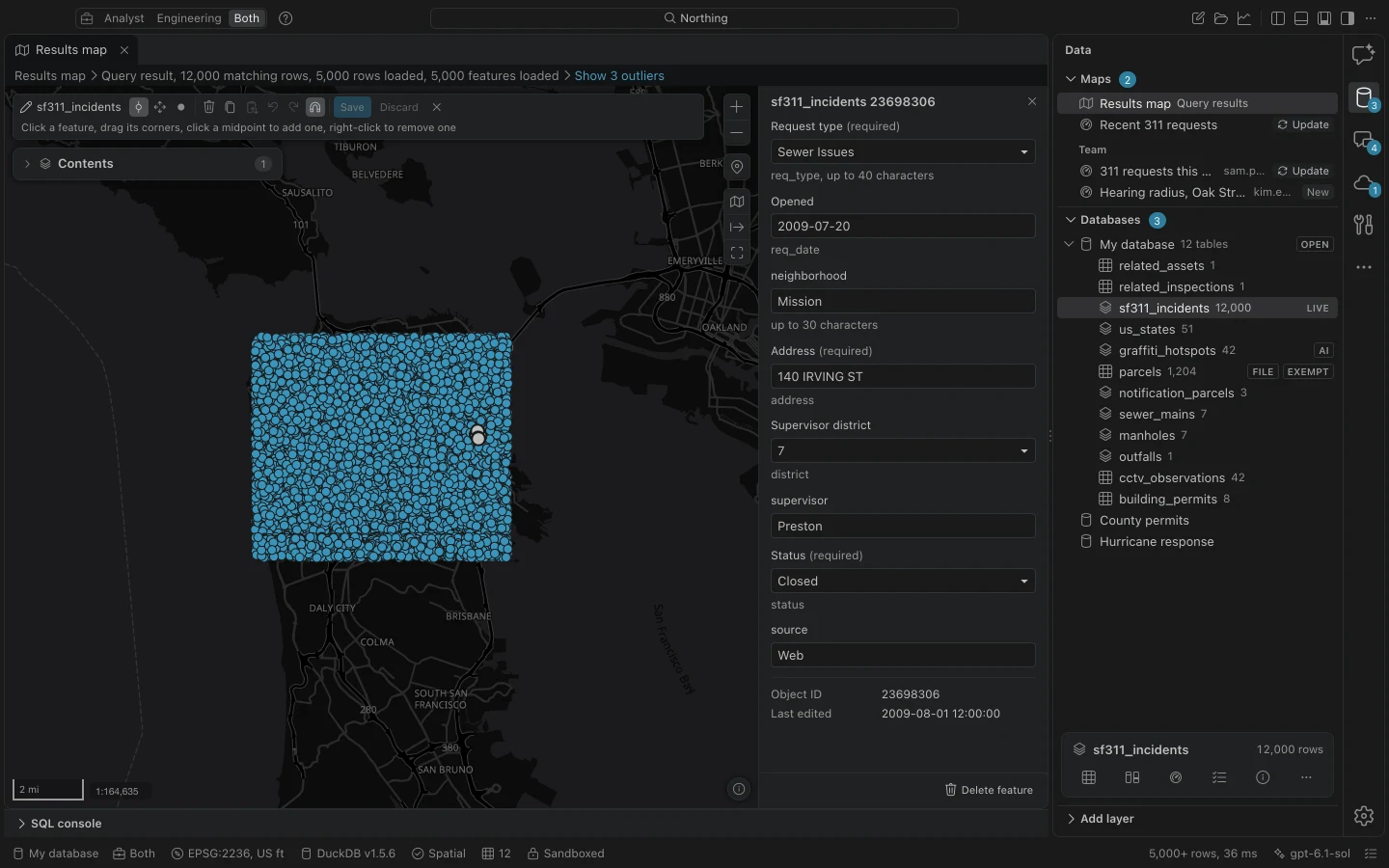
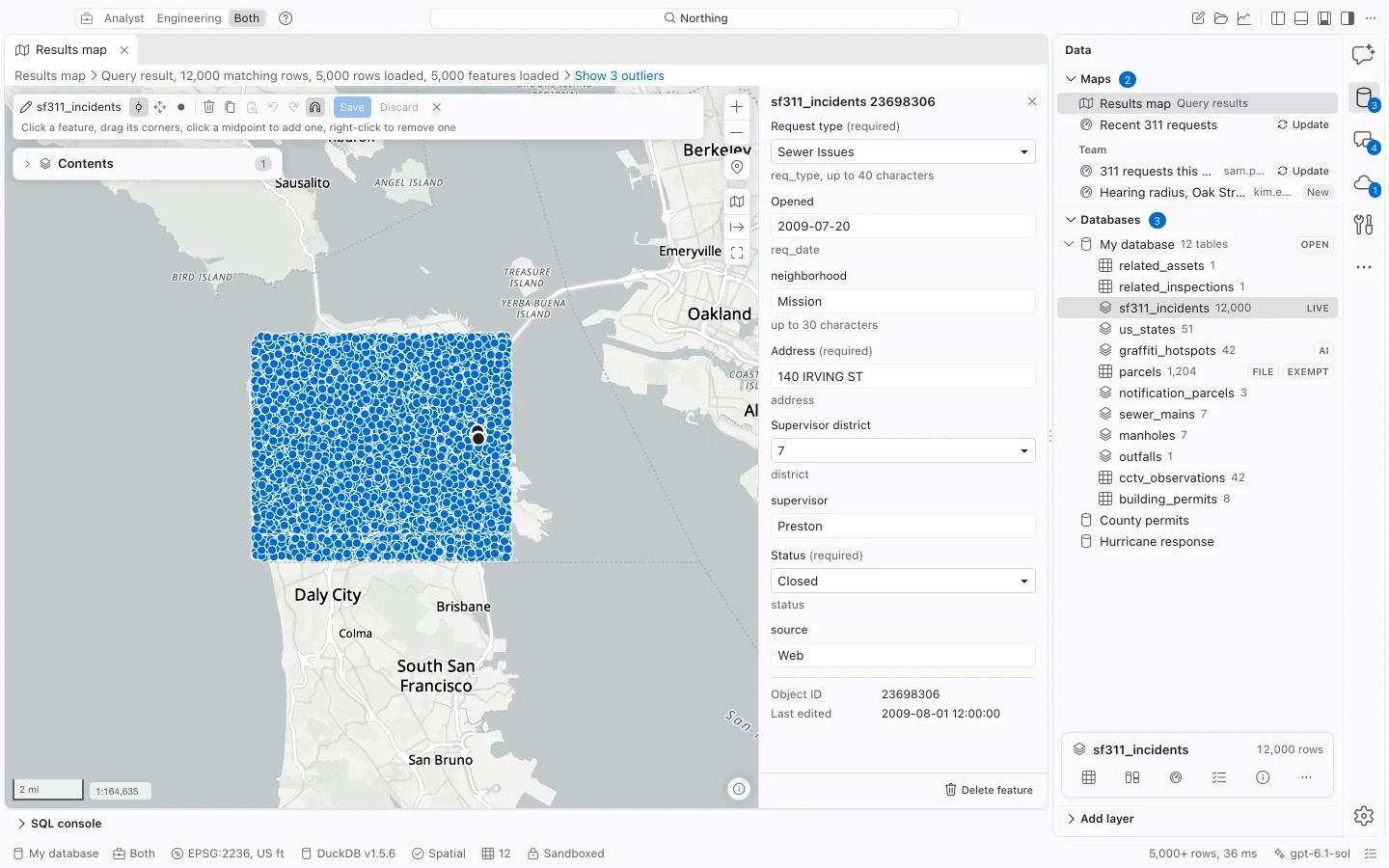
Section titled “Edit an existing feature”- Open a map containing the table. Choose Edit and select the table under Edit features in.
- Click a feature. Northing reads its stored geometry, with the nearest feature to your click first.
- Choose Reshape to drag a vertex. Click a midpoint to add a vertex, or right-click a vertex to remove it. Choose Move feature to drag the entire shape.
- Review the attribute form beside the map. Correct invalid or missing required values before saving.
- Choose Save to write all pending additions, changes, and deletions in one transaction.
- Choose Stop editing when finished. If changes remain unsaved, choose whether to save, discard, or keep editing.
Choose a geometry tool
Section titled “Choose a geometry tool”| Tool | What it does |
|---|---|
| Draw point | Add a point feature. |
| Draw line | Add a line by clicking its vertices. |
| Draw polygon | Add a polygon boundary. |
| Cut hole | Draw an interior hole in the polygon being edited. |
| Split line | Cut a line at the clicked location. The second piece is a new feature with the same attributes. |
| Move feature | Move every part of the selected feature together. |
| Delete feature | Stage deletion of the selected feature. |
| Copy feature and Paste feature | Create a new feature from the selected one. |
The available drawing tools depend on the table’s geometry. Follow the active tool’s on-map instructions to finish a drawing. Deletion and drawing remain pending until Save.
Snap to stored geometry
Section titled “Snap to stored geometry”Turn on Snap to corners and edges with the magnet control. The pointer snaps to the nearest vertex, otherwise the nearest edge, within 10 pixels. The edited features and other visible map layers can provide candidates. A ring indicates the snap location.
Northing resolves candidates against complete stored geometry, including large tiled layers. Snapping waits until Northing has loaded the stored geometry. If snapping is unavailable, wait for that lookup, zoom closer, and check that the intended reference layer is visible.
Validate attributes
Section titled “Validate attributes”The form uses field aliases and the schema saved with the layer. Coded domains show readable choices, including subtype-specific domains. Choosing a subtype for a new feature supplies its template values. Required fields, ranges, and text lengths are checked as you type and again when saving.
Object IDs, GlobalIDs, editor-tracking fields, and shape measures are displayed but are not directly editable. New features in tracked ArcGIS tables receive local identifiers and a new GlobalID when you save.
If another operation changed the feature after you opened it, saving is refused rather than overwriting that newer version. Resolve the intervening grid edit, SQL edit, or refresh and load the current feature again.
Undo and discard
Section titled “Undo and discard”With the map focused, use Undo and Redo for drawing gestures and attribute changes. Discard is itself an undoable step during the edit session.
| Action | Mac | Windows |
|---|---|---|
| Copy feature | Cmd+C | Ctrl+C |
| Paste feature | Cmd+V | Ctrl+V |
| Undo | Cmd+Z | Ctrl+Z |
| Redo | Cmd+Shift+Z | Ctrl+Shift+Z |
These shortcuts act on the edit session when the map has focus. Closing the map or stopping editing prompts for unsaved work. Keep editing leaves the map open.
After saving, run the relevant quality checks. For a tracked ArcGIS table, inspect the local changes before pushing them to the source layer.