
Build linked dashboards
Build a dashboard by adding linked panels to a saved map so you can compare categories, inspect trends, and filter features together. Dashboards stay in your local workspace database and need no AI model.
Add a panel
Section titled “Add a panel”- Open a saved map and choose Add panel.
- In the panel editor, choose the panel type and its data. Use Panel, Data, Display, Interaction, and Layout to adjust the result.
- Select the fields and calculation you need. Numeric fields are offered for measurements and date fields for time-based displays.
- Check the live preview, then save the panel. Use Edit panel from its actions to revise it later.
- From the saved map’s actions, choose Show dashboard to fill the tab with panels. Choose Show map and panels to return to the map.
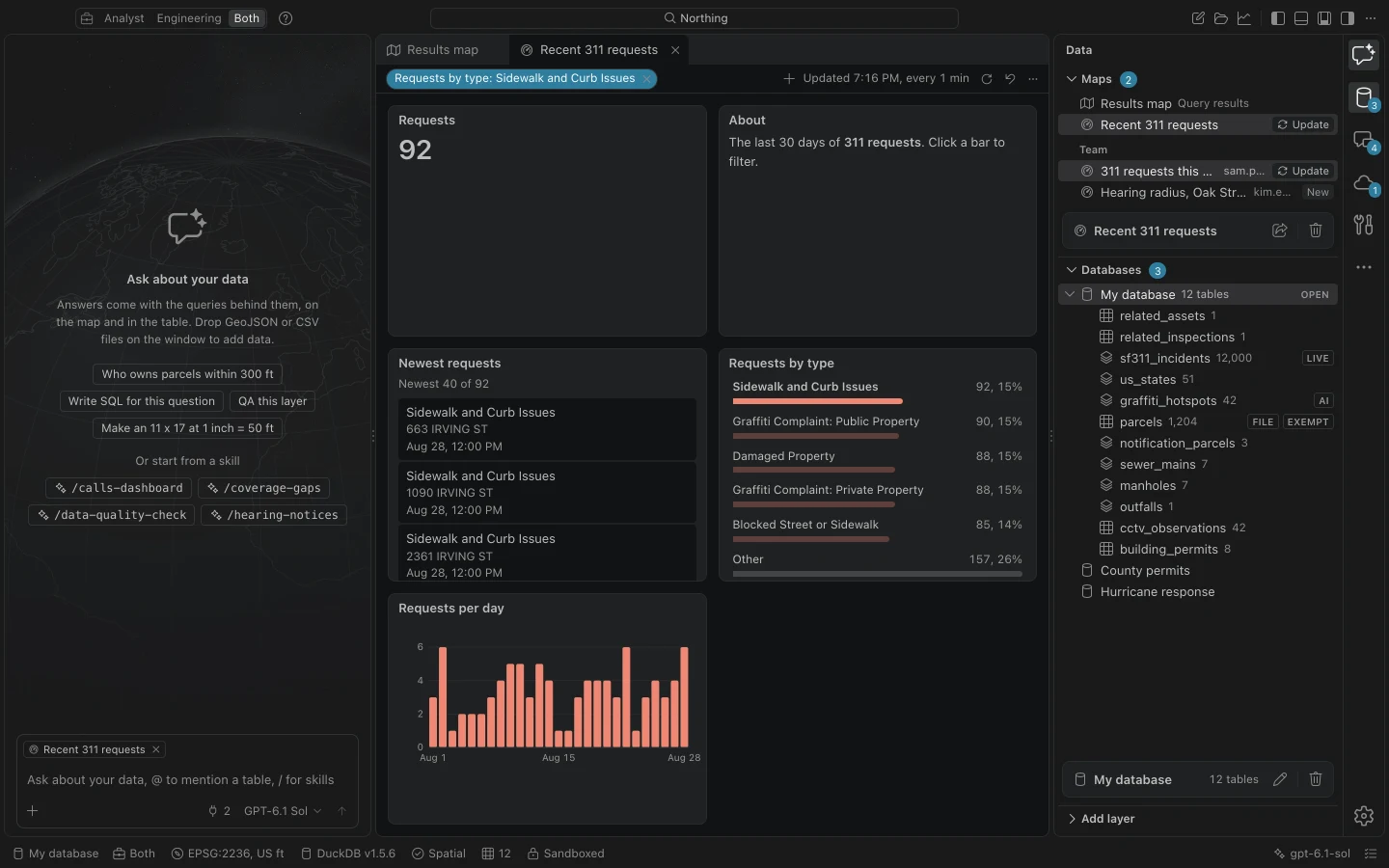
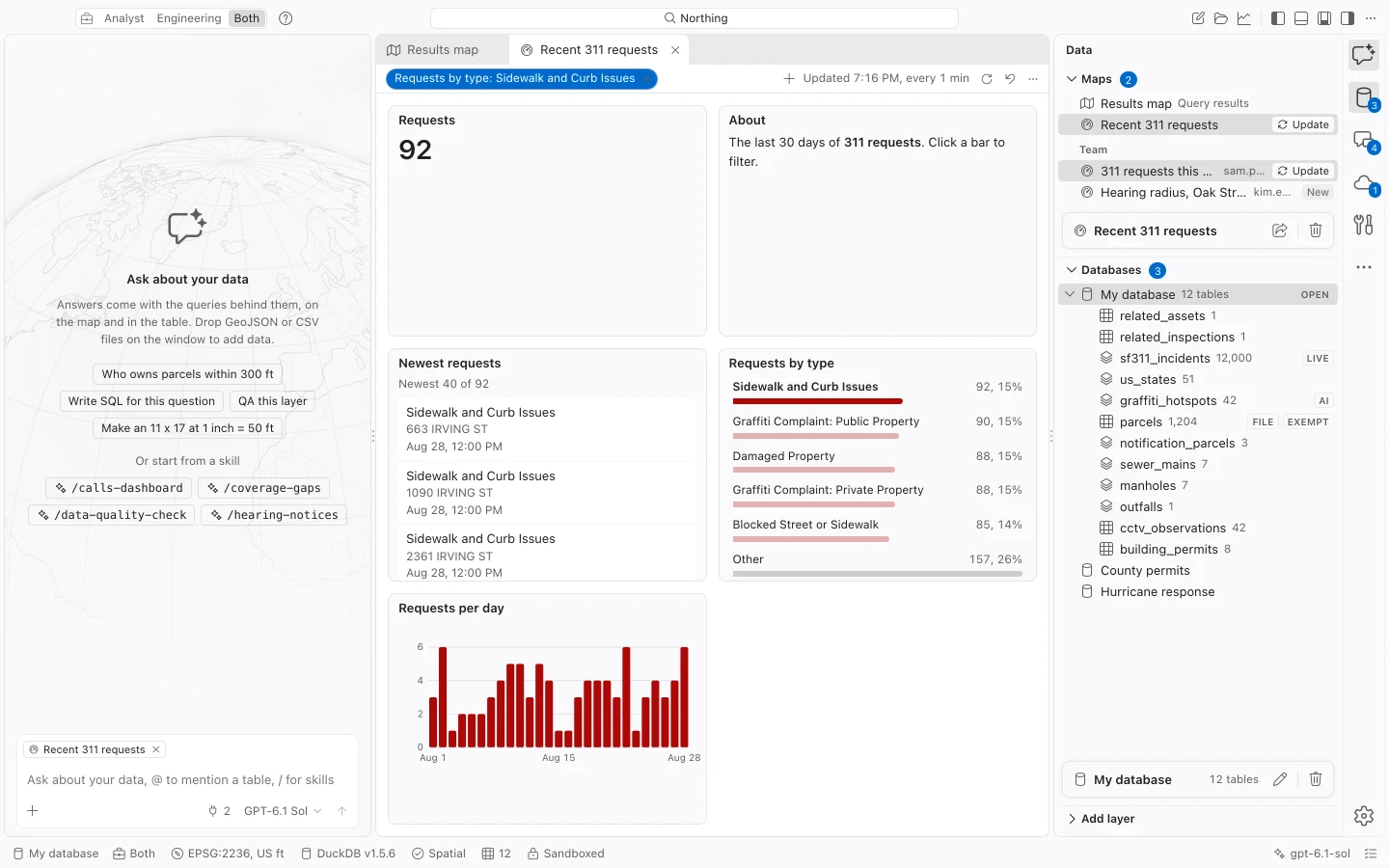
A saved map holds up to 12 linked panels. Available types include bars, indicators, lists, filters, Markdown, time series, pie or donut charts, numeric histograms, scatter plots, and tables. Use an indicator for a single total, a bar chart for categories, and a table or list when readers need to identify individual records.
Link the panels to the map
Section titled “Link the panels to the map”Click a bar, pie slice, histogram bin, scatter point, or category legend to filter the other panels and map layers. Keyboard users can focus a mark and press Enter or Space. Clear the panel’s filter when you want to return to the full dataset.
Table panels can select and locate features through the same map selection used by lists. A chart filter and a feature selection serve different purposes: the filter changes the records participating in the linked display, while selection identifies features for inspection or a subsequent action.
In map-and-panel mode, panels occupy a collapsible side column. Toggle saved panel arrangement restores the saved grid for the current tab during the session. Show dashboard changes the saved map’s presentation and can be undone with the toolbar’s Undo.
Choose calculations and limits
Section titled “Choose calculations and limits”| Panel | Behavior to check |
|---|---|
| Bars | A second field can group or stack bars. The display reports when the 5,000 series-value ceiling is reached. |
| Pie or donut | Categories beyond the slice limit become Other. Aggregates for Other use the original records. Negative values are listed rather than drawn. |
| Histogram | Use 1–100 bins, with 10 by default, or a positive bin width, up to 1,000 bins. The last bin includes the maximum. |
| Scatter | Defaults to 1,000 points, with a maximum of 5,000. A repeatable sample and eligible record count are reported when sampling is needed. |
| Table | Shows selected fields, sorting, and up to 500 records. |
Histograms and scatter plots exclude null or nonfinite numeric coordinates. Read the count and sample information to see how much of the source a limited table or sampled scatter plot displays.
You can duplicate, reorder, or remove panels from their actions. Save the change to keep the editor’s preview. After saving, use the map toolbar’s Undo to restore the previous version.
Export or share results
Section titled “Export or share results”Each panel offers Export data as CSV, Export data as Excel, and Copy panel image. Data export runs the panel query with its current linked filters. Image copy captures the visible panel, so inspect its labels and size before pasting it into another document.
Panels stay local and are omitted from a published web map. Publishing also warns when a numeric range, Other-slice, or point-key filter cannot be represented in the destination. Review whether a layer will reference live data or become a filtered copy.
Use team sharing to exchange the Northing saved map and its panel design. Recipients still need compatible data; sharing the design does not upload the local tables.