
Elevation and flood context
Each workspace database uses one elevation source to inspect terrain heights and profiles or derive hillshade and contours from a local DEM. Import flood-zone polygons separately when you need mapped flood context.
Configure an elevation source
Section titled “Configure an elevation source”- Open a map, then choose Elevation source, hillshade and contours… from the command center or More map tools.
- Choose Local DEM GeoTIFF and select a file, or choose Public ArcGIS elevation image service and enter its Service URL. Use USGS 3DEP fills in the public preset.
- Enter Source name, DEM elevation units, and Vertical datum from source metadata. Use
Unknownwhen the source does not specify the datum. - For a public service, allow Public elevation services in Settings > Data sources, if your organization permits it.
- Choose Save source. Use Go to XY or a normal map click to inspect a height together with its units, datum, and source.
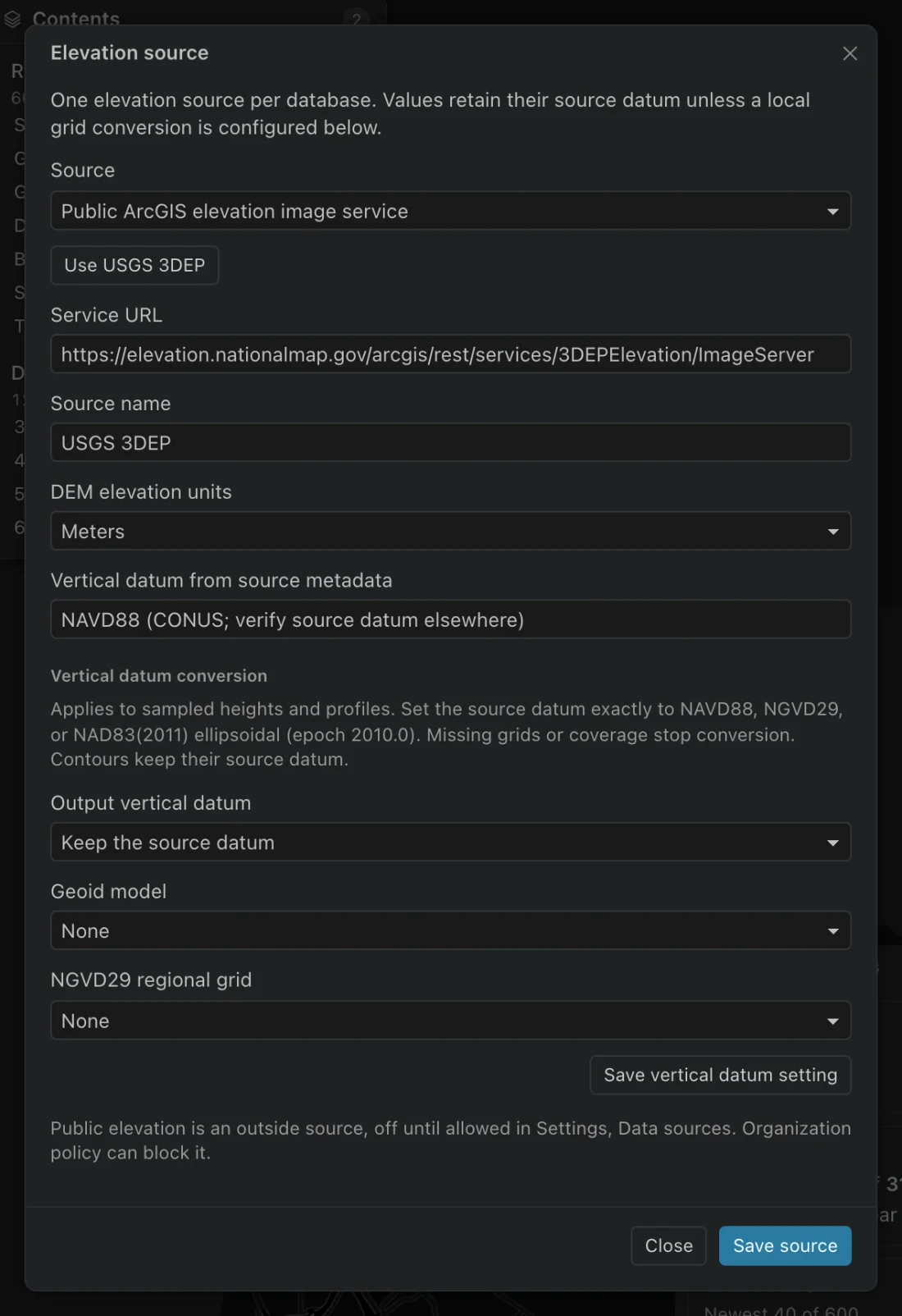
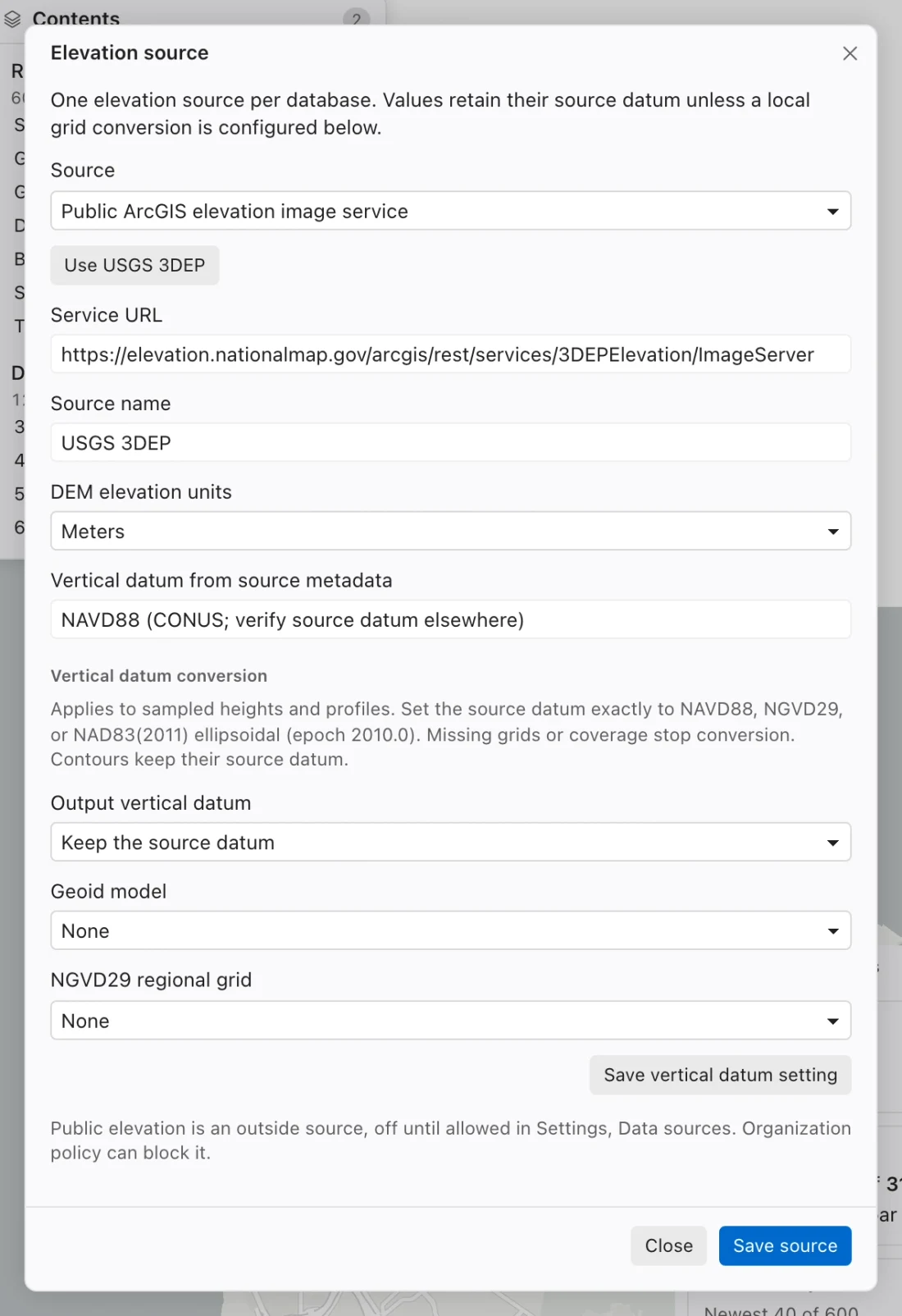
The 3DEP preset identifies NAVD88 for the conterminous US and reminds you to verify the datum elsewhere. Naming the source datum does not convert heights. Public elevation requests send point coordinates to the service; local DEM sampling needs no outside-source permission.
Draw an elevation profile
Section titled “Draw an elevation profile”Open Elevation profile…. Use Draw profile line, Profile measured line, or one selected line feature. For a drawn profile, click the vertices and double-click or press Enter to finish. Choose 2 to 1,000 samples.
Stations use the database’s analysis projection and feet. A connected multipart line can be sampled; split disconnected parts first. Missing elevation data appears as gaps in the chart rather than a zero height. A terrain click outside coverage reports no data as well.
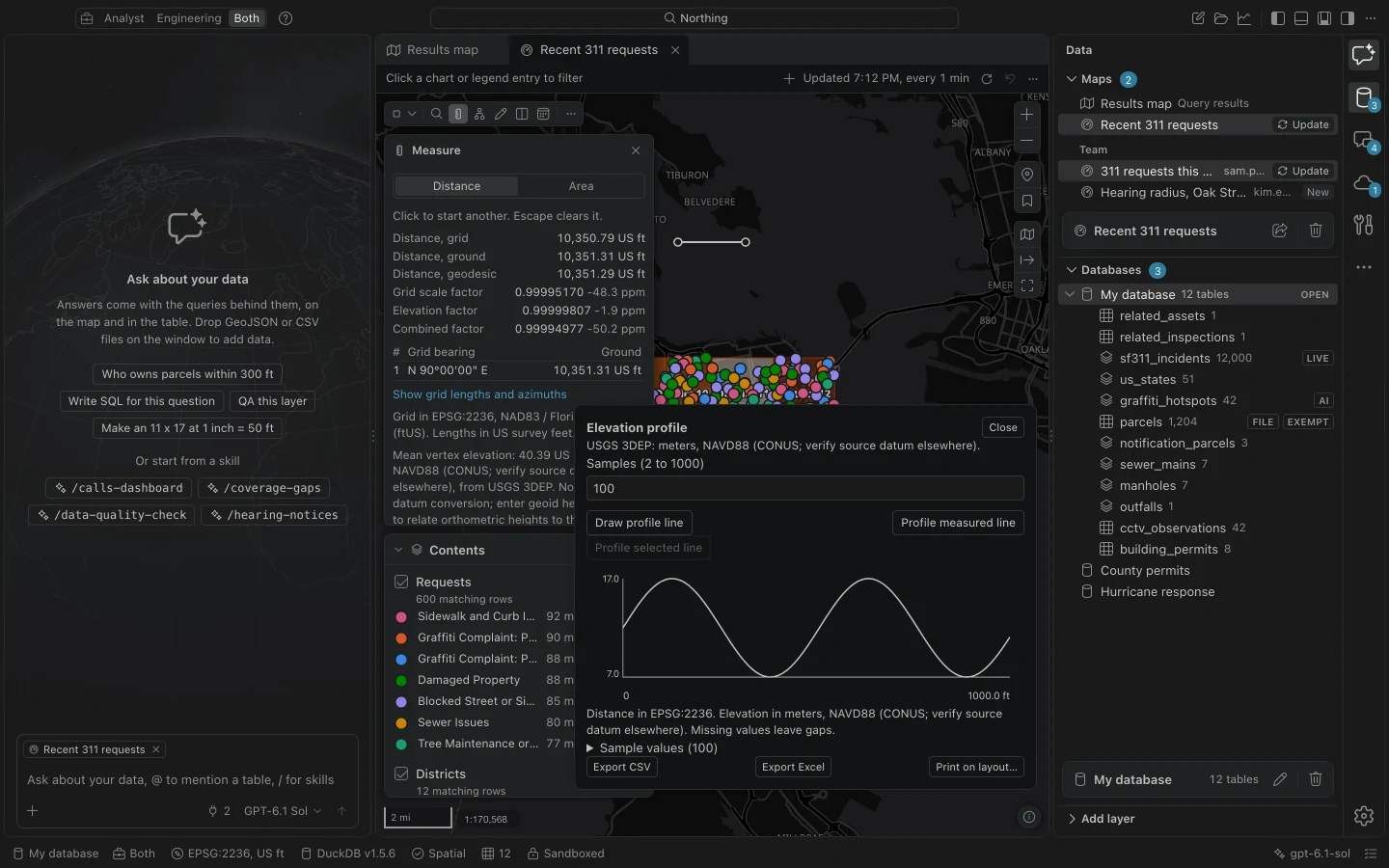
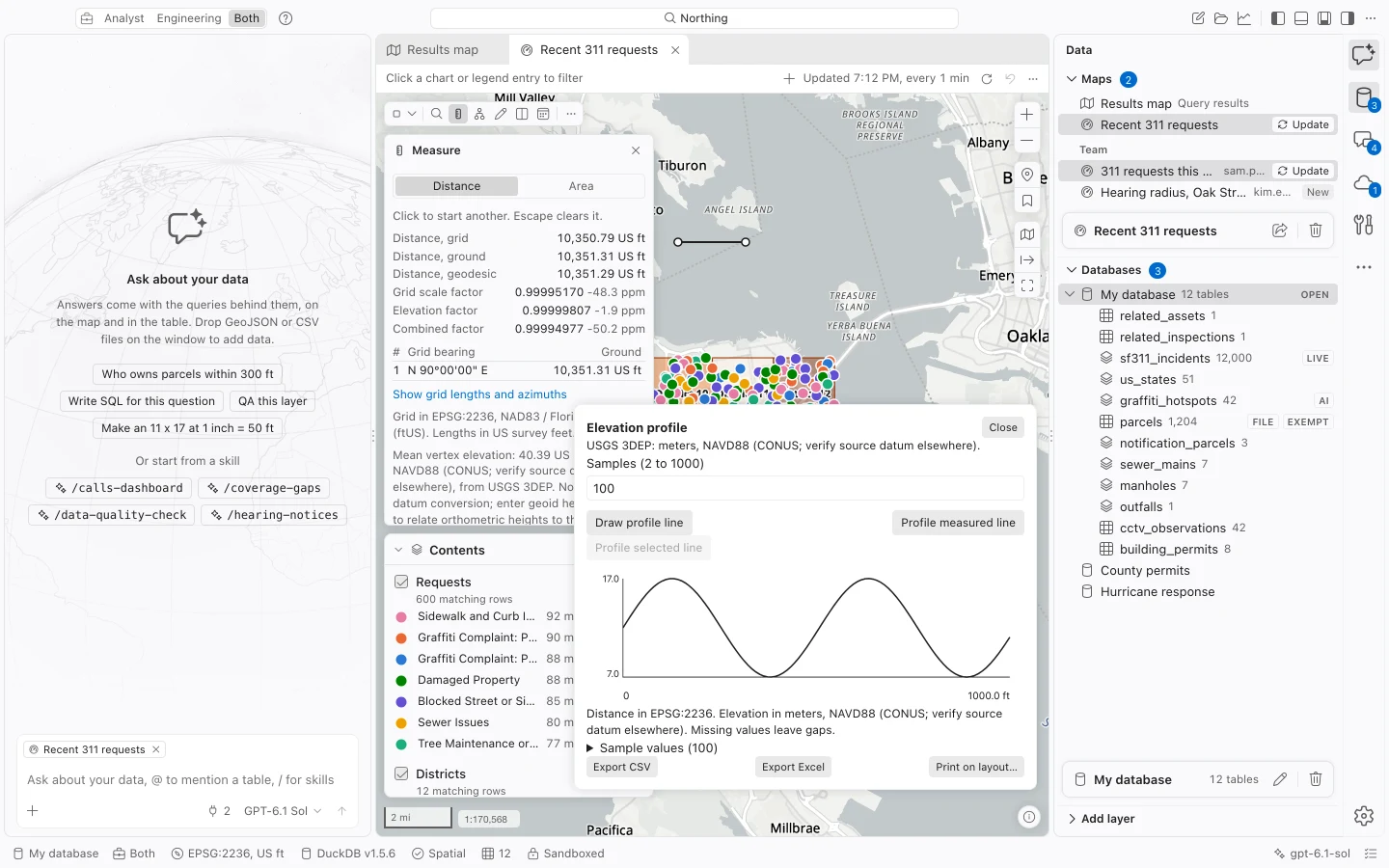
CSV and Excel profile exports include stations, coordinates, heights, units, datum, source, and analysis CRS. You can also include the current profile in a saved print layout. That layout keeps a snapshot, so a later source change does not silently change the printed profile.
Derive hillshade and contours
Section titled “Derive hillshade and contours”After saving a local DEM, return to the source dialog. Add hillshade layer adds a shaded relief display layer to the active map. It is a bounded context image, at most 1,024 pixels on each side, rather than a full-resolution derived raster export.
For contours, set Contour interval (feet) and a unique New contour table, then choose Save contours as lines. The new table includes elevation_ft and source metadata. It never replaces an existing table. Contour segments stop at nodata and are not merged into continuous cartographic lines.
| Operation | Requirements and limits |
|---|---|
| Local point and profile sampling | Single-band, north-up GeoTIFF with a declared EPSG CRS; nearest-cell heights. |
| Public profiles | A configured public elevation image service and outside-source permission. |
| Hillshade | Local DEM, at least 3 by 3 cells; full-image processing limited to 16 million cells. |
| Contours | Local DEM, up to 16 million cells; no more than 100,000 output segments. |
Warp rotated rasters or unsupported custom GeoKeys before use. Expand packed scale/offset elevation values into actual heights first. Profiles can use either elevation source type; hillshade and contours require a local DEM.
Convert the vertical datum explicitly
Section titled “Convert the vertical datum explicitly”Vertical datum conversion offers named GEOID18, GEOID12B, and legacy VERTCON grids. A download button authorizes fetching that grid; installed grids are kept in the database and work offline. Choose the intended output datum and use the exact supported source-datum name.
Northing reports an error if the datum is unknown, a grid is missing, or a point lies outside the model’s coverage. The supported ellipsoidal source is NAD83(2011), epoch 2010.0, as required by the geoid models. Profile and sampling outputs carry conversion metadata. Contours retain the source datum.
For ground measurements, an elevation source supplies mean sampled vertex height. Geoid separation in the measurement panel remains a separate manual input; it is not automatically supplied by a geoid model.
Add flood zones for the map area
Section titled “Add flood zones for the map area”Allow FEMA flood hazard zones in Settings > Data sources, then frame the area of interest and choose Import FEMA flood zones for map area. Northing imports whole intersecting NFHL polygons into a new fema_flood_zones table, adding a suffix when needed, and adds the layer to the active map.
Labels use FLD_ZONE and ZONE_SUBTY; colors distinguish the SFHA_TF special flood hazard area flag. All source fields are retained. An empty or incomplete response, an area crossing the antimeridian, or a result over 20,000 polygons is refused. Reduce the extent when needed.
Refreshing this table keeps its imported object-ID subset. Import the area again to discover newly added polygons.