
Make mailing labels
Create mailing-label PDFs from a table or query result, such as parcels within a notification radius. Finish the spatial selection first and use mailing addresses, which may differ from property site addresses.
Create a label PDF
Section titled “Create a label PDF”- Open the table’s export menu and choose Mailing labels (PDF). For SQL results, use Make mailing labels from the results in the command center.
- In Mailing labels, choose Avery 5160 or Avery 5163 stock.
- Check the columns assigned to each line. Northing recognizes common owner and mailing-address names, but you can change every choice.
- Select Sort by ZIP. Check the Sample labels for missing names, misplaced city or state fields, and incomplete postal codes.
- Choose Save labels PDF. If any labels need review, resolve them as described below, then choose Save labels PDF again.
- Open the PDF and print a test sheet at actual size. Compare it against your label stock before printing the full mailing.
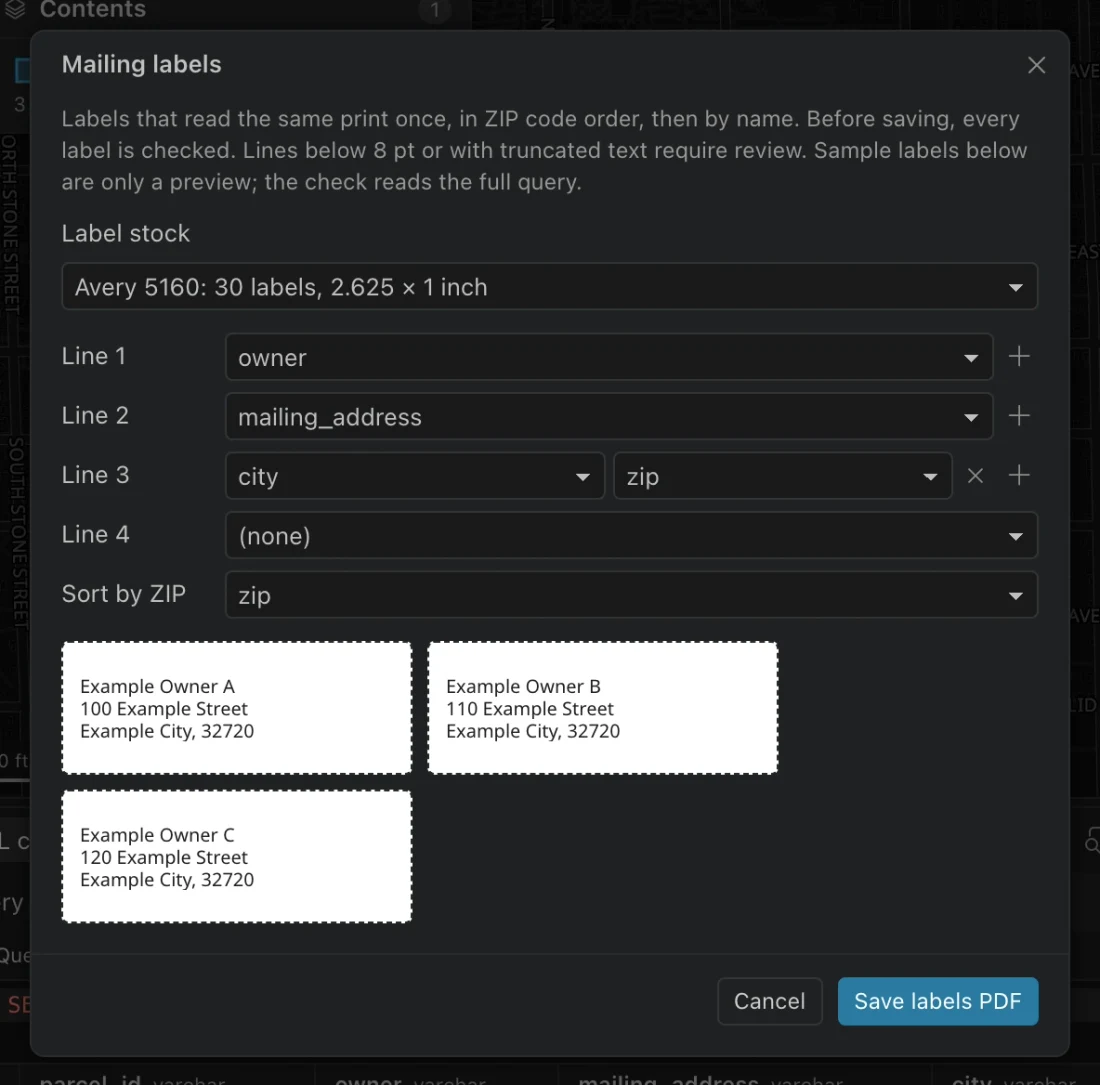
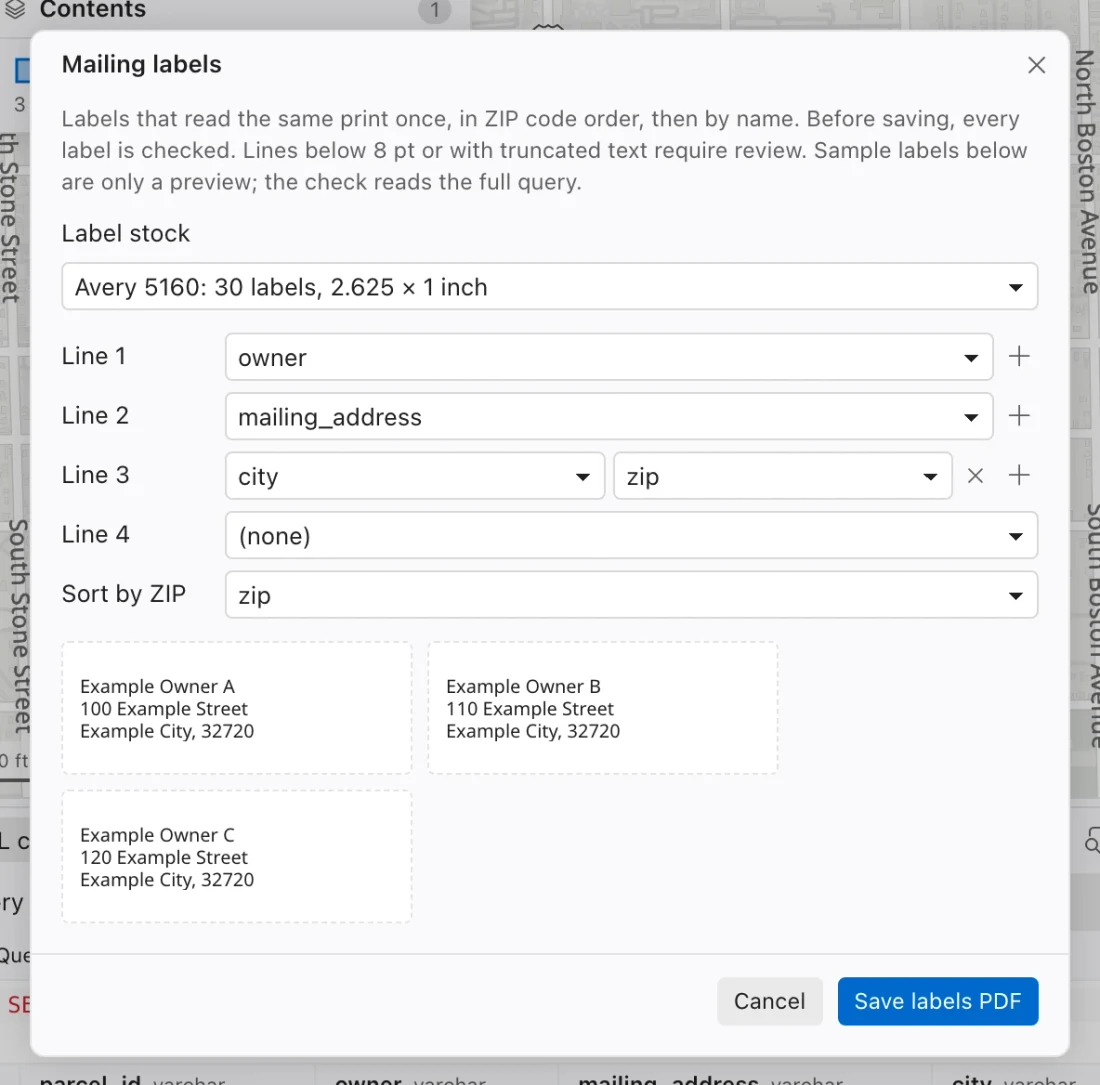
The export uses the table or query supplied to the dialog. To print a subset, prepare that subset as a SQL result rather than assuming a map selection alone limits the mailing. Check its record count and a few addresses first.
Choose stock and address lines
Section titled “Choose stock and address lines”| Stock | Labels per US Letter sheet | Label size |
|---|---|---|
| Avery 5160 | 30 | 2.625 × 1 inch |
| Avery 5163 | 10 | 4 × 2 inches |
Avery 5260, 8160, and 18160 share the 5160 layout. The larger 5163 format gives long names and addresses more space.
You can use up to four lines, each assembled from up to three columns. For example, put the owner on line 1, the street mailing address on line 2, and city, state, and ZIP on line 3. Use the add-column control on a line to combine separate fields. Blank lines need no column assignment.
Identical rendered labels print once. Sorting uses ZIP code, then name. This deduplication is based on the printed label, so two differently spelled addresses may still produce two labels. Clean the source or query when consistent address formatting matters.
Resolve labels that do not fit
Section titled “Resolve labels that do not fit”Northing checks every label using the font measurements used for the PDF. It lists lines that would print below 8 points or contain truncated text. The review identifies the label number, text, and size, so you can make a specific correction.
You can edit the affected label’s lines, wrap text into two lines, switch to larger stock, or explicitly accept the small or truncated text for that label. An edit here changes this print run only; it does not correct the source table or ArcGIS layer.
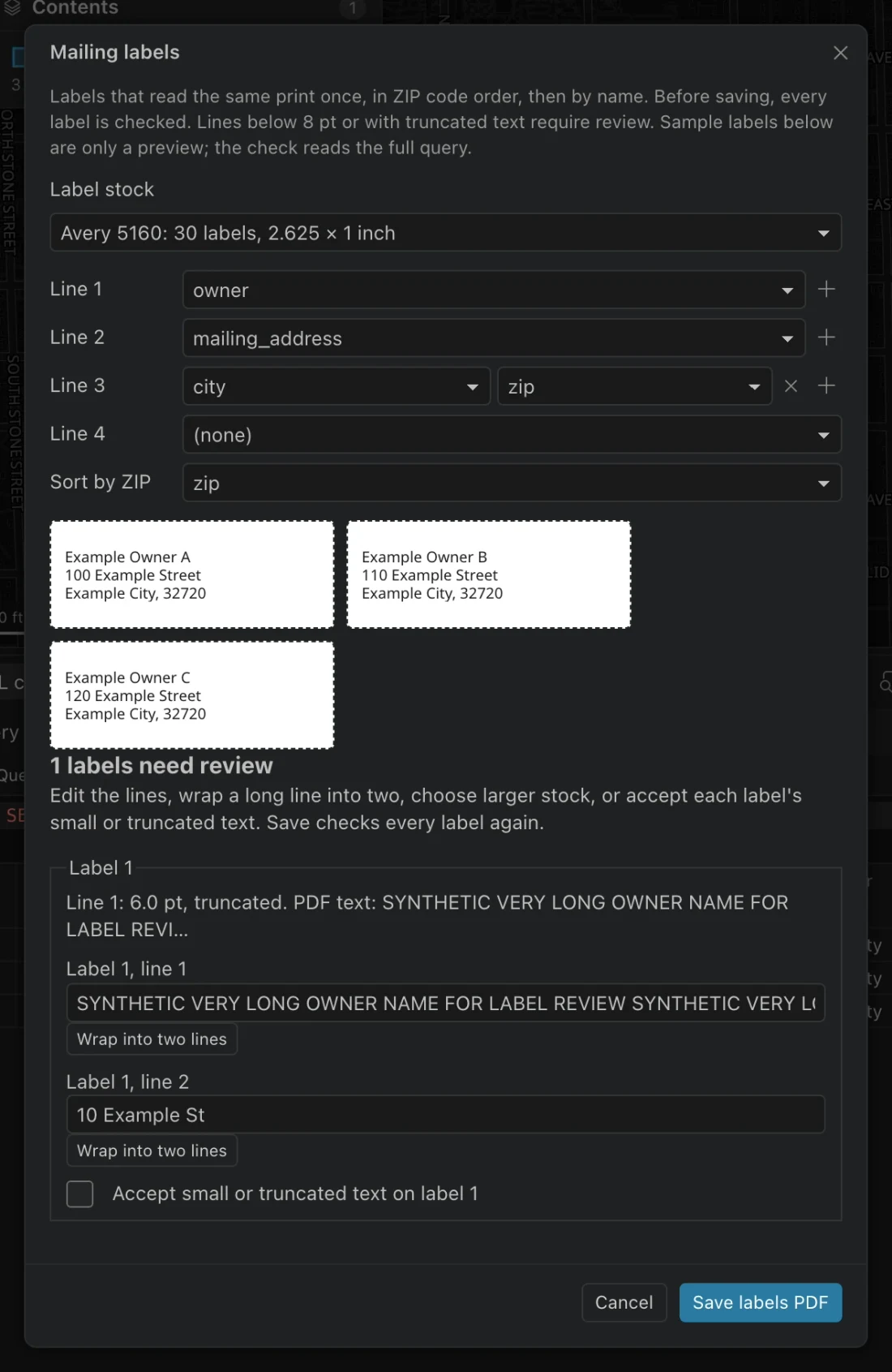
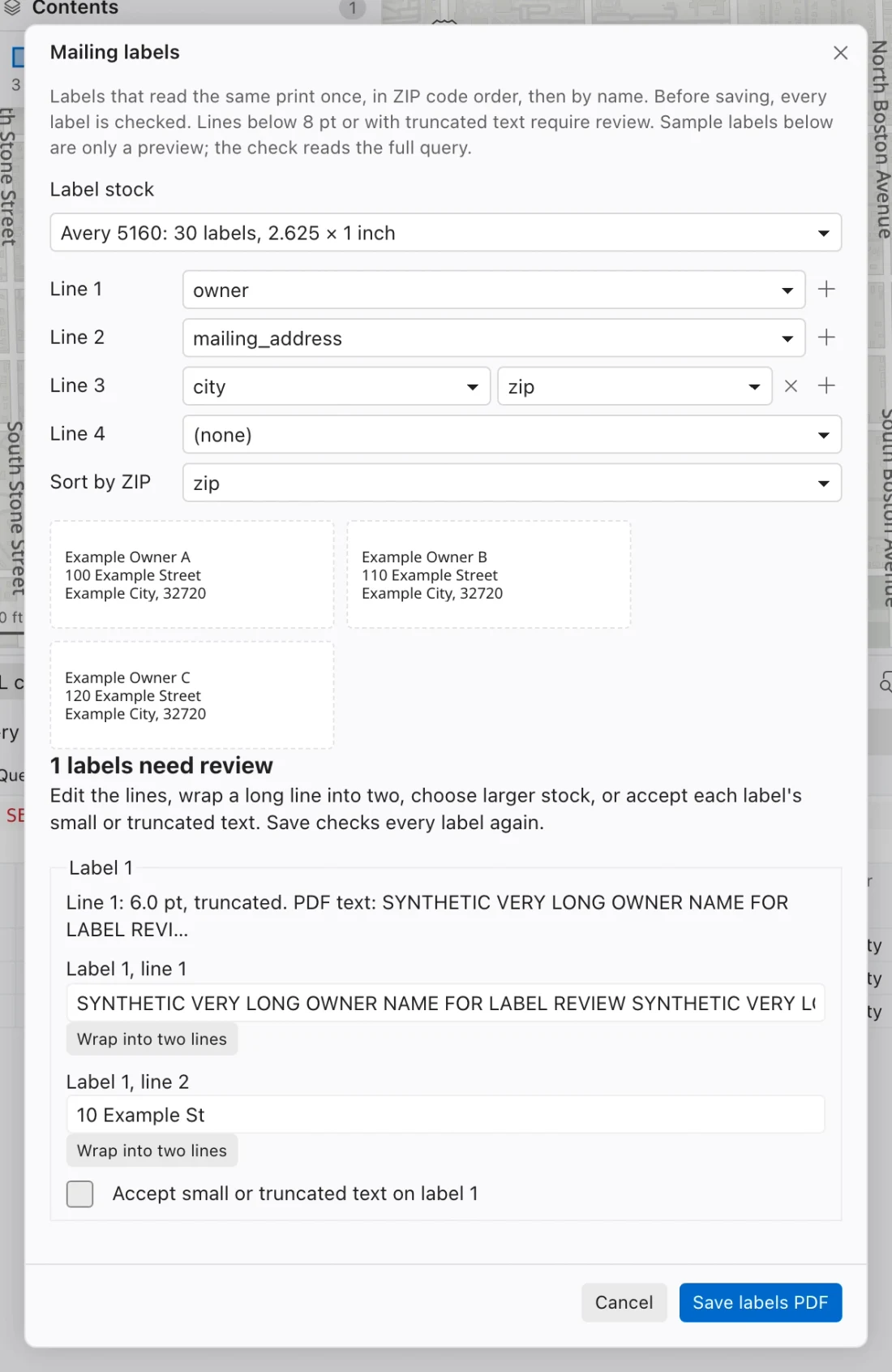
The final export checks the actual records again. If source addresses change between review and export, or before a retry, an earlier acceptance does not cover the changed text. Review the changed label before retrying the job.
A label PDF contains the printed addresses. Apply your organization’s handling rules to the exported file, particularly when owner or address fields are restricted. Sensitivity tags control model and public-sharing access; check document recipients separately.