
Select features
Select features when you want to work with a specific set of records without changing the table. Selections belong to tables in the local workspace database, so the map, attribute table, and assistant can refer to the same records.
Select on the map
Section titled “Select on the map”- Open a map with a local feature layer. Open the menu beside Select and check the table shown by Select in:.
- Choose Select by box, Select by lasso, or Select by polygon. The main Select button reuses the last shape you chose.
- For a box, drag a rectangle or click a feature. For a lasso, drag around the features. For a polygon, click corners, then double-click, click the first corner, or press Enter to finish.
- Hold Shift while selecting to add features. Hold Option on Mac or Alt on Windows to remove them. Escape clears the drawing.
- Inspect the selection count in the map toolbar or status bar. Open the selection menu to show its rows in the table, export them, or ask the assistant about them.
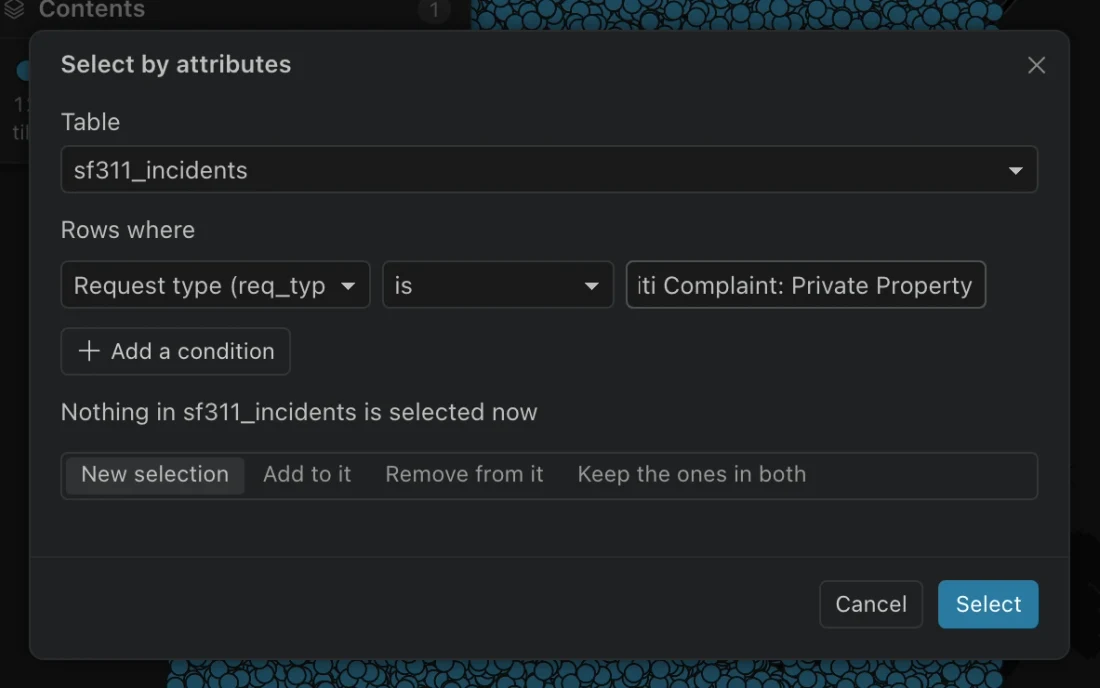
Select by attributes
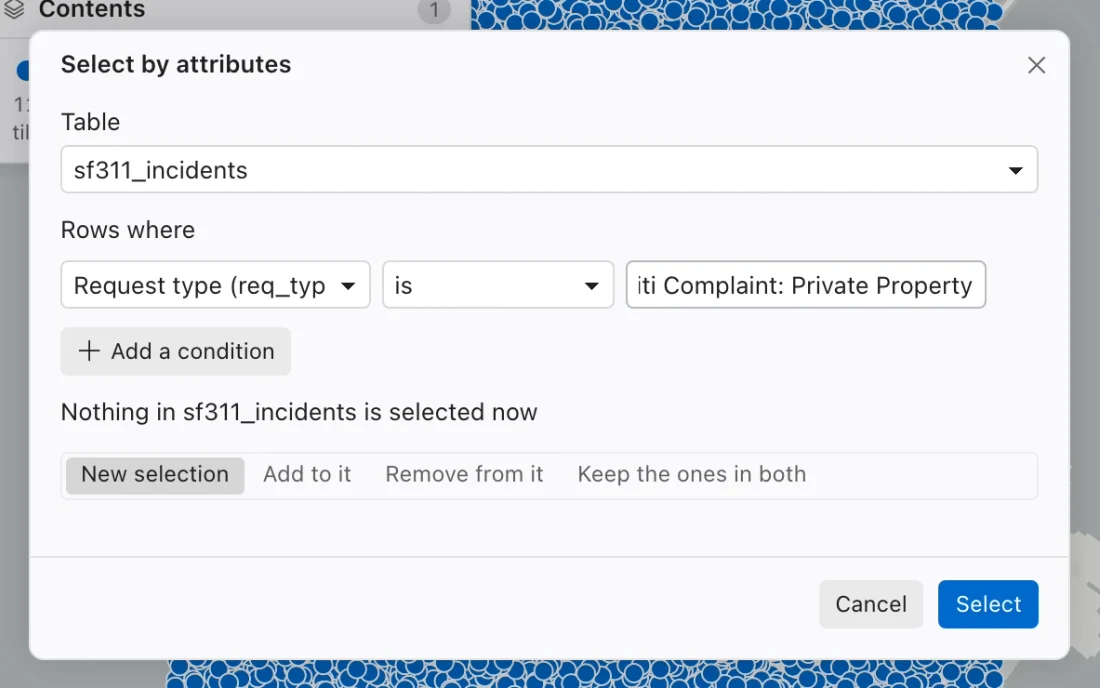
Section titled “Select by attributes”Open Select by attributes… from the Select menu. Choose Table, then build conditions on its fields. Combine conditions using all or any matching conditions. Coded fields offer descriptions while comparing their stored codes, including subtype-specific choices where available.
Choose how the result should combine with the existing selection, then choose Select.
| Mode | Effect |
|---|---|
| New selection | Replace the table’s selection. |
| Add to it | Include matching records alongside those already selected. |
| Remove from it | Remove matching records from the current selection. |
| Keep the ones in both | Keep only records that are already selected and match the conditions. |
The condition builder compares typed values; it is not a box for entering SQL. Use the SQL console for a full query.
Select by location
Section titled “Select by location”Open Select by location…. In Select features of, choose the target table. Choose Within a distance of, Touching, or Inside, then select the comparison table in The features of.
For distance selection, enter Distance in feet. Distance is measured edge to edge in the database’s analysis projection, configured under Settings > Map. For example, selecting parcels within 300 feet of a selected parcel uses the parcel boundaries, not their centroids.
If the comparison table has selected features, choose whether to use only those or every feature. Set the combination mode and choose Select. These operations use complete stored geometry, even when the map displays simplified tiles.
Use a selection elsewhere
Section titled “Use a selection elsewhere”The attribute table marks selected rows. Its row menu lets you select, add, remove, or invert the table selection. The status bar shows the latest selection and provides actions for working with it.
For SQL, use the table’s real object-ID field. For a table named parcels with OBJECTID, the selection predicate is:
SELECT *FROM "parcels"WHERE "OBJECTID" IN (SELECT key FROM selected_keys('parcels'));When you ask about a selection, the message carries a frozen filter identifying the selected rows. Changing your selection later does not change which rows that message means. Mentioning a table with @ also supplies its current selection as context.
A selection does not restrict every subsequent tool automatically. Check each tool’s input controls. A definition query limits layer drawing; it is a separate setting from selection.