
Keyboard shortcuts
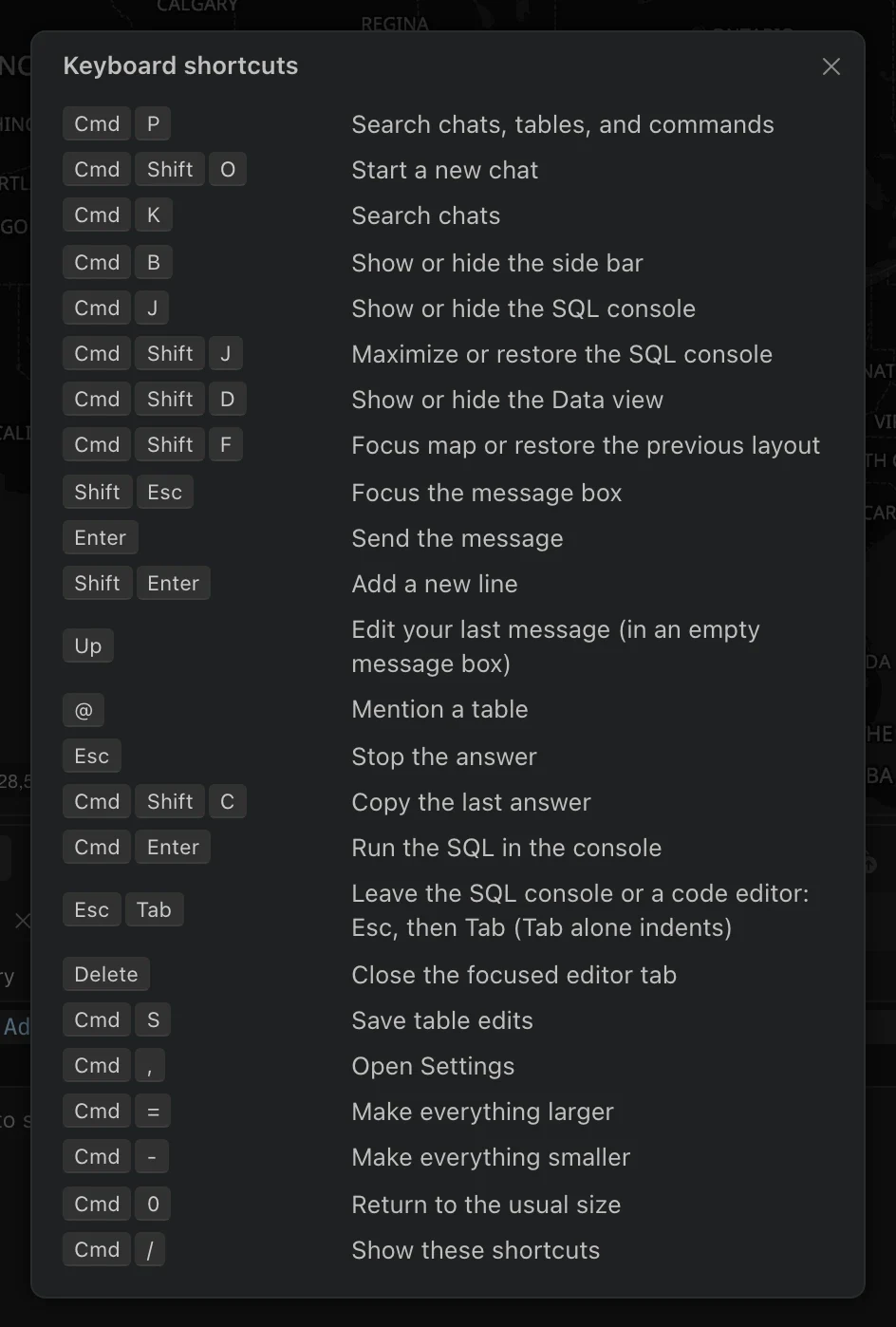
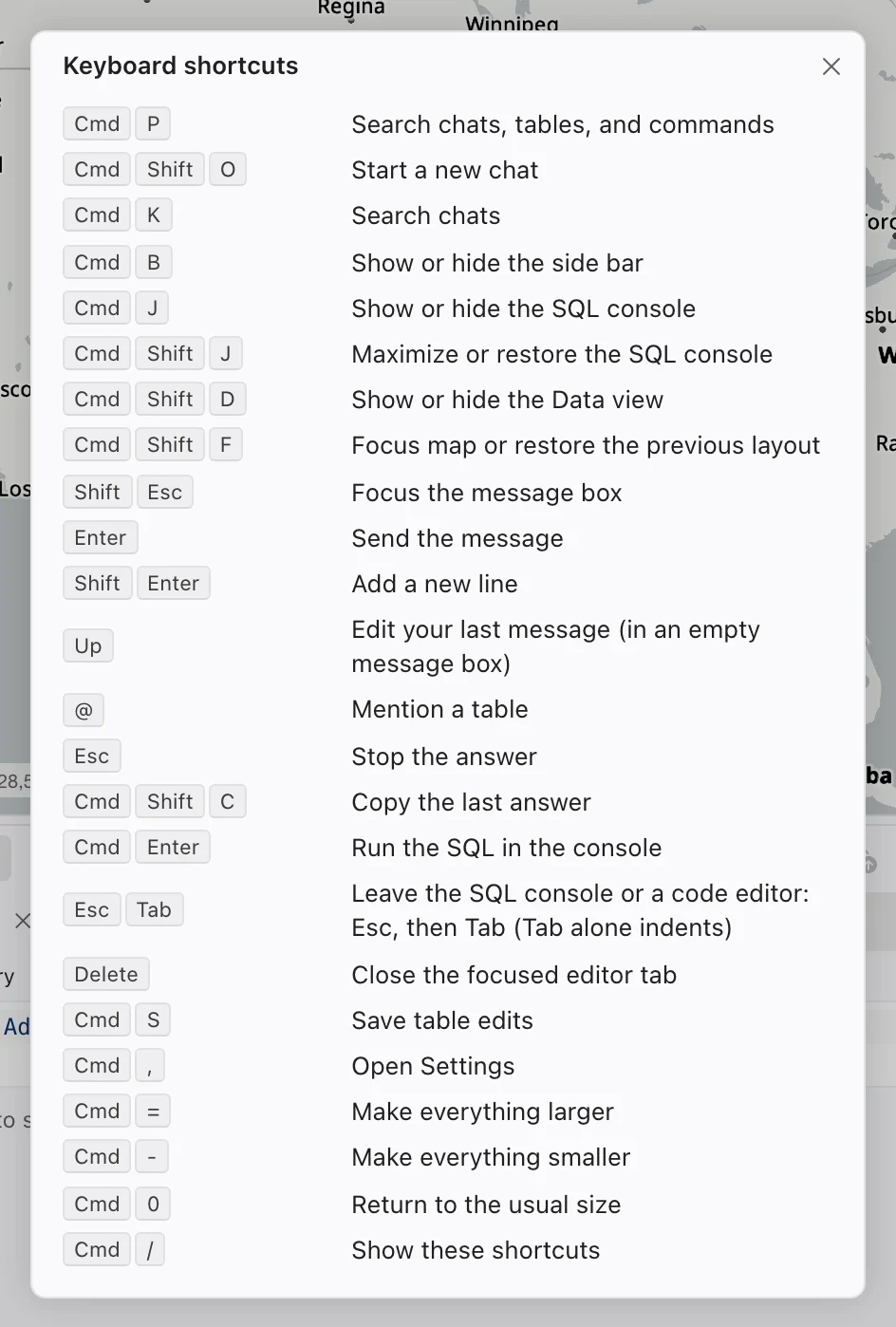
Use these shortcuts to navigate Northing and work in the assistant, SQL console, tables, and maps; each shortcut acts on the focused control. Open the built-in shortcut sheet with Cmd+/ on Mac or Ctrl+/ on Windows.
Workbench and navigation
Section titled “Workbench and navigation”| Action | Mac | Windows |
|---|---|---|
| Search commands, chats, and tables | Cmd+P | Ctrl+P |
| Search chats | Cmd+K | Ctrl+K |
| Show or hide the sidebar | Cmd+B | Ctrl+B |
| Show or hide Data | Cmd+Shift+D | Ctrl+Shift+D |
| Focus map or restore the previous layout | Cmd+Shift+F | Ctrl+Shift+F |
| Open Settings | Cmd+, | Ctrl+, |
| Make the interface larger | Cmd+= | Ctrl+= |
| Make the interface smaller | Cmd+- | Ctrl+- |
| Restore the usual interface size | Cmd+0 | Ctrl+0 |
| Show keyboard shortcuts | Cmd+/ | Ctrl+/ |
In the command center, use ↑ and ↓ to move through results, Page Up and Page Down to move through larger groups, and Enter to choose. Selecting an unavailable command shows its reason instead of running it. Escape closes or backs out of the current command-center interaction.
For a highlighted chat or table, F2 invokes an available rename action; Cmd+Backspace on Mac or Ctrl+Backspace on Windows invokes an available delete action. Read its confirmation before proceeding.
Assistant
Section titled “Assistant”| Action | Mac | Windows |
|---|---|---|
| New chat | Cmd+Shift+O | Ctrl+Shift+O |
| Copy the last answer | Cmd+Shift+C | Ctrl+Shift+C |
| Focus the message box | Shift+Escape | Shift+Escape |
| Send a message | Enter | Enter |
| Add a line | Shift+Enter | Shift+Enter |
| Edit the last message from an empty message box | ↑ | ↑ |
| Mention a table | @ | @ |
| Stop a running answer | Escape | Escape |
When a mention or skill list is open, arrows move through its choices and Enter or Tab accepts one. Escape dismisses that list first. If a dialog or menu is open, Escape closes it before stopping a running answer.
SQL and editor tabs
Section titled “SQL and editor tabs”| Action | Mac | Windows |
|---|---|---|
| Show or hide SQL console | Cmd+J | Ctrl+J |
| Maximize or restore SQL console | Cmd+Shift+J | Ctrl+Shift+J |
| Run SQL or its selection | Cmd+Enter | Ctrl+Enter |
| Leave a code editor using the keyboard | Escape, then Tab | Escape, then Tab |
| Save table edits | Cmd+S | Ctrl+S |
Tab normally indents inside a code editor. The Escape-then-Tab sequence lets you move focus out without using the mouse.
When an editor tab itself has focus, ← and → move between tabs, Home and End select the first or last, and Delete closes the focused tab. F2 renames tabs that support renaming. Shift+F10 or the context-menu key opens tab actions.
In the data-notes editor, Cmd+S on Mac or Ctrl+S on Windows saves the notes rather than table edits.
Attribute table
Section titled “Attribute table”| Action while the grid has focus | Shortcut |
|---|---|
| Move one cell | Arrow keys |
| Extend the cell range | Shift with movement keys |
| Move one visible page | Page Up or Page Down |
| First or last cell in the row | Home or End |
| Jump toward a grid edge | Mac: Cmd plus an arrow; Windows: Ctrl plus an arrow |
| First or last grid cell | Mac: Cmd+Home or End; Windows: Ctrl+Home or End |
| Select the loaded rows’ cell range | Mac: Cmd+A; Windows: Ctrl+A |
| Copy cells | Mac: Cmd+C; Windows: Ctrl+C |
| Paste in an editable range | Mac: Cmd+V; Windows: Ctrl+V |
| Undo a staged table edit | Mac: Cmd+Z; Windows: Ctrl+Z |
| Edit the focused cell in edit mode | Enter, F2, or start typing |
| Set selected editable cells to NULL | Delete or Backspace |
| Open a row outside edit mode | Enter |
| Clear a cell range or cancel a cell edit | Escape |
| Open context actions | Shift+F10 or the context-menu key |
While editing a cell, Enter commits and moves down; Shift+Enter moves up. Tab commits and moves right; Shift+Tab moves left. These cell operations are distinct from selecting map features.
Maps and Contents
Section titled “Maps and Contents”With a persistent layer row focused in Contents, F2 renames it. Option+↑ or ↓ on Mac, or Alt+↑ or ↓ on Windows, moves it in the drawing order. Shift+F10 opens its context menu.
During map selection, Shift adds features to the selection; Option on Mac or Alt on Windows removes them. While drawing a selection polygon, Enter finishes a valid polygon, Backspace removes the last vertex, and Escape cancels. Measurement uses Enter to finish, Backspace to remove the last unfinished point, and Escape to cancel or clear.
In map edit mode, with focus in the map area and no drawing in progress:
| Action | Mac | Windows |
|---|---|---|
| Undo | Cmd+Z | Ctrl+Z |
| Redo | Cmd+Shift+Z or Cmd+Y | Ctrl+Shift+Z or Ctrl+Y |
| Copy selected feature | Cmd+C | Ctrl+C |
| Paste copied feature | Cmd+V | Ctrl+V |
| Delete selected feature | Delete or Backspace | Delete or Backspace |
| Clear selected edit feature | Escape | Escape |
Settings and linked charts
Section titled “Settings and linked charts”In Settings and the user guide, Cmd+F on Mac or Ctrl+F on Windows focuses search. Use arrow keys to move through results and Enter to open one. Escape clears search before closing the window.
In linked charts, focus a bar, slice, bin, or point and press Enter or Space to activate its filter. Standard Tab navigation moves among the available controls.
Windows key definitions are included for reference while Windows support is being validated. On Mac keyboards where function keys control hardware, you may need Fn to send an F-key.