
Map basics
Use a map to inspect your local feature layers, compare results, and prepare a view you can return to. Both Results map, which shows the current query, and saved maps, which keep their own layers, styles, and panels, read your local workspace database.
Open a map of a table
Section titled “Open a map of a table”- Open Data and find a table with geometry. If you need data first, pull an ArcGIS layer or import a file.
- Open the command center and search for
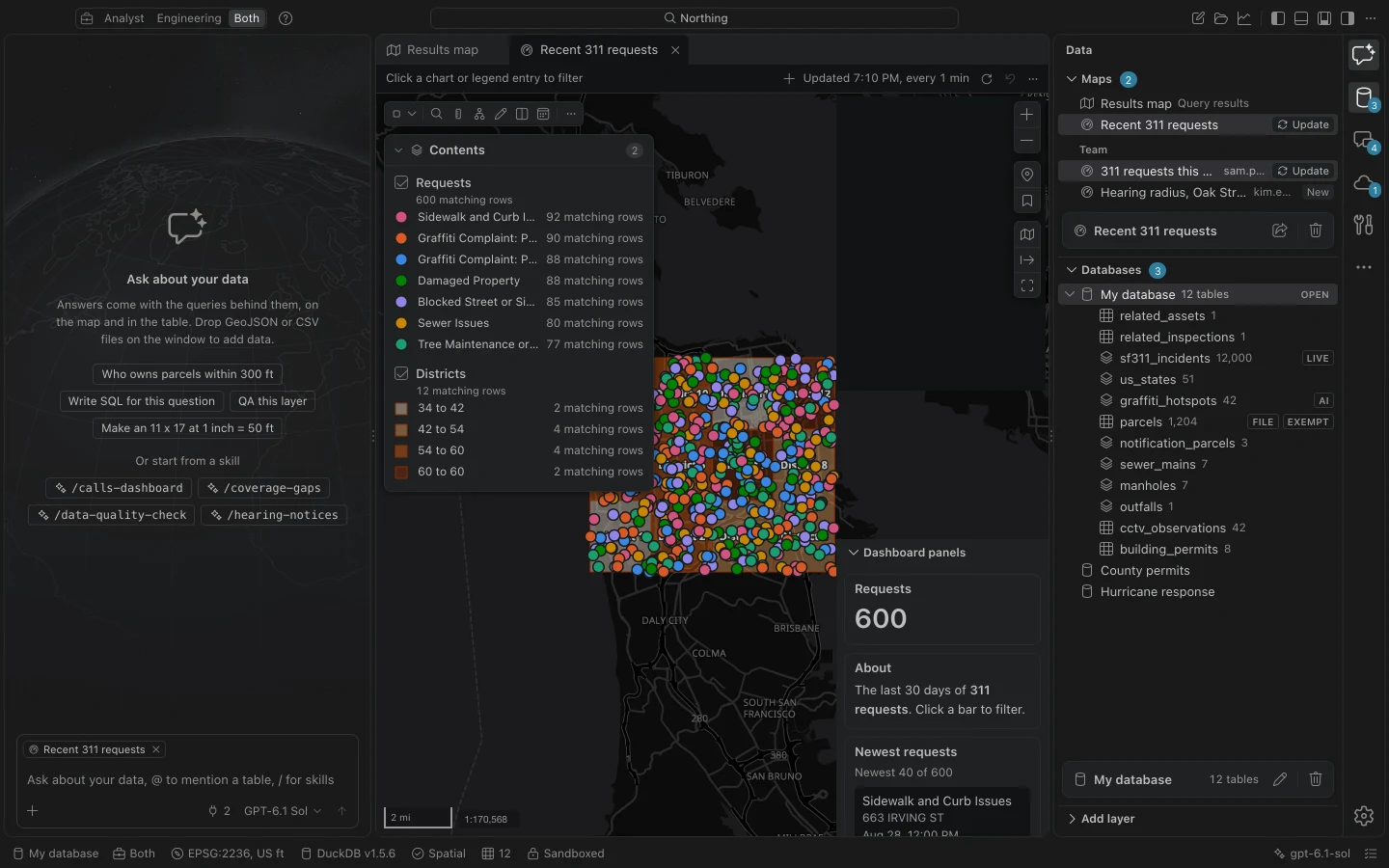
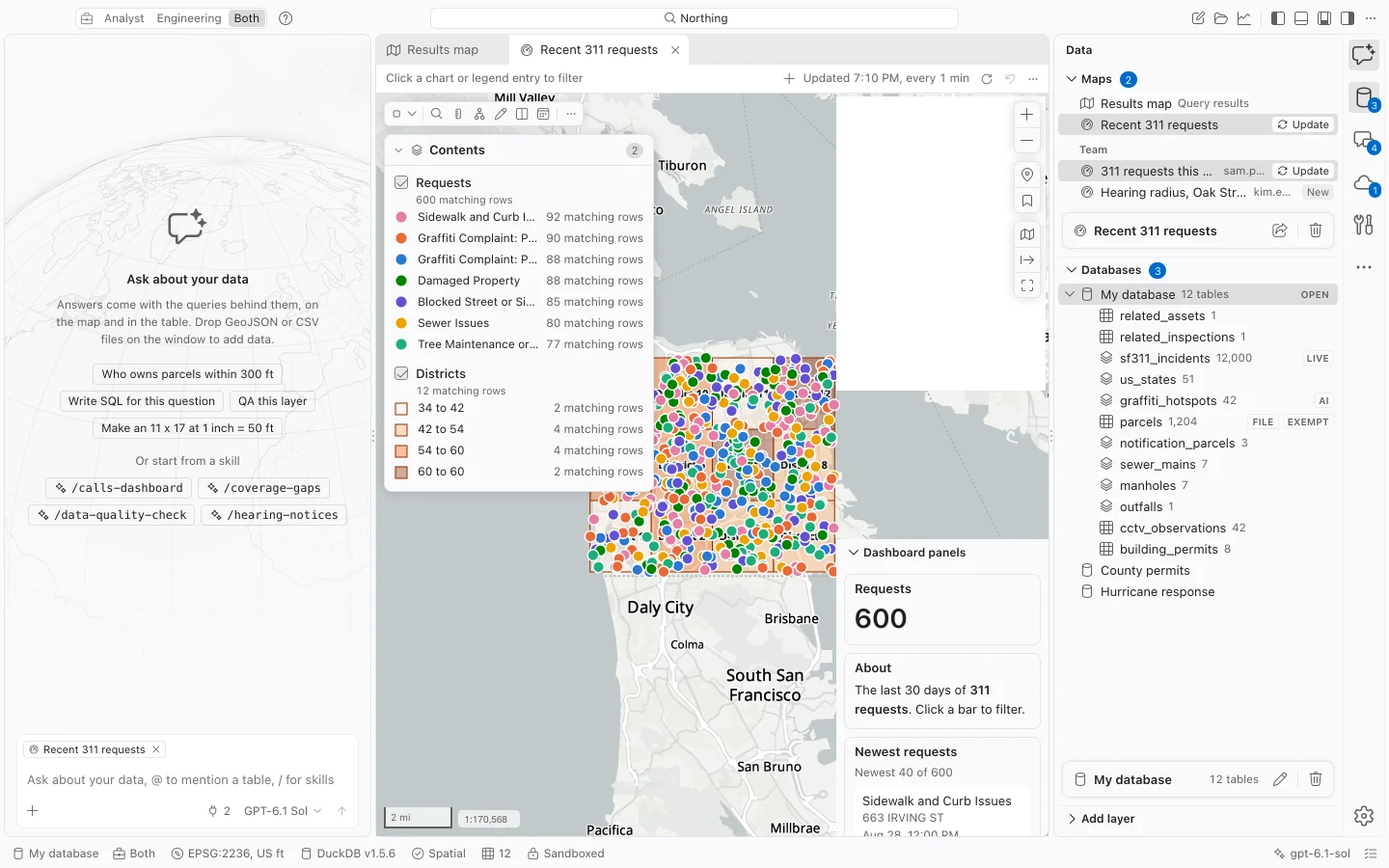
New map offollowed by the table name. Choose the matching command. - Open Contents to inspect the layer. Use its visibility checkbox to turn it on or off, or right-click it and choose Zoom to layer.
- Click a feature to read its pop-up. Choose Show in table to inspect the record in the attribute table.
- Return to the map from Maps in Data. A saved map opens in its own tab.
Keep a query on the Results map
Section titled “Keep a query on the Results map”Previewing a spatial table or running a query with geometry displays it on the Results map. Its Query result layer follows the next result you open. It is useful for inspecting a query, but it is not a permanent map layer.
Choose Keep as layer to retain that query on the map. A kept layer is a saved SQL query with its own appearance; it stays when you run another query. Its data can change when the underlying tables change. It is different from saving a new table, which stores the result as rows in the database. See Tables and SQL for queries and Contents for kept layers.
The gear for a current query result offers Keep as a layer and style it. Keeping the result first lets Northing save its symbology and labeling. A map supports up to 24 layers.
Move around the map
Section titled “Move around the map”Drag to pan and use the zoom controls to change scale. The top-right controls group navigation, Go to XY, saved-map Bookmarks, the basemap chooser, export, and Focus map. The map tools at the top left work on features: selection, finding, measuring, and editing.
The scale at the bottom left accepts typed values. Enter 1:2400 or 1 in = 200 ft, then press Enter. Engineering displays an engineering scale; other workspaces display a representative fraction. Hover over the scale to see the other form.
Use Go to XY for a known coordinate. It accepts longitude and latitude in decimal degrees or degrees, minutes, and seconds, or projected X and Y coordinates. Specify the analysis projection or an EPSG code before entering projected coordinates. The point is marked on the map.
When the map is rotated, Reset to north restores its orientation. Lock rotation, available in the command center, prevents accidental rotation and is remembered on this computer.
Return to an extent
Section titled “Return to an extent”On a saved map, use Add bookmark in the command center to store the current extent. Open Bookmarks to go back to it. Manage bookmarks lets you rename or delete bookmarks. Bookmarks belong to the saved map.
For more room, choose Focus map or press Cmd+Shift+F on Mac, Ctrl+Shift+F on Windows. Toggle it again to restore the previous panels. Opening layer properties can also temporarily fold other panels to make room for the map.
Compare layers and dates
Section titled “Compare layers and dates”Swipe a layer compares one layer on one side of a draggable divider with the rest of the map. Move the divider with the pointer or arrow keys. On a saved map with a time-aware layer, Time slider filters the map and linked panels through time; it also offers playback.
A category click in a saved map’s legend or linked chart can filter other parts of the map. If features seem to disappear, check those filters, layer visibility, scale ranges, and definition queries before changing the data.
Read coverage and loading status
Section titled “Read coverage and loading status”Results can be complete, tiled, or a preview that shows only some matching features. Large layers use tiles, and low zoom levels can simplify or thin small features. The attribute table is the place to inspect the matching rows and total.
If Contents shows Not loaded, read the reason and choose Retry. A loading failure does not mean the query returned no records. Local layers remain available without a portal connection, but online basemaps and display services still need their sources.