
Imagery and tiles
Add aerial imagery, scanned rasters, or tiled reference maps above the basemap when you need context for your features. These display layers do not create feature tables for SQL or geoprocessing.
Add a display layer
Section titled “Add a display layer”- Activate the saved map or Results map that should receive the layer.
- Open Add imagery or tile layer… from More map tools or the command center.
- Enter a Name and choose Source type.
- Enter HTTPS URL for a service. For a local source, use Choose file… or enter File path.
- For WMS or WMTS, supply Layer name from GetCapabilities. WMTS also requires Tile matrix set.
- Enter Attribution and print credit, then choose Add layer. The source is checked before it is added.
- Use Contents to adjust visibility and drawing order. Open the layer properties Display tab for opacity and visible scales.
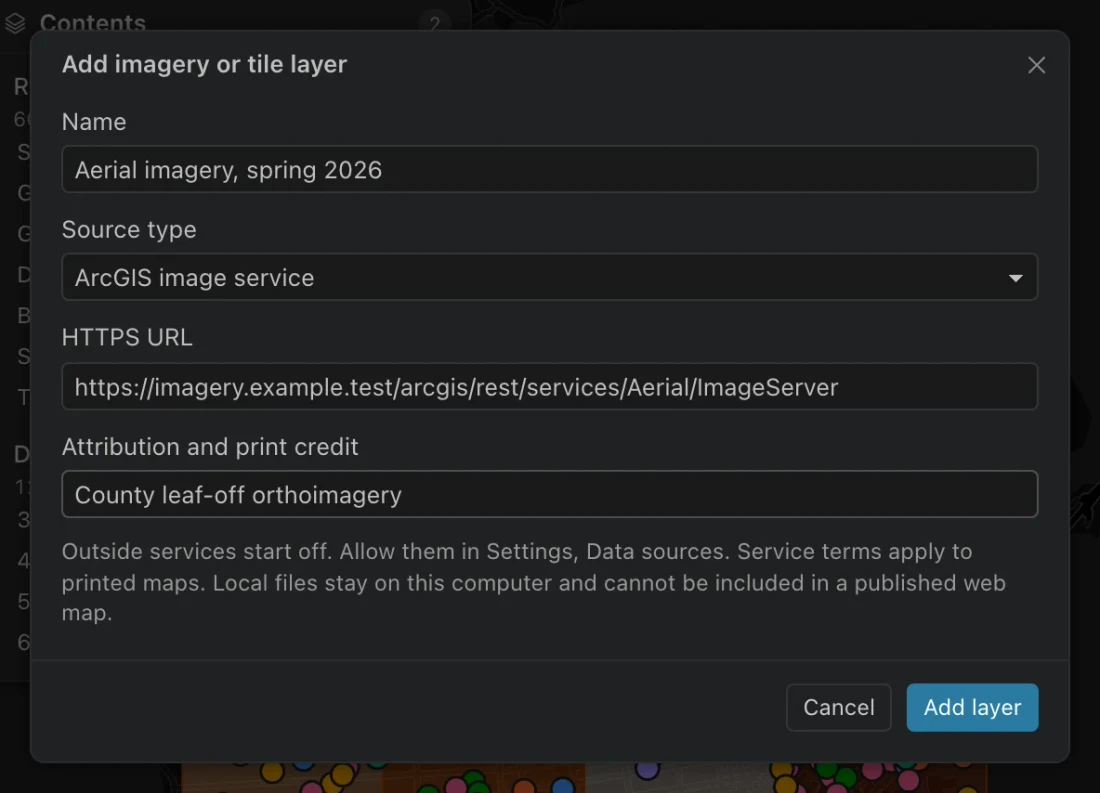
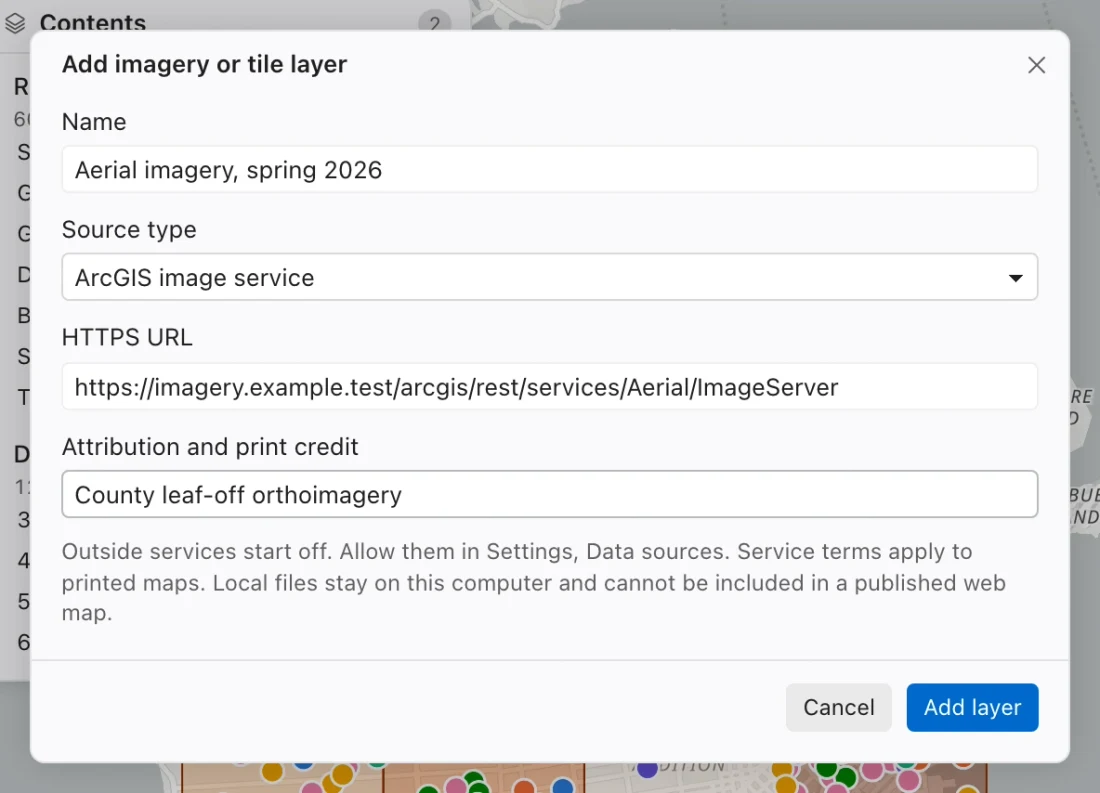
The portal browser also offers Add to map… for supported image, tiled map, and vector tile services.
Supported sources
Section titled “Supported sources”| Source type | What to provide and check |
|---|---|
| ArcGIS image service | An ImageServer URL supporting PNG export in Web Mercator. |
| ArcGIS tiled map service | A MapServer URL with standard Web Mercator tile levels. |
| ArcGIS vector tile service | A VectorTileServer URL and its root style. Labels use bundled Noto Sans. |
| WMS 1.3.0 | An endpoint supporting EPSG:3857 and transparent PNG, plus comma-separated layer names. |
| WMTS REST tiles | An HTTPS template containing {z}, {x}, and {y}, with layer, style, matrix set, and format in the URL. Matrix identifiers must match XYZ zoom numbers. |
| XYZ tiles | An HTTPS Web Mercator template containing {z}, {x}, and {y}. |
| PMTiles file | A local v3 raster or vector archive. Vector archives need layer metadata and use neutral styling. |
| GeoTIFF or COG file | A local .tif or .tiff with a declared EPSG coordinate system. RGB, palette, and grayscale are supported, including nodata and alpha. |
A cloud-optimized GeoTIFF is supported as a local file here. The dialog’s GeoTIFF source is a file path, not an arbitrary remote COG URL.
Allow outside services
Section titled “Allow outside services”Outside map services starts off under Settings > Data sources. Allow it before using an outside remote service. Your IT policy can block it. Trusted destinations belonging to a signed-in portal use that portal’s existing connection rules.
Service URLs containing credentials or API keys are refused. Use a supported portal connection for secured ArcGIS services. Northing does not put portal tokens into map documents or styles, and remote service redirects are refused. Enter the final service URL.
Local files need no outside-service permission. They remain references to paths on this computer; if a file moves, add it again at its new location.
Work with local rasters
Section titled “Work with local rasters”Northing reprojects EPSG-defined rasters for display, including State Plane sources, and uses internal overviews when present. A raster using custom GeoKeys without an EPSG code or an unsupported color interpretation must be converted first.
A decoded block over 128 MB or a tile window over 16 million samples is refused. Prepare a tiled COG with overviews or zoom in, following the error message. To use a raster for heights, profiles, or contours, configure it as an elevation source.
Print and publish
Section titled “Print and publish”Attribution follows the layer into printed maps and map books. Keep the credit accurate and follow the service’s terms for printed output. Esri tiles are held in memory for the session; adding a service does not create a downloaded offline archive.
Publishing a web map writes references to supported remote services, along with drawing order, opacity, and scale range. It does not copy the tiles or credentials.