
Basemaps
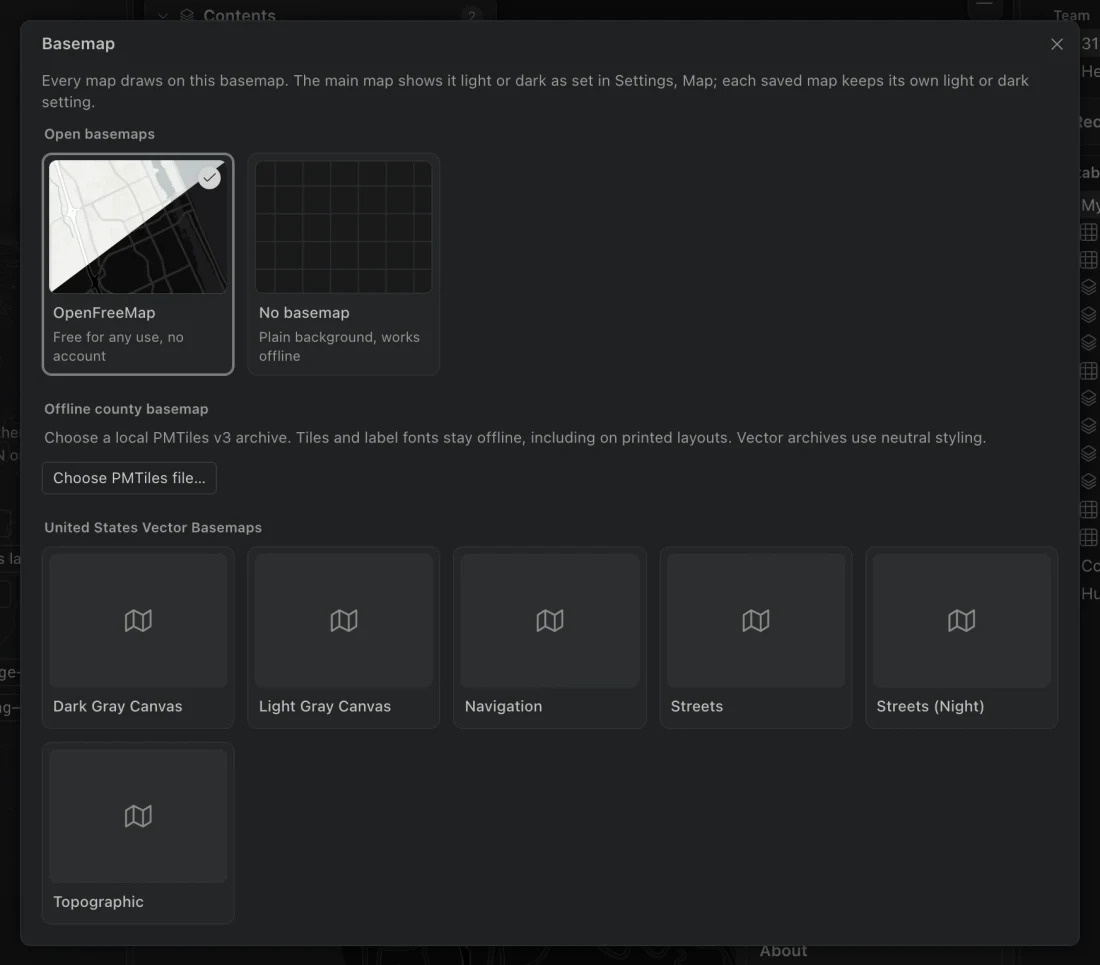
A basemap supplies geographic context behind your feature layers. Choose an online map for streets or imagery, a local archive for offline work, or a plain background for a focused thematic map.
Choose a basemap
Section titled “Choose a basemap”- Open a map and choose Choose the basemap in the top-right controls.
- Select OpenFreeMap or No basemap under Open basemaps. Signed-in portals also offer their basemap galleries.
- Return to the map and check that your symbols and labels remain readable against the new background.
Available choices
Section titled “Available choices”| Choice | Connection and behavior |
|---|---|
| OpenFreeMap | The default online basemap, with no key or account. Uses Positron in light mode and Dark in dark mode. |
| No basemap | A plain background with no basemap downloads. Local feature layers and their labels still draw. |
| Offline county basemap | A local PMTiles v3 archive. Tiles and feature-label fonts stay local, including for printed layouts. |
| Portal gallery | Basemaps offered by your signed-in ArcGIS Online or Enterprise organization. Use is subject to that organization’s Esri agreement. |
Supported portal basemaps can contain vector tiles, tiled map layers, imagery, and web tiled layers in Web Mercator. Supported light and dark pairs follow the theme, including Esri Light Gray Canvas and Dark Gray Canvas, and Streets and Streets (Night).
The basemap choice persists across databases. Light or dark appearance follows the system or the saved map’s appearance setting. Changing a basemap does not change your feature coordinates or the database’s analysis projection.
Use an offline archive
Section titled “Use an offline archive”- Make a PMTiles v3 file available on this computer.
- Open the basemap chooser. Under Offline county basemap, choose Choose PMTiles file….
- Select the archive and wait for it to be checked.
- Inspect its coverage at the scales you need. Raster archives retain their tiles; vector archives use neutral styling from their layer metadata.
Northing keeps a reference to the file. If you move it or it becomes unavailable, the map shows a plain background and a notice. It does not silently switch to an online basemap. Choose the file again to restore the reference.
Selecting a local basemap does not make every other layer offline. Remote imagery, portal services, and other outside sources still need their connections. Use locally pulled feature tables and local display layers for an offline map.
Troubleshoot missing context
Section titled “Troubleshoot missing context”If a portal gallery is missing, sign in to the appropriate connection under Portals. If the selected portal has been removed or signed out, the chooser explains which connection is needed. You can select OpenFreeMap or a local choice while resolving that connection.
For a map without background detail, check whether No basemap is selected, whether an offline archive covers the current extent, or whether an online service is reachable. Feature labels use bundled fonts and can still appear when the basemap is unavailable.