
Choose a workspace
Choose a workspace to put your usual tools within reach. Analyst and Engineering use the same data and commands; each remembers its own panel choices.
Switch the layout
Section titled “Switch the layout”- Use the workspace switcher in the title bar, or open the command center.
- Choose Switch to the Analyst workspace, Switch to the Engineering workspace, or Switch to the Both workspace.
- Check the workspace name in the status bar. Open the panels you need and resize them for the task.
- To keep a command nearby, find it in the command center and use its pin control. Pins apply to the current workspace.
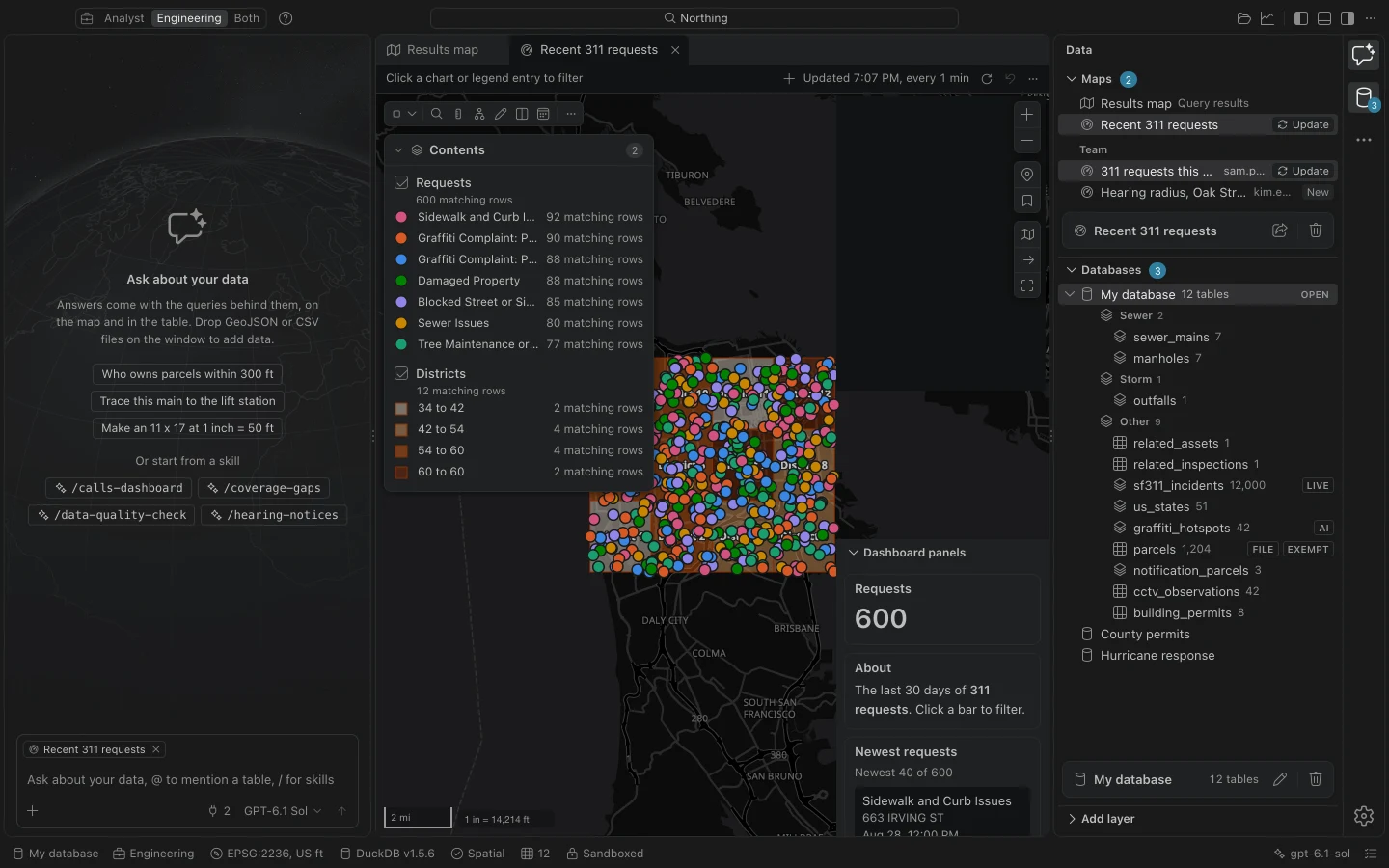
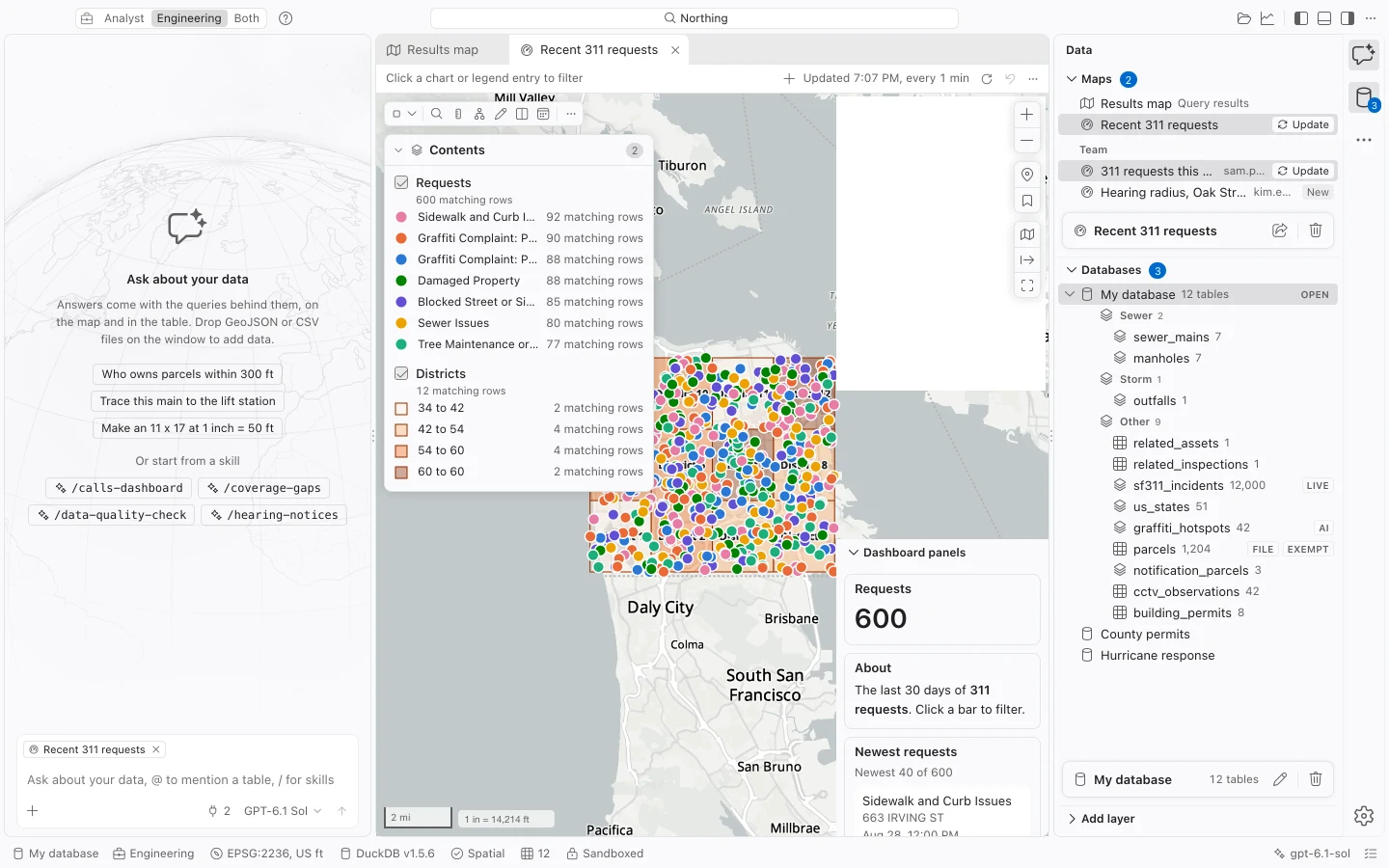
What changes
Section titled “What changes”| Workspace | Emphasis |
|---|---|
| Analyst | SQL, the assistant, publishing, and quality checks. |
| Engineering | A larger map, Find, Measure, and printing to scale. |
| Both | Tools from both workflows. |
Engineering calls print layouts Sheets and layer groups Disciplines. Its layer list can group data by disciplines such as Water, Sewer, Storm, and Streets. The GIS terms remain available in tooltips. Print templates and suggested assistant questions also follow the workspace.
Commands that do not appear at the first level of a toolbar remain in its additional actions or in the command center. Show all opens the relevant command search. Switching workspaces never grants a portal privilege or overrides an organization restriction.
Make room for the map
Section titled “Make room for the map”On a fresh layout in a window narrower than 1440 pixels, the assistant and SQL console start collapsed. At larger widths, Engineering starts with the console closed; Analyst and Both start with it open. The assistant starts collapsed until a model is configured. Previously saved panel choices take precedence.
Choose Show the SQL console or Show the assistant from the command center when you need them. Focus map temporarily hides surrounding panels. Toggle it again to restore the previous layout.
Opening layer properties can temporarily move panels out of the way to give the map more room. Northing preserves your saved workspace arrangement and remembers panel changes you make yourself.
Customize the first level
Section titled “Customize the first level”Choose Choose what the workspace shows first in the command center to open workspace settings. You can also pin commands directly from search. A pinned command without a dedicated toolbar appears in the title bar; a pinned table command appears with table actions.
Workspace layouts are separate from the workspace database. To work in another database, use Switch database. Your administrator can set an initial layout, but you can still switch after launch.