
Utility networks
Build a utility network from ordinary local pipe and structure layers, then trace connectivity, flow, or valve isolation. Northing’s network is a local analytical model in the workspace database; it does not require an ArcGIS Utility Network dataset or a Pro Standard license.
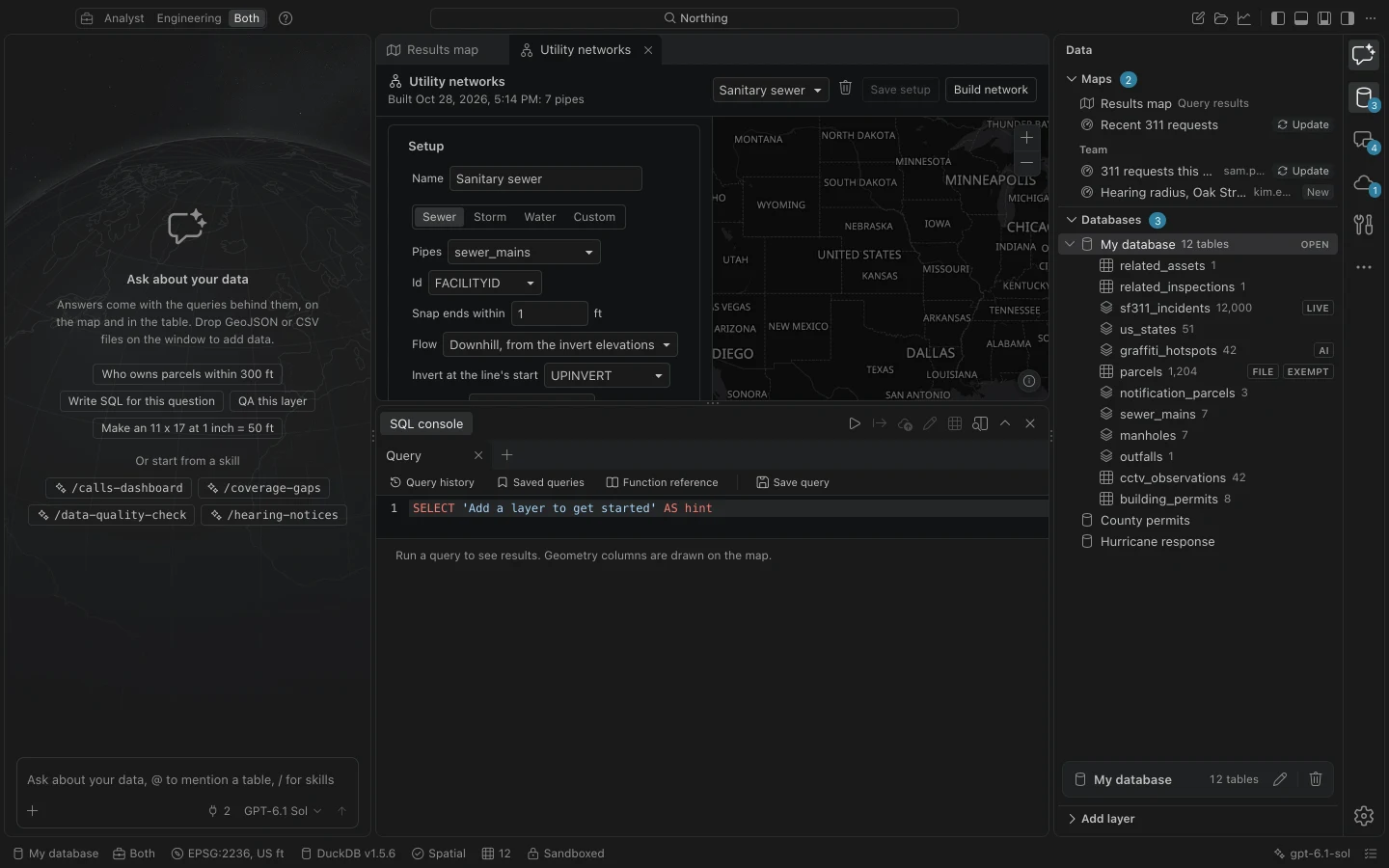
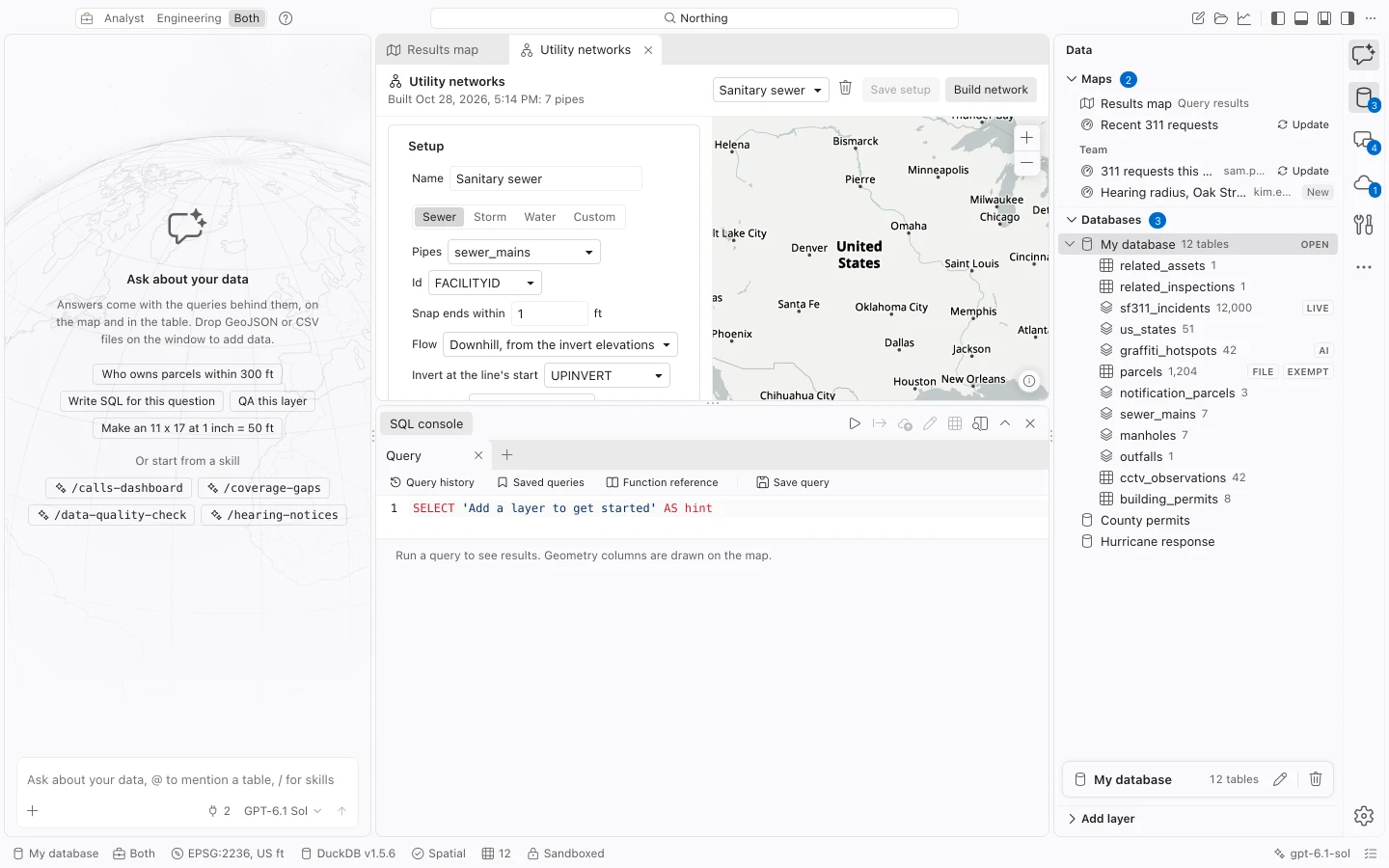
Set up and build a network
Section titled “Set up and build a network”- Pull or import the pipe or main lines and the relevant structure tables. Check feature IDs, line direction, geometry, and invert fields before building.
- Choose Set up a utility network in the command center. Enter Name and What the network carries.
- Choose Pipes or Mains, then its Id field. Set Snap ends within in feet.
- Under Flow, choose digitized direction, downhill from invert elevations, or No direction (water mains). For invert-based flow, choose the start and end invert fields.
- Use Add a structure table for manholes, inlets, valves, outfalls, or other structures. Set each table’s role and identifier. Configure closed-state values where applicable.
- Choose Save setup, then Build network. Review the build report and repair relevant problems before relying on a trace.
Understand connectivity
Section titled “Understand connectivity”Each pipe end connects to the nearest structure within the snap tolerance. Pipe ends that meet without a structure still form a junction. Hydrants and services attach to the nearest main within their configured distance, 50 feet by default.
The build reports pipe ends that meet nothing, structures with no connected pipe, and missing or equal inverts. Pipes with missing or equal inverts retain their digitized direction. Check geometry, units, tolerances, and direction fields against the build report.
A closed node stops every trace. Its closed state comes from the configured field and values, so make sure the local valve-status data is current before interpreting an isolation result.
By default, disconnected multipart pipes are excluded from connectivity and listed as quarantined. The report provides zoom and edit actions named for each affected feature. Include disconnected multipart pipes (can trace across physical gaps) restores first-start to last-end connectivity, which can create an analytical connection across a real gap. Use the editing tools to repair those features first, or review each gap before enabling that option.
Run a trace
Section titled “Run a trace”- Open the network using Open utility networks, or search for
Trace thefollowed by its name. - Choose the trace type in Trace.
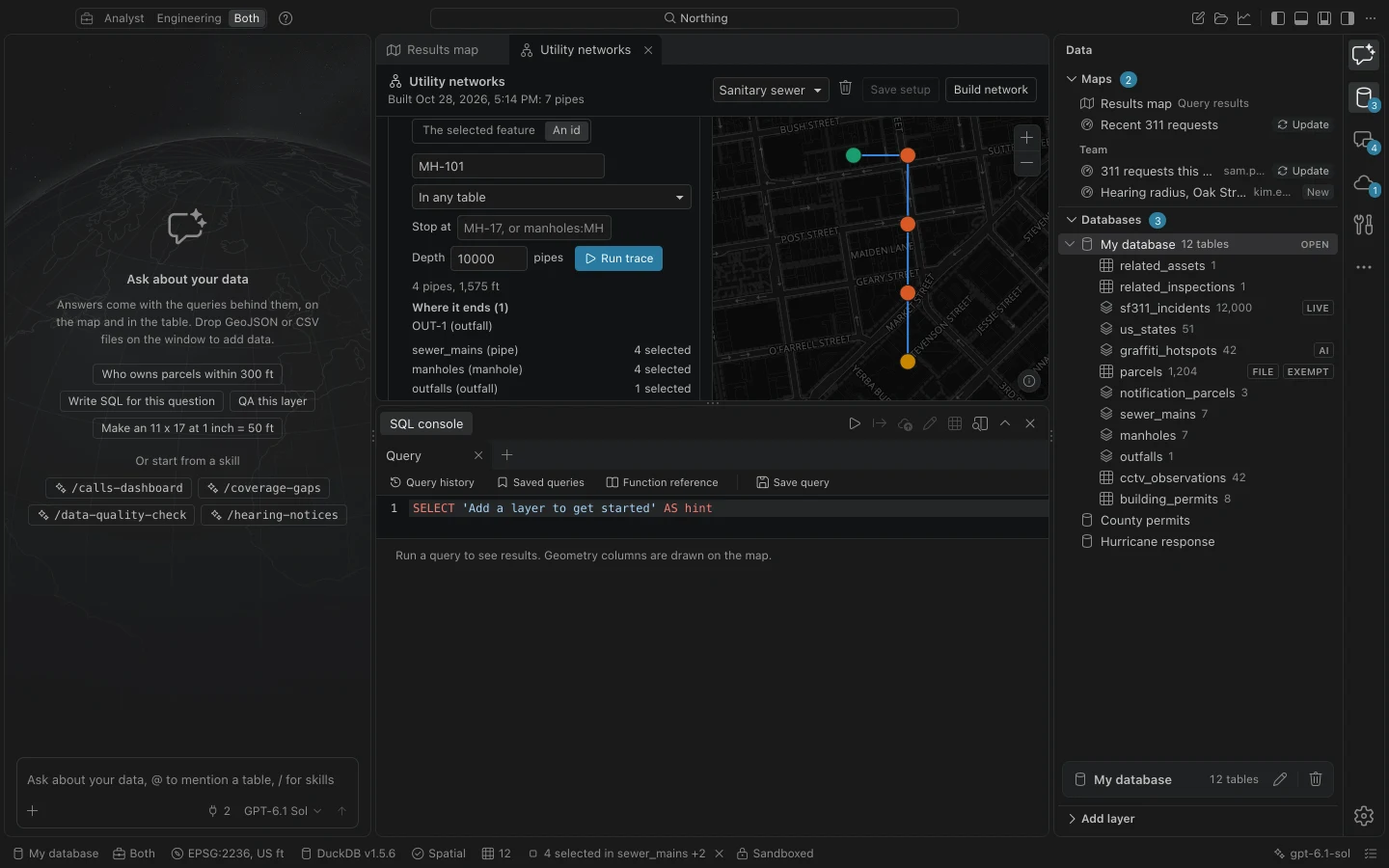
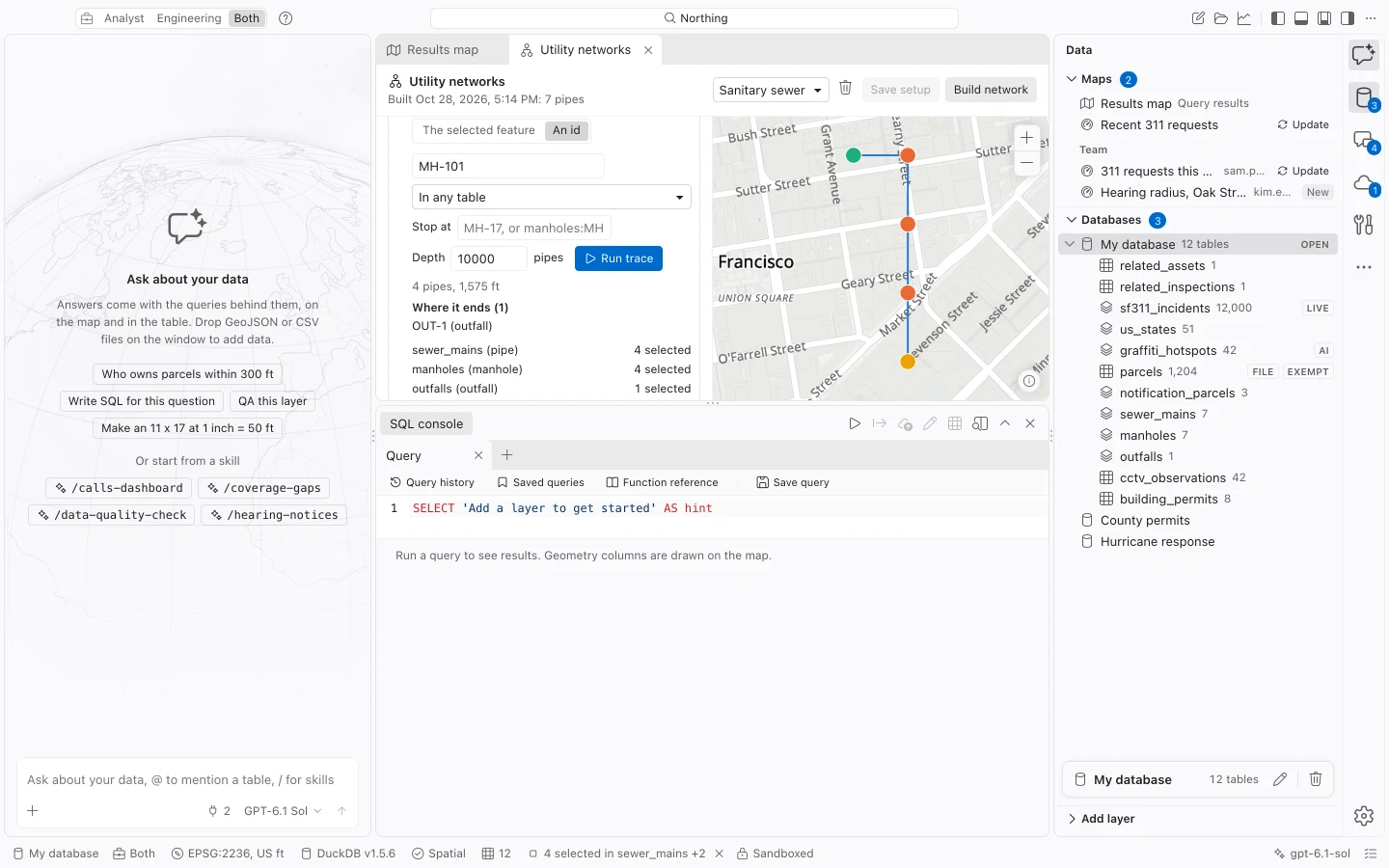
- Under Start from, use The selected feature when exactly one suitable pipe or structure is selected, or choose An id and enter Id to start from. Specify the table if the ID is ambiguous.
- Set any Stop at structure IDs and review Depth, the maximum traversal depth in pipes. The default is 10,000.
- Choose Run trace. Read the report, map, and completeness status before exporting or asking about the result.
| Trace | Use |
|---|---|
| Downstream | Follow the configured flow away from the start. |
| Upstream | Follow flow toward contributing pipes and structures. |
| Connected | Find connected features without using a directional flow question. |
| Valve isolation | For water mains, find valves to close, isolated mains, and affected hydrants and services. |
The network rebuilds before tracing when its setup or relevant table data changed. Traces follow branches and loops without repeatedly walking the same edge.
Review and use the result
Section titled “Review and use the result”The report includes pipes, total length in feet, structures by table, and where the trace starts or ends. A water isolation result also distinguishes valves to close, valves already closed, and hydrants and services cut off.
The traced records become selections in every network table, with the pipes shown first in the status bar. Show the traced pipes in the table opens those records. The visible feature list can be limited to 200 entries while the selection contains the full result.
The assistant can use the same network to answer a question such as What is upstream of manhole MH-102? Its trace selects the results and keeps a fixed filter for each table so follow-up questions refer to the same records. Review the network setup and trace result just as you would when running it manually.
Place pipe inspections
Section titled “Place pipe inspections”Under Inspections along pipes, choose the observations table and whether each observation identifies its pipe By pipe id or By its manholes. Set Distance (ft), optional Continuous to (ft), and the inspection Direction mapping. Choose grade fields if you want a condition summary.
Choose Place observations to locate each observation along the pipe from the appropriate end. Continuous observations also become lines. Outputs use the chosen Save as prefix with _points and _lines; a later placement run replaces those inspection outputs.
Review the reported exceptions. Distances beyond a pipe’s end are placed at the end and counted. Observations whose pipes cannot be matched are listed. When grades are supplied, the saved Pipe condition map uses each pipe’s worst structural and O&M grades.