
Labeling
Use labels to identify features on saved maps and kept layers without opening each pop-up. Combine fields, add units, and choose different text styles; saved maps also support SQL conditions for each label class.
Turn on labels
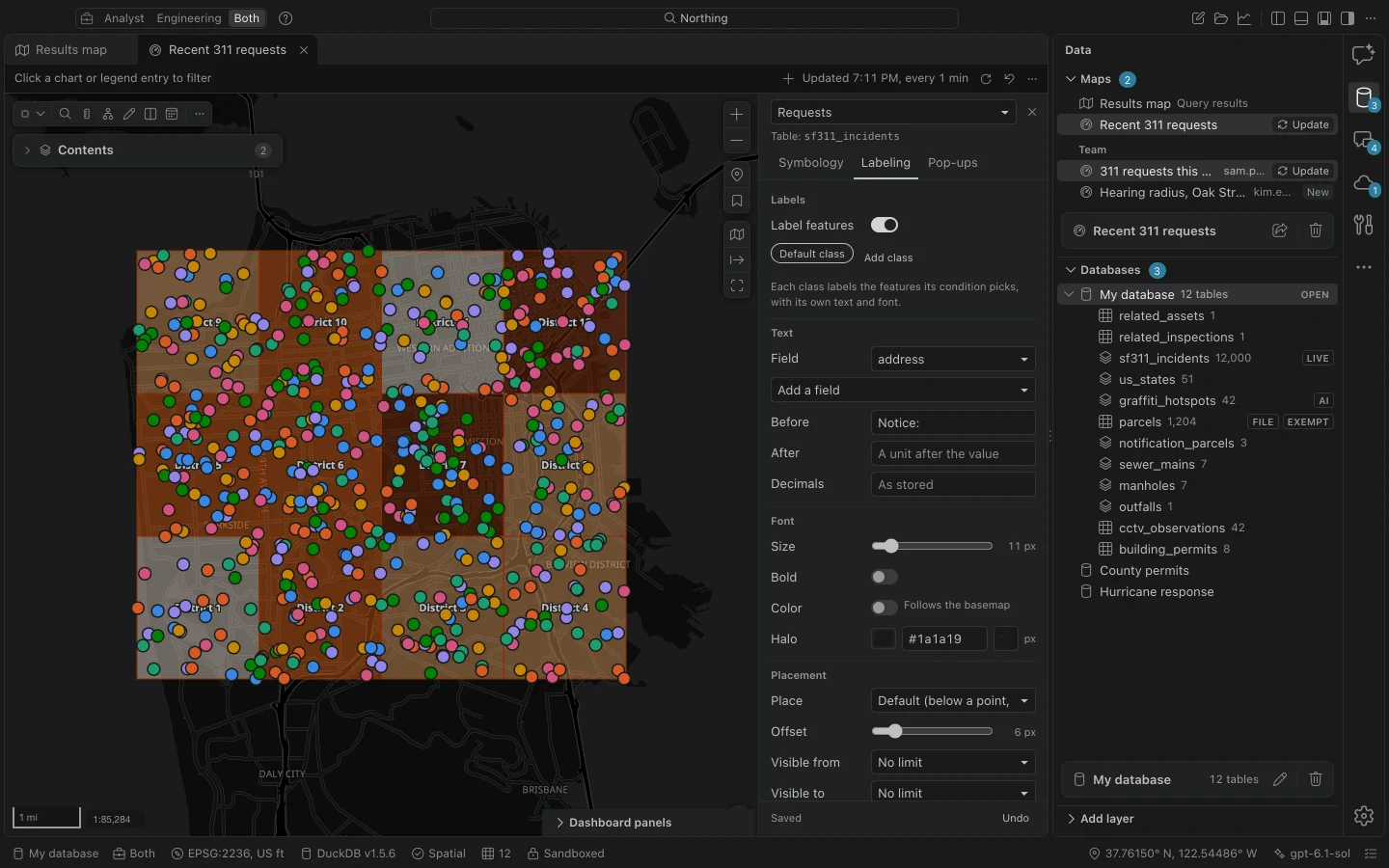
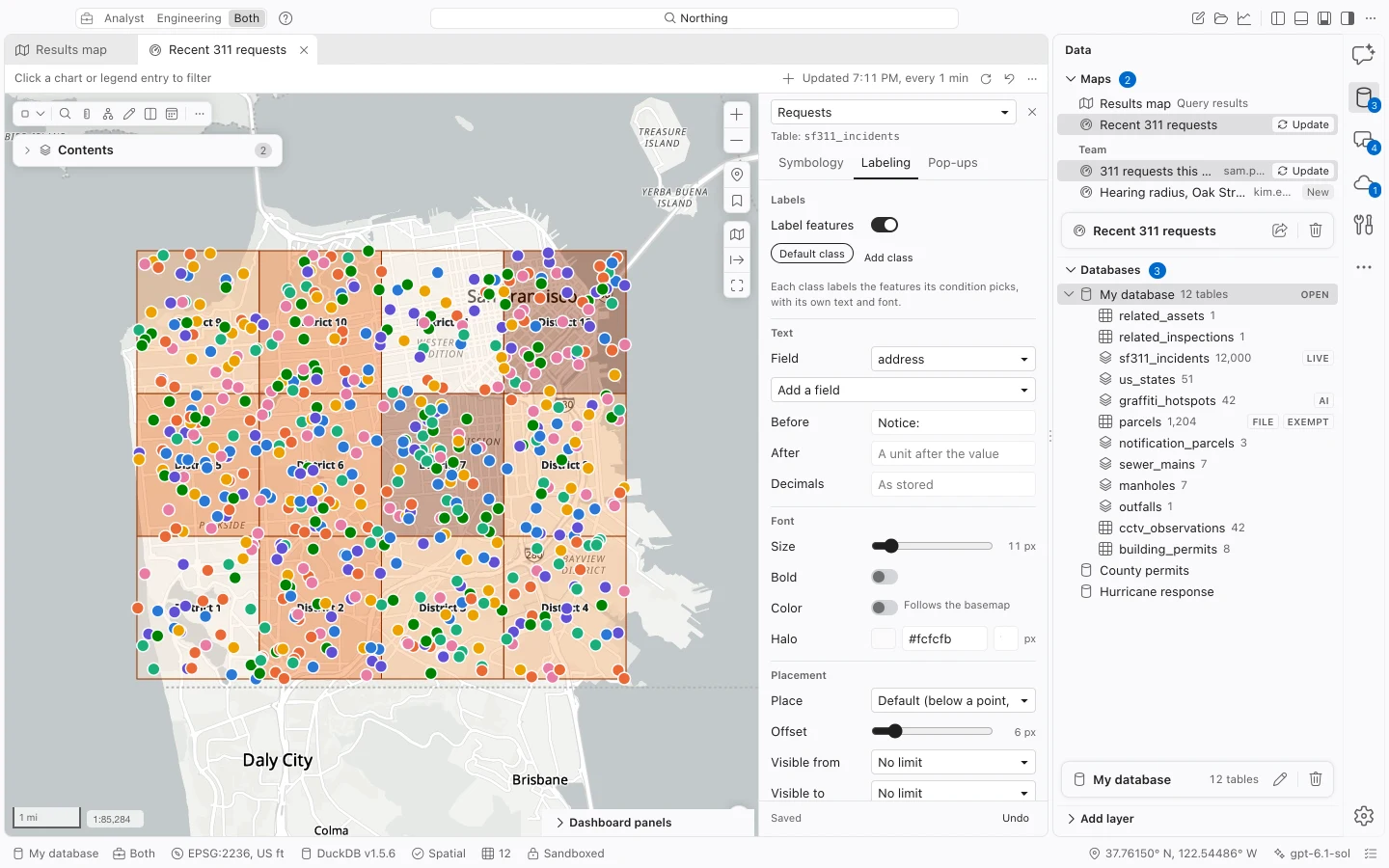
Section titled “Turn on labels”- Open the layer’s gear in Contents, or choose Labeling from the command center.
- Select the layer in Layer to edit, then open the Labeling tab.
- Turn on Label features. Choose the Field that should identify each feature.
- Adjust Size, Bold, text color, and the halo. Inspect the labels against the basemap at the scale you expect readers to use.
- Set Place and Offset for the layer’s geometry. Set the label’s Visible from and Visible to scales if necessary.
- Wait for Saved. Close the pane and click a feature to compare its label with the source attributes in the pop-up.
Build the label text
Section titled “Build the label text”The first Field supplies the main value. Add a field appends another field, and Separator appears when the label includes more than one. The fields are joined in the order shown. Remove an unwanted field with its remove button.
Use Before and After for fixed text. For a pipe diameter, choose the diameter field and type in in After. Include the leading space yourself; without it, the unit touches the number. For a request identifier, type Request in Before.
Decimals rounds numeric values to 0 to 6 decimal places and uses thousands separators. Leave it blank to display values as stored. Formatting changes the label text, not the field value in the workspace database.
| Text control | Example use |
|---|---|
| Field | Label a parcel with its parcel identifier. |
| Add a field | Include both an asset ID and a material field. |
| Separator | Put / between the two values. |
| Before | Add Diameter: before a number. |
| After | Add ft after a length. |
| Decimals | Show a length to one decimal place. |
These controls compose labels from fields and fixed text. If you need a calculated value, create it in a query or calculated field first, then label that value. Do not enter a SQL expression in Before or After expecting it to execute.
Make labels legible
Section titled “Make labels legible”Size ranges from 6 to 48 pixels. Start with a size that fits the intended map scale, then compare dense and sparse areas. Increasing size alone can make a crowded map harder to read.
Bold changes the weight. With Own text color off, the text color follows the basemap. Turn it on to choose a fixed color, then check both light and dark appearances if you use both.
The Halo is the outline around the text, separate from the feature’s symbol outline. Choose a contrasting halo color and adjust Halo width. The control allows 0 to 6 pixels; zero removes the halo. A modest halo can separate labels from aerial imagery or a dense street basemap without obscuring nearby features.
Northing uses bundled Noto Sans for feature labels. These labels work with No basemap, with a local offline basemap, and in printed layouts. An online basemap’s own labels can still depend on that provider’s fonts and connection. Changing feature labels does not change the street or place labels baked into a basemap.
Position labels for the geometry
Section titled “Position labels for the geometry”The Place options depend on the feature type.
| Geometry | Placement options |
|---|---|
| Points | Above, below, centered, left, or right. |
| Lines | Along the line, above, below, or centered. |
| Polygons | Inside the polygon or centered. |
The default places text below points, along lines, and inside polygons. Offset controls separation in pixels, from 0 to 40. Use it to move a point label clear of its marker or to separate a line label from its stroke.
Inspect labels at the final output scale. A comfortable spacing while zoomed in may become crowded when you export a page covering the entire county. If labels are too dense, restrict their scale range or use classes to label only the features needed at that scale.
Set when labels appear
Section titled “Set when labels appear”Visible from sets the most zoomed-out scale for a class. Visible to sets its most zoomed-in scale. For example, set Visible from to 1:10,000 when individual asset IDs should appear only as the reader zooms into a neighborhood.
When no label start scale is set, labels normally appear from zoom level 12 inward. The pane states that threshold. The layer’s own visible range also applies: labels cannot make a hidden layer visible.
Scale limits belong to each label class. You can show a short identifier over a broader range and add a detailed label closer in. Review the overlap between their ranges so that you get the intended amount of text.
Use multiple label classes
Section titled “Use multiple label classes”A class is a set of text, font, placement, scale, and, on saved maps, feature conditions. Northing allows up to nine classes per layer.
- On a saved-map layer, configure the first class, then choose Add class.
- Select the new class tab. It starts with the current class’s appearance, so change its field or font as needed.
- Under Features to label, enter a condition in Where. For a numeric field named
DIAMETER, an example is"DIAMETER" >= 12. - Give the other class a complementary condition, such as
"DIAMETER" < 12, if the classes should label different features. - Inspect both groups on the map. Choose Remove class if an extra class is no longer needed.
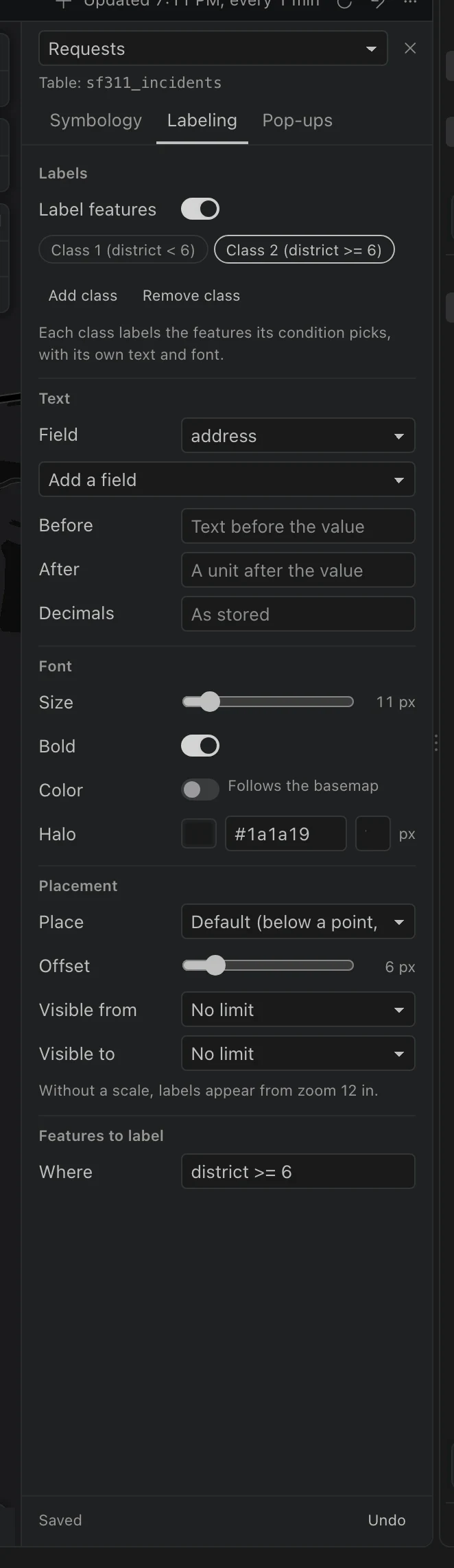
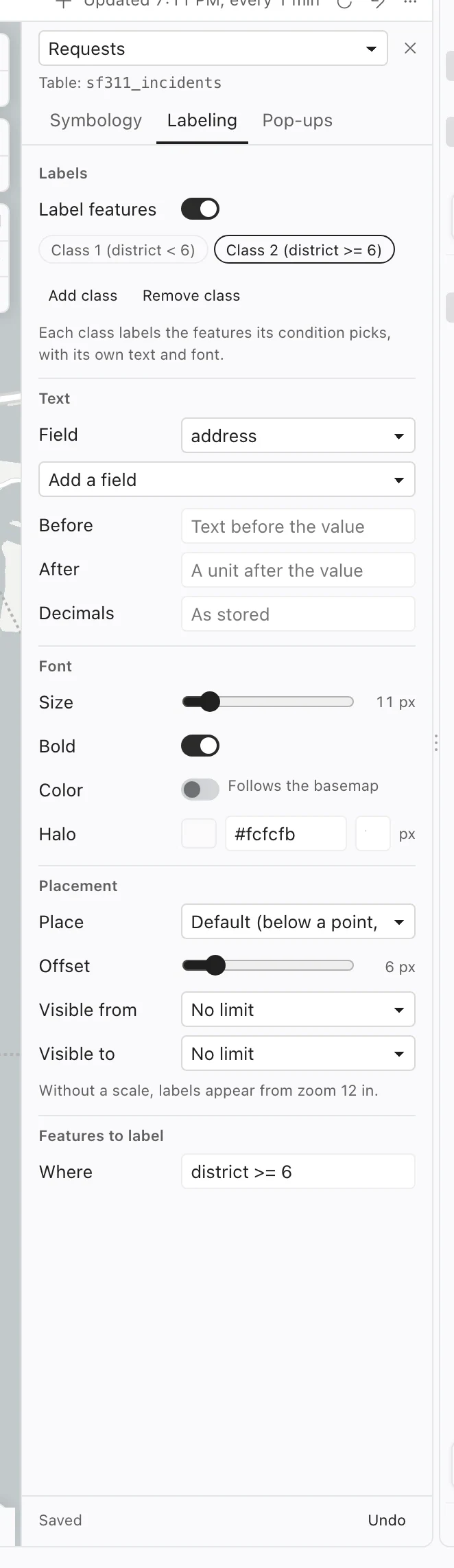
Use actual dataset column names in Where, not a display alias. The condition chooses features; it does not calculate the label text. A blank condition labels every eligible feature. Conditions are independent, so a feature can qualify for more than one class. Use mutually exclusive conditions when you want one class per feature.
Save and troubleshoot
Section titled “Save and troubleshoot”Changes preview immediately and save automatically. Wait for Saved before closing the pane. If Failed appears, use Retry before leaving the pane. Saved-map undo includes both your changes and the assistant’s changes; kept-layer appearance has its own undo history.
If a label is missing, first check Label features, the selected field, and whether that record has a value. Then check the class condition, label scale range, layer scale range, visibility, and definition query. Zoom in and compare a less crowded area before assuming the field is unavailable.
Supported label classes carry into published web maps, including their text expressions and SQL conditions. Check the published map as well as the local print preview when preparing a map for another audience.