
Troubleshoot and report a problem
Use recent jobs, notification history, and the self-test to investigate a failed task or unavailable command. Start with the exact message and the operation that produced it, then save a problem report if you need help.
Gather useful evidence
Section titled “Gather useful evidence”- Note the task, app version, time, and exact error. Open Show notification history in the command center if a notice has disappeared.
- Open Jobs for imports, exports, prints, publishes, or pushes. Read the operation’s result before retrying it.
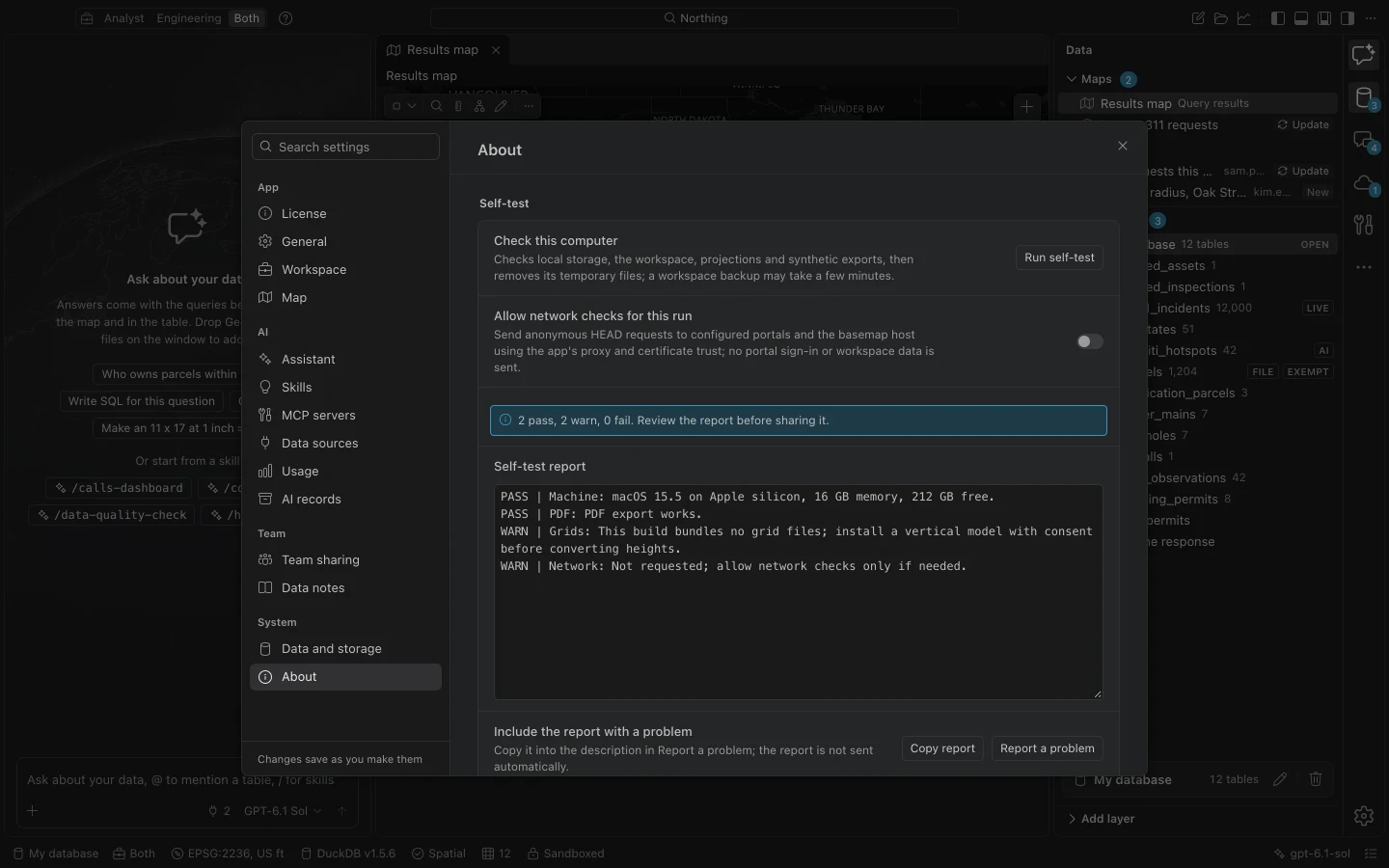
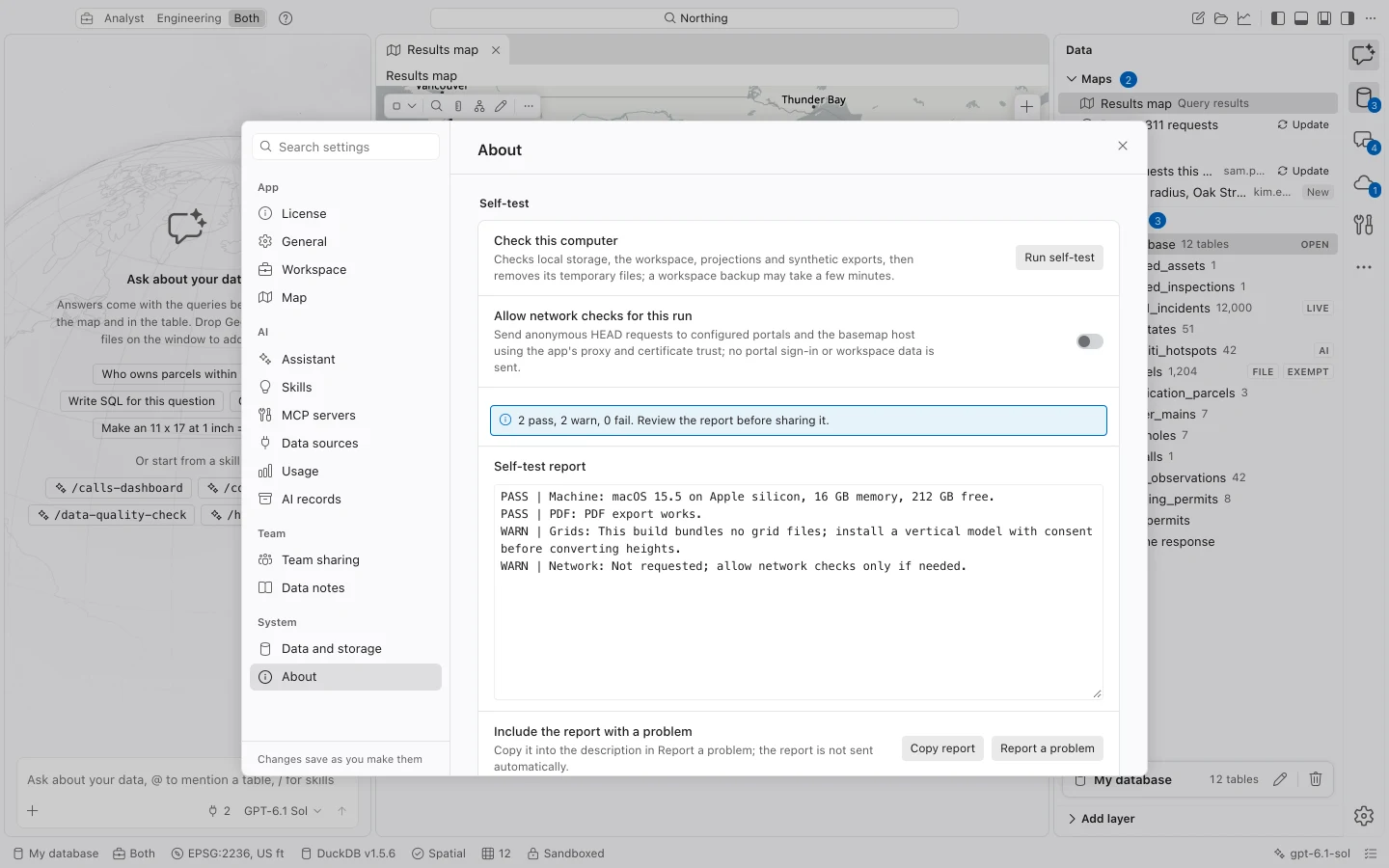
- In Settings > About, choose Run self-test and review both failures and warnings. Enable Allow network checks for this run only when network reachability is relevant.
- Try to reproduce the problem with sample data or a small approved test dataset. Record whether it also occurs there.
- Save a problem report using the procedure below if the issue remains.
Common symptoms
Section titled “Common symptoms”| Symptom | What to check next |
|---|---|
| A command is unavailable | Select it in the command center to read its reason. Check the active table or map, sign-in, privileges, policy, and license. |
| Work opens but editing or analysis is blocked | Inspect Settings > License. Existing data remains readable after expiry, but new work requires a valid license. |
| Portal sign-in fails or expires | Confirm the intended portal and sign-in method. A changed VPN or proxy exit can invalidate an IP-bound built-in-account token. |
| A map layer is blank | Check Contents visibility, definition queries, current extent, source availability, and team-map dependency review. |
| A table shows fewer rows than expected | Check the original download scope and the displayed result limit before assuming data is missing. |
| A panel or console disappeared | Turn off Focus map or reopen the panel. Northing can temporarily make room for layer properties and other map panes. |
| A push stopped | Read row results and history. Use the original job’s Retry where offered; an interrupted request may already have reached ArcGIS. |
| A team map uses no data | Open Show the tables it needs and resolve missing or different dependencies. |
| A backup is pending on Windows | Close and restart normally; Windows backups run while the database is closed. |
| A workspace will not open after changing app versions | Check for a newer-schema message and use the compatible app or coordinate recovery from the pre-upgrade backup. |
| An operation reports a full disk | Free space and retry. Preserve the existing workspace and completed backups. |
For a slow task, record approximate row count, geometry type, source type, extent or filter, and elapsed time. Include timings for both the affected data and sample data if you tried both.
Save a problem report
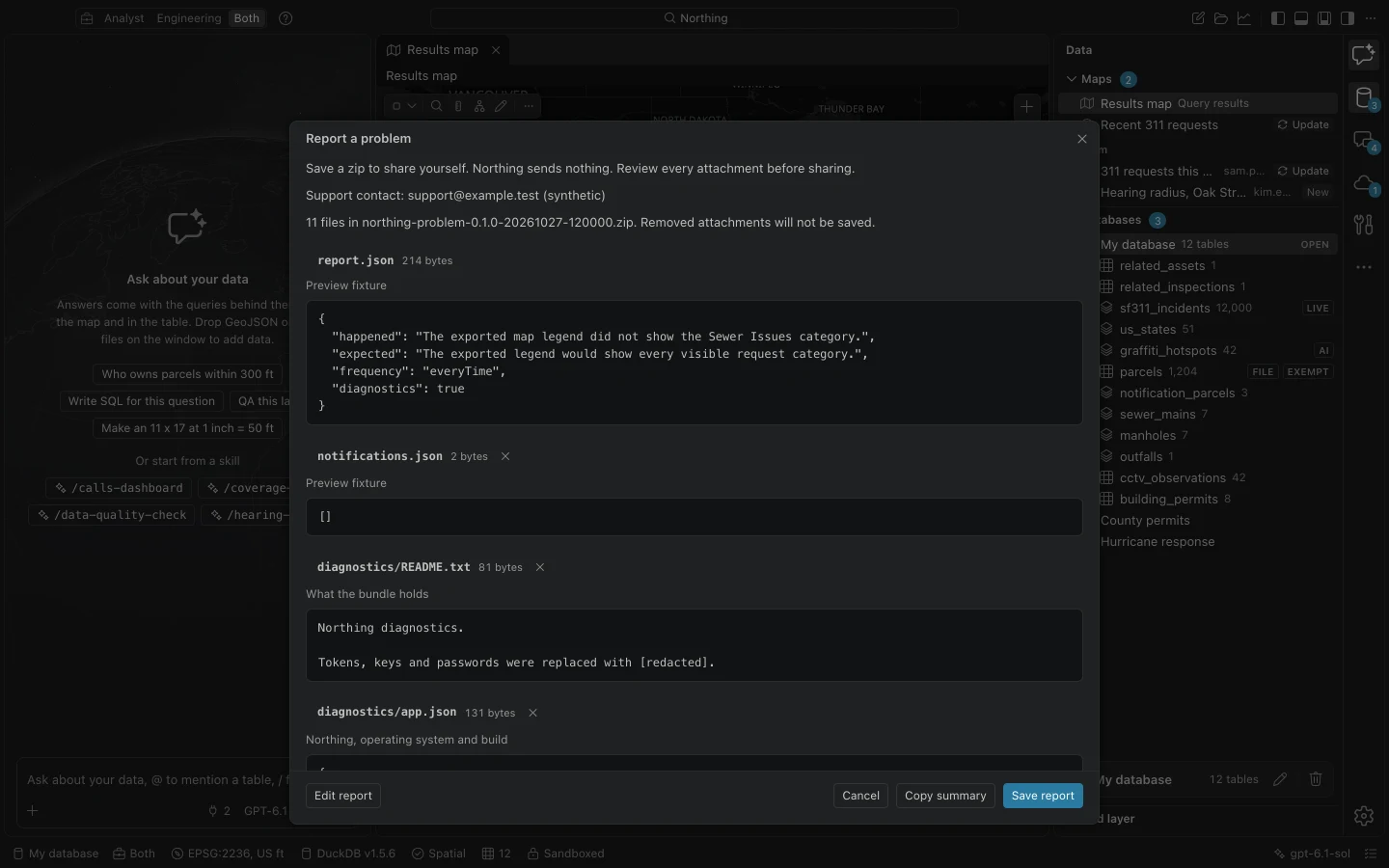
Section titled “Save a problem report”- Open Report a problem from the command center, an error notification, or the recovery screen.
- Fill in What happened (required), what you expected, and How often. Include reproducible steps, the data source type, approximate count, and coordinate system. Paste the self-test report if relevant.
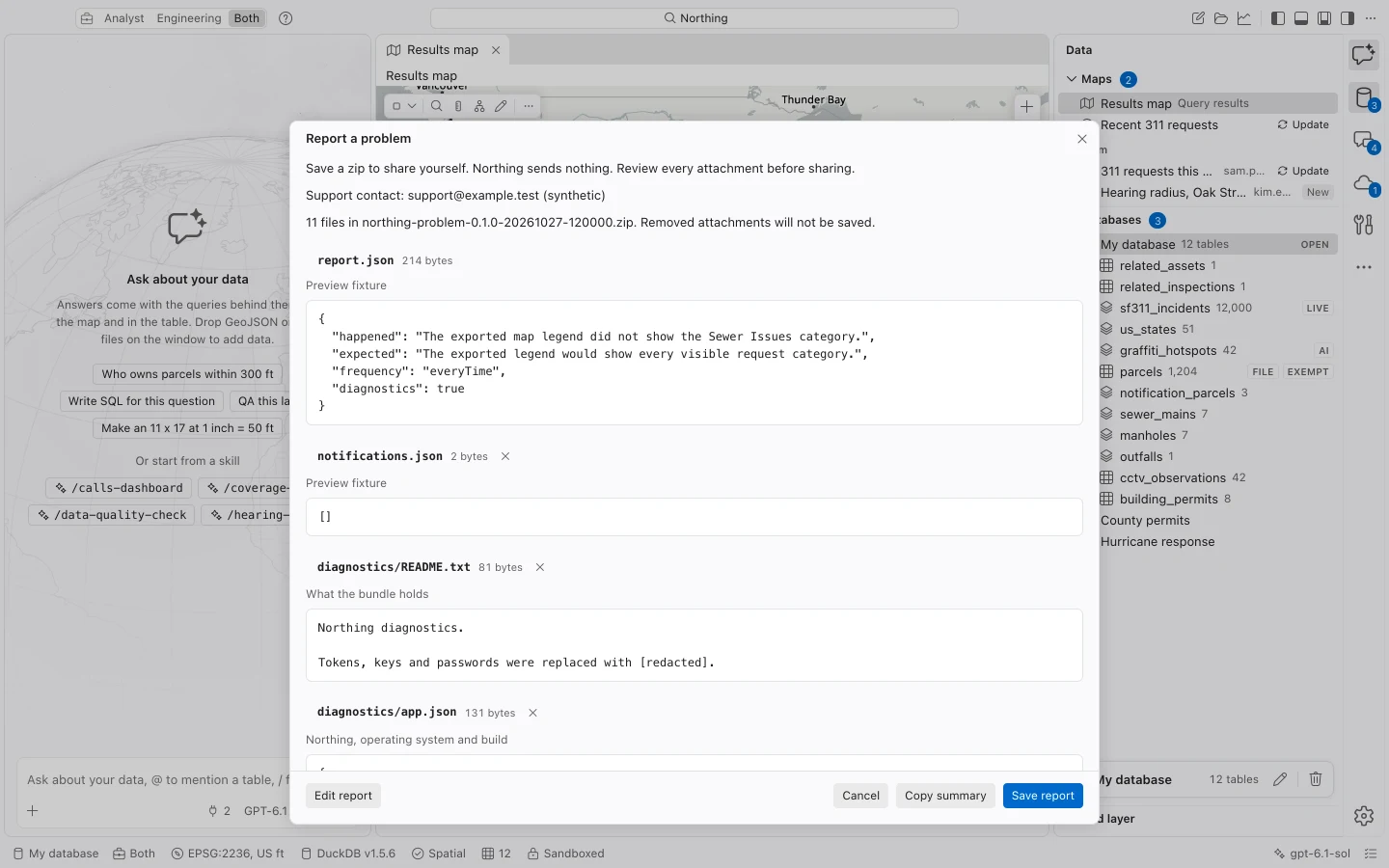
- Choose Preview report. Review the gathered diagnostics and notification information, and remove optional files you do not need to share.
- On macOS, optionally choose Attach window image after hiding private records. Inspect the image before keeping it.
- Choose Save report to write a local ZIP. Use Copy summary if you want a short description for your own message.
- Send the reviewed file yourself through the Northing team’s or IT department’s agreed contact.
Saving a report creates a local file for you to send. Your organization can display its support contact through policy.
Notification history contributes timestamps and severity, not arbitrary notification text that might contain rows or SQL. Diagnostics are redacted, but an optional window image is not text-redacted. Image capture covers Northing’s own window on macOS; Windows reporting does not offer this capture.
Do not include passwords, tokens, license keys, credential caches, personal row values, or restricted files. Saving writes exactly the retained preview files and does not overwrite an existing report.
When the app cannot open
Section titled “When the app cannot open”The recovery screen offers Reload, Save diagnostics, and Report a problem when available. If no window opens on Mac, quit the app and run its installed executable from Terminal:
/Applications/Northing.app/Contents/MacOS/northing selftestThis checks local storage and operations with sample data, with network checks off by default. It may need temporary disk space comparable to the workspace for its backup check. A warning can remain even when no checks fail.
Keep the current database and any upgrade backup intact. Reinstalling, deleting the data folder, or starting duplicate server operations can remove evidence or complicate recovery. Give the Northing team the version, launch behavior, and self-test result so the next step addresses the actual failure.