
Contents
Use Contents, the active map’s layer list, to organize layers and check their visibility, symbols, counts, and loading status. Layers at the top draw over those below them.
Organize the layers
Section titled “Organize the layers”- Open a saved map or the Results map, then open Contents.
- Drag a layer to its new position. With the layer focused, you can also hold Option on Mac or Alt on Windows and press ↑ or ↓.
- Double-click its name or press F2 to rename its display title. This changes the title in maps and legends, not the database table name.
- Right-click a layer and choose Group… to place it under a heading. Drop other layers among that group’s layers to include them.
- Use a layer’s checkbox to show or hide it. A group’s visibility control shows or hides its layers together.
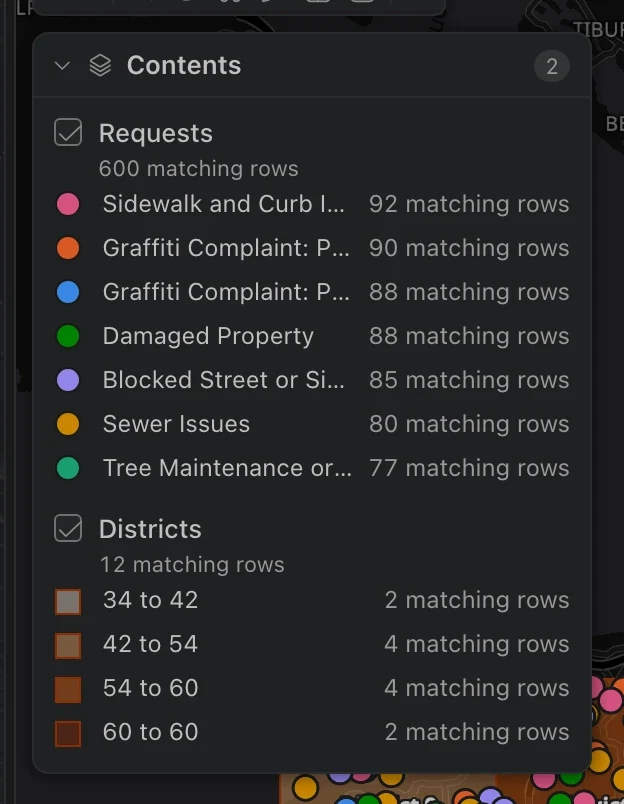
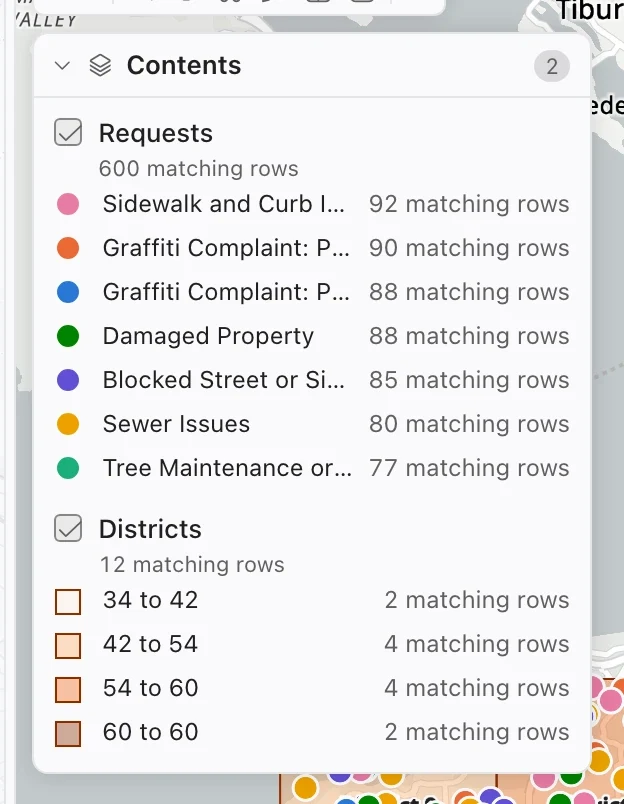
Keep results while you work
Section titled “Keep results while you work”On Results map, Query result follows the table preview or SQL result you open next. Kept layers are queries you have chosen to retain. Use Keep as layer on a spatial result to save its query and appearance. See Map basics for the difference between a kept layer and a saved map.
Removing a kept layer from Contents leaves its source table in the database. Use Remove in the layer menu. A result’s gear can first keep the layer and then open its properties.
Set a definition query
Section titled “Set a definition query”A definition query limits which features a layer draws. Use it for a layer such as active permits or water mains of a particular material.
- Right-click the layer and choose Definition query….
- Build conditions on the layer’s fields. Combine them so that all conditions, or any condition, must match.
- For a coded field, choose the readable description. Northing compares the stored code.
- Apply the query and inspect the layer and its legend counts.
The definition query applies to the layer’s rows, tiles, and legend statistics. It is saved with the layer and carries into a published web map. Kept layers rerun their underlying query with the definition applied.
Choose the right layer action
Section titled “Choose the right layer action”| Action | Use it to |
|---|---|
| Attribute table | Inspect the records behind the layer. |
| Zoom to layer | Frame the layer’s extent. |
| Zoom to selection | Frame the selected features. |
| Symbology… | Change the renderer and symbols. |
| Labeling… | Set visible feature labels. |
| Pop-ups… | Choose the fields shown when you click a feature. |
| Transparency… | Adjust how much shows through a layer. |
| Properties | Open the layer properties pane. |
On saved maps, clicking a category in a legend filters other linked panels and map layers. That interactive filter is separate from a definition query.
Understand changes and counts
Section titled “Understand changes and counts”On saved maps, you can undo layer changes and assistant changes through the same map history. Kept-layer appearance has its own undo history. The properties pane reports Saving, Saved, or Failed; if a save fails, the draft remains available with Retry.
Counts can describe matching records, loaded features, or features drawn through tiles. Classification and category statistics use the whole layer query, including its definition query, rather than only the current screen. Tiled drawing can simplify features at low zoom. Not loaded and Retry indicate a loading failure, not zero features.