
Skills and recipes
Use a skill to give the assistant a repeatable method, such as preparing hearing notices. Use a recipe to run an ordered workflow in your workspace database, with saved inputs, outputs, parameters, and run history.
Use a skill
Section titled “Use a skill”- Open an assistant chat with a connected model.
- Type
/in the message box and select a skill. You can also inspect available skills under Settings > Skills. - Add the tables, selected features, distances, dates, and other inputs the task needs, then send the message.
- Review the assistant’s queries and results as you would for any other answer.
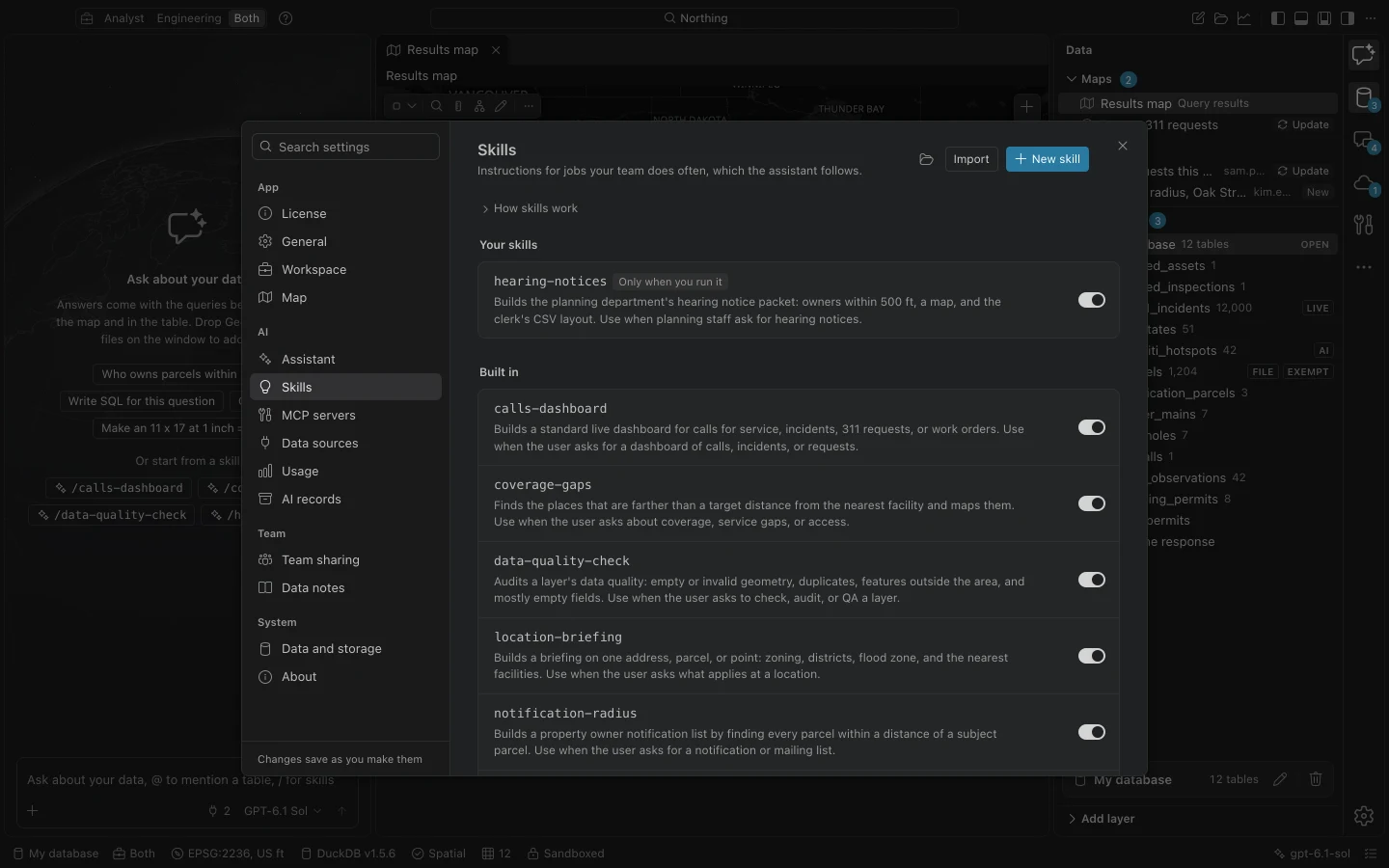
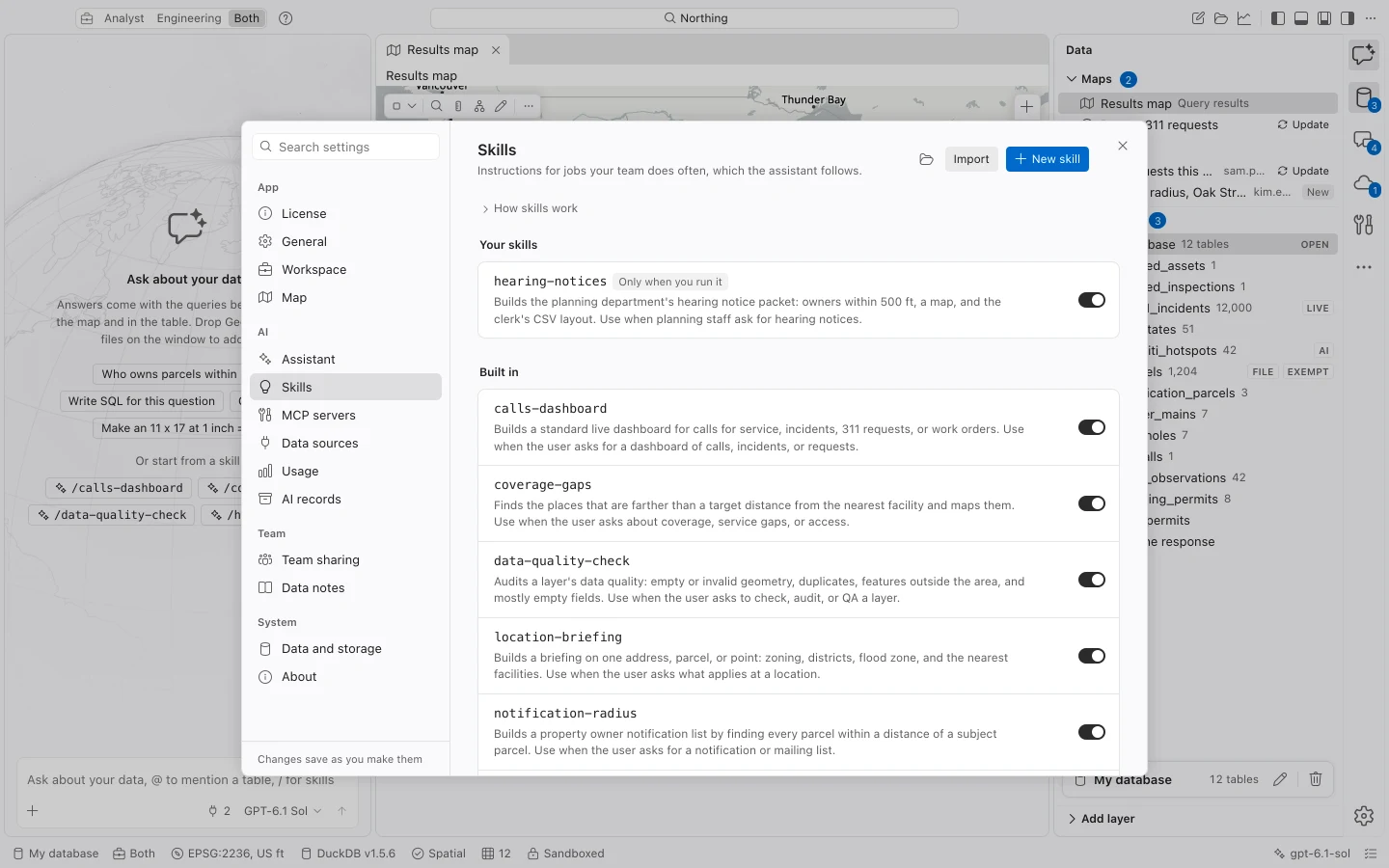
Built-in methods include notification radii, coverage gaps, data-quality checks, location briefings, and utility traces. The assistant can load an enabled skill when its description matches your request, unless that skill is configured for manual use only.
Save or import instructions
Section titled “Save or import instructions”In Settings > Skills, choose New skill to write a method. Skills use the Agent Skills format: a SKILL.md document with a name, description, and instructions. Names use lowercase letters, digits, and single hyphens, up to 64 characters. The description, up to 1,024 characters, should explain both what the skill does and when to use it.
Keep instructions concrete: name the required inputs, explain the spatial relationship and units, state how to handle missing values, and list checks before exporting. Use parameters or questions for details that change between runs instead of fixing a parcel ID in the method.
Import accepts From a zip or .skill file or From a folder. Review the imported text and warnings before adding it. Northing reads skill instructions and supporting resources; it never executes scripts bundled with a skill.
To turn a successful conversation into instructions, use Save as skill from the chat’s actions. Enter an optional purpose and choose Draft skill. This sends the chat to its model once, then opens a draft in the skill editor for review before saving. Remove one-time identifiers and verify the reusable queries yourself.
Create a recipe
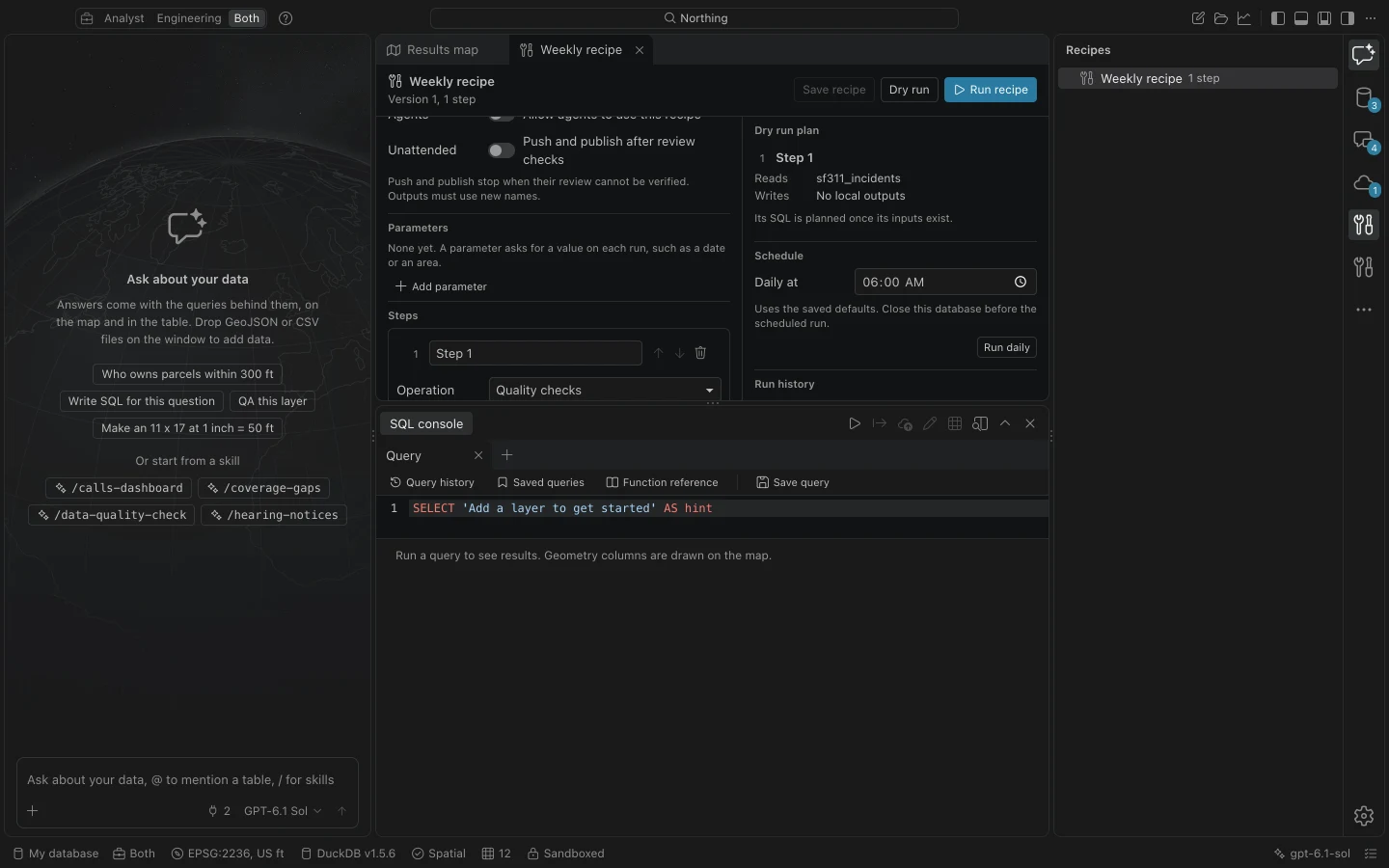
Section titled “Create a recipe”- Choose Show the Recipes view in the command center, then New recipe.
- Enter a Name. Add typed parameters for inputs that change, such as a distance, date, or output table name.
- Choose Add step, select its Operation, and configure the inputs and outputs. Repeat in execution order.
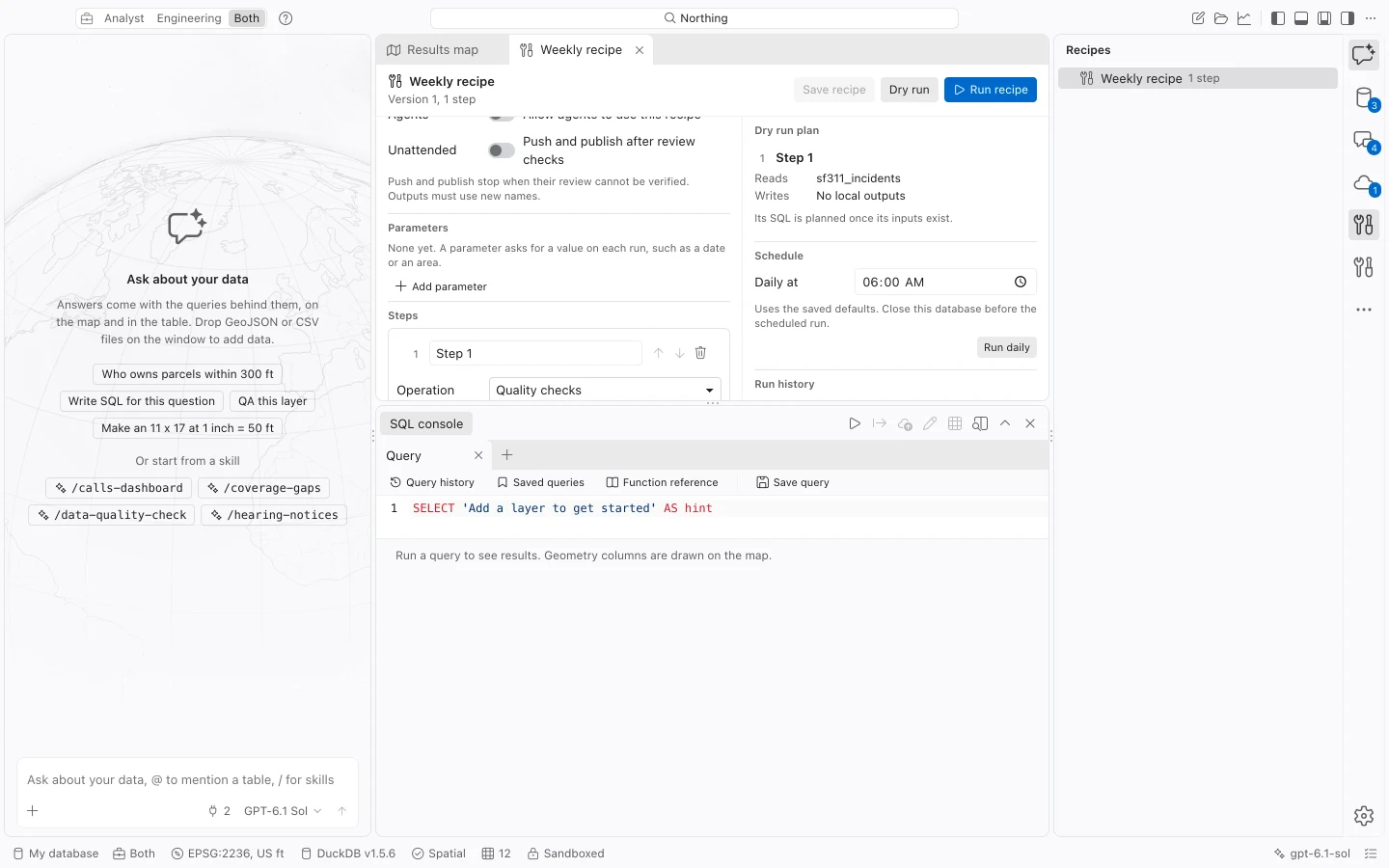
- Choose Save recipe, then Dry run. Inspect the plan’s reads, writes, output names, SQL, and review requirements.
- Supply the run values and choose Run recipe. Follow progress in Jobs and inspect Run history when it completes or stops.
Choose steps and parameters
Section titled “Choose steps and parameters”Recipes support saved queries into new tables, geoprocessing, saved quality checks, topology validation, ArcGIS refresh, CSV and GeoJSON exports, mailing-label PDFs, prepared map-page SVG to PDF, reviewed push, and reviewed table publication.
Map-page inputs are already drawn SVG pages. That step does not render a live saved map or map series. Use the print tools when you need that workflow.
| Parameter type | Value |
|---|---|
| Date | A date in YYYY-MM-DD form. |
| Number | A numeric value such as a distance. |
| Text | A string such as a status or output prefix. |
| Table | A table choice. |
| Geometry | WGS84 GeoJSON, optionally captured from the current selection with its source fingerprint. |
A configuration value such as {"$param":"distance"} references a parameter. Saved-query values use named query parameters; values are not substituted as SQL identifiers. For SQL examples and parameter behavior, see SQL console.
If a downstream tool reads a table that an earlier step will create, its dry run can show the input and output plan before the full SQL is available. The SQL is recorded when the input exists.
Handle reviews and failures
Section titled “Handle reviews and failures”Existing tables and files are not silently replaced. Give outputs new names when rerunning a workflow that creates them. Quality problems can stop the run; topology steps can be configured to fail on unaccepted errors. Label overflow requires the same explicit review as interactive mailing labels.
Push and publish steps stop for review by default. Inspect the pending step, accept its review, then resume. A saved recipe can explicitly permit unattended publication, but input versions, sharing restrictions, portal privileges, push conflicts, and required confirmations are still checked.
Resume from step checks the completed inputs and outputs before continuing at a failed step. Changed quality-check or topology inputs require those checks to run again. Changes to other completed inputs require a new run. Completed exports and remote writes are not replayed; an interrupted publish needs fresh review because items may already exist remotely.
Run history retains the recipe version, saved-query revision, resolved parameters, analysis CRS, input fingerprints, outputs, timing, and failures. Preserve that history when documenting a repeated analysis.
Schedule or authorize a recipe
Section titled “Schedule or authorize a recipe”The recipe’s Schedule section configures a daily local-time run using saved parameter defaults. The user account must be logged in, and the database must be closed before another process can write to it. Fixed output names can make a later scheduled run stop when those outputs already exist.
The macOS schedule uses a per-user background task. Windows scheduling support is still being validated; test the schedule on your deployment before relying on it.