
Backups and table snapshots
Use a database backup to recover a whole workspace and a table snapshot to recover a local table after unwanted changes. To reverse edits already sent to ArcGIS, use push history.
Back up your workspace
Section titled “Back up your workspace”- Open Settings > Data and storage in the database you want to protect.
- Under Backups, set Back up automatically to Every day, Every week, or Never, and choose Backups to keep.
- Choose Back up now before a significant change or an app upgrade.
- Check that the backup appears in the list. On Windows, the request waits for the next close or start; use Restart now to complete that cycle immediately.
- Keep an independent copy of completed backups according to your organization’s backup policy.
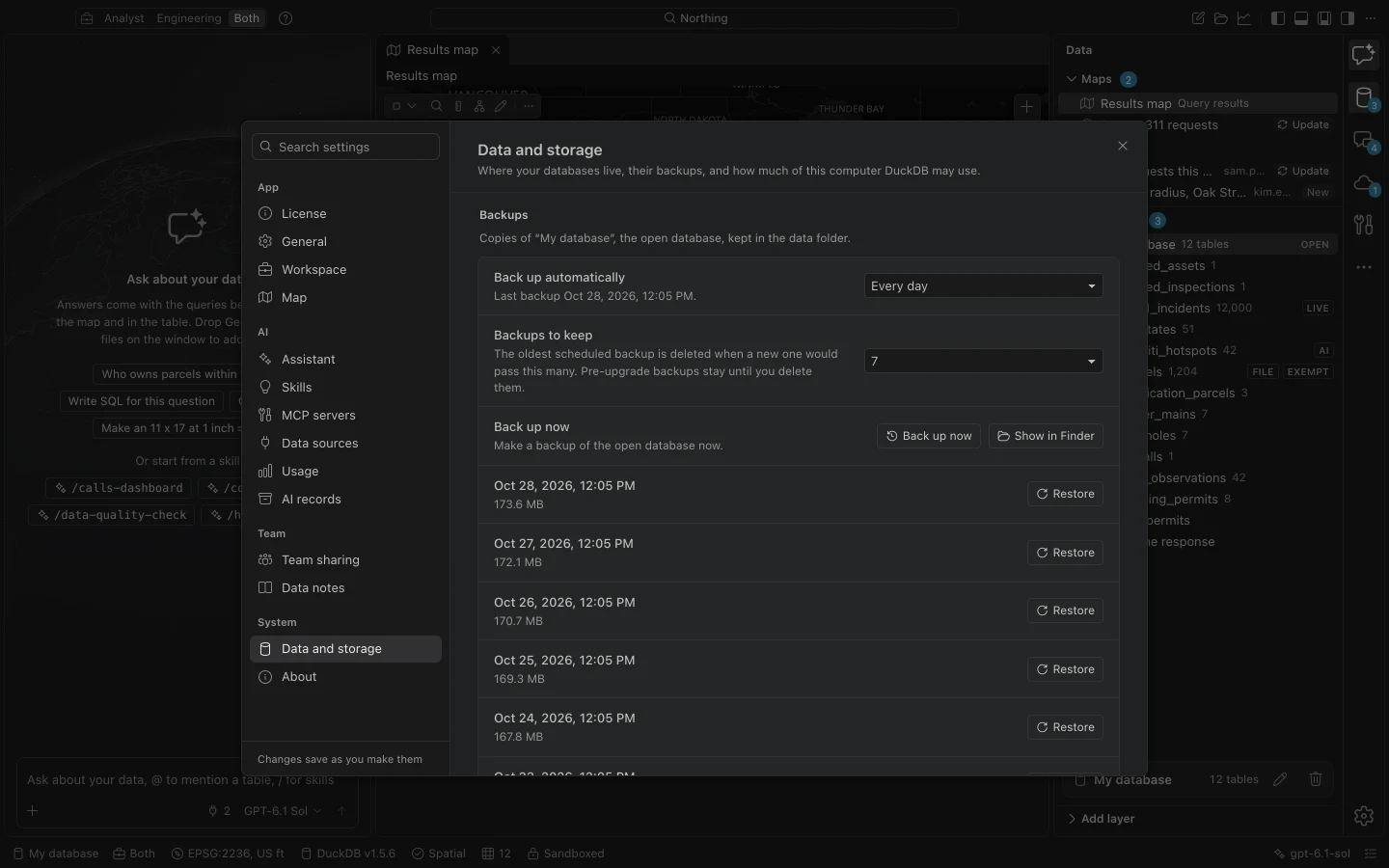
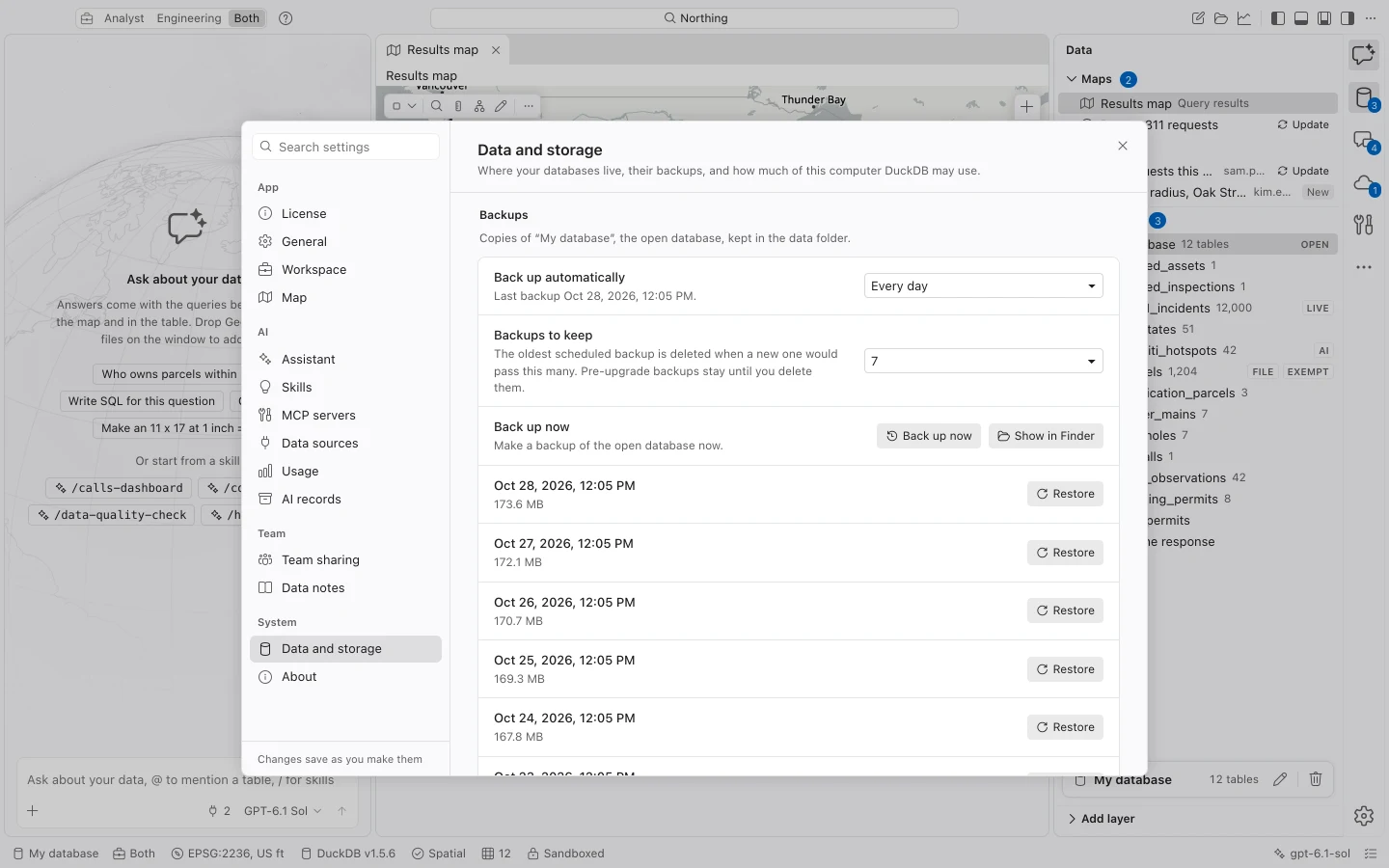
Automatic backups default to daily, keeping the latest seven. They are stored under backups/<database id>/ in the application data folder. On macOS, Northing checkpoints the database, copies it, and verifies the copy before retaining it.
Restore a database
Section titled “Restore a database”Choose Restore for a listed backup and review the confirmation. Replacement happens on the next start. Restart now applies it immediately, after a warning if grid or map edits are unsaved. The replaced database is kept with the backups as a before-restore copy.
Restoring local data does not move an ArcGIS service back in time. Tracked tables must refresh before the next push so older local rows are compared with the current server. Review that comparison carefully if the backup predates a push.
The AI records log is stored outside individual databases. Restoring a database does not remove its AI records.
Restore a table snapshot
Section titled “Restore a table snapshot”Northing snapshots tables before several destructive local operations, including dropping a table, replacing it, emptying it, updating or deleting without a WHERE clause, dropping a column, and changing a column type. Deleting a table from the sidebar also creates a snapshot.
Under Table snapshots, choose Restore for the needed copy. Northing snapshots the table being replaced before restoring the selected one. Up to five snapshots per table are kept within a combined 2 GB limit; older snapshots are removed as those limits are reached.
A tracked table normally retains its change baseline through restoration. A table restored after sidebar deletion comes back as a plain local table because deleting it removed its ArcGIS source, refresh schedule, and change tracking. You cannot push that plain copy to the original service.
Snapshots are inside the same database. They help undo table operations, but cannot protect against losing or damaging the database file itself.
Upgrades and platform differences
Section titled “Upgrades and platform differences”Before a schema upgrade, Northing makes a verified Before upgrade backup. Scheduled retention does not remove these backups; remove them explicitly only when your organization no longer needs them. A failed upgrade rolls back and reports the backup path. A workspace from a newer schema is refused rather than opened by an incompatible older build.
Windows backups require the database to be closed. A requested or due backup runs at shutdown or before the next opening. If another task still holds the database at shutdown, the backup waits for a later start. Allow shutdown or restart to finish before assuming the backup exists. Windows support is still being validated.
Keep active databases out of OneDrive, Dropbox, iCloud Drive, Google Drive, and network shares. Northing warns about recognized sync folders because copying a database while it is being written can damage the synchronized copy. Share completed exports or field packages instead.