
Publish to ArcGIS
Publish a local result for colleagues to use in ArcGIS Online or ArcGIS Enterprise. Northing can create a hosted feature layer from a table, a web map from a saved map, or a hosted view of a layer you own.
Publishing creates new items. To send edits to an existing layer while preserving its identity, use Push changes. A published copy does not automatically follow later changes in your workspace database.
Publish a table
Section titled “Publish a table”- Sign in to the destination portal. Your ArcGIS role must allow the kind of publication you intend.
- Open the table’s send menu and choose Publish to ArcGIS as a hosted layer. Check that this is the table or result you want others to receive.
- If you have several sign-ins, select Portal. Fill in Title, Summary, and comma-separated Tags.
- Select Folder. For a new destination, choose New folder, enter its name, and choose Create before continuing.
- Set Share with and any Groups. For a first test, use Only me and a test folder.
- Choose Quick snapshot or Precise, with its schema. For precise publication, review Store coordinates in and whether recipients should be able to edit.
- Read What is sent, including the feature count, size, and storage estimate. Choose Publish only after reviewing these details.
- Wait for completion, then open the resulting item in ArcGIS. Check its record count, fields, coordinate system, and sharing from the recipient’s point of view.
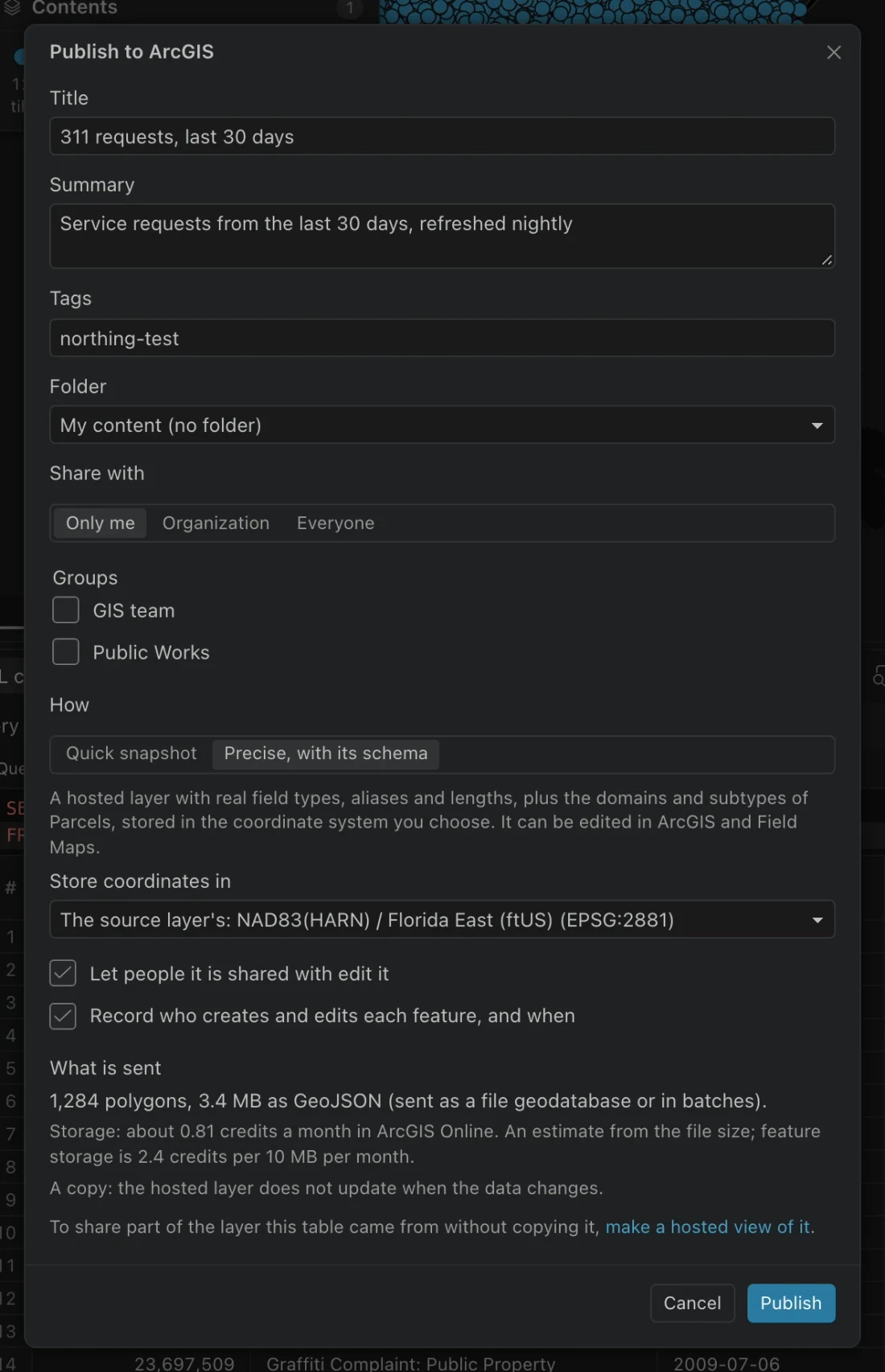
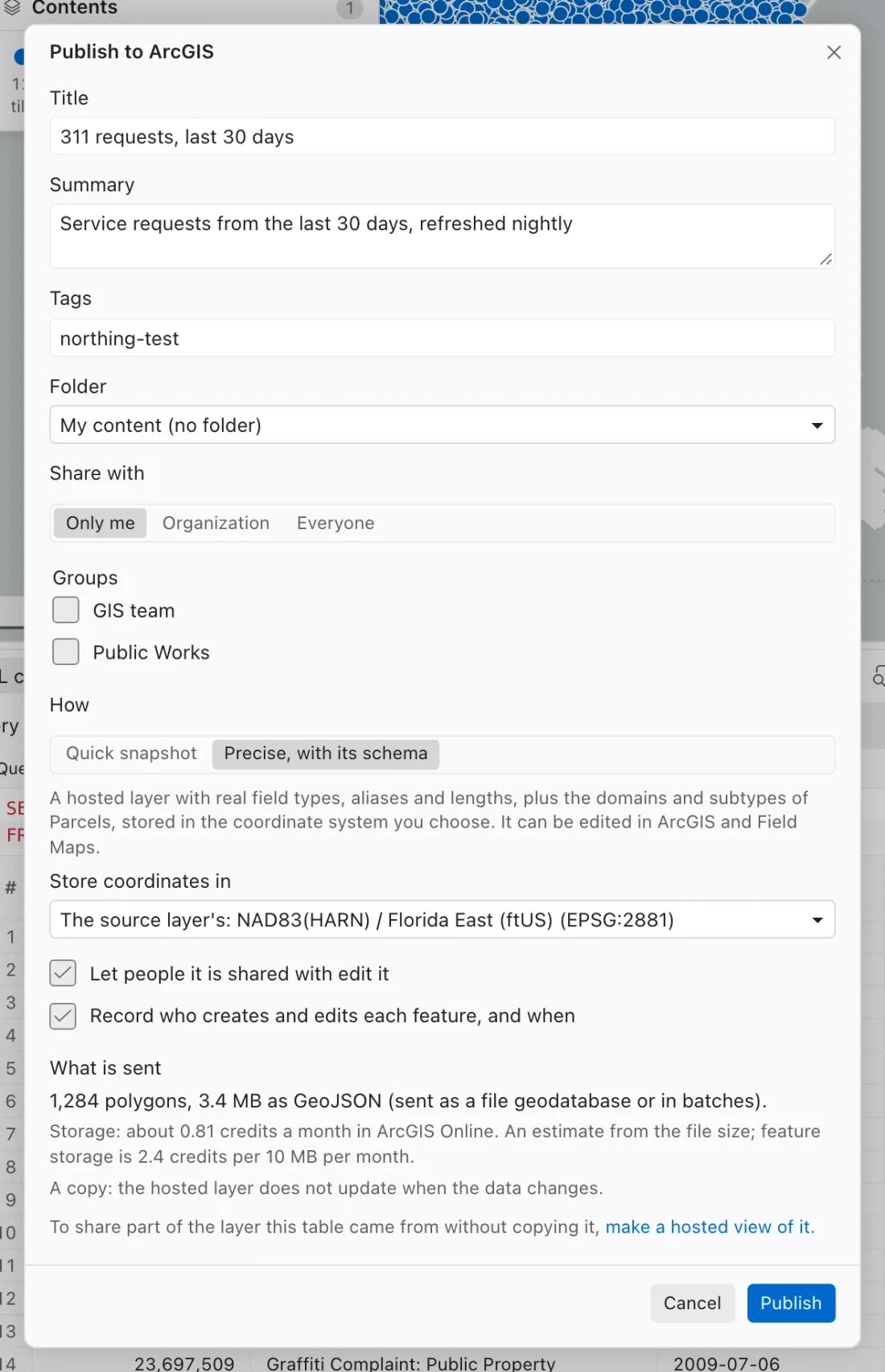
The title is required. A concise summary should explain the result, time period, and intended use. Tags make the item easier to find later. A folder organizes your content; it does not itself grant another person access.
Choose a publication method
Section titled “Choose a publication method”| Method | What it preserves | Best fit |
|---|---|---|
| Quick snapshot | Rows and geometry through GeoJSON, with inferred field types | A read-only result for quick distribution. Coordinates are stored in Web Mercator; aliases and domains do not carry over. |
| Precise, with its schema | Field types, aliases, lengths, supported domains and subtypes, GlobalIDs, and a chosen storage coordinate system | Operational data whose schema and coordinate system matter. This is the default for tables imported from ArcGIS. |
The precise method creates the service and schema before loading records. It can allow editing in ArcGIS and Field Maps, and offers editor tracking. Inspect coded values, required fields, and any fields other tools depend on in the finished layer.
Let people it is shared with edit it controls whether the precise result is editable. Selecting Everyone turns editing off initially. Enabling editing on a public layer allows internet users to change its features, so review that combination deliberately.
The quick method can keep its uploaded GeoJSON as a separate item through Keep the uploaded GeoJSON file as its own item. Leave it off when you only need the resulting hosted layer.
Publish a saved map
Section titled “Publish a saved map”- Open the saved map and set the extent, layer visibility, definition queries, and linked filters you want to publish.
- Open the map’s actions and choose Publish to ArcGIS as a web map.
- Enter metadata, choose the destination folder, and set the audience.
- In Layers, inspect the source choice for every layer. Check pending local edits and all warnings.
- Review What is sent, then choose Publish. When complete, choose Open in Map Viewer and inspect the resulting map.
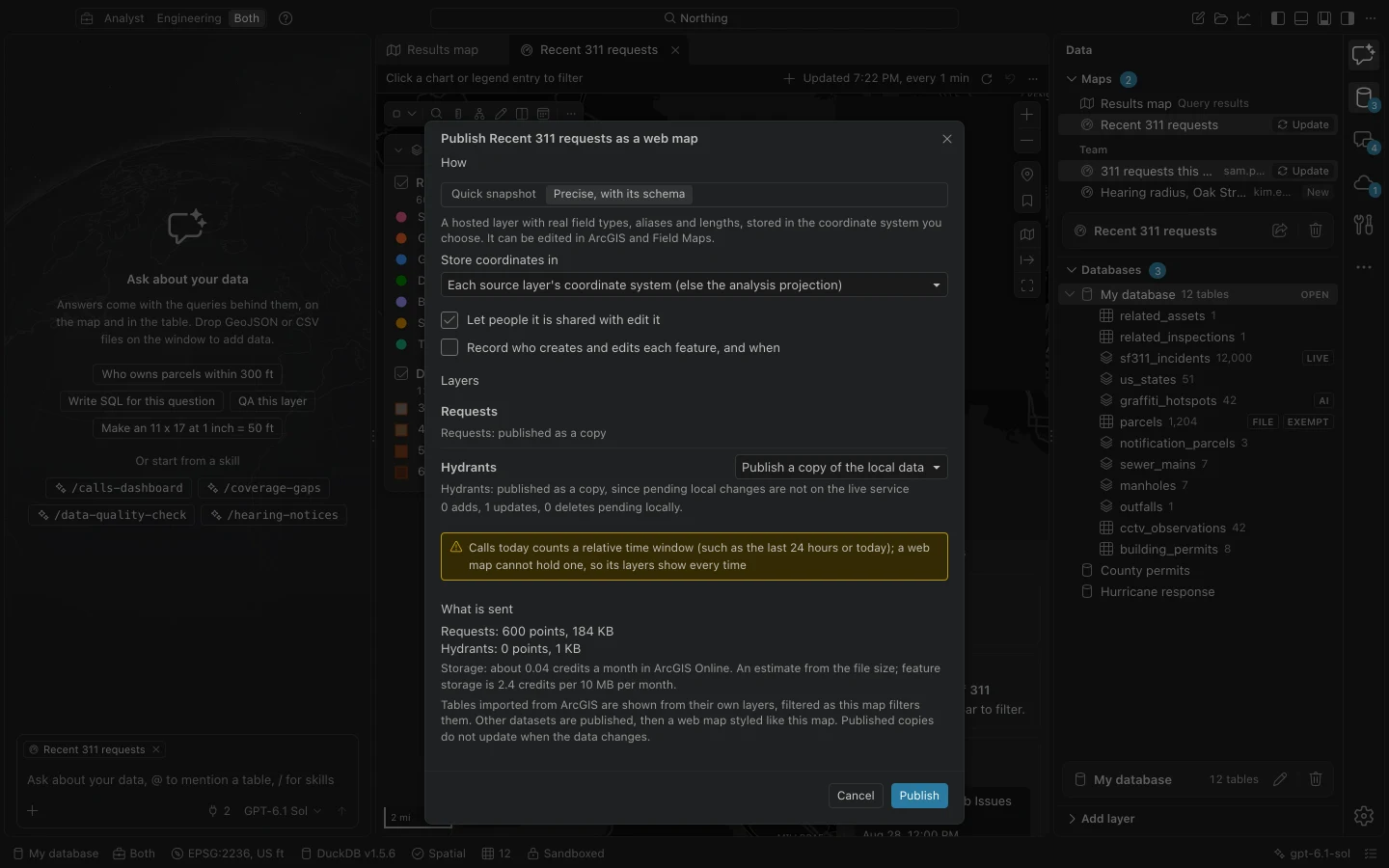
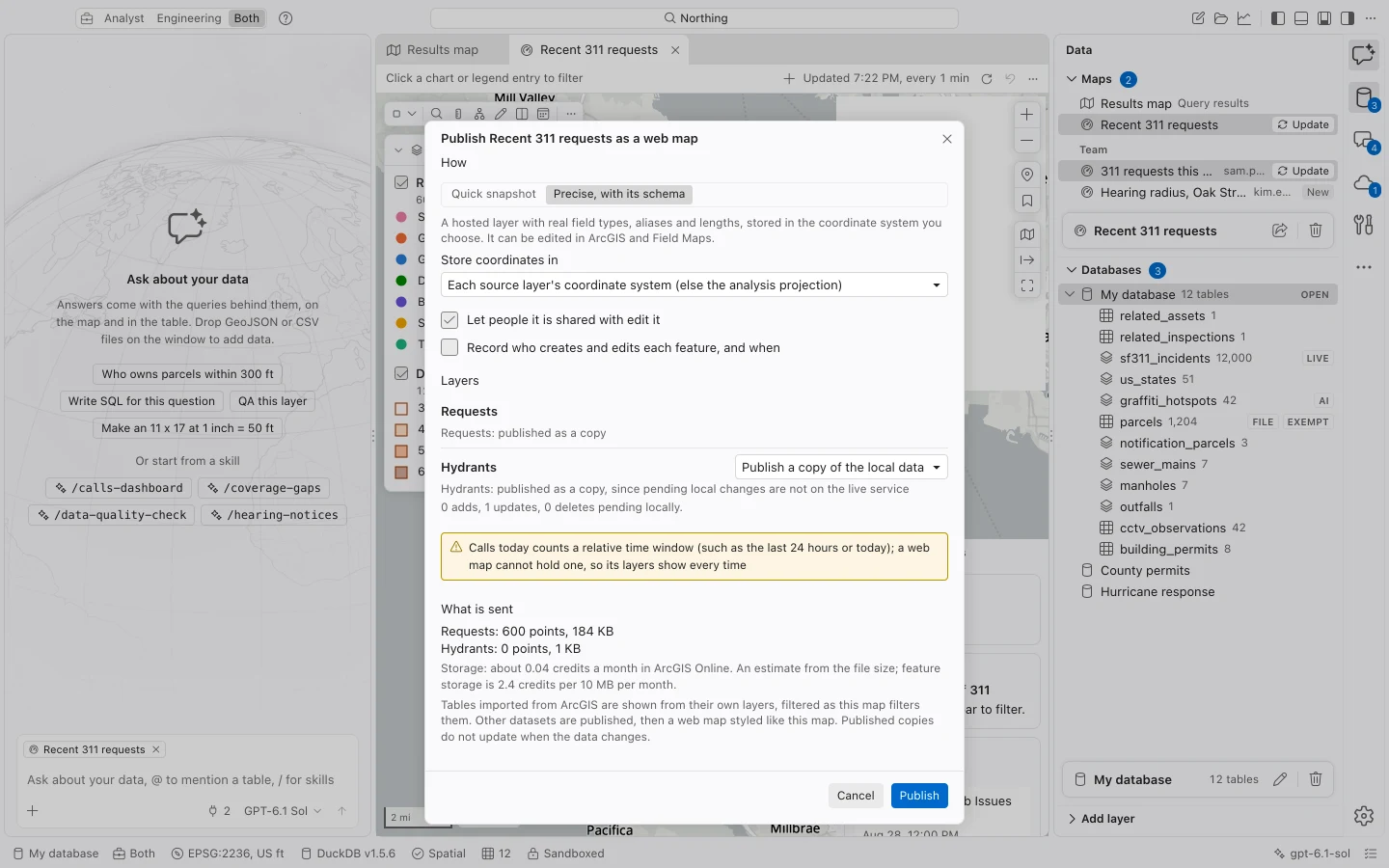
A saved map can combine live references and published local copies. Choose independently for each eligible layer, even when two layers use the same dataset.
| Layer choice | What a web-map reader sees |
|---|---|
| Reference the live layer | The original ArcGIS service, with a compatible definition query. Local edits that have not been pushed are absent. |
| Publish a copy of the local data | A new hosted layer containing the local result at publication time. It does not track later edits to the original service or local table. |
Layers with pending local additions, updates, or deletions default to a copy. A filter that cannot be expressed in ArcGIS SQL also requires a filtered copy containing the matching local rows. Inspect the plan if you expected to reference the original service, especially after filtering through a dashboard.
Styles, labels, pop-ups with aliases and coded-value labels, and a Home bookmark carry over. Local dashboard panels do not. Some local numeric-range, Other-slice, and point-key filters cannot carry over directly; the review warns about these cases. Compare the published map with your intended result.
Make the result visible to the right people
Section titled “Make the result visible to the right people”Only me, Organization, and Everyone set the general audience. Groups can grant access to selected portal groups where your account has sharing permission. Options depend on your ArcGIS privileges.
Layers newly created for a web map receive the same sharing as the map. Existing live layers retain their own access rules. Sharing a web map with a group does not automatically grant that group access to a referenced layer. Resolve readability warnings by changing the source’s authorized sharing, publishing an appropriate copy, or narrowing the map’s audience.
Storage can consume ArcGIS Online credits. The dialog estimates storage for copied data; a reference avoids uploading that layer again. Check your organization’s current credit arrangements before a large publication. Actual charges depend on your organization’s credit arrangements and stored data.
Create a view or an app
Section titled “Create a view or an app”For a hosted layer you own, Make a hosted view of it creates a separately shared view with selected fields and a filter. A view reads its source without making a second data copy. Use it when colleagues need a restricted slice of a maintained hosted layer.
After publishing a web map, you can choose Create an Instant App using the Basic or Sidebar template when supported by the portal. Open Experience Builder and Open StoryMaps take you to those browser tools to build a presentation around the map.
Monitor and recover
Section titled “Monitor and recover”Publication runs as a job. Hide dismisses the dialog while work continues. Stop requests cancellation and cleanup of items created by that publication. A failure also attempts to remove those new items; the original layers are not overwritten.
If publication is unavailable, read the reason before changing data. Common causes are a missing sign-in, insufficient publishing privileges, a sharing restriction, or an incomplete plan. For a connection failure, inspect the job and portal before starting again so you know whether cleanup completed.